Turn a blog list into a category archive
Your Blog page shows every post. A category archive shows only the posts of the category in the address: /category/design/ lists your Design posts, /category/news/ your News. You build it from the same blog list, with three changes in Etch. The pictures use Blog Trento; every EtchwpKits blog list works the same way.
| Blog page | Category archive | |
|---|---|---|
| Where it lives | An ordinary page you create | Etch's Category Archive template, used for every category |
| What it lists | Every post, newest first | Only the posts of the category in the address |
| Posts per page | The number on the loop | Settings → Reading → Blog pages show at most |
| Heading | Your own text | The category's name |
Pasted unchanged into the archive template, a list still shows every post on every category page, under the intro's placeholder headline. That is expected until you make the three changes below.
- Note your number under Settings → Reading → Blog pages show at most (10 unless you changed it). See The Reading settings.
- Pagination needs the EtchwpKits Companion plugin, as on your Blog page.
- Does your site use a page cache? You will purge it at the end.
In Etch's template manager, under Taxonomies, edit the Category Archive template. Paste the blog list inside main, between your header and footer. Etch uses this one template for every category, so you do this once.
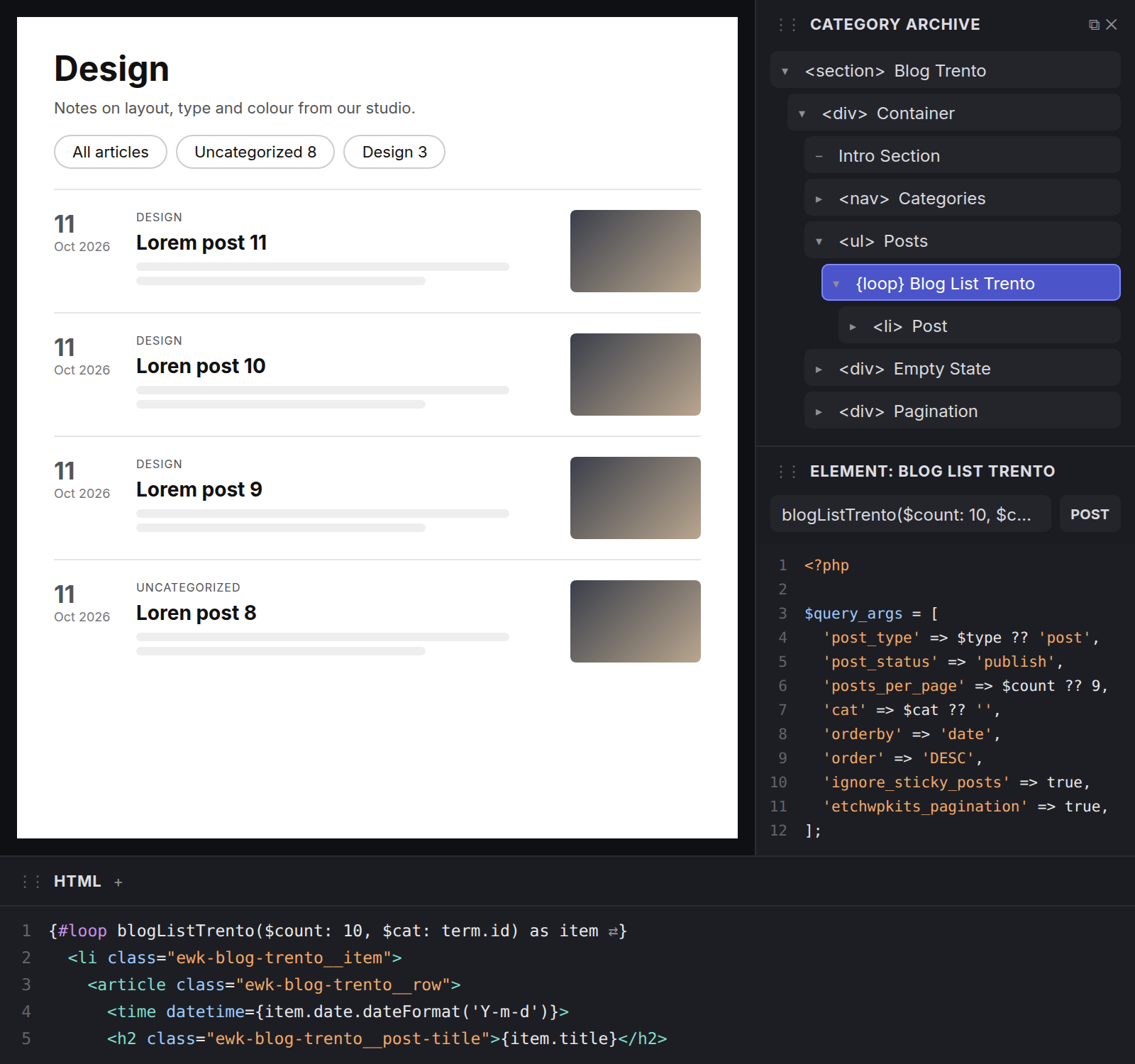
In the structure panel, select the loop Blog List Trento under Posts. The first line in the HTML editor reads:
{#loop blogListTrento($count: 9) as item}Change it to:
{#loop blogListTrento($count: 10, $cat: term.id) as item}term.id is the category in the address, and 10 is your number from Settings → Reading. Type the dollar signs: Etch passes only $count and $cat to the loop.
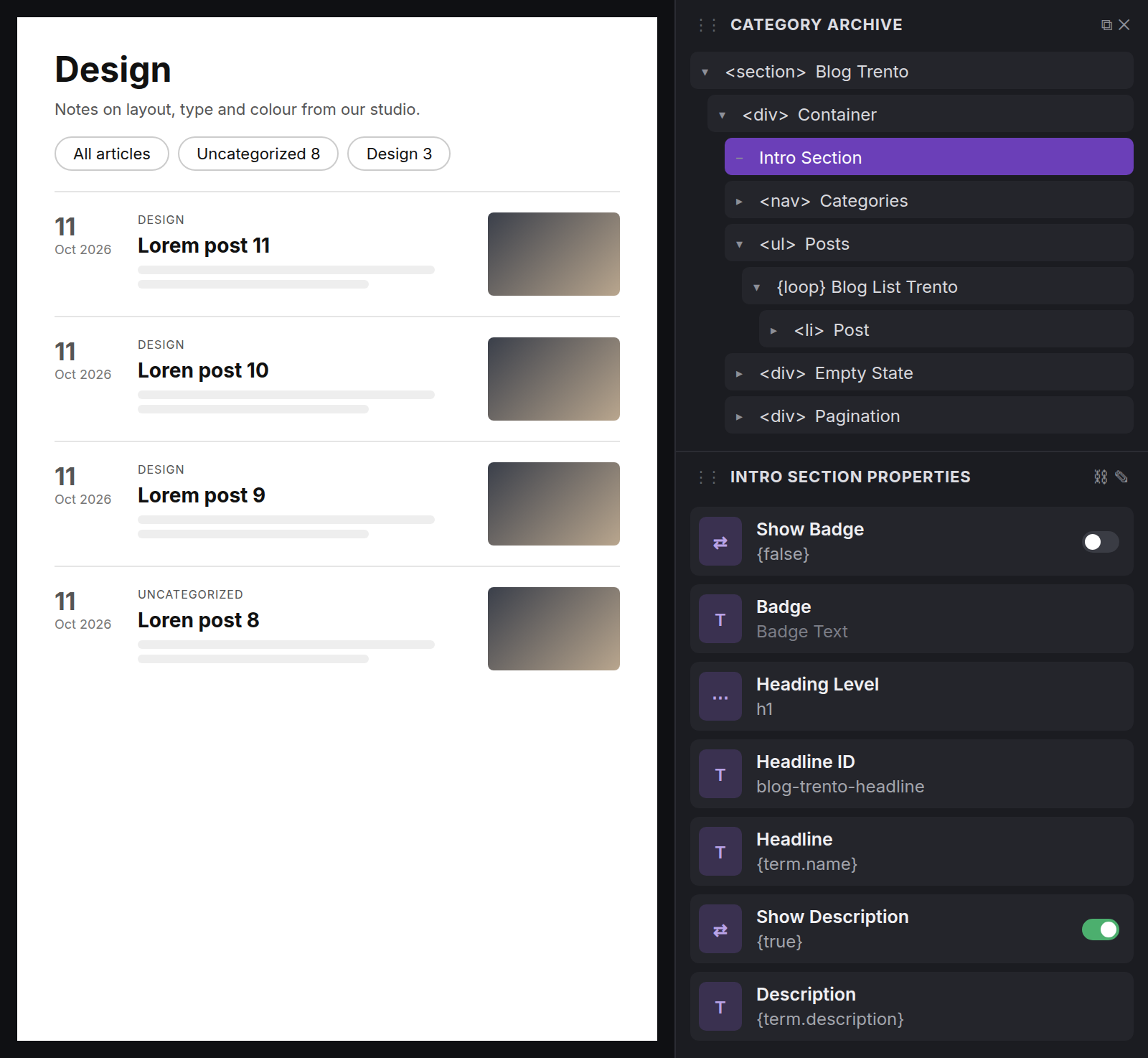
Click the intro once, in the canvas or on the Intro Section row in the structure panel. Its properties panel, Intro Section Properties, sets this copy only. Grey values are the defaults showing through until you type your own.
- Headline:
{term.name} - Description:
{term.description} - Show Badge: off, or on with a text of your own in Badge, such as Category
- Show Description: off if your categories have no description
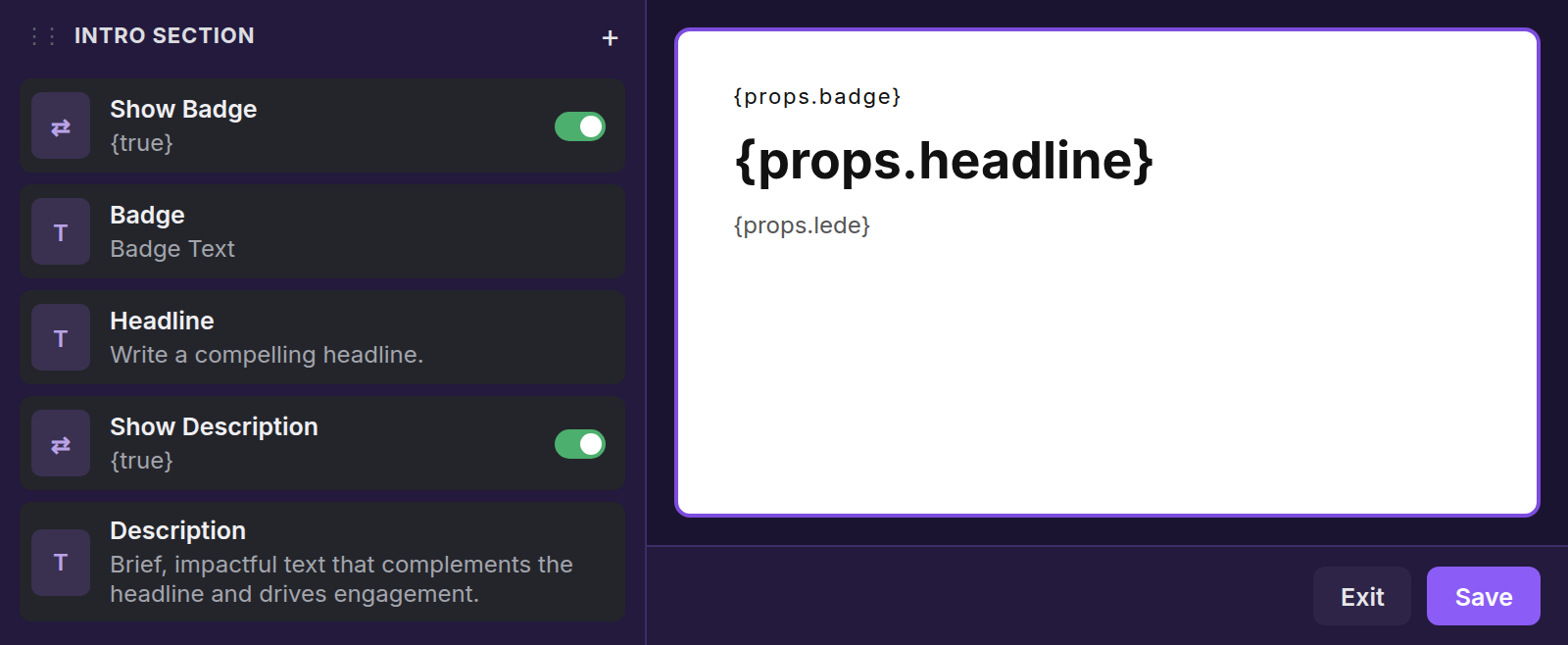
Did it happen? Open the component editor again and put the defaults back:
- Show Badge: on
- Headline: Write a compelling headline.
- Description: Brief, impactful text that complements the headline and drives engagement.
Click the purple Save, then Exit, and set the archive's values on its copy as above.
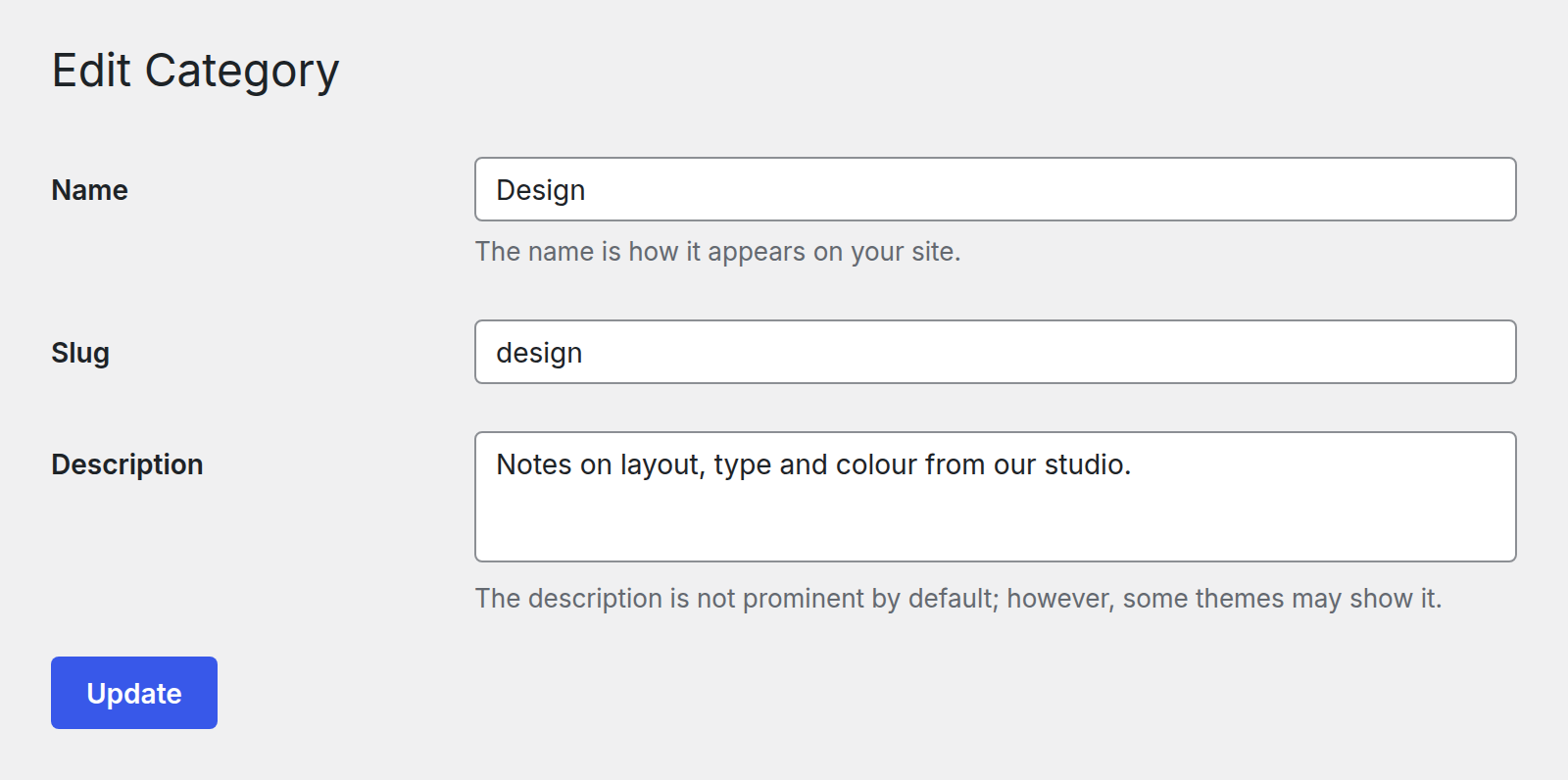
The archive's heading is the category's name exactly as it is written in WordPress, so name it Design rather than design. The description shows under the heading. Edit both under Posts → Categories. The slug, and with it the address, can stay as it is.
Save the template
Save the Category Archive template with Etch's usual Save.
Purge the page cache
A page cache, such as LiteSpeed Cache, keeps showing the old category pages until you purge it. In LiteSpeed Cache that is Purge All in the admin bar.
Open a category on your site
Open
/category/design/, or click a category button on your Blog page. You should see the category's name and description, only its posts, and page links once it has more posts than your Reading number.
Are your posts a post type of your own, such as blog with an archive? Paste the list in that post type's Archive template and pass the type instead of the category:
{#loop blogListTrento($count: 10, $type: "blog") as item}A post type archive has no category, so keep a headline of your own in the intro.
| What you see | What to do |
|---|---|
| Every category page lists all posts | The loop line misses $cat: term.id. See step 2. |
| Page 2 shows the same posts as page 1 | The loop was switched to Etch's Main Query. Switch back to the list's own loop and add $count and $cat as in step 2. |
| The heading says Write a compelling headline. | The intro was not set on this copy. See step 3. |
| Intros on other pages lost their heading | {term.name} went into the component editor. Put the defaults back, as under step 3. |
| Nothing changes after saving | Purge your page cache, then reload. |
| The last page numbers are empty or missing | The number on the loop differs from Settings → Reading → Blog pages show at most. Make them the same. |
| The count does nothing | A dollar sign is missing: write $count and $cat, not count and cat. |
| /blog/category/design/ is not found | Categories live at /category/design/ unless you set a category base under Settings → Permalinks. The category buttons always link the right address. |
Still stuck? Contact us with the address of the category page and a screenshot of the loop line.