Getting started with the Companion plugin
The EtchwpKits Companion plugin brings the whole EtchwpKits library into the Etch builder. Connect your site once, set your class prefix, and every component you insert arrives looking hand built for that client. This page takes you from download to your first insert in about five minutes.
Without the plugin you copy a component on etchwpkits.com and paste it into Etch. With it, the library lives in a panel right inside the builder, and a few extra tools come along:
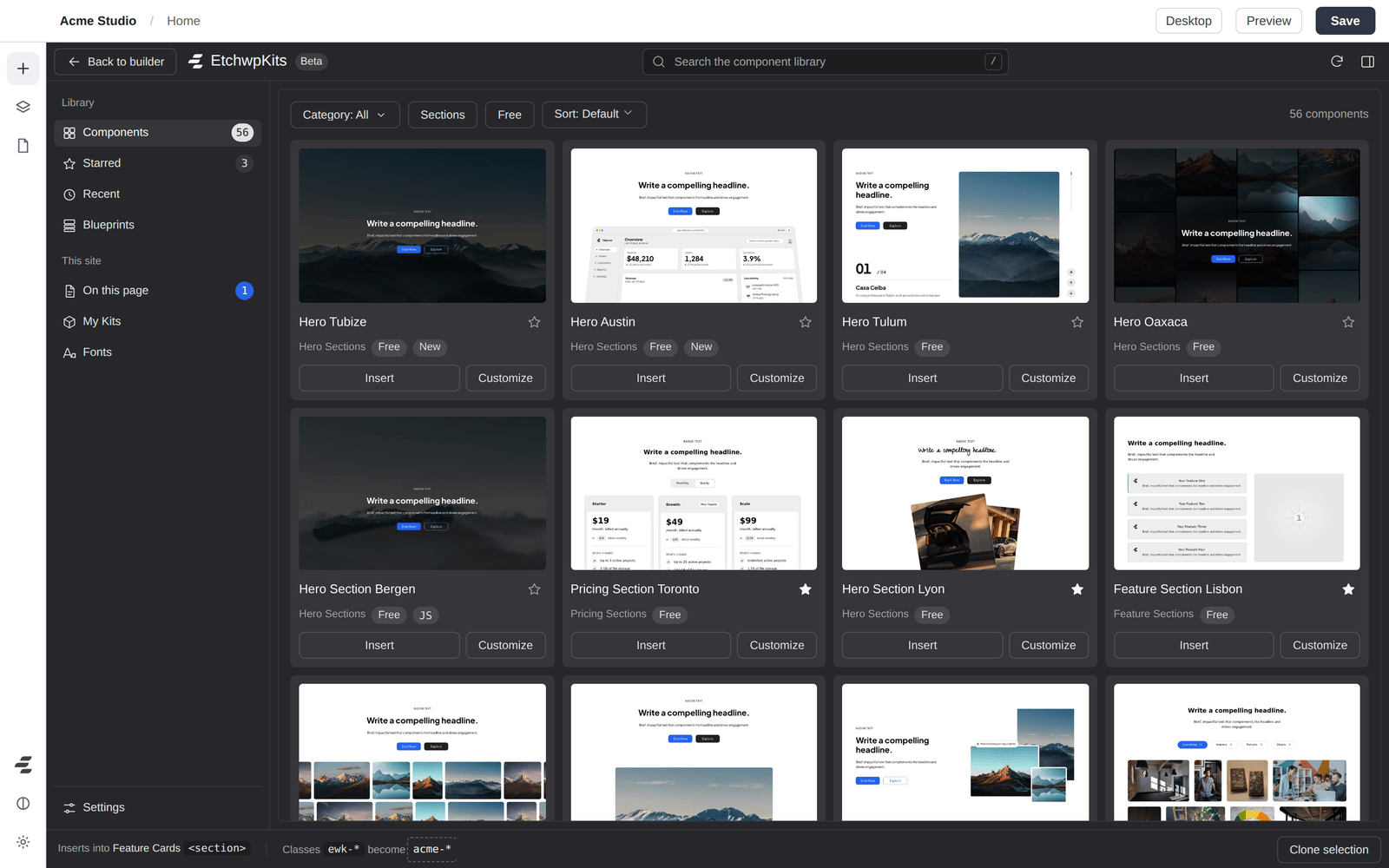
- The library inside EtchSearch, filter and insert components without leaving the builder. No copy and paste.
- Your class namesEvery insert arrives renamed to your client's prefix, or to names you choose.
- Clone any sectionDuplicate a section with its own classes, so restyling the copy never touches the original.
- On this pageSee which components each page uses, hear when one gets an update, and update it in place.
- SwapReplace a component on the page with another one and keep your headings, texts, buttons and images.
- BlueprintsSave a page you built as a blueprint, then insert the whole page again on any site in one go.
- My KitsSave blocks you built and reuse them on every site you connect, and add your CSS snippets in one click.
- Share with clientShare a page as a private link on your own site. Your client pins comments to it, checks each fix and approves it.
- Brand kitA brand guide made from the site, with its logo, colors and fonts, shown to your client beside the page you share.
- SEOTitles, descriptions and checks for every page, with schema, a sitemap, a map of your links and redirects.
- Local Google FontsServe your Google Fonts from your own site instead of from Google's servers.
- The Font ManagerInstall Google Fonts or your own, tune how each loads, and set the site's heading and body fonts.
- A contact formA spam protected contact form with a submissions inbox. No extra form plugin.
- Signed updatesNew versions arrive on the WordPress Plugins screen and are verified before they install.
Check these once and you are good to go:
- WordPress 6.5 or newer and PHP 8.1 or newer. Your host shows both under Tools → Site Health → Info.
- The Etch builder, installed and active. The panel lives inside Etch, and the plugin's screens tell you if Etch is missing or turned off.
- An EtchwpKits account. Any account works during the beta: the plugin is free for everyone, with every component and every tool (see what changes after the beta).
- An administrator login on the WordPress site. By default only administrators see the plugin's screens and panel.
- https on the site, for one-click connect. Local development sites (for example
mysite.local,mysite.testorlocalhost) are fine over plain http.
The Companion plugin is not in the WordPress.org directory, so you download it from us. Grab the latest version here, or any time from your Dashboard, Integrations tab:
You get a .zip file. Keep it zipped: WordPress installs it as is.
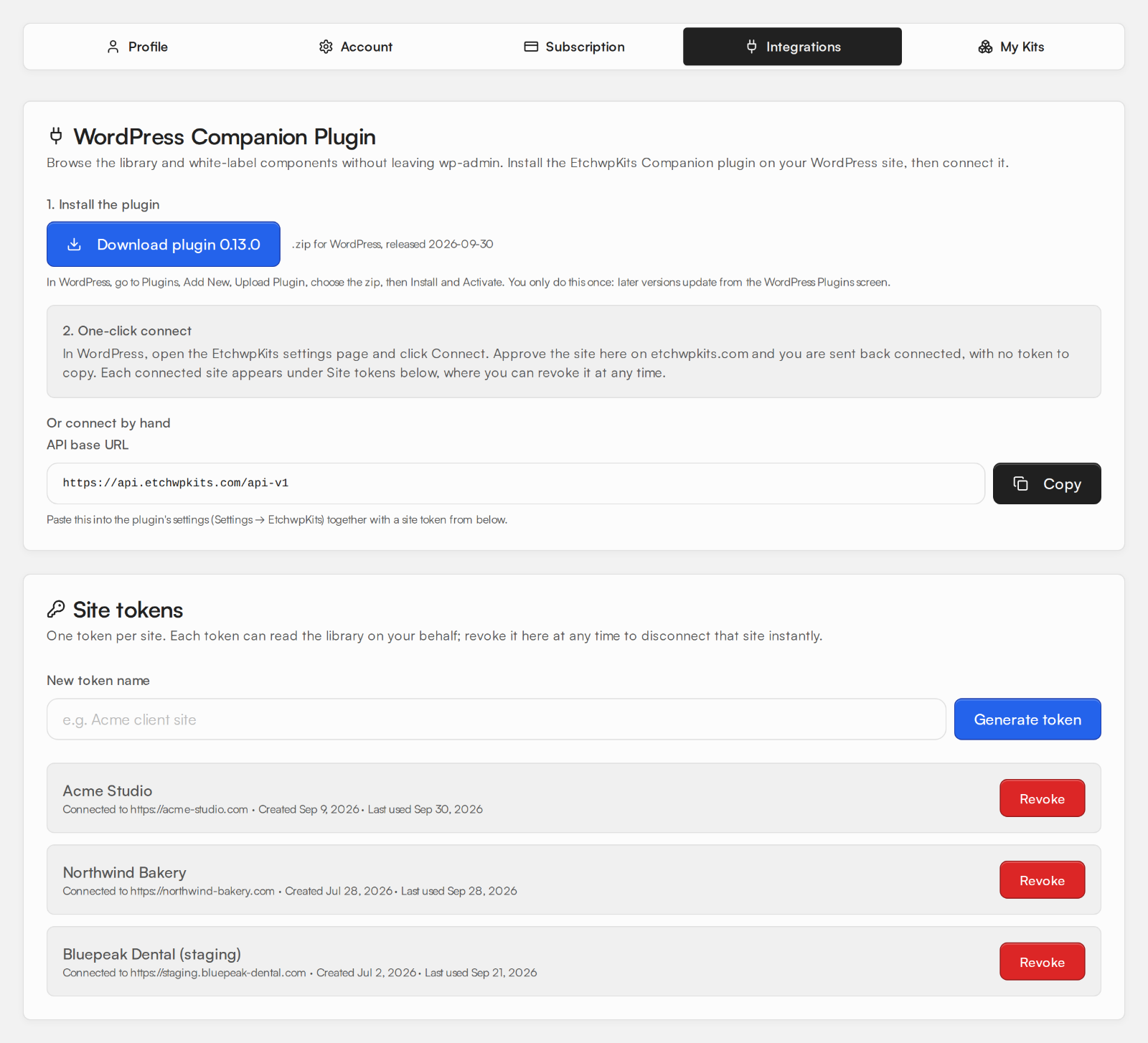
Upload the zip
In your WordPress admin, go to Plugins → Add New Plugin and click Upload Plugin at the top. Choose the zip you just downloaded and click Install Now.
Activate it
When WordPress says the plugin was installed, click Activate Plugin. A new EtchwpKits item appears in the admin menu, with Home, Tools and Plan and connection under it, and a notice reminds you that EtchwpKits Companion is almost ready.
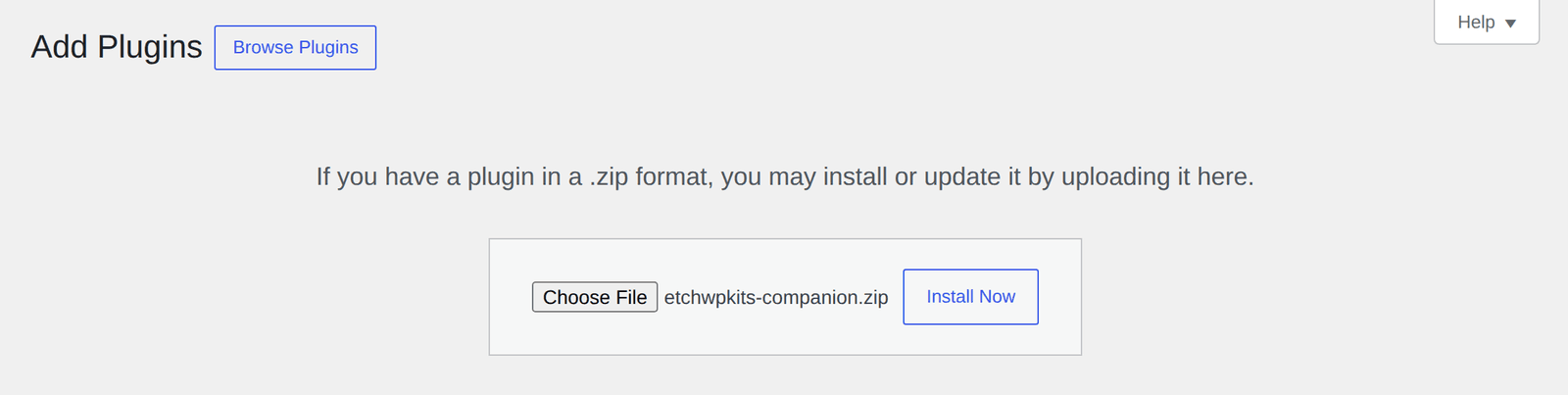
Connecting links this WordPress site to your EtchwpKits account, so the panel can show your library, your plan, your stars and your kits. There is no token to copy: you approve the site on etchwpkits.com and you are sent straight back.
What happens on each screen
Click Connect with EtchwpKits
Open EtchwpKits in the WordPress admin menu. The setup guide, or EtchwpKits → Plan and connection, says Not connected yet. Click Connect with EtchwpKits.
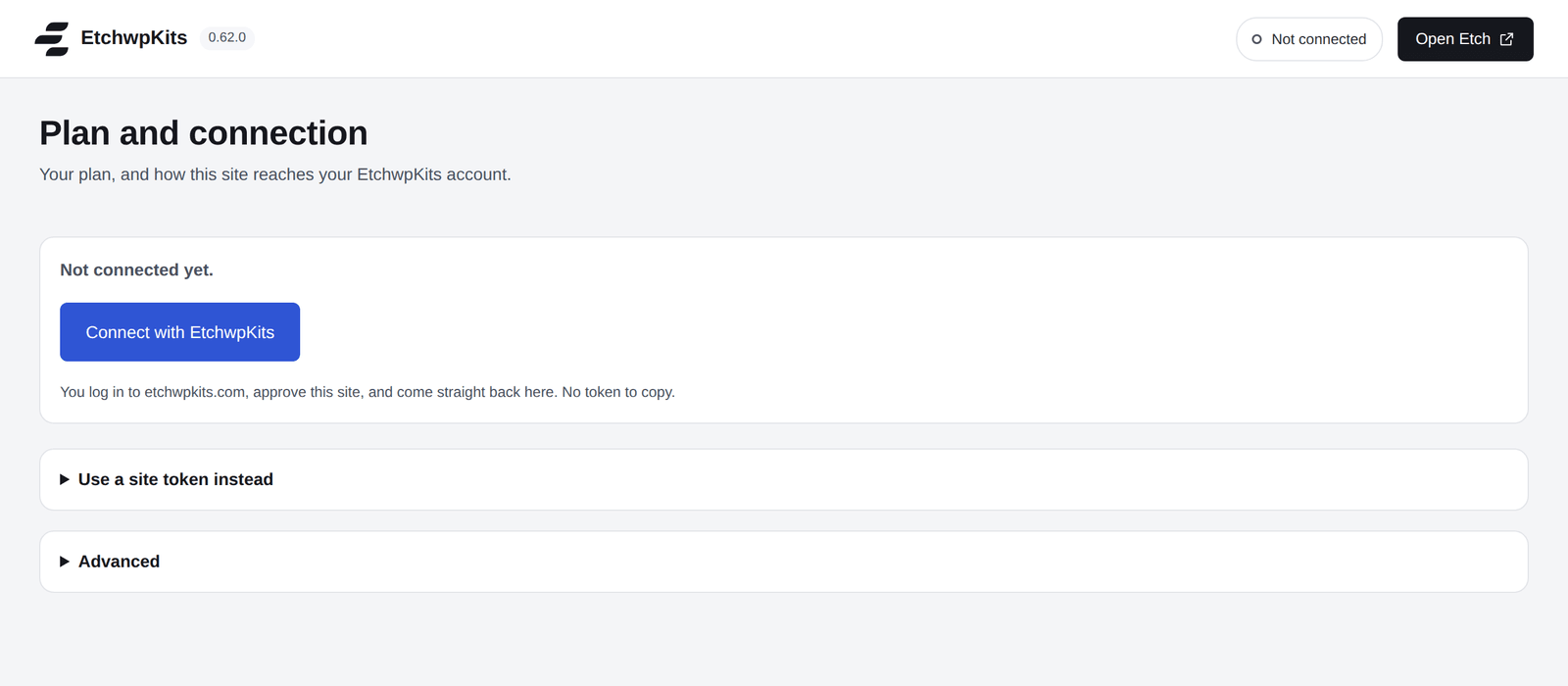
Plan and connection before connecting. Log in on etchwpkits.com
Your browser opens etchwpkits.com. If you are not logged in yet, log in (or create a free account). You come straight back to the same request afterwards.
Check the site and click Approve
The Connect a WordPress site screen shows the site that is asking, in large type, with its name and full address, plus the account it will connect to. Make sure the address is your site, then click Approve.
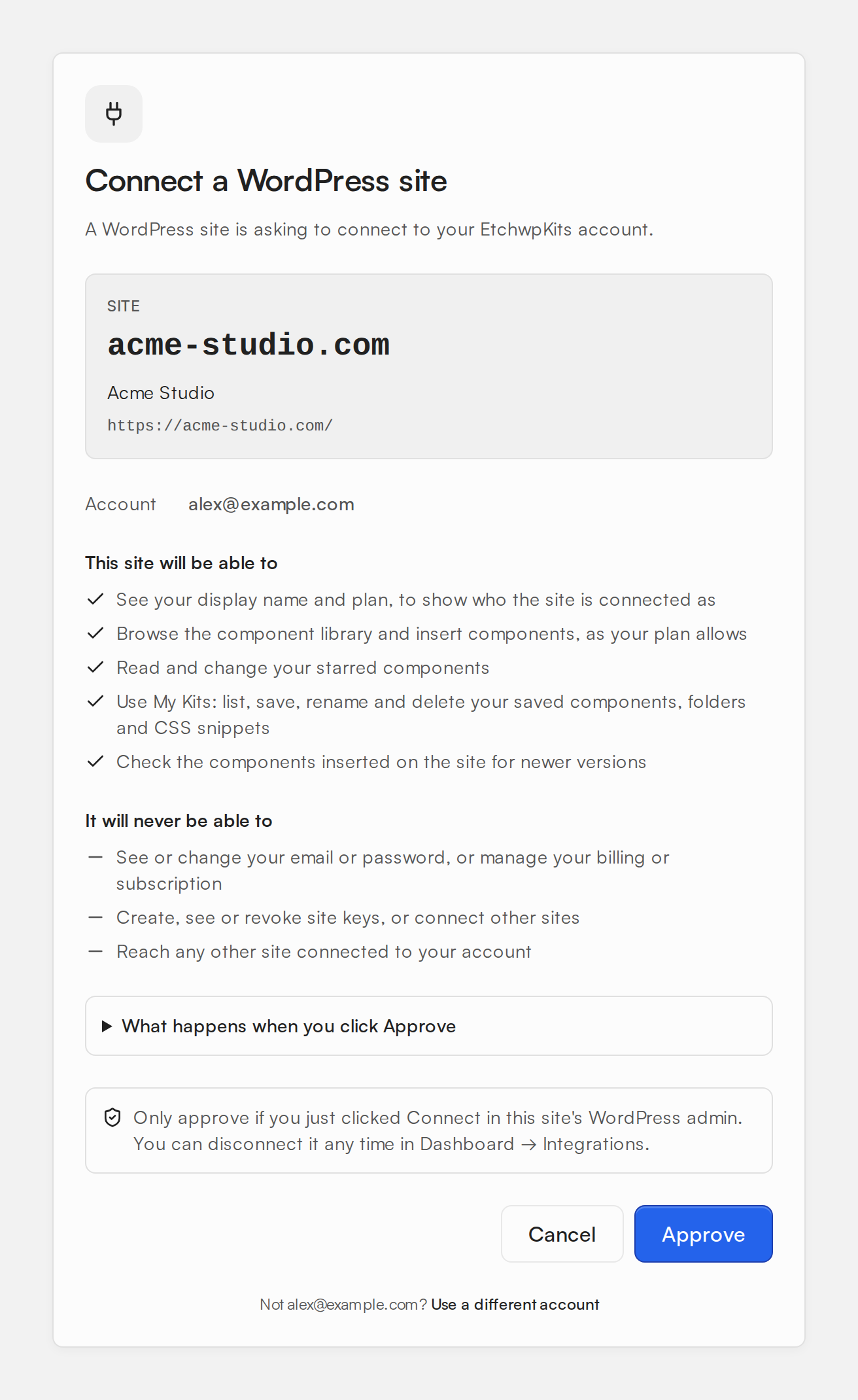
The Approve screen: always check the site address before you approve. Logged in with the wrong account? Click Use a different account at the bottom. Changed your mind? Cancel sends you back to WordPress with nothing changed.
You are back, connected
WordPress shows Connected. and Plan and connection now reads Connected as followed by your account and plan. The top bar of every EtchwpKits screen says so too. That is it.
What Approve grants
Approving creates a site token: a key that belongs to this one site and acts on your behalf. With it, the plugin can browse and insert library components that your account includes, sync your stars, check your pages for component updates and use your My Kits. It cannot see your password or payment details, and it cannot change your account.
Why your token stays safe
- It never passes through your browser. Approve only hands WordPress a single use code that expires after 10 minutes. Your WordPress server then trades that code for the token directly with EtchwpKits, server to server.
- It stays on your server. The token is stored in the WordPress database and never printed into a page. The panel talks to your own site, and your site talks to EtchwpKits.
- Each site has its own. Revoking one site never affects the others.
Disconnect or revoke a site
- From WordPress: under EtchwpKits → Plan and connection, click Disconnect this site. The saved token is removed and the library stops loading in Etch until you connect again.
- From etchwpkits.com: go to Dashboard → Integrations, find the site under Site tokens, click Revoke and then Confirm revoke. The site is disconnected instantly. Handy when you hand a site over or lose access to it.
An account can have up to 10 connected sites at a time. Revoke a site you no longer work on to make room for a new one.
Prefer to paste a token?
One-click connect needs https and the standard EtchwpKits API. If your site cannot use it, for example a plain http staging site, connect by hand:
- On Dashboard → Integrations, under Site tokens, type a name for the site (for example "Acme staging") and click Generate token.
- Click Copy. The token is shown only once, so paste it somewhere safe right away if you are not using it immediately.
- In WordPress, open EtchwpKits → Plan and connection, open Use a site token instead, paste the token into the Site token field and click Save token.
The plugin uses the standard EtchwpKits API on its own, so there is no URL to fill in. The Advanced section on the same screen is only for staging or self-hosted API setups.
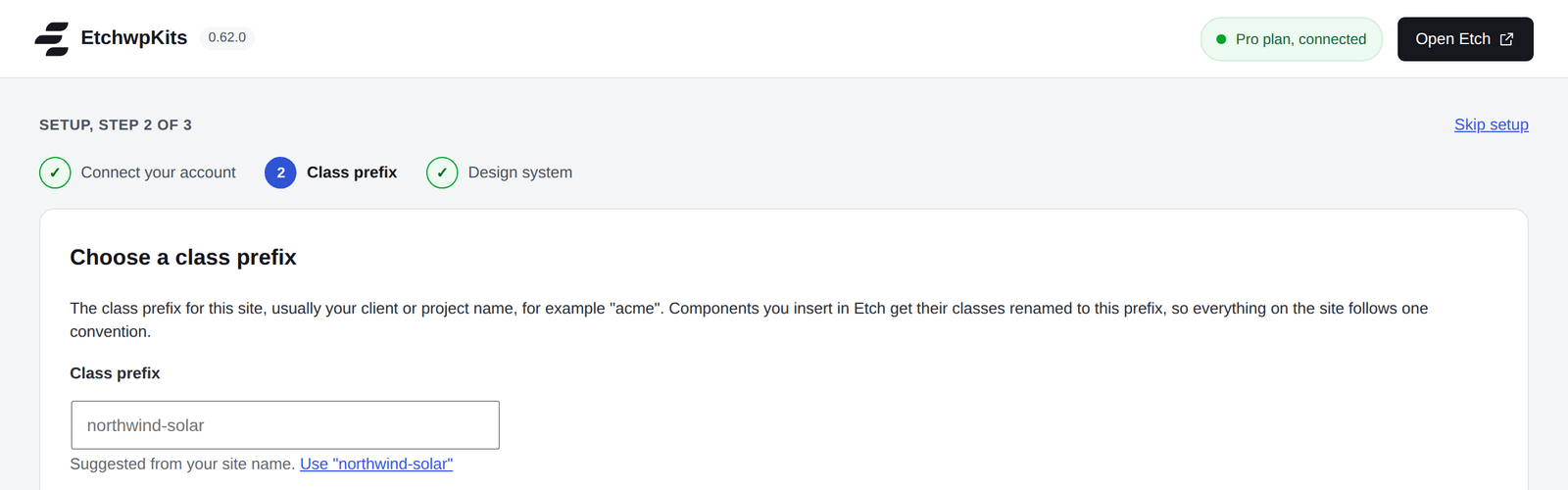
Library components use class names like ewk-hero__title. The class prefix renames them for this site as you insert, so ewk-hero__title becomes acme-hero__title. Your markup reads as if you built it by hand for the client, and every component follows one naming convention.
Pick a prefix
In the setup guide's Choose a class prefix step, or under EtchwpKits → Tools, in the Class prefix card. Use something short: the client or project name is ideal, for example
acme. While the field is empty, the plugin suggests a prefix made from your site name. Click the suggestion (for example Use "acme") to fill it in.Save
Click Save and continue in the setup guide. Under Tools the prefix saves on its own as you type, and the top bar says All changes saved. From now on every insert on this site uses the prefix.
Open any page in the Etch builder. You will find the EtchwpKits logo in Etch's left tool rail, near the bottom: click it and the library opens. You can also press CtrlShiftE (CmdShiftE on a Mac) from anywhere in the builder, and press it again to close the panel.
You are set up. Here is what to read next, in the order most people need it:
- The panel: find components fast and insert them exactly where you want.
- Customize and Clone: choose your own class names and duplicate sections safely.
- My Kits: build your own reusable library across client sites.
- EtchwpKits in wp-admin: Home, Tools and every other screen the plugin adds to WordPress.