Search appearance and sharing
Set once how every page reads in Google and when it is shared: the home page, the title format, a pattern for each kind of content and the default share image. Each page can still set its own, see SEO.
EtchwpKits → SEO → Search appearance starts with the Home page, the first thing most people see of you in Google: its Title in Google and Description, with How it looks in Google beside them and which share image it uses, with Change.
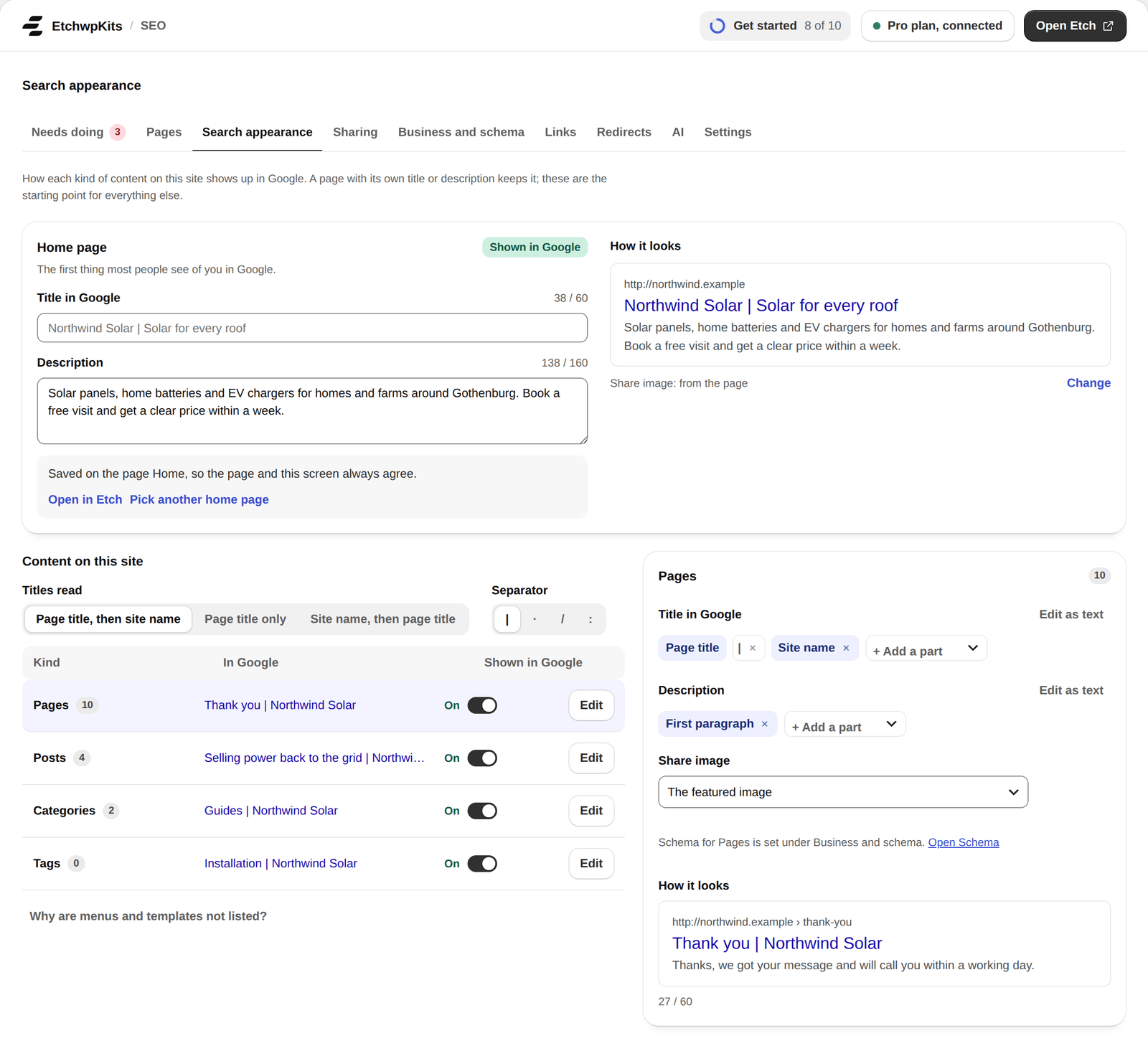
When the home page is a page, what you type here is saved on that page, so the page and this screen always agree. Open in Etch opens it, and Pick another home page goes to WordPress's Reading settings. When the front page lists your latest posts, the fields are kept here.
Under Content on this site, Titles read sets how a page's title reads when the page has no title of its own: Page title, then site name, Page title only or Site name, then page title. Beside it, pick the Separator. The site name comes from WordPress's Settings → General. Changes save as you go.
Every kind of content on the site is in one table: pages, posts, projects, categories, tags and any other public kind, with how its pages read In Google and a switch for Shown in Google.
- Edit opens a kind beside the table. Its Title in Google and Description are built from parts you take out or add with + Add a part: the page title, the separator, the site name, the category, the parent, a custom field and more. Edit as text writes the pattern yourself, with words like
{title},{sep},{site},{tagline},{parent},{category},{author},{year},{type},{excerpt}and{field:name}. How it looks shows its newest page with the pattern. - Share image: the featured image, or a custom field that holds an image.
- Shown in Google, switched off, hides the whole kind and its list from search engines and the sitemap. When the kind has pages, it says how many leave Google first, with Undo.
- Why are menus and templates not listed? says in plain words what is left out on this site, and why.
A word that comes out empty is left out with its separator, and a page's own title, description or share image always comes first. A kind left as it comes follows the title format above, and the page's excerpt or first paragraph. Schema for each kind is set under Business and schema.
A kind of page with a list of its own, like all Northwind's projects at /projects/, has a row of its own in the table, with its title and description and whether it is shown in Google. {title} is the list's own name.
Left empty, the list has no description and Google picks text from it. When a page has the same address as the list, the list takes that page's SEO and points to it.
Leave /category/ out of category addresses, under Settings → Parts of SEO → Addresses, turns /category/guides/ into /guides/, which reads better in search results and when shared. The old addresses send visitors on with a 301, so links and search results that hold them keep working. A page with the same address as a category shows the category, so give them different names.
Sharing, the next tab, is what people see when a page is shared on Facebook, LinkedIn, X or in a message, with How a shared page looks on each.
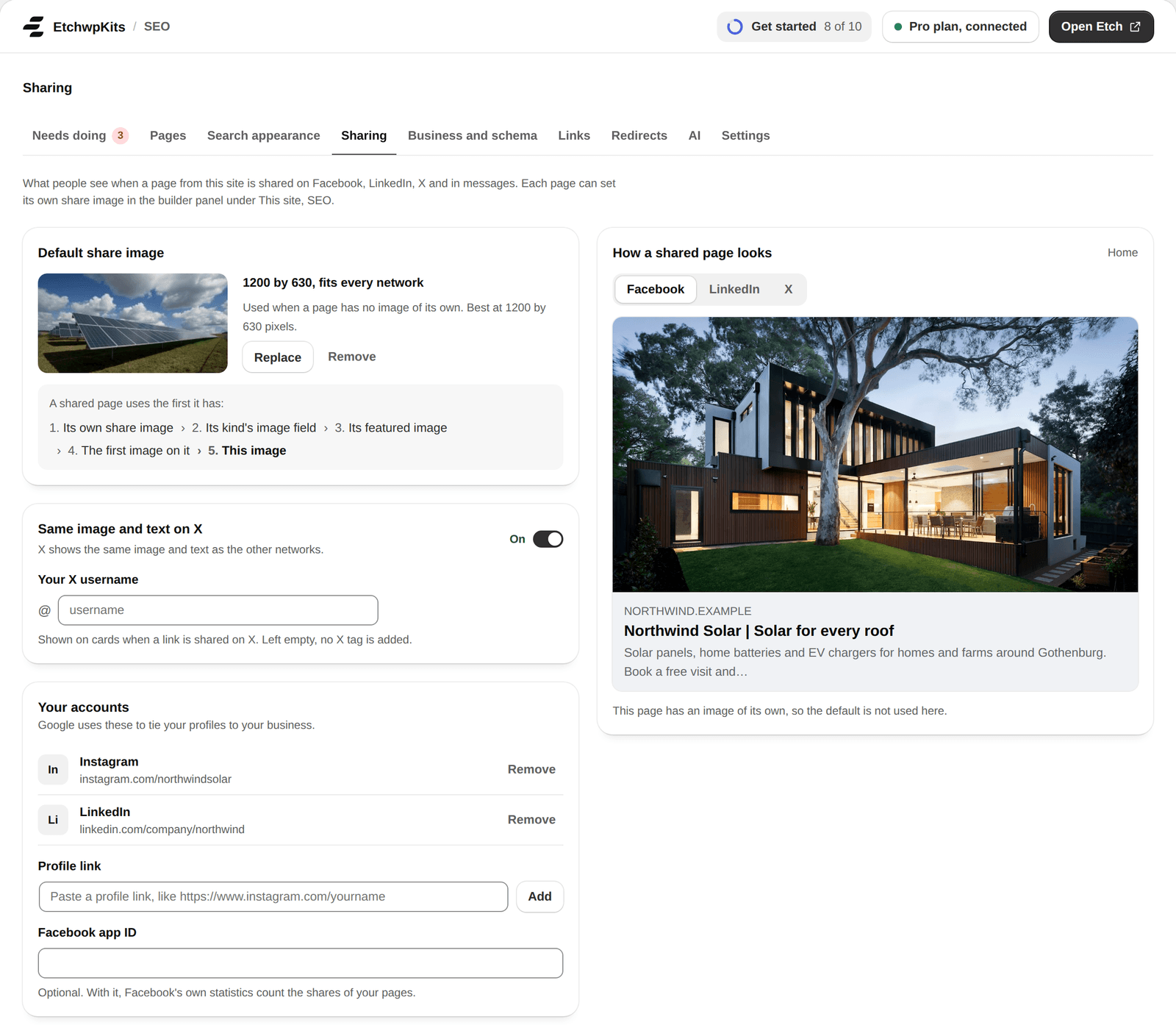
- Default share image: used when a page has no image of its own. A shared page uses the first it has of: its own share image, its kind's image field, its featured image, the first image on it, then this one. 1200 by 630 pixels works best.
- Same image and text on X: on, X shows what the other networks show. Off, choose an image of its own for X, which crops to 2 by 1, so pick one that keeps your logo in. A page can also get its own image for X under its Sharing row.
- Your X username: adds the account to cards shared on X. Left empty, no X tag is added.
- Your accounts: paste a profile link and the network is recognised, or remove one with a click. Google uses these to tie your profiles to your business.
- Facebook app ID: optional. With it, Facebook's own statistics count the shares of your pages (it is added as
fb:app_id). - How a shared page looks on Facebook, LinkedIn or X, with which image is used and why.
Your business moved to Business and schema, and the codes from Search Console and Bing to Settings.
Breadcrumbs show visitors where a page sits: Home › Services › Solar panels. Place the Breadcrumbs component from the EtchwpKits library where you want the trail, once in a template or on single pages, and the trail fills itself.
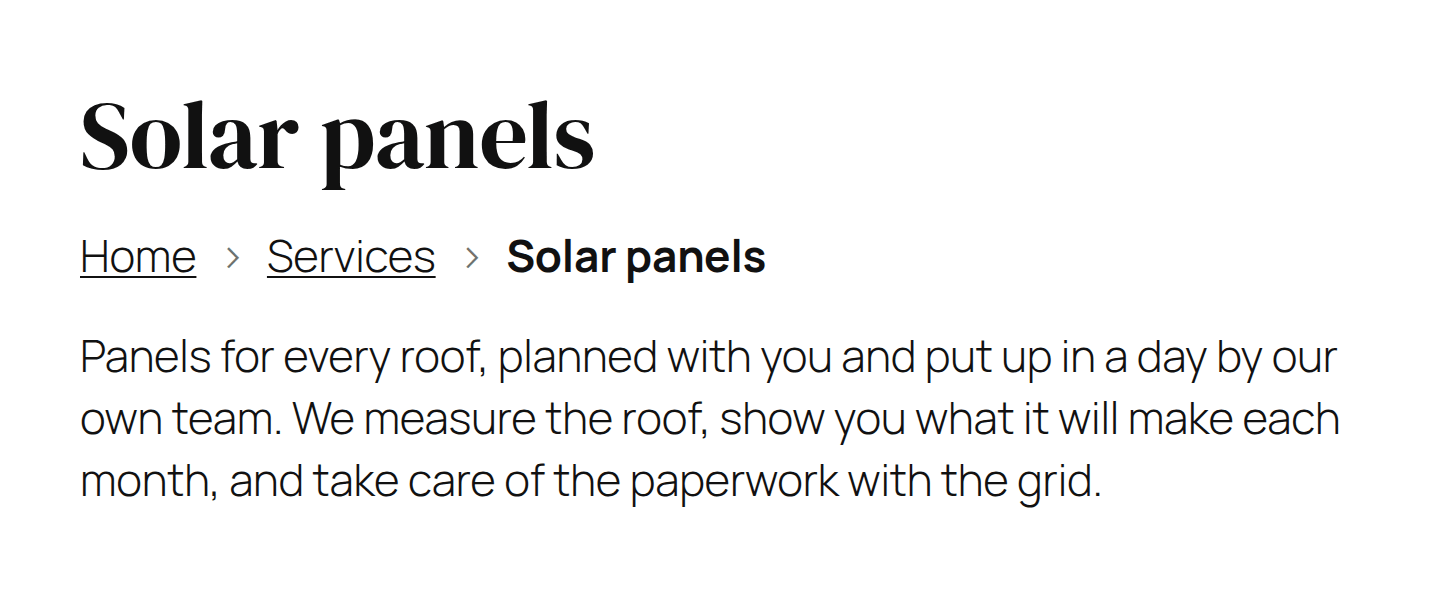
- A page shows its parent pages, top first, then itself. The front page is the Home step, never repeated.
- A blog post shows the blog page (when the site has one), then its primary category and that category's parents. Left on Automatic, a post goes through its deepest category.
- Archives, search and Not found pages show their own trail, and page 2 of a list adds Page 2.
- The last step is the page itself, without a link. The front page shows no trail.
Outside Etch, or in any theme, use the shortcode. Each attribute is optional:
[etchwpkits_breadcrumbs separator="/" home="Start" show_current="no"]| Attribute | Default | What it does |
|---|---|---|
separator | › | What goes between the steps, up to 8 characters. |
home | Home | The first step's name. |
show_home | yes | Use no to start with the page's first parent instead. |
show_current | yes | Use no to end with the parent, without the page itself. |
label | Breadcrumb | The name screen readers announce for the trail. |
landmark | yes | Use no to output only the list, when your own element is the nav. |
class | none | Extra classes on the outer element. |
The trail is a nav with a list inside, classed ewkc-breadcrumbs, ewkc-breadcrumbs__item, ewkc-breadcrumbs__link, ewkc-breadcrumbs__separator and ewkc-breadcrumbs__current. It comes with layout only, so your own styles always win. Breadcrumbs keep working with SEO switched off and without a plan, so a trail you placed never disappears from the site. The trail also goes into the schema of every page except the front page, whether or not the page shows it.
The site gets its own sitemap at /sitemap.xml, with a file for each post type and each taxonomy, split after 1,000 addresses. Each address lists when it last changed and the images on it, up to 50, so Google finds your images too. Switch off Include images, under SEO → Settings, to leave the images out.
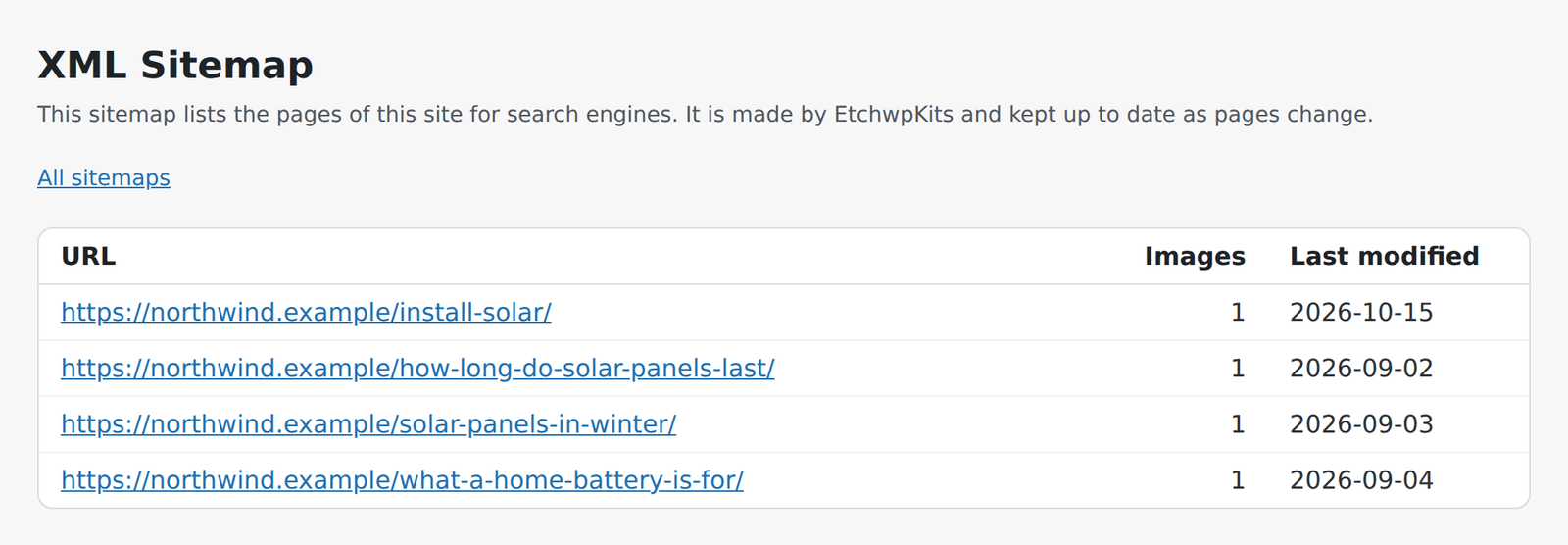
- Left out: pages hidden from search engines, whole kinds you hide, pages behind a password, empty categories and tags, and attachment pages.
/wp-sitemap.xmland/sitemap_index.xml, where WordPress and other SEO plugins kept theirs, send visitors and search engines on to it. Yourrobots.txtnames it too.- It is kept up to date as pages change. There is nothing to rebuild.
- With Polylang or WPML, it lists every language, and each page names its translations.
- Submit
https://your-site/sitemap.xmlonce in Google Search Console, under Sitemaps.
For a site in Google News, switch on the News sitemap for posts under Parts of SEO: the posts of the last two days, in Google News's own format, listed in the sitemap. It leaves out what the regular sitemap leaves out.
Lists and posts split over several pages also name the page before and after them in the head, so search engines read them as one (Previous and next page under Parts of SEO).
The sitemap needs pretty permalinks and a site that does not ask search engines to stay away (Settings → Reading). Without them, WordPress keeps its own sitemap, still without your hidden pages.
Every page search engines see is also offered as plain Markdown, for AI assistants: at its address with .md at the end (/about/ is /about.md, the home page /index.md), and at its own address to a tool that asks for Markdown. /llms.txt lists your pages and posts with their descriptions.
- The Markdown has the page's name, description and content, without menus, forms or scripts.
- Pages hidden from search engines or behind a password are left out.
- Choose which kinds of page are offered under Pages as Markdown in Parts of SEO, every kind until you switch one off.