Suggest with AI, from your own AI account
Get a good first draft of a page's title and description, sentences that fix a check, a text about your business, and a page for every address that leads nowhere, from your own AI account. Connect Claude, Gemini, ChatGPT or OpenRouter once, and Suggest with AI appears beside the fields you already use. Nothing passes through EtchwpKits, and nothing is saved until you pick a suggestion.
- You connect your AI account under EtchwpKits → SEO → AI: choose the service, paste an API key from it, and pick a model from its own list.
- Suggest with AI shows beside Title and Description in the builder panel's SEO, the block editor's SEO box and under SEO → Pages. Suggest a sentence shows beside the checks in the builder, Write with AI or Improve with AI beside what your business does, and Suggest the rest with AI under Missed pages.
- Your site asks the service directly when you press one, with the page's text, and shows three suggestions. You pick one, or ask for three more.
Without a key, everything else works as before and the buttons do not show.
Create an API key with the service
You need an account with billing set up at one of these, and an API key from it. Make a key just for this site.
The services and where their keys are made Service By Create a key at Claude Anthropic console.anthropic.comGemini Google aistudio.google.comChatGPT OpenAI platform.openai.comOpenRouter OpenRouter, which reaches many other models with one key openrouter.aiChoose the service
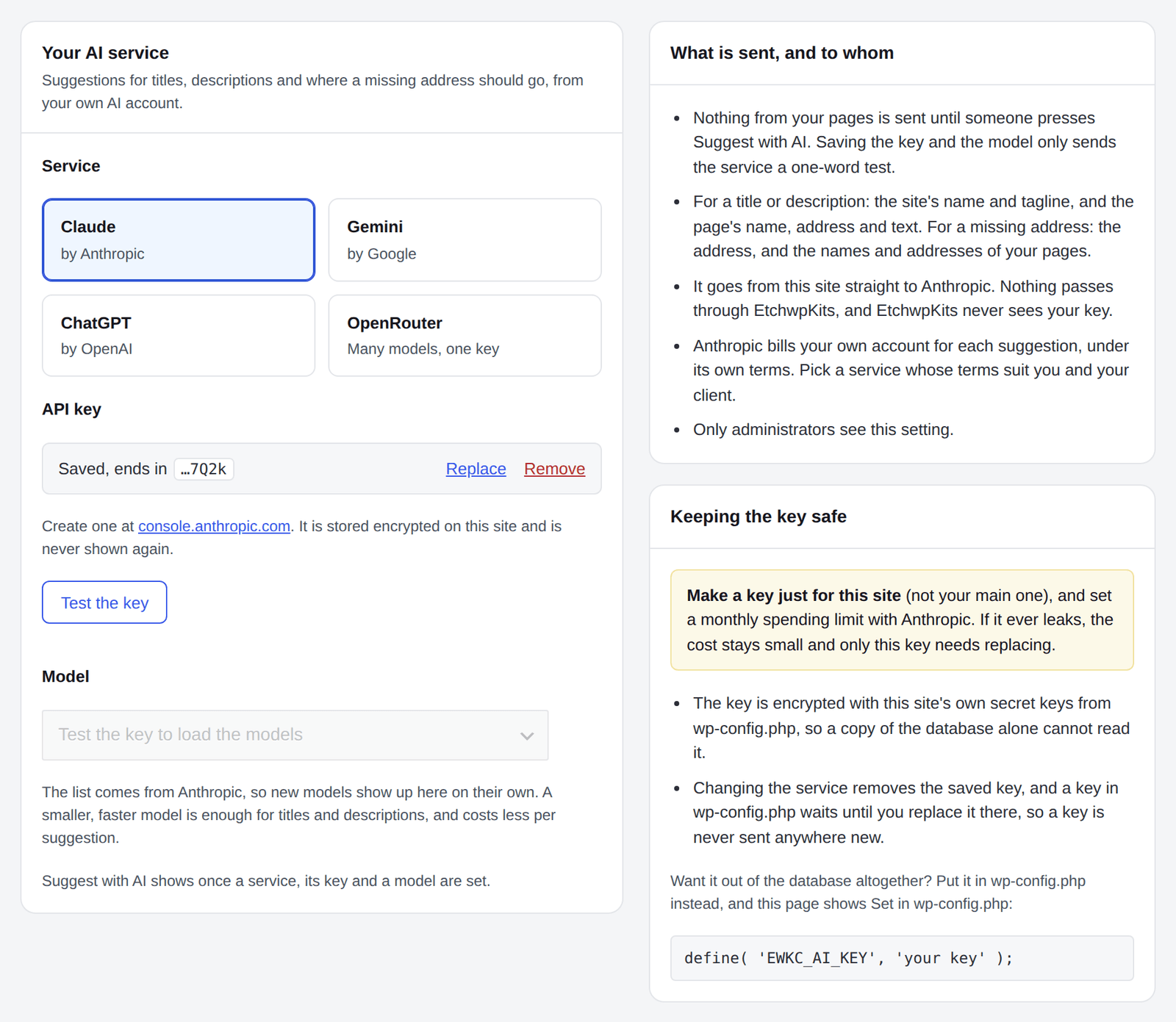
Go to EtchwpKits → SEO → AI and choose the service under Service. Only administrators see this tab.
Paste the key
Paste the key under API key and press Save key. The site tries it with the service first, then keeps it, encrypted, and loads the service's models. Afterwards only its last four characters show. Test the key asks the service again at any time.
Pick a model
Choose a model under Model. The site tries it once and keeps it when the service answers: Saved, with the service's name. Suggest with AI is on.
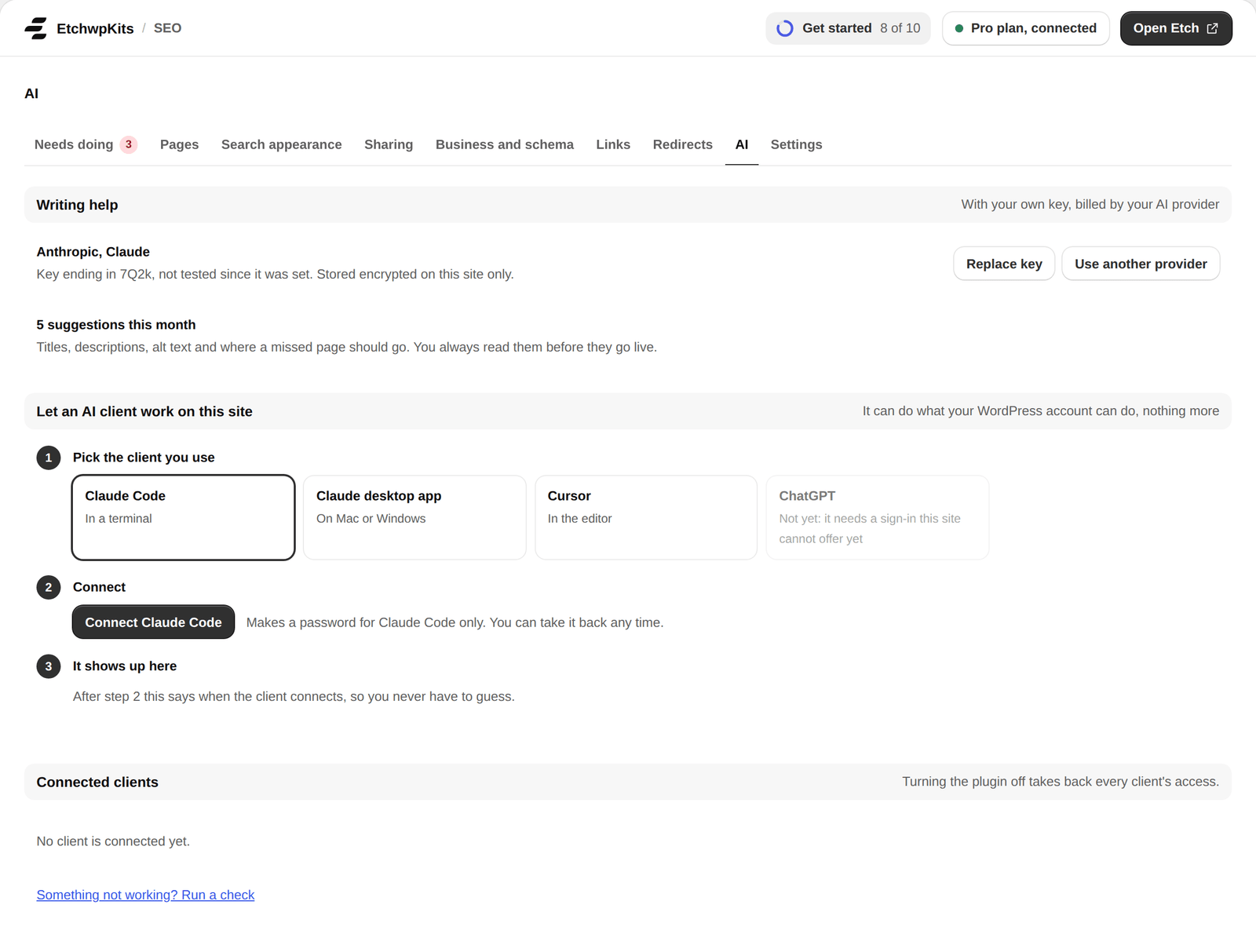
Once it is set up, Writing help on the AI tab shows the service in use, whether its key works and when it was last tested, and how many suggestions were asked for this month. Replace key and Use another provider open the settings for the key and the model again.
The list comes from the service itself, so new models show up on their own. With more than 30, a filter field above the list finds one by name.
A smaller, faster model is enough for titles and descriptions, and costs less per suggestion. A larger one is not needed for this. OpenRouter lists hundreds of models from many companies: pick one that writes text.
An API key spends money, so the plugin treats it like a password:
- It is encrypted with this site's own secret keys from
wp-config.php, so a copy of the database alone cannot read it. It never reaches the browser again after you save it, and is left out of every message. - A new key is tried before it replaces one that works, so a mistyped key never breaks the setup.
- Choosing another service removes the saved key, so a key never goes to a company it was not made for.
- The site never follows a redirect with the key, so it only ever reaches the service.
Want it out of the database altogether? Put it in wp-config.php instead, and the AI tab shows Set in wp-config.php:
define( 'EWKC_AI_KEY', 'your key' );A key in wp-config.php stays with the service it was used with. Switch to another service and nothing is sent to it until you put that service's key in wp-config.php. Switch back, and the old key works again.
- Nothing from your pages is sent until someone presses one of the AI buttons: Suggest with AI, Suggest a sentence (or a subheading, or shorter sentences) under a check, or Write with AI and Improve with AI beside what your business does. Setting up only asks the service for its list of models and sends it a one-word test.
- For a title or description: the site's name and tagline, and the page's name, address, its own title and description if it has them, and its text as a visitor sees it (up to 12,000 characters). For an Etch page that is the text of its elements and components, so the suggestions are about what the page says. A page behind a password sends no text.
- For a sentence under a check: the page's name, its focus words, the part of the page the check is about (the first paragraph, the subheadings or the long sentence) and the page's text as for a title. Suggestions already shown are sent too, so the next ones are different.
- For what your business does: the site's name and tagline, the business's name and kind, the text in the field if it has one, and the home page's text when the home page is a page of its own.
- For missing addresses: the addresses, and the names and addresses of your pages and newest posts.
- It goes from your site straight to the service. Nothing passes through EtchwpKits, and EtchwpKits never sees your key.
The service handles it under its own terms. Pick a service whose terms suit you and your client.
In the builder panel, open This site → SEO and press Suggest with AI beside Title or Description, under Edit. Three suggestions appear under the field, each with its length.
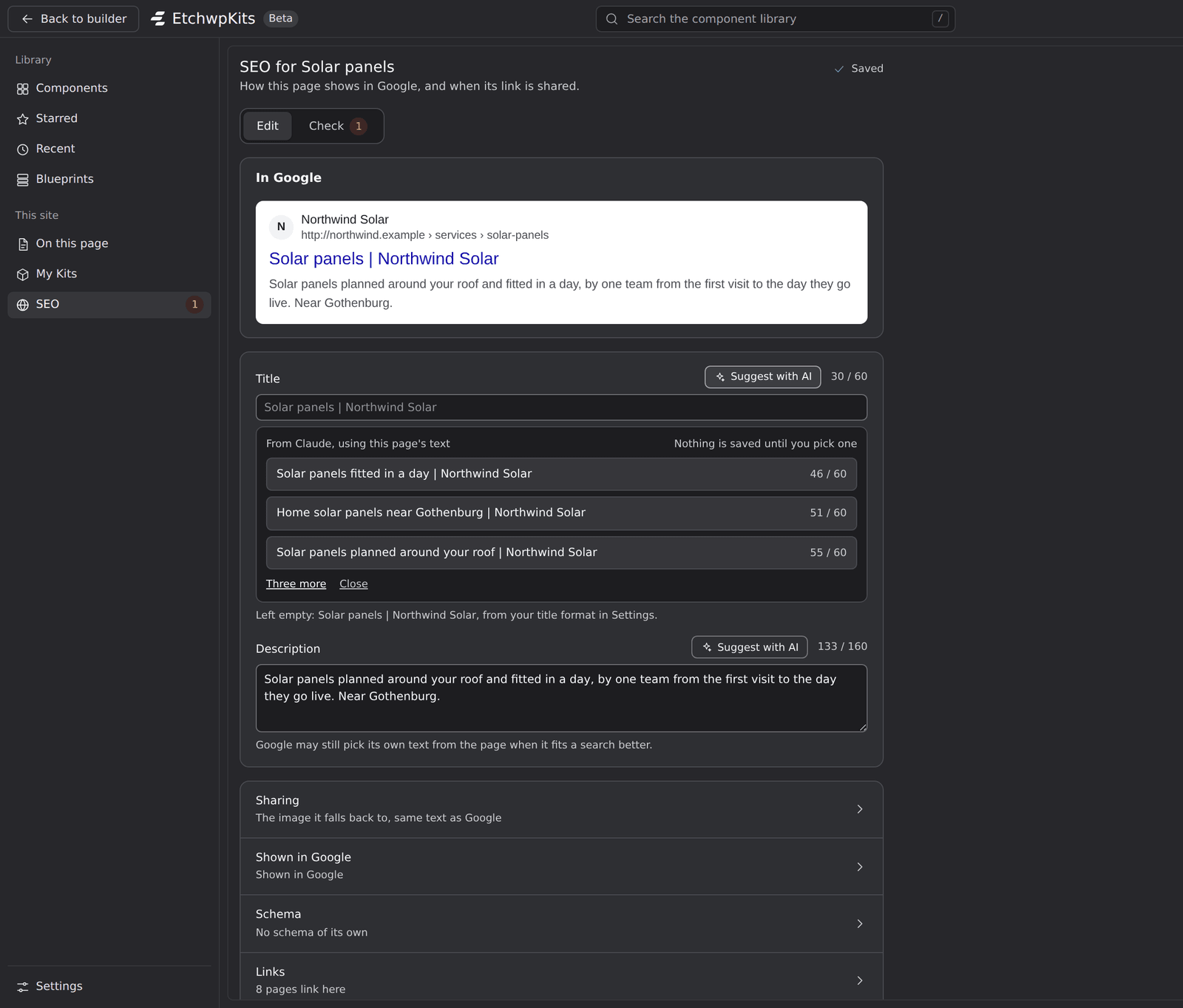
- Pick one and it fills the field as if you typed it, then saves like your own text. Change it as you like.
- Three more asks for different ones. Close or Escape closes the suggestions and keeps the field as it was.
- Titles come in your title format, with your site name and separator, and short enough for Google. For the home page, the whole title is written. Descriptions are 120 to 155 characters, in whole sentences, and never longer than 160. One that comes back a little too long ends after its last whole sentence that fits, and when too many come back too long, the AI is asked once more. A title longer than Google shows is left out the same way.
- Suggestions are written in the language of the page.
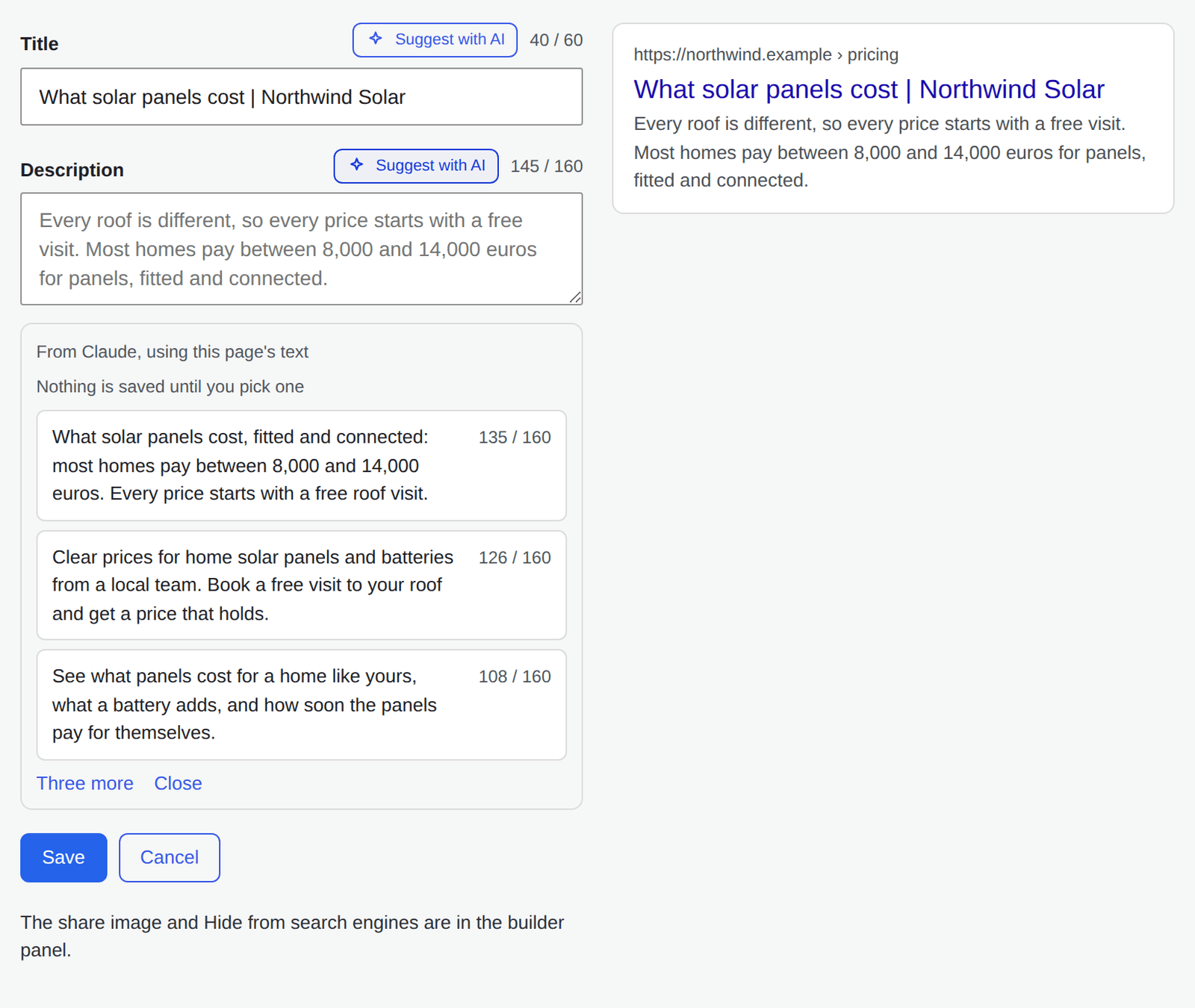
It works the same under SEO → Pages: press Edit on a row, then Suggest with AI. There, a pick fills the field and Save keeps it.
In the block editor, Suggest with AI sits beside Title and Description in the SEO box (or the SEO panel in the sidebar), with the same three suggestions and Three more. A pick fills the field, and the post's own Save keeps it.
- Suggest a sentence, Suggest a subheading and Suggest shorter sentences sit beside the checks under Check in the builder. Each gives three to copy and put on the page in Etch. See Suggest a sentence.
- Write with AI and Improve with AI sit beside What the business does under Business and schema: three short texts from the home page's words, or your own text improved with its facts kept. See Your business.
Nothing is saved, and nothing on a page changes, until you pick or copy one.
At the top of SEO → Pages, Suggest with AI writes for every published page, category or tag still without its own title or description:
- Choose Descriptions, Titles or Titles and descriptions, and the kind of page (pages, posts, categories, tags and the site's other kinds).
- Press Find pages. AI writes one for each, from its own text, in its language and at the length Google shows.
- Check them all in a list, change what you want and untick what you do not keep. Nothing is saved until you press Save.
Pages hidden from search engines are left out. Each page is one request to the service, on your own account. It is for administrators only, and does up to 150 pages every ten minutes, then pauses until you continue.
Missed pages already suggests a page for addresses whose words match one. For the rest, press Suggest the rest with AI at the top of the list. The service reads each address, and the names and addresses of your pages, and names the page it most likely meant, with a few words why.
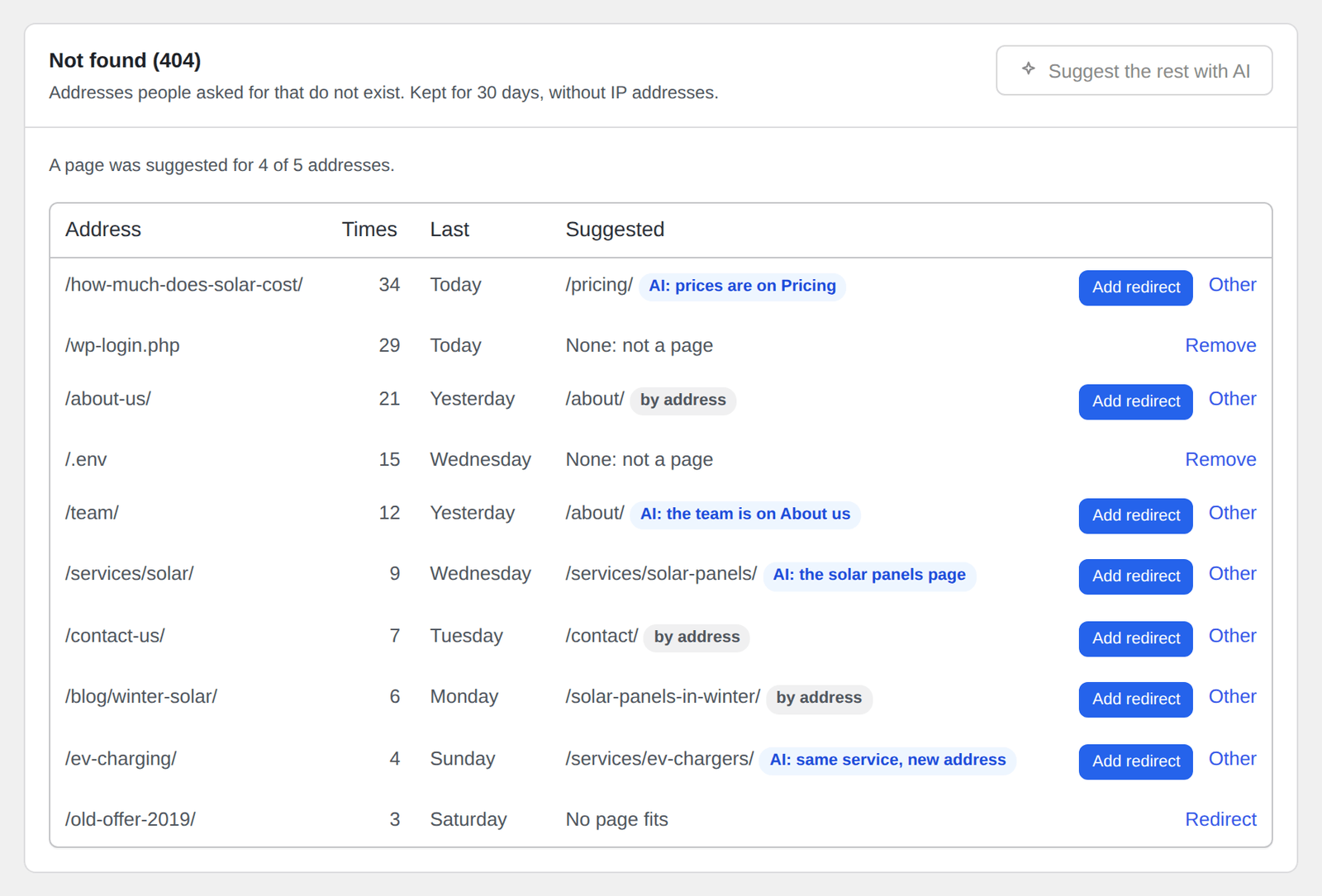
- Every answer is one of your own pages. An address the service makes up is dropped, and an address no page fits reads No page fits.
- Add redirect adds the 301 in one click, and Other lets you choose another page.
- One press asks about up to 30 addresses. With more on the page, press again for the rest. Addresses that are not a page are never sent.
- The answers stay while you page through the list, until you reload it.
The AI tab also lets an AI client of yours work on the site's SEO, under Let an AI client work on this site:
- Pick the client you use: Claude Code, the Claude desktop app or Cursor.
- Press Connect, and paste what is shown into the client. A password is made for that client only.
- It shows up here: the page says as soon as the client connects, and how many tools it sees.
- The client can do what your WordPress account can do with SEO, nothing more: its password works for the SEO tools only, not for the rest of WordPress.
- Connected clients lists each one with when it was last used, and Take back access. Run a check says what a client needs and whether this site has it. Turning the plugin off takes back every client's access.
- Connecting a client needs an active plan, WordPress 6.9 or newer and the site on HTTPS. On a network, EtchwpKits must be network activated.
Prefer to set it up by hand? See AI agents.
Each user can ask for 40 suggestions in 10 minutes, so a misused account cannot run up your bill. Past that, the plugin says to wait a few minutes. When the service cannot help, the message says why, in plain words:
| Message | What to do |
|---|---|
| The service did not accept the key | Check the key, or create a new one, and paste it again. |
| The account has no credit left | Add credit with the service, or raise its spending limit. |
| The service does not have that model for this key | Choose another model under SEO → AI. |
| The service is busy, or the account reached its limit | Try again in a moment. |
| The service took too long to answer | Try again, or choose a faster model. |
| The service declined to suggest for this page | Try again, or write it yourself. |
- Only administrators see the AI tab. Everyone who may edit a page's SEO can use Suggest with AI on it, within the limit per user.
- Like every EtchwpKits tool, AI suggestions need an active plan once plans start (see plans). Without one, the buttons hide and the key stays saved.
- The category screens have no Suggest with AI: use the builder panel, the block editor or SEO → Pages.
- Remove the key under the AI tab to stop Suggest with AI. Deleting the plugin removes the key along with the rest of its data.