SEO settings: the sitemap, search engines, moving SEO and who gets the box
EtchwpKits → SEO → Settings holds what you set once, on one page: the sitemap, telling search engines about changes, what search engines and AI may read, code every page needs, moving SEO in or out, who gets the SEO box and which parts of SEO are on.
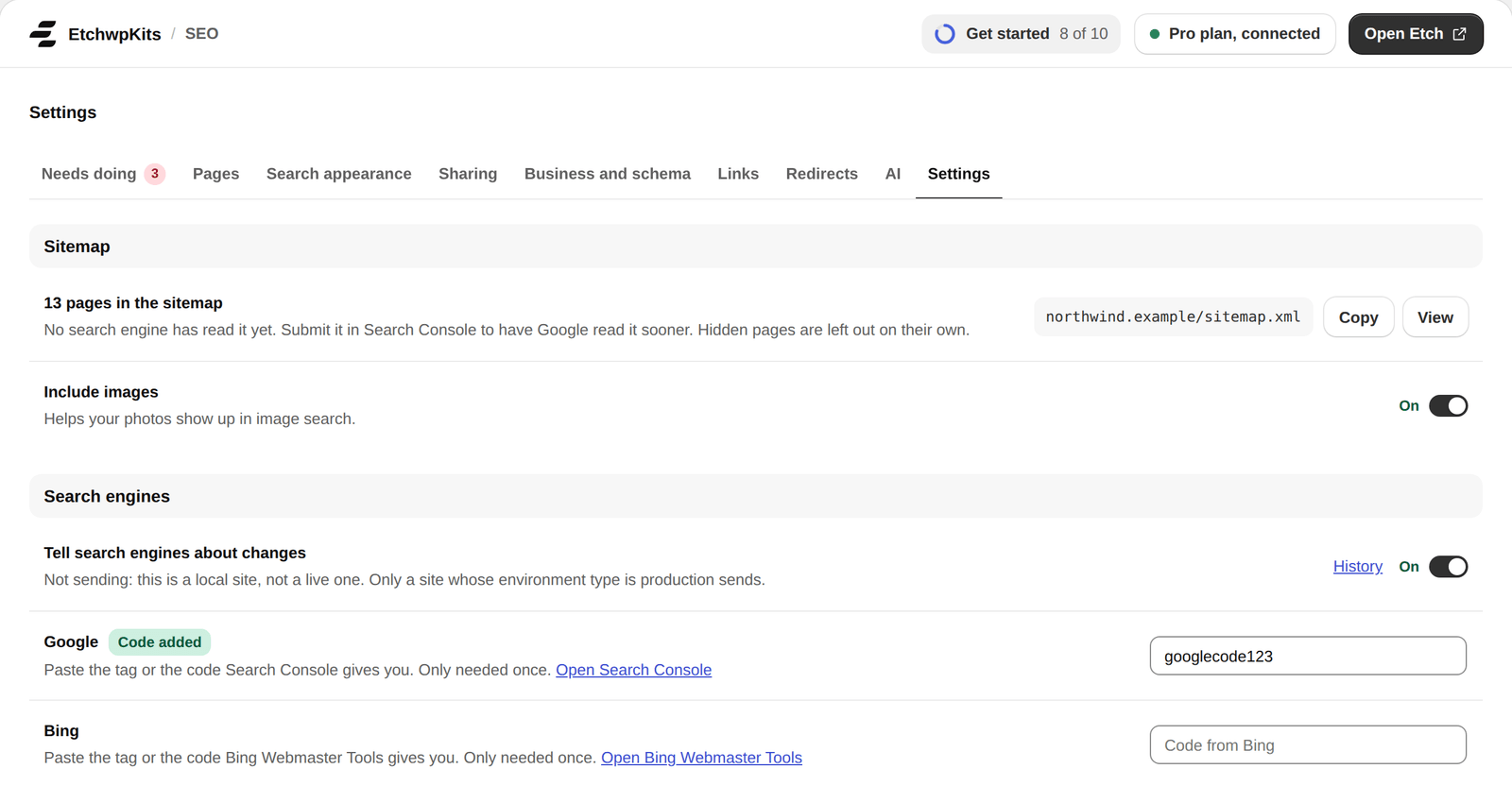
Settings is one page of short rows, each saying how things stand, in six groups: Sitemap, Search engines, What search engines and AI may read, Code on every page, Move SEO in or out and Who and what.
A row with more to it opens a view of its own, with a way back to Settings: Parts of SEO, IndexNow (History), Code and robots.txt (Edit) and Import (Look).
Sitemap says how many pages the sitemap lists and when Google and Bing last read it, with its address, Copy and View. Include images sends each page's images with it, for image search; switch it off to leave them out. How the sitemap works is under The sitemap.
- Tell search engines about changes: whether this site sends its changed pages to IndexNow, and why not when it cannot, with History. See IndexNow.
- Google and Bing: paste the verification tag from Google Search Console or Bing Webmaster Tools, or just its code. It goes on the home page only. Once the site is verified, submit the sitemap.
Under What search engines and AI may read, robots.txt says in a line what crawlers may read, with Edit (see robots.txt), and A clean text copy of each page for AI tools switches pages for AI tools on and off.
- From another SEO plugin: Look opens Import, for titles, descriptions and redirects from Yoast SEO, Rank Math, SEOPress and others.
- Settings file: Export saves the SEO settings as a file, to use on another site. The site's own title, description, pictures, profiles, verification codes and business stay here, and no key or password is in it. Import reads such a file and lists every setting it would change, as it is now and after, before anything is saved.
- Start over sets every SEO setting as it comes, keeping the site's own details.
Before an import or Start over, the settings as they are are kept, and Undo brings them back for 30 days.
Under Who and what, Who gets the SEO box chooses who may change a page's SEO in the SEO box of the block editor, and see it in the admin bar:
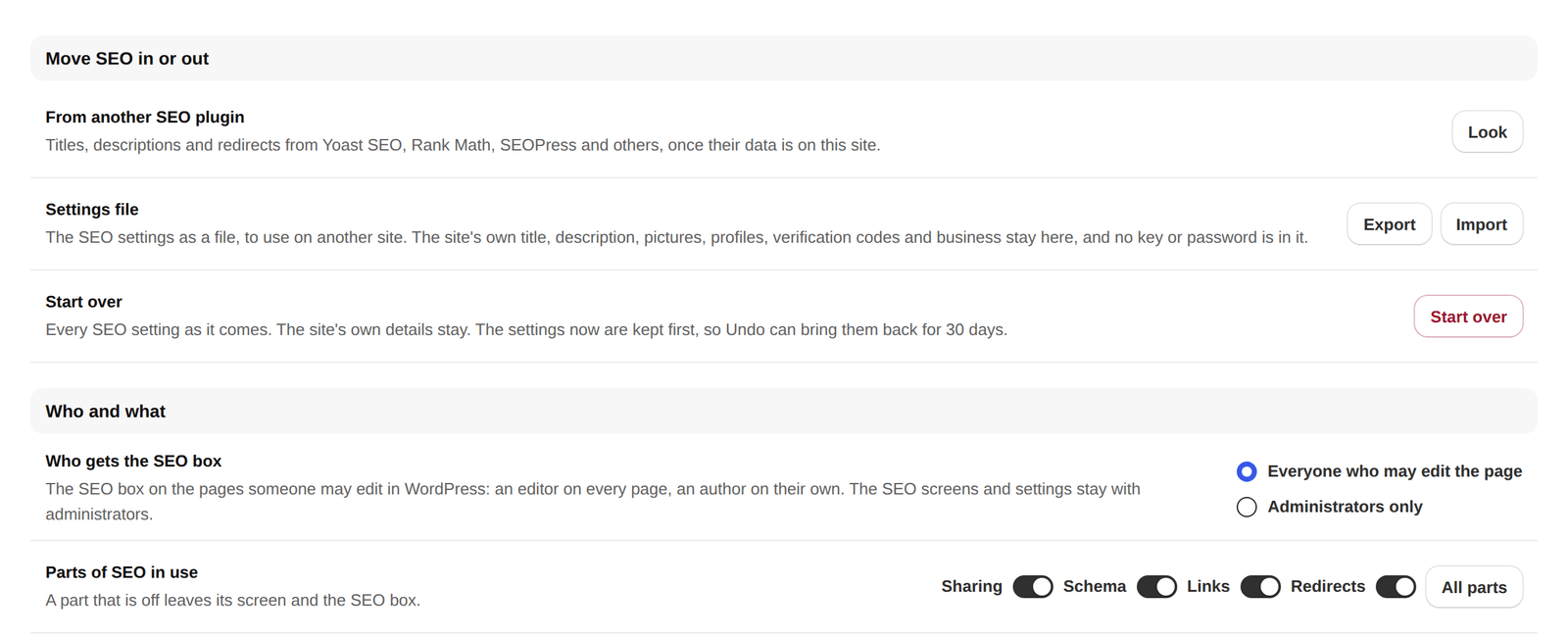
- Everyone who may edit the page, the default: an editor on every page, an author and a contributor on their own.
- Administrators only: the box, as before 0.94.0.
The SEO screens and settings stay with administrators either way. The choice goes with the settings file, and Start over sets it back. What the box holds for an editor is under Who gets the SEO box.
Beside it, Parts of SEO in use switches the bigger parts (Sharing, Schema, Links, Redirects) right there, and All parts opens Parts of SEO.
Parts of SEO, opened with All parts, switches each part on and off. A part that is off adds nothing to your pages, and leaves its screen and the SEO box. Nothing you set is lost. Changes save as you go.
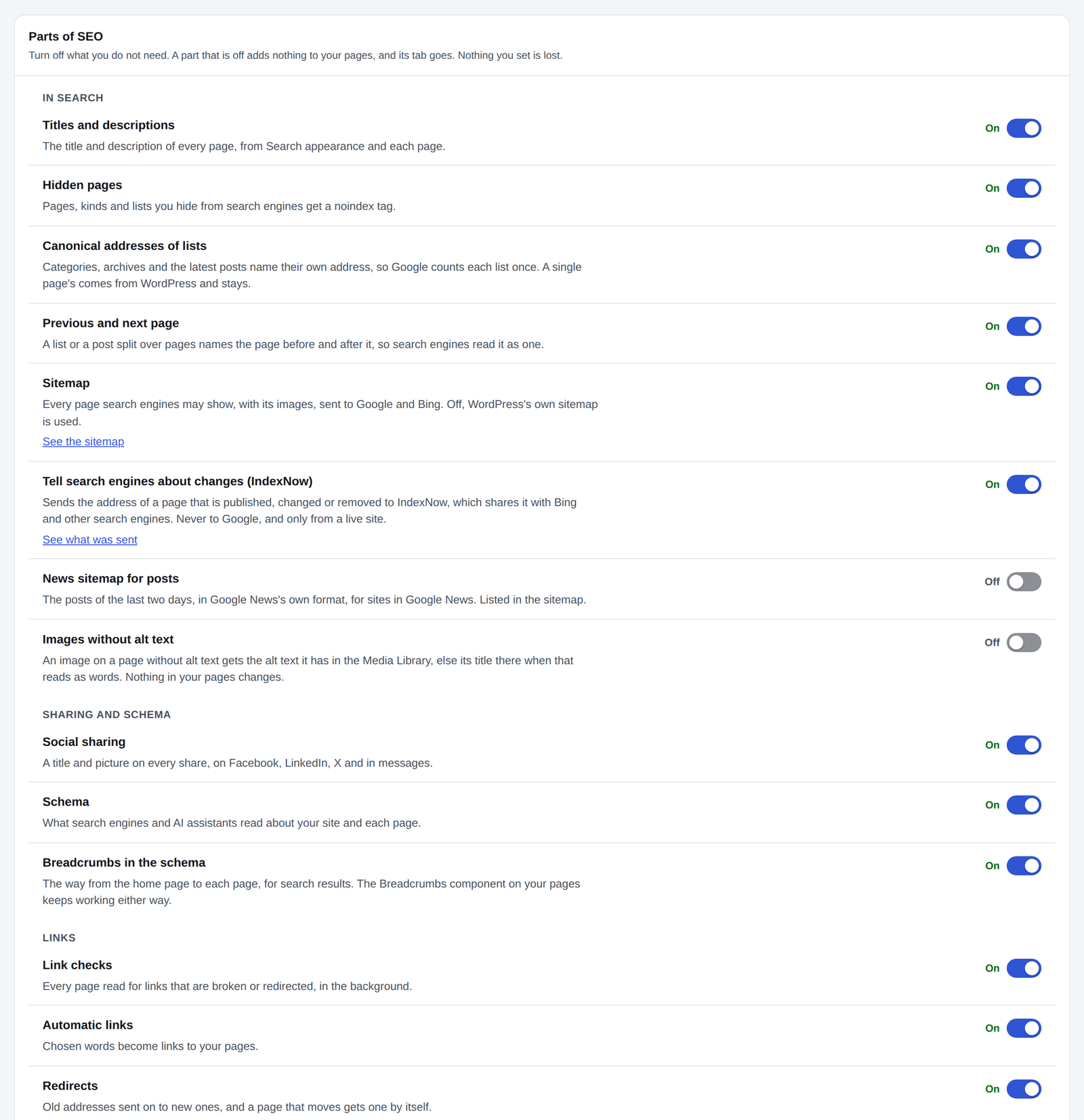
- In search: titles and descriptions, hidden pages (noindex), canonical addresses (of lists, and a page's own canonical address), previous and next page, the sitemap, telling search engines about changes (IndexNow), the news sitemap for posts, and alt text for images without it (from the Media Library).
- Sharing and schema: social sharing, schema, and breadcrumbs in the schema. The Breadcrumbs component on your pages keeps working either way.
- Links: link checks, automatic links and redirects. The Not found log has its own switch under Redirects → Settings.
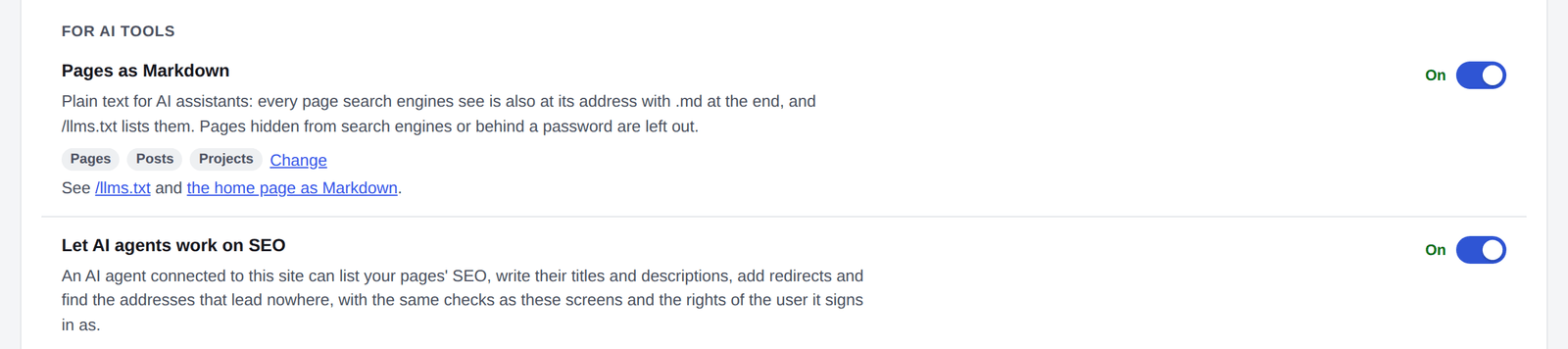
- For AI tools: pages as Markdown, with the kinds of page offered, and AI agents.
- Small things: the link back in your RSS feed. Its Line after each post is set under RSS feed at the foot of the page:
{post}becomes a link to the post and{site}a link to your home page. Left empty, nothing is added. - Addresses: Leave /category/ out of category addresses.
Everything is on as it was before, except the news sitemap and the alt text, off until you turn them on. With Links or Redirects off, Needs doing leaves their checks out of the health score.
Under Parts of SEO, In the block editor chooses where a page's SEO fields show when it is edited in the WordPress block editor. The builder panel is not affected.
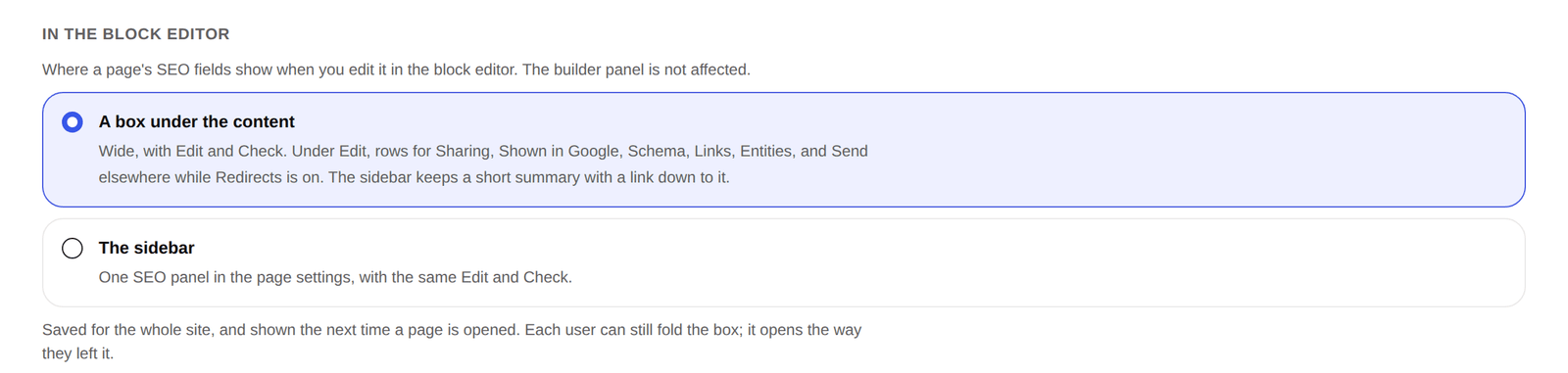
- A box under the content, the default: the wide SEO box with Edit and Check, and a short summary in the sidebar.
- The sidebar: one SEO panel in the page settings, with the same Edit and Check, for those who like everything in one column.
It is saved for the whole site and shows the next time a page is opened. Each user can still fold the box, and it opens the way they left it.
When a page is published, changed or removed on a live site, its address goes to IndexNow (api.indexnow.org), which shares it with Bing and other search engines. Google does not take part, so nothing goes to Google.
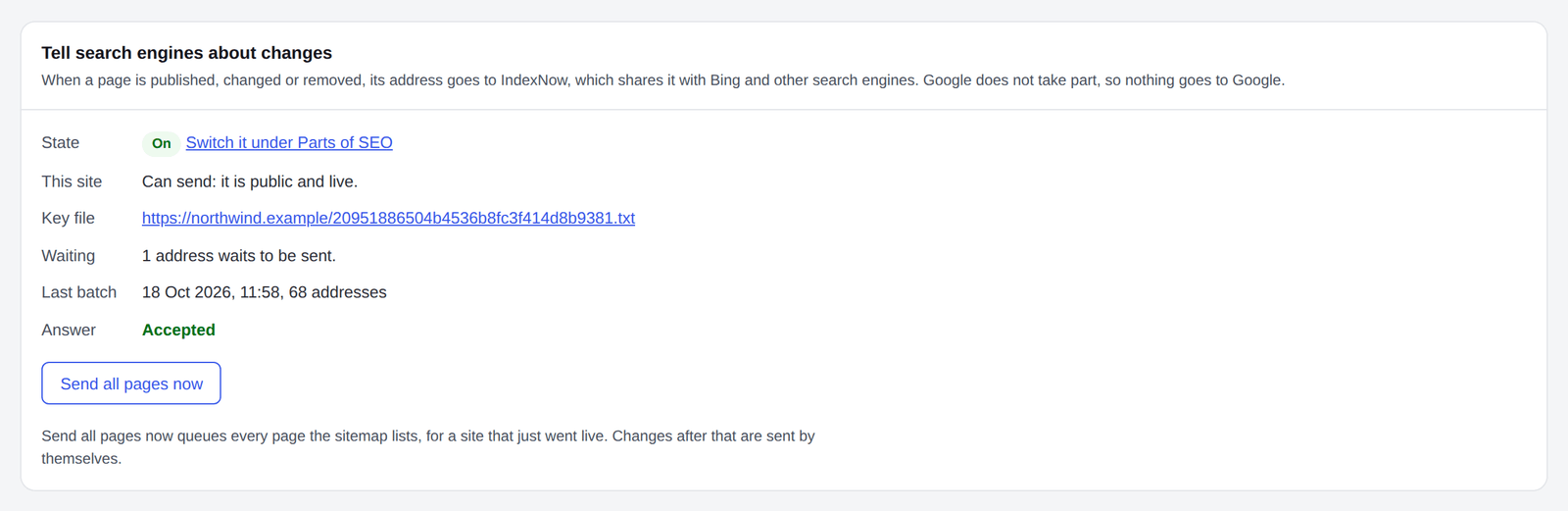
- Only from a live site: one that lets search engines in (Settings → Reading), whose WordPress environment type is production, at a public address. A staging or local copy never sends. This site says whether this one can, and why not.
- What is sent: only addresses. They are collected and sent in one batch a minute later, each address at most once every ten minutes.
- Key file: the site answers IndexNow's check at its own root, so they know the addresses come from you. It keeps answering without a plan.
- Waiting and Last batch: the addresses not sent yet, and when the last batch went and how it was answered.
- Send all pages now queues every page the sitemap lists, for a site that just went live. Changes after that are sent by themselves.
Sending waits for an active plan, and nothing waiting is lost. Addresses waiting when IndexNow, or all of SEO, was switched off, are sent once it is on again. Switch it off under Parts of SEO.
Code and robots.txt, opened with Edit under Code on every page, holds code every page needs: an analytics or chat snippet, a verification tag, or anything else. It is added exactly as written.
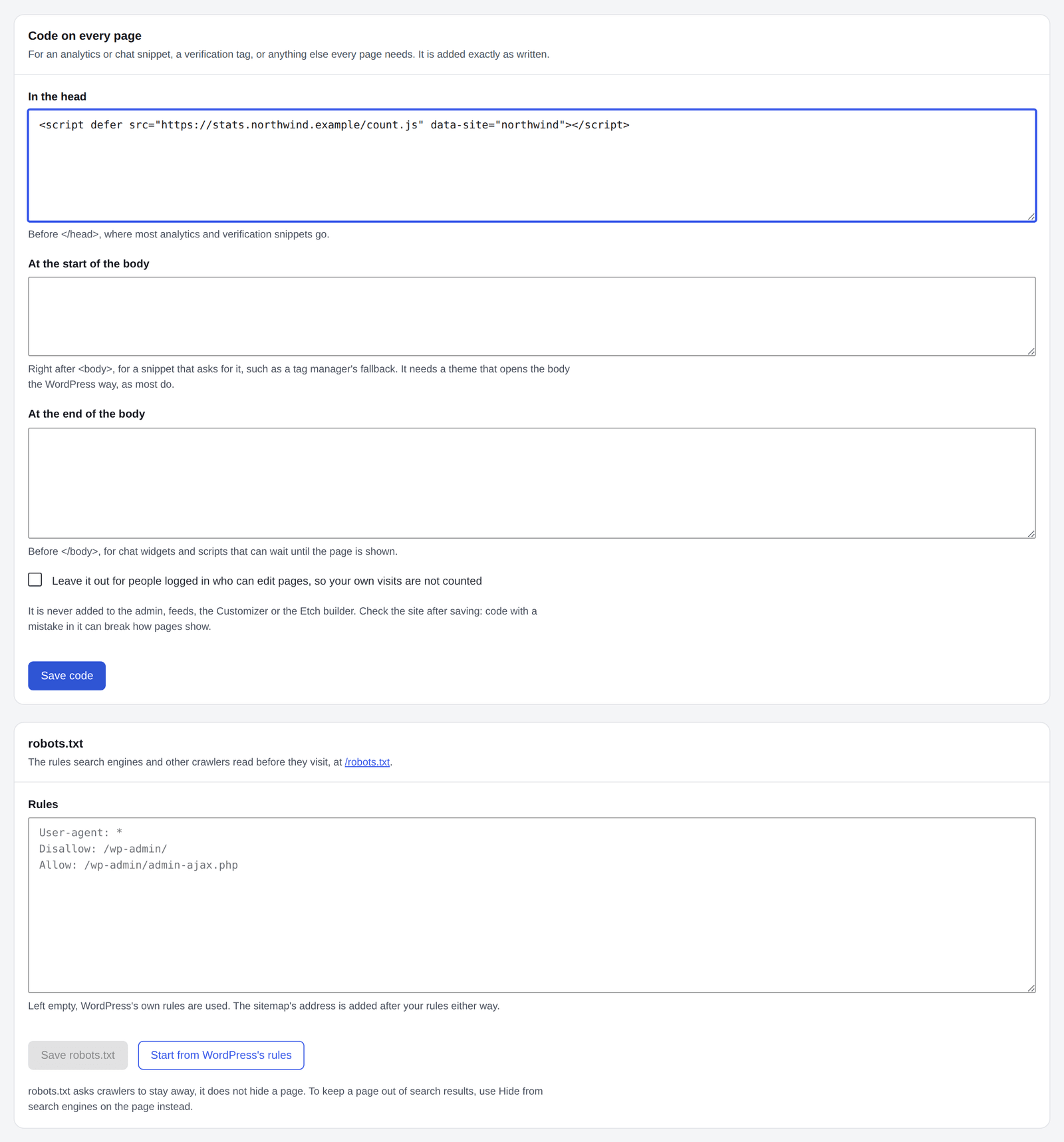
- In the head, before
</head>: where most analytics and verification snippets go. - At the start of the body, right after
<body>: for a snippet that asks for it. It needs a theme that opens the body the WordPress way, as most do. - At the end of the body, before
</body>: for chat widgets and scripts that can wait until the page is shown. - Leave it out for people logged in who can edit pages, so your own visits are not counted.
It is never added to the admin, feeds, the Customizer or the Etch builder. It saves with Save code, never while you type, and saving it takes the right to add scripts, as a script in a post would. Check the site after saving: code with a mistake in it can break how pages show.
robots.txt holds the rules crawlers read before they visit, at /robots.txt. Left empty, WordPress's own rules are used; Start from WordPress's rules copies them in to change. The sitemap's address is added after your rules either way.
- A rule that keeps every search engine away from the whole site is pointed out before you save.
- The screen says when a robots.txt file in the site's folder answers instead.
Moving a site from Yoast SEO, Rank Math, SEOPress, All in One SEO, Slim SEO, The SEO Framework or SureRank? Import, opened with Look under Move SEO in or out, brings each page's title, description, share image and Hide from search engines over, for pages and for categories and other terms, whether that plugin is still active or not.
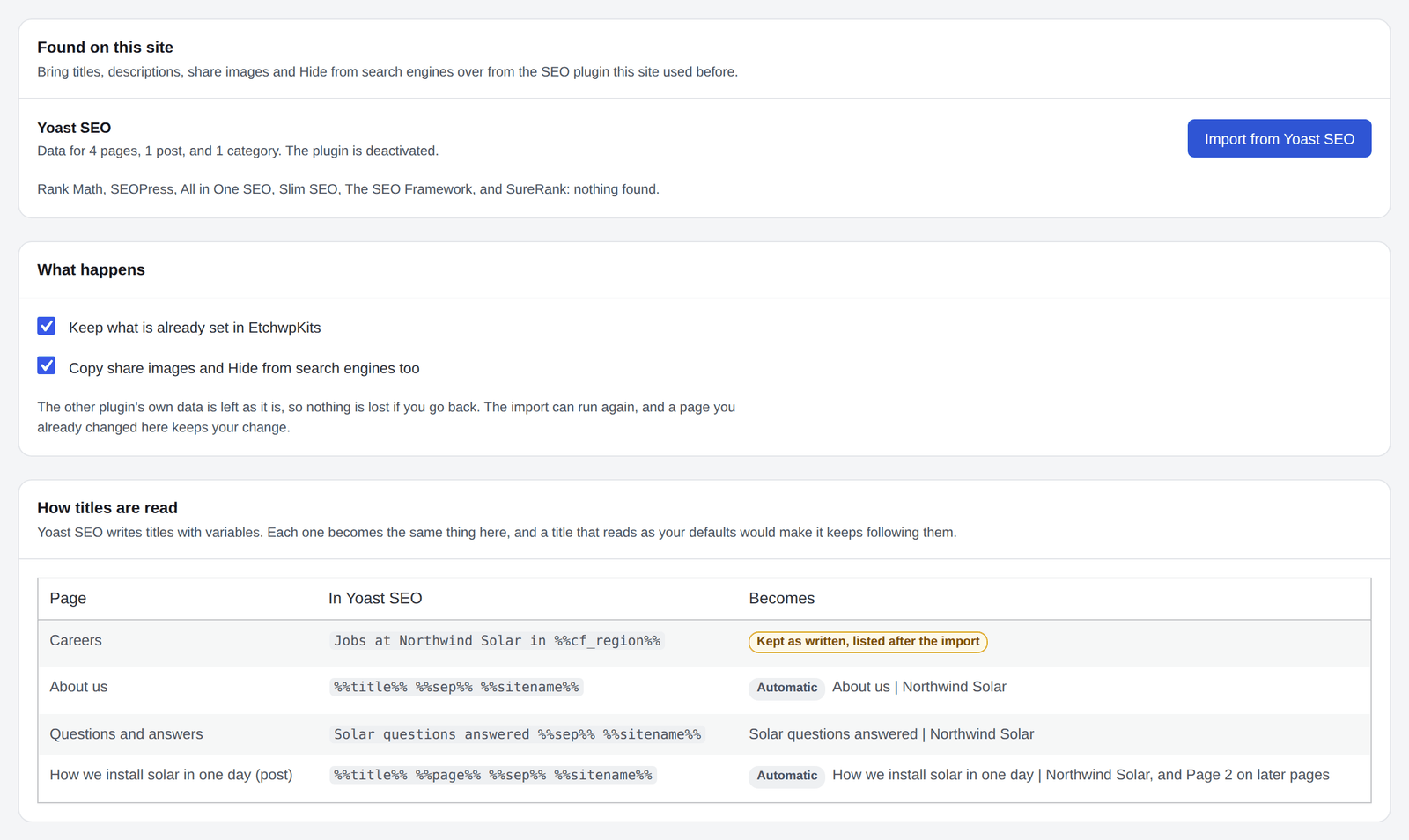
- Variables in the other plugin's titles become the same thing here. A title that reads as your defaults would make it is not copied, so the page keeps following them. How titles are read shows a few examples before you import.
- A variable EtchwpKits does not know is kept as written and named after the import, so you can fix those pages by hand.
- Keep what is already set in EtchwpKits skips pages you already changed here. Untick it to overwrite them.
- The other plugin's data is left as it is, so nothing is lost if you go back, and the import can run again. Import first, then deactivate the other plugin: EtchwpKits takes over at once.
Under it, Redirects from another plugin brings the redirects over too, see Import redirects from another plugin.
With Let AI agents work on SEO on (Parts of SEO, For AI tools), an AI agent connected to the site through WordPress's Abilities API (WordPress 6.9 and newer, for example through the MCP Adapter plugin or the REST API) can work on your SEO:
- list your pages with their titles and descriptions, and find the ones still missing one;
- read and change a page's title, description, share image, Hide from search engines, schema, focus words, entities and Words that link here;
- list the pages with checks to fix, and say what a page's checks came to;
- read the defaults, list your schemas and entities;
- list, add, change and switch redirects, and see the addresses that lead nowhere with the page each most likely meant.
Each goes through the same checks as the screens, as the user the agent signs in as, and needs your plan. While redirects are switched off, agents cannot change them either.
To connect an AI app that speaks MCP:
Switch it on
Under SEO → Settings → Parts of SEO, switch on Let AI agents work on SEO.
Add the MCP Adapter
Install and activate the free MCP Adapter plugin under Plugins → Add New. It gives your site an MCP address:
https://your-site.com/wp-json/mcp/mcp-adapter-default-server.Make an Application Password
Under Users → Profile → Application Passwords, add one for the user the agent signs in as. The agent can do only what that user can, so pick one whose rights fit the work.
Add the site to your AI app
In your AI app's MCP settings, add a server. An app that starts a helper on your computer can use this, with your site, the user name and the Application Password:
{
  "mcpServers": {
    "my-site": {
      "command": "npx",
      "args": ["-y", "@automattic/mcp-wordpress-remote"],
      "env": {
        "WP_API_URL": "https://your-site.com",
        "WP_API_USERNAME": "your user name",
        "WP_API_PASSWORD": "the Application Password"
      }
    }
  }
}
An app that connects to an address itself takes the MCP address above, with the user name and the Application Password as Basic authentication.
Ask
Ask the agent, for example, which pages are missing a description, or to add a redirect. It finds the SEO tools by itself.
Switch Let AI agents work on SEO off again and the agent no longer sees any of them. To take its access away, revoke the Application Password.