Swap a component, keep your words
Wrote your headline, intro and button texts into a hero, then found a hero you like better? Swap replaces a component on your page with another one, at the same spot, and brings your words along. You do not type anything twice.
Swap lives in On this page. Every component that is on the canvas has a Swap button on its row. Pick another component, and the headings, texts, buttons, links and images of the copy on your page are written into it. The new component gets the same class prefix as your copy and takes its place on the page.
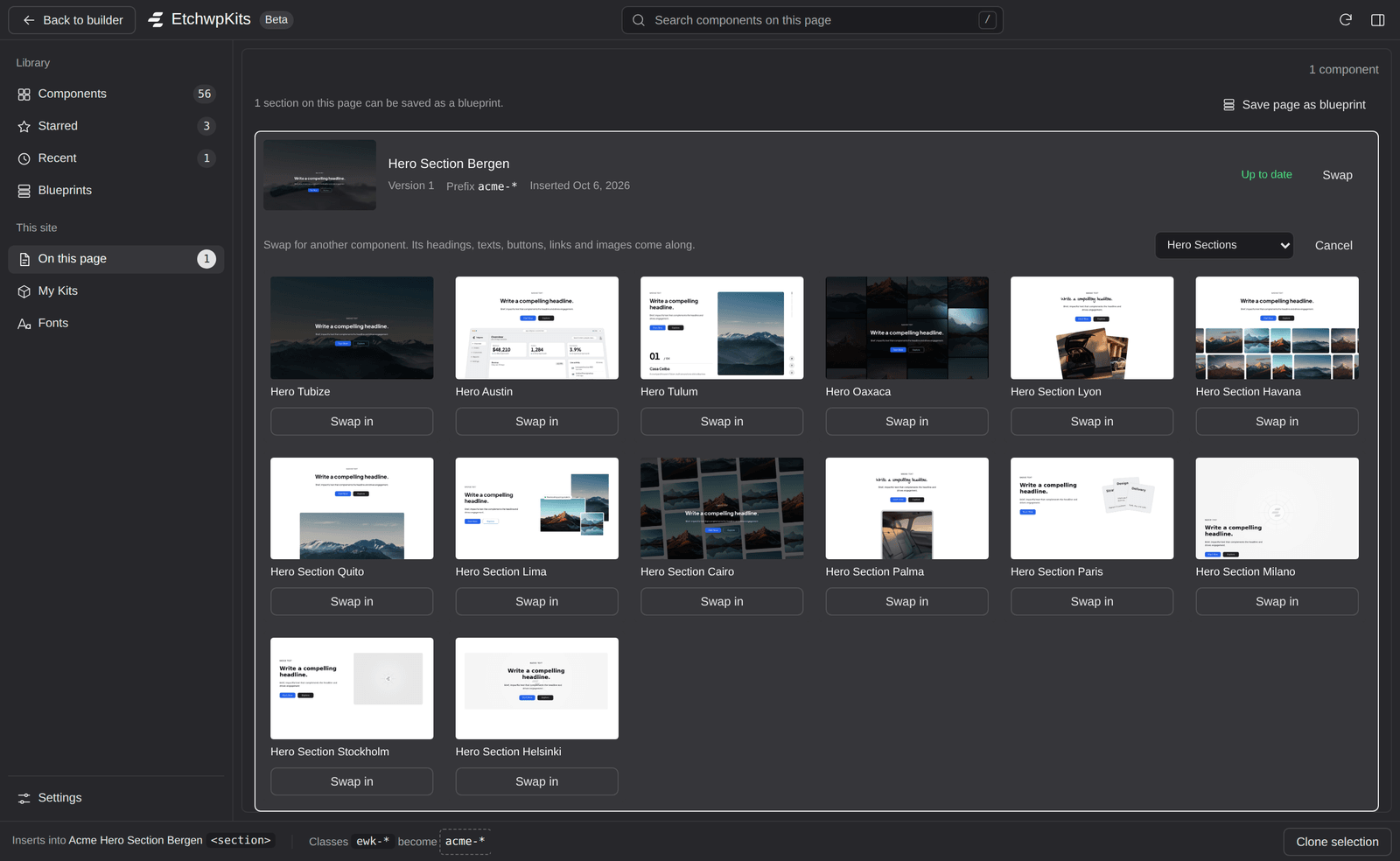
Click Swap on the row
In On this page, every component that is on the canvas has a Swap button. It opens a list right in the row with the other components of the same category, for example the other hero sections. The category menu above the list switches to another category, or to All categories.
Click Swap in
Click Swap in under the component you want. The plugin fetches it, gives its classes the same prefix your copy has, writes your words into it, and puts it where your copy was. Only then is your copy removed. A Pro component on a plan without Pro shows a lock instead.
Check, then save
The panel confirms the swap, for example "Hero Section Bergen" swapped for "Hero Section Lima", its words kept. and the row now shows the new component. Changed your mind? Press CmdZ (CtrlZ on Windows) to bring your copy back, then again to remove the new one. Nothing is live until you save the page in Etch.
The words are matched by kind, in the order they appear: the first heading goes into the first heading, the second into the second, and so on.
- Headings go into headings, and texts (paragraphs, list items, quotes) into texts.
- A small text above the first heading, such as an eyebrow or a badge, goes above the new heading too, so your intro under the heading stays the intro.
- Buttons and links keep their label, and the address they point to when it leads somewhere (a link to
#keeps the new component's own). - Images keep their picture and alt text.
- When the new component has fewer places than your copy, the panel lists the texts it had no place for, so you can paste them in yourself. When it has more, the extra places keep their own text.
- Only the words, links and images come along. Spacing, colors and other style changes you made to your copy belong to its old classes, so the new component looks like the library version.
- Texts that Etch fills in for you, such as
{props.title}in a component or a loop, are left as they are. - Swap needs the same things as Update in place: a copy the plugin can identify on the canvas, and a version of Etch that can remove blocks for plugins. When it cannot, the button is dimmed, and hovering or clicking it says why.