My Kits: your own components on every site
My Kits is your private library. Save a block you built on one site, and it is ready to insert on every other site you connect. Perfect for the header you always start from, a client's approved card design, or your agency's starter sections.
My Kits lives in your EtchwpKits account, not on a single WordPress site. You reach it in two places:
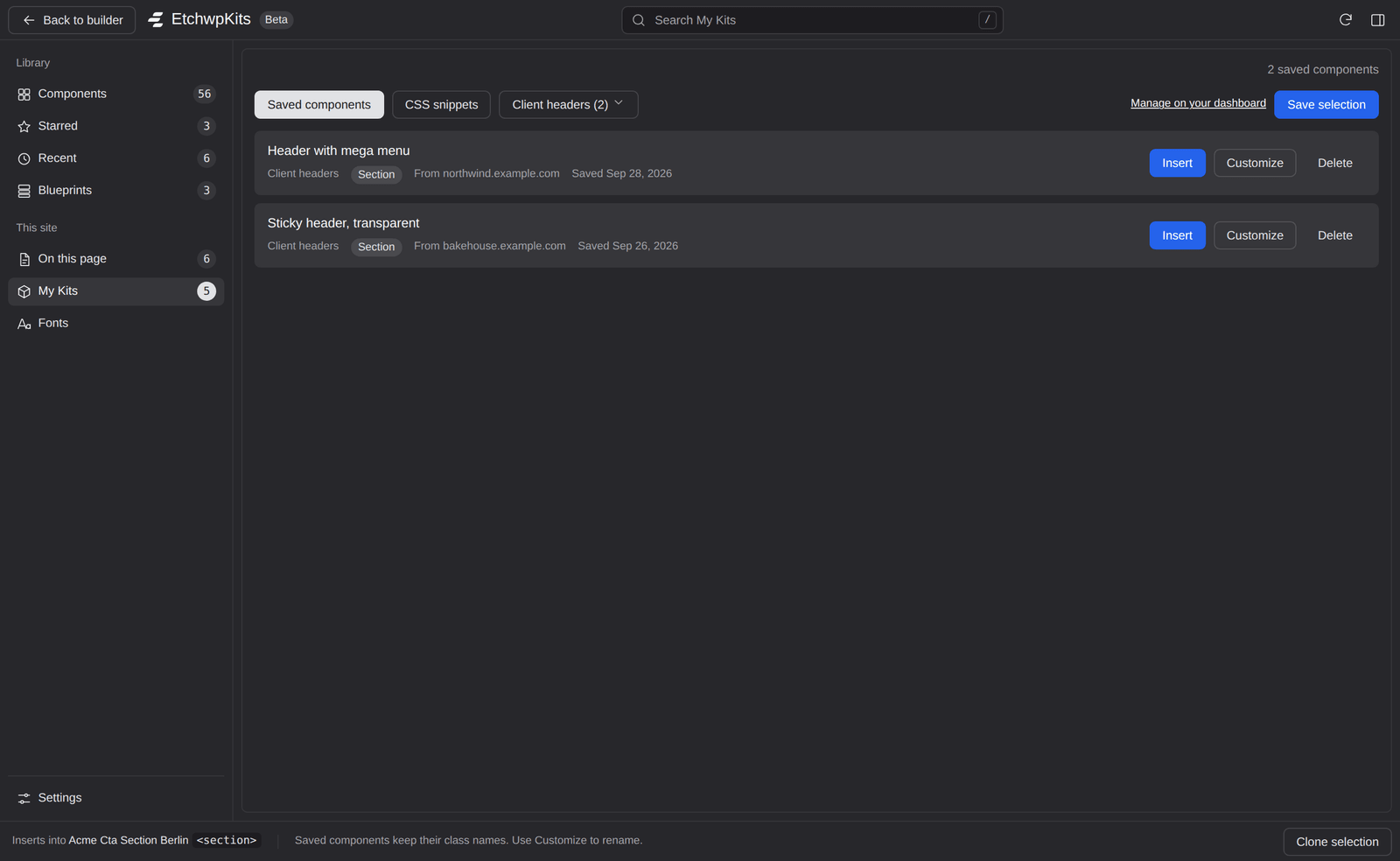
- In the panel, under the My Kits place, on every site connected to your account. This is where you save, browse and insert.
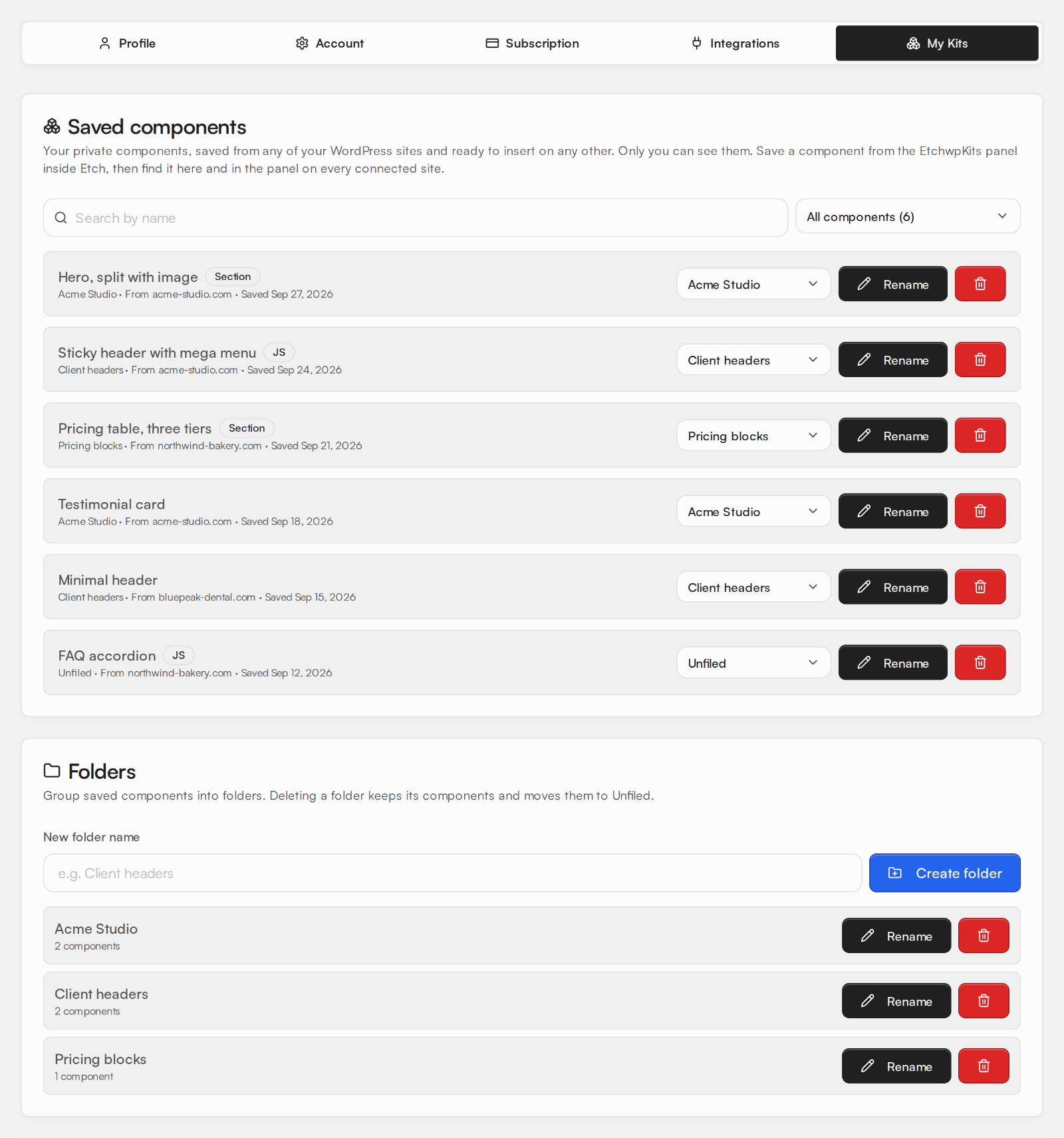
- On etchwpkits.com, in Dashboard → My Kits. This is where you organize: folders, renaming, moving and cleaning up.
The place has two tabs: Saved components and CSS snippets. Use the Folder menu to show All folders, only Unfiled components, or one folder, and the search field to find a component by name. Only you can see your kits.
Select the block on the canvas
In Etch, select the block you want to keep, for example a whole section or a single card. Everything inside it comes along.
Click Save selection
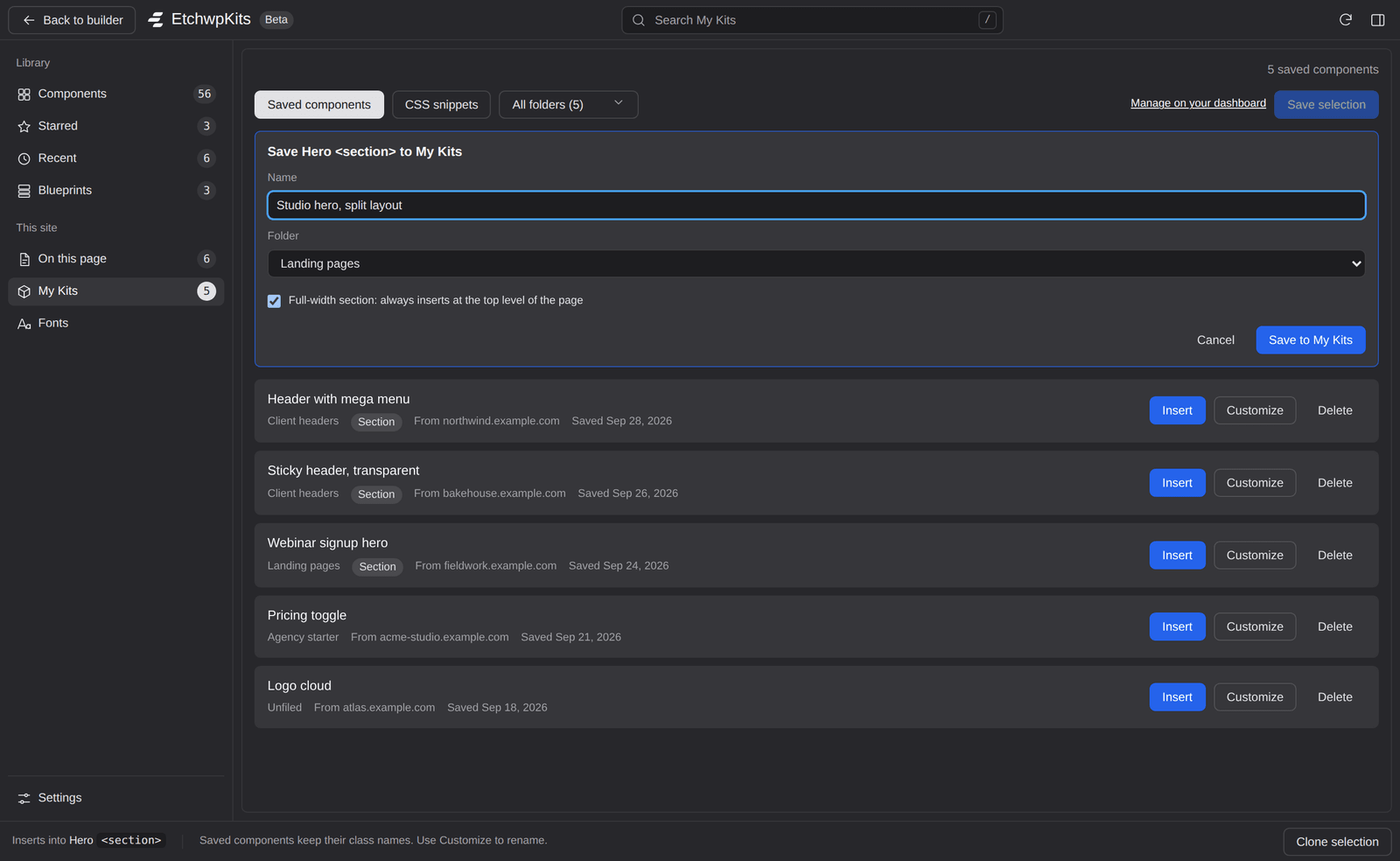
Open the My Kits place and click Save selection. The Save to My Kits form opens.
Name it and pick a folder
Give it a clear Name, choose a Folder (or leave it Unfiled), and tick Full-width section if it is a whole page section, so it always inserts at the top level of a page.
Save
Click Save to My Kits. It is now ready on every site connected to your account, and the site it came from is noted on it (for example "From acme-studio.com").
Click Insert on a saved component. It follows the same placement rules as the library: into the selected block, at the end of the page when nothing is selected, and full sections always at the top level. Hold Cmd (Ctrl on Windows) while clicking to insert right after the selected block instead.
One difference matters: a saved component keeps its own class names. Your class prefix is not applied, because these are your names already. The bottom bar reminds you: Saved components keep their class names. To give an insert different names, for example to reuse a design on a new client site, click Customize instead and rename it before it lands.
Folders are created and managed on Dashboard → My Kits; the panel lets you pick a folder when you save and filter by folder when you browse. The Manage on your dashboard link in the place takes you straight there. On the dashboard you can:
- create, rename and delete folders (deleting a folder keeps its components and moves them to Unfiled),
- rename a saved component, or move it to another folder,
- delete components you no longer need,
- create and edit CSS snippets.
Click Delete on a saved component in the panel and confirm. It is removed from your account, so it disappears from My Kits on every site. Copies you already inserted on pages are not affected: they are ordinary blocks on those pages.
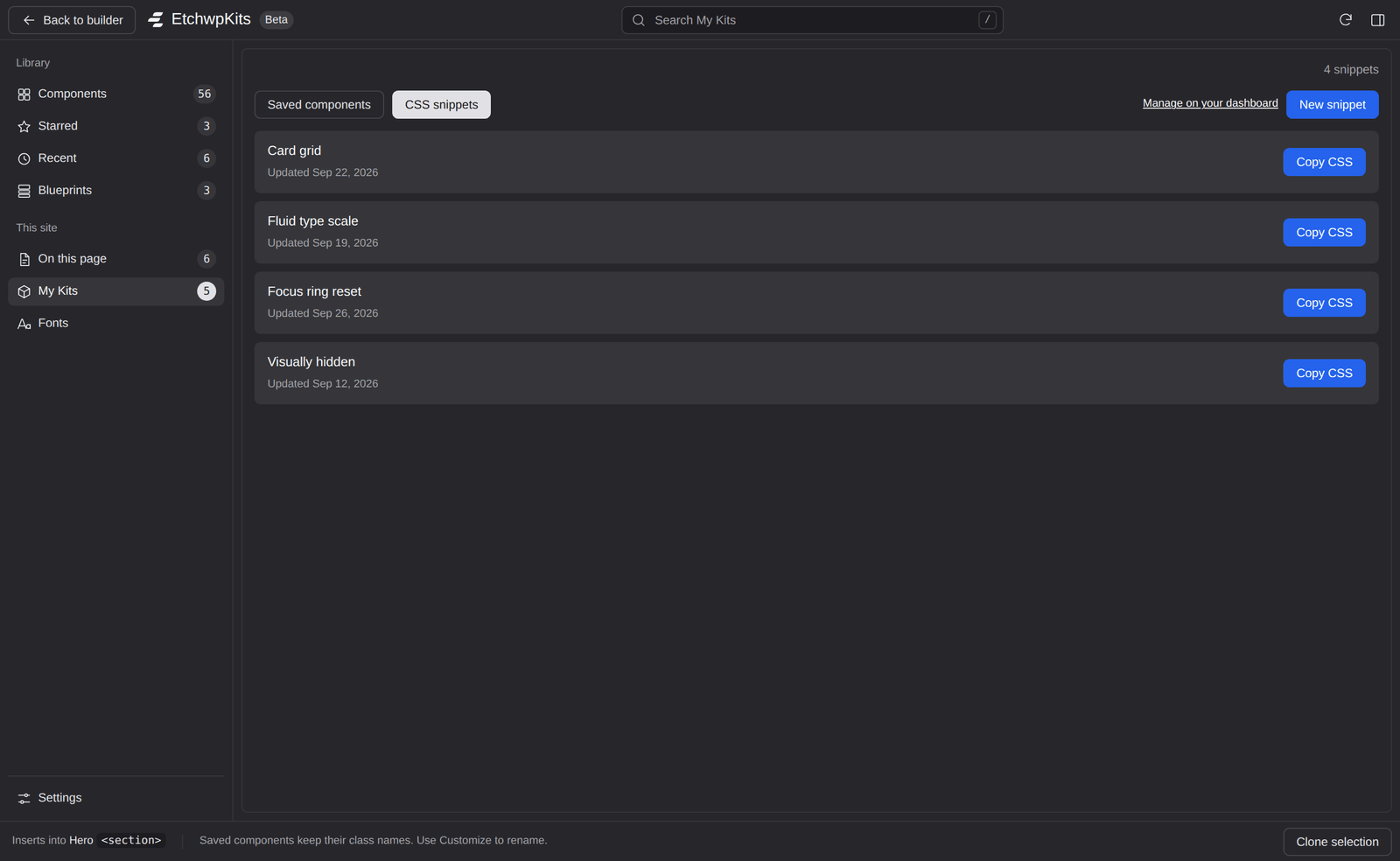
Snippets are small pieces of CSS you reuse across projects: a focus style, a fluid spacing rule, a utility you always add. Open the CSS snippets tab in My Kits to see them. Each snippet can go onto the site in one click, or onto your clipboard.
Add a snippet to the site
Click Add to site. The snippet's CSS goes into a stylesheet in Etch called EtchwpKits snippets, which the panel creates the first time. Etch saves stylesheet changes right away, so there is nothing else to save. The row then shows On this site.
- Update on site. When you change a snippet in My Kits after adding it, the row says The copy on this site differs. Click Update on site to replace the site's copy with the version in My Kits.
- Remove from site. Takes the snippet out of the stylesheet after you confirm. It stays in My Kits, ready to add again.
In the stylesheet, each snippet sits between two marker comments with its name, so the panel can find it again. The panel only ever changes the CSS between a snippet's own markers: CSS you write yourself in that stylesheet, outside the markers, and every other stylesheet are left alone. If the markers get damaged, for example by an edit by hand, the panel leaves the stylesheet untouched and tells you, and Copy CSS still works.
Copy CSS and New snippet
- Copy CSS puts a snippet on your clipboard, to paste into any stylesheet yourself. The very first press may fetch the snippet; press Copy CSS again when the panel says the CSS is ready. With a version of Etch that does not let plugins change stylesheets, Copy CSS is the only option.
- New snippet creates one right from the panel: give it a name, paste the CSS and click Save snippet.
- Edit and delete snippets on the dashboard.
| What | Limit |
|---|---|
| Saved components | 500 per account |
| CSS snippets | 500 per account |
| Folders | 200 per account |
| One saved component | 1 MB |
| One CSS snippet | 100 KB |
| A name | 120 characters |
When you reach a limit the panel tells you, for example that you have saved 500 components. Delete a few you no longer use, in the panel or on the dashboard, to make room.
My Kits is available to every EtchwpKits account that has a connected site. If saving new components ever needs an active plan, the panel says so when you save, and everything you already saved stays yours to browse, insert and delete.