The Font Manager in the Etch builder
The Font Manager is where you handle every font on the site without leaving the Etch builder. Install Google Fonts with only the weights and character sets you need, upload your own font files, decide how each family loads, and choose the fonts for headings, body text and code across the whole site. Every font it installs is served from your own site, so visitors never contact Google.
The Font Manager is the Fonts page of the EtchwpKits panel. It has five tabs, listed under Fonts in the panel menu: My fonts, Google Fonts, Upload, Export and import and Trash. It came with plugin version 0.17.0 and works next to the Fonts screen in wp-admin: both look at the same fonts, so a family you host on one shows up on the other.
Use it to:
- browse the Google Fonts catalog and install a family in the weights, italics and character sets you choose, variable fonts included,
- upload your own woff2, woff, ttf or otf files, with ttf and otf converted in your browser to the smaller WOFF2 format where it can be (WOFF otherwise),
- set font-display, preloading, fallback fonts and the selectors each family applies to,
- add a matched fallback, so the page does not jump while a font loads,
- use a family for every heading, the body text or code across the site, with Etch and Automatic.css styles following along, and offer your fonts in the block editor's font picker,
- restore a removed family from the trash for 30 days, and move your fonts to another site with export and import.
The Font Manager is part of the EtchwpKits panel. In the Etch builder, open the panel and click Fonts under This site in the panel menu. It fills the panel next to the menu, its tabs are listed under Fonts, and one click on another place takes you back. With the panel docked, it is the Fonts chip after the place chips.
The header shows how many families the site has. Esc closes the innermost thing first, such as a confirmation or an open side drawer, then the panel. If you have changes that are not saved yet, the Font Manager asks before it discards them. The Font Manager is for the same administrators who see the plugin's settings.
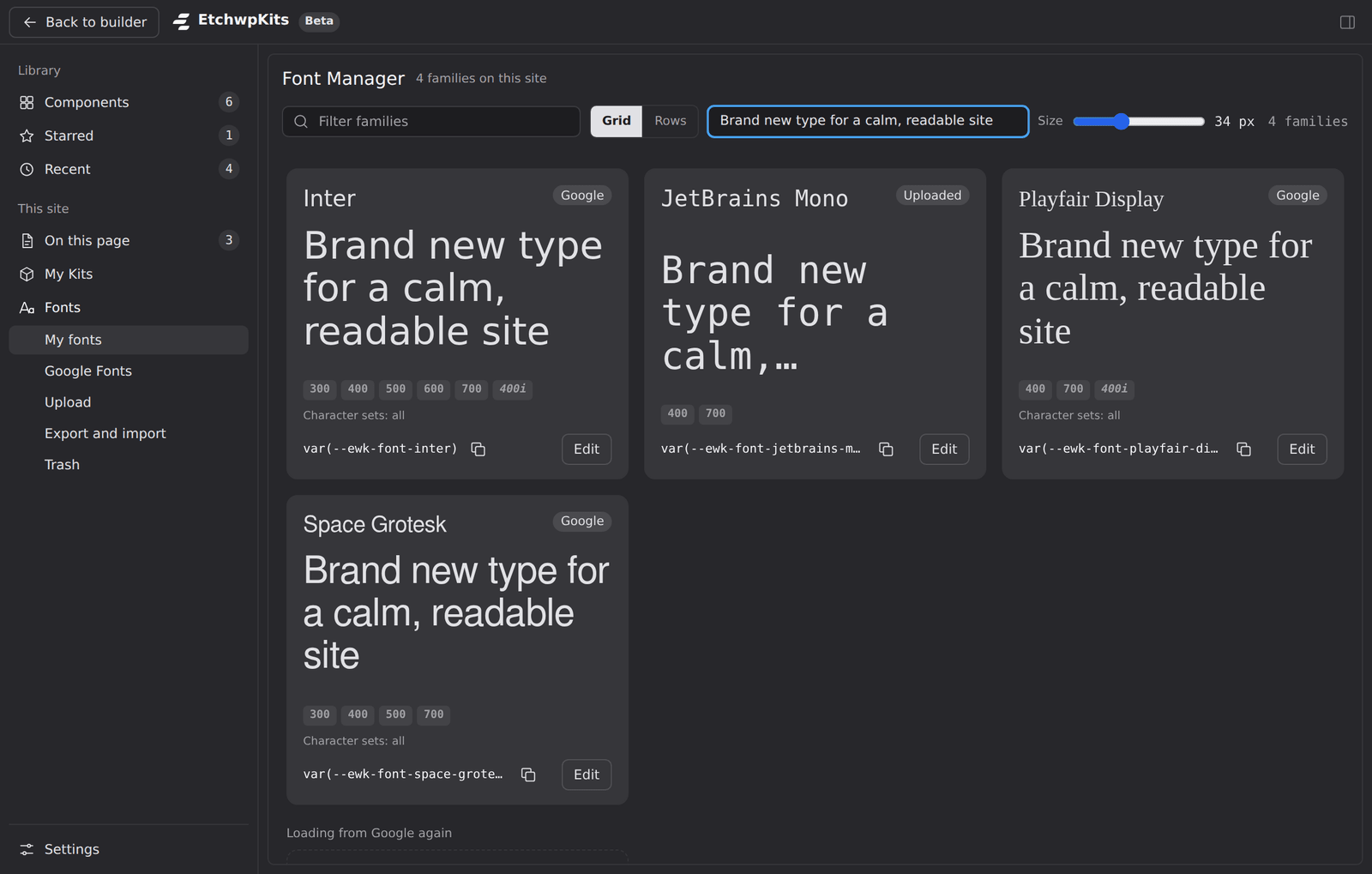
The My fonts tab lists every family served from this site. Each one shows:
- its name and a specimen, both set in the font itself,
- where it came from: Google or Uploaded, plus Variable with its weight range for a variable font,
- its weights and styles (for example 400, 700 and 400i for 400 italic) and, for a Google family, its character sets,
- its CSS variable, for example
var(--ewk-font-inter). Click the copy button next to it and paste it as the font-family of any Etch style.
Type in Filter families to narrow the list, switch between Grid and Rows, and change the preview text and Size (14 to 72 px) to compare fonts with your own words. The view, the text and the size are remembered in this browser. Click Edit on a family to open its settings.
Loading from Google again
When you remove the local copy of a Google family, the plugin keeps its local address working and points it at Google Fonts, so a stylesheet that imports the local copy keeps its font. These families are listed under Loading from Google again, marked Loads from Google. Click Host again to bring the family back to your site, or Delete forwarder once nothing imports it any more.
The Google Fonts tab is the full catalog. Search by name, pick a category (Sans serif, Serif, Display, Handwriting or Monospace) and sort by Popular, Trending, Newest or A to Z. Each card says how many styles the family has and whether it is a variable font. Families already on your site say Installed.
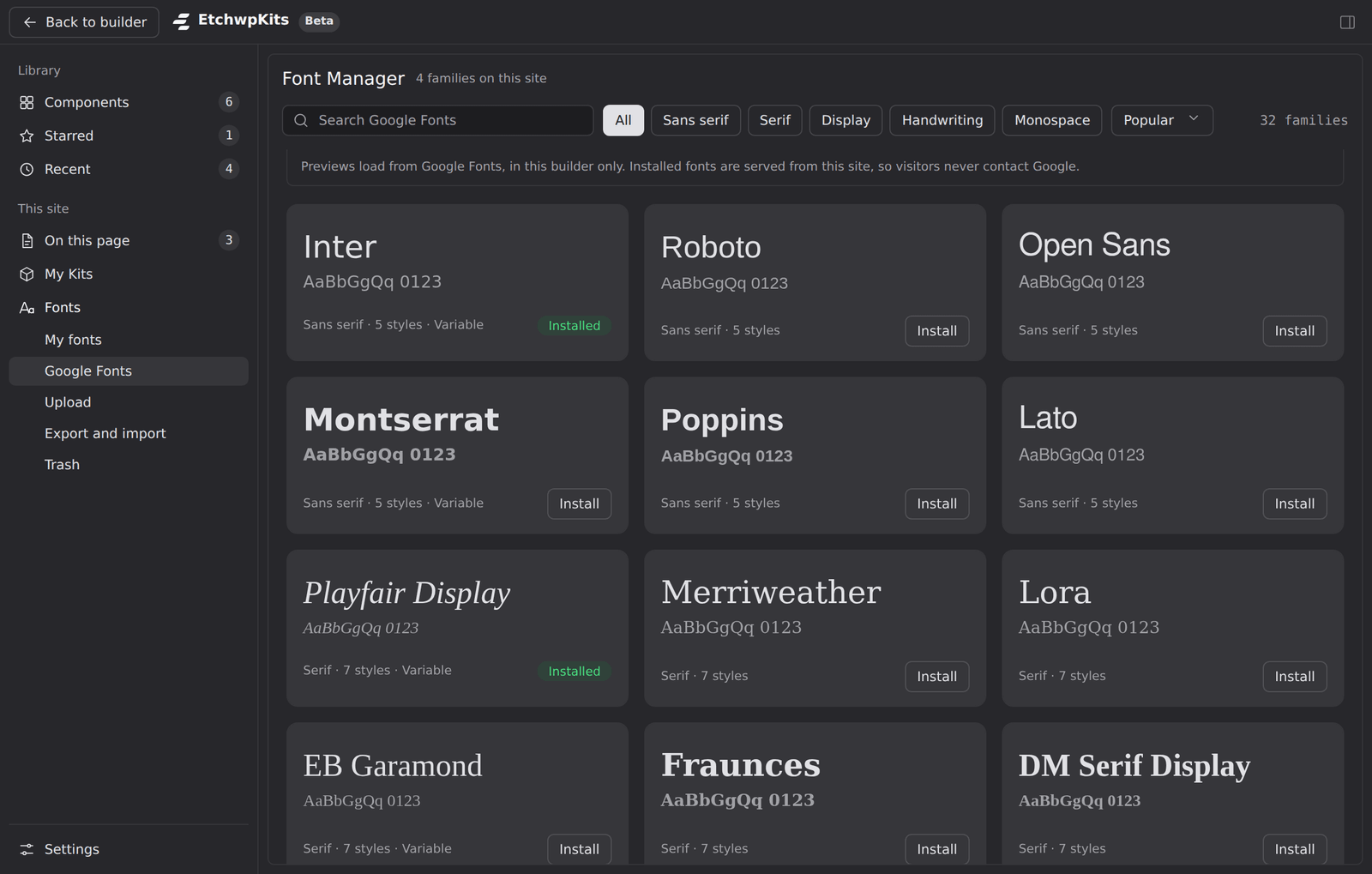
Click Install on a family
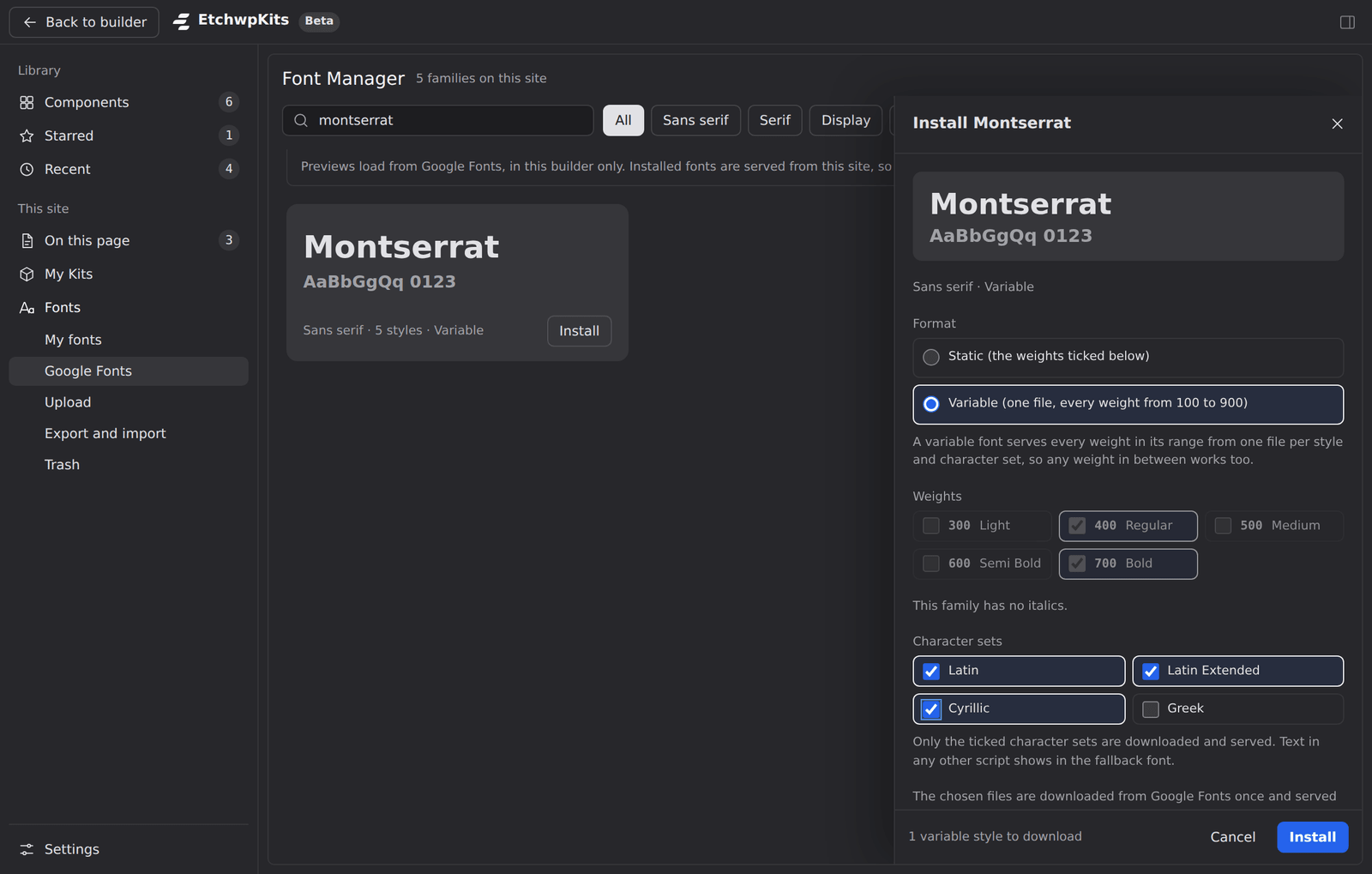
A drawer opens on the right, titled for example Install Montserrat.
Pick the format
For a family that comes as a variable font, choose Static for only the weights you tick, or Variable for one file per style and character set that covers every weight in its range, so any weight in between works too.
Choose the weights and italics
400 Regular and 700 Bold are ticked to start with. Tick the ones you use, and turn on Also install the italics of these weights if you need them.
Choose the character sets
Latin and Latin Extended are ticked to start with. Only the ticked sets are downloaded and served, so add Cyrillic, Greek, Vietnamese or another script only if your content uses it. Text in any other script shows in the fallback font.
Click Install
The bottom of the drawer says how many files it will download. The plugin downloads them from Google once, checks each file and stores the family in
wp-content/uploads/etchwpkits-fonts/. A message confirms it, for example Montserrat is installed and served from this site.
Installing a family that is already on the site in the same weights and character sets changes nothing and says so. To add weights later, install it again with more ticked.
The Upload tab serves a font that is not on Google Fonts, such as a licensed brand font. Only upload fonts whose license allows use on a website.
Drop the files, or click Choose files
woff2, woff, ttf and otf files work, up to 2 MB each and 12 at a time. woff2 is the best choice: it is the smallest, and every current browser supports it.
Check the weight and style of each file
The plugin reads them from the file name, so
BrandSans-SemiBoldItalic.woff2becomes 600 Semi Bold, Italic, andBrandSans-Regular.woff2becomes 400 Regular, Normal. Names such as Thin, Light, Medium, Bold, Black or a number like 300 all work. If a row says Check the weight and style, set them by hand.Check the family name
It is filled in from the first file. It is the name you use in CSS, with letters, numbers and spaces. Uploading to a family you uploaded before adds the files to it.
Click Upload
Each file is checked to be a real font before anything is stored. If one is not, nothing is stored and the file says why. Otherwise a message confirms it, for example Brand Sans is now served from this site (3 files).
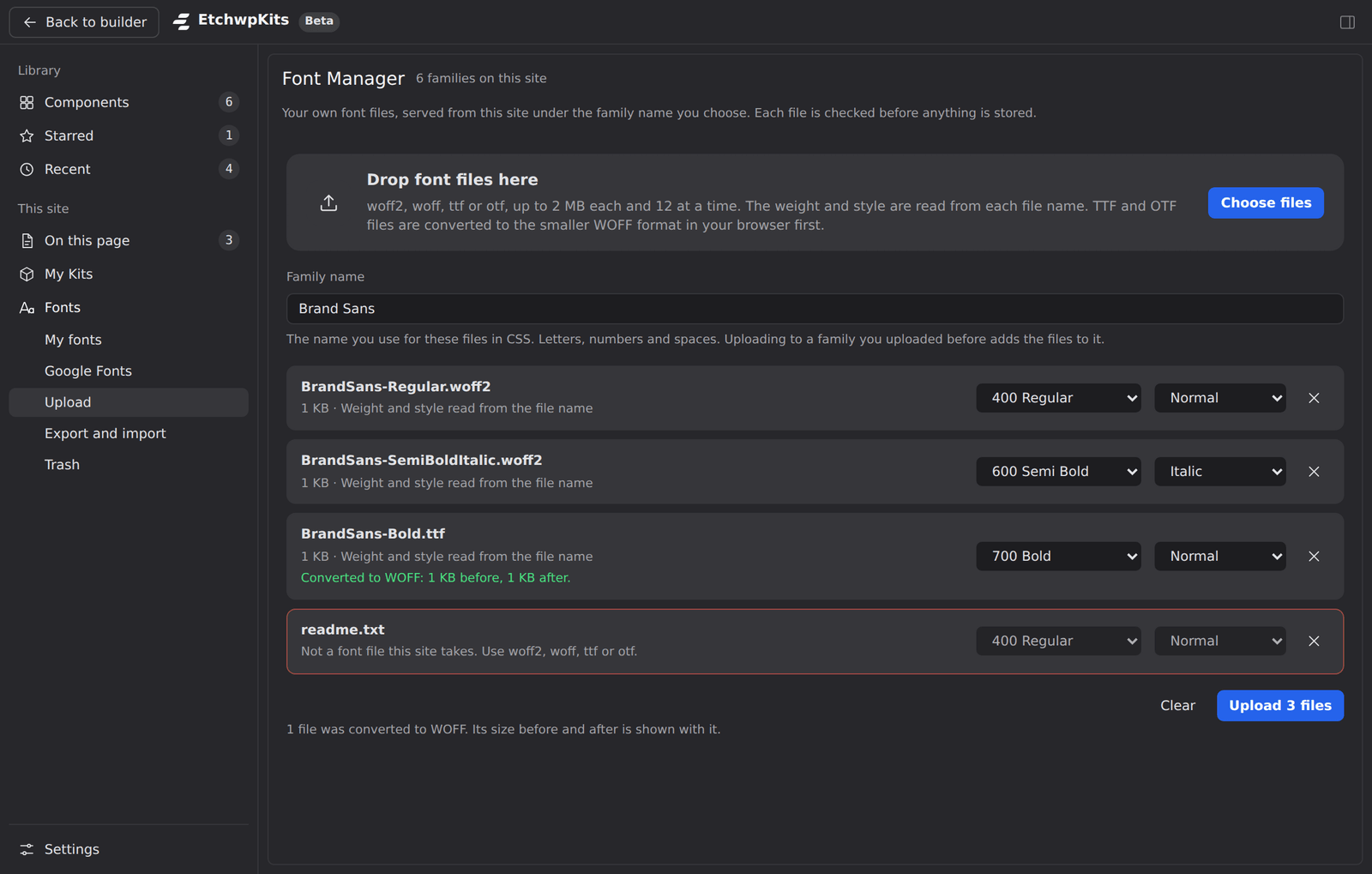
A family can be up to 20 MB. A Google family that is already served under the same name cannot take uploads: remove it first, or pick another name.
Click Edit on a family in My fonts. The drawer shows where the family came from, its files and weights, its Site fonts checkboxes, and these settings. Click Save when you are done; a message confirms, for example Saved how Playfair Display is delivered.
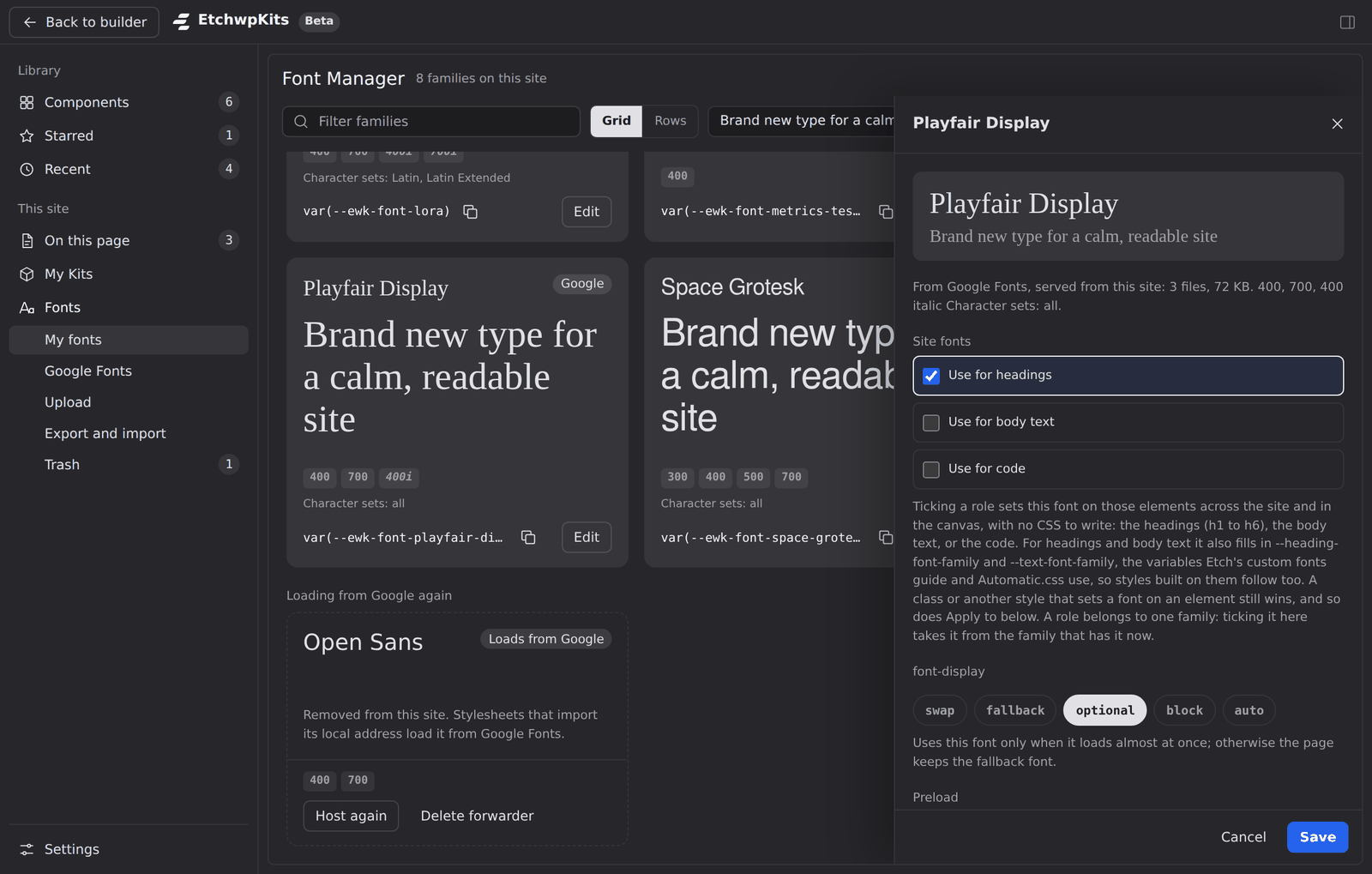
font-display
Decides what the browser shows while the font file is still loading:
| Value | What visitors see |
|---|---|
| swap | Text in a fallback font at once, then this font when it arrives. The usual choice, and the default. |
| fallback | Text is hidden for a moment, then shown in a fallback font if this one is slow, and swapped only for a short while. |
| optional | This font only when it loads almost at once; otherwise the page keeps the fallback font. |
| block | Text is hidden for up to a few seconds while the font loads. |
| auto | The browser decides. |
Preload
Preload the regular face on the front end adds a preload link for the family's regular woff2 file to every page, so text in it shows sooner. Use it for one or two fonts you use above the fold: preloading more slows the page down instead.
Fallback fonts
Font names or generic families, separated by commas, used until the font loads or when a character is missing. Leave it empty for the generic family that suits the font (sans-serif, serif or monospace). A line below the field shows the exact CSS variable the site gets.
Apply to
Optional. CSS selectors that should use this font across the site and in the canvas, such as h1, h2, .hero__title, separated by commas (at most 20). They get the family's variable as their font-family and update in the canvas as soon as you save. For headings, body text and code, Site fonts is the simpler way. Where both set the same element, Apply to wins.
While a web font loads, the browser shows the text in a fallback font. If the two fonts have different proportions, the text jumps when the web font arrives. A matched fallback measures your font in the browser and sizes a local font such as Arial to match it, so the text keeps its place.
Turn it on
In the family's settings, turn on Size a local font to match this one while it loads.
Pick the local font
Under Local font to adjust, choose Arial, Times New Roman or Courier New. It starts on the one that suits the family: Times New Roman for a serif, Courier New for a monospace font, Arial for anything else.
Click Measure, then Save
The Font Manager measures the font and shows the @font-face rule it creates, named after the family with Fallback added. Save to use it. The fallback is added to the family's variable right after the font itself.
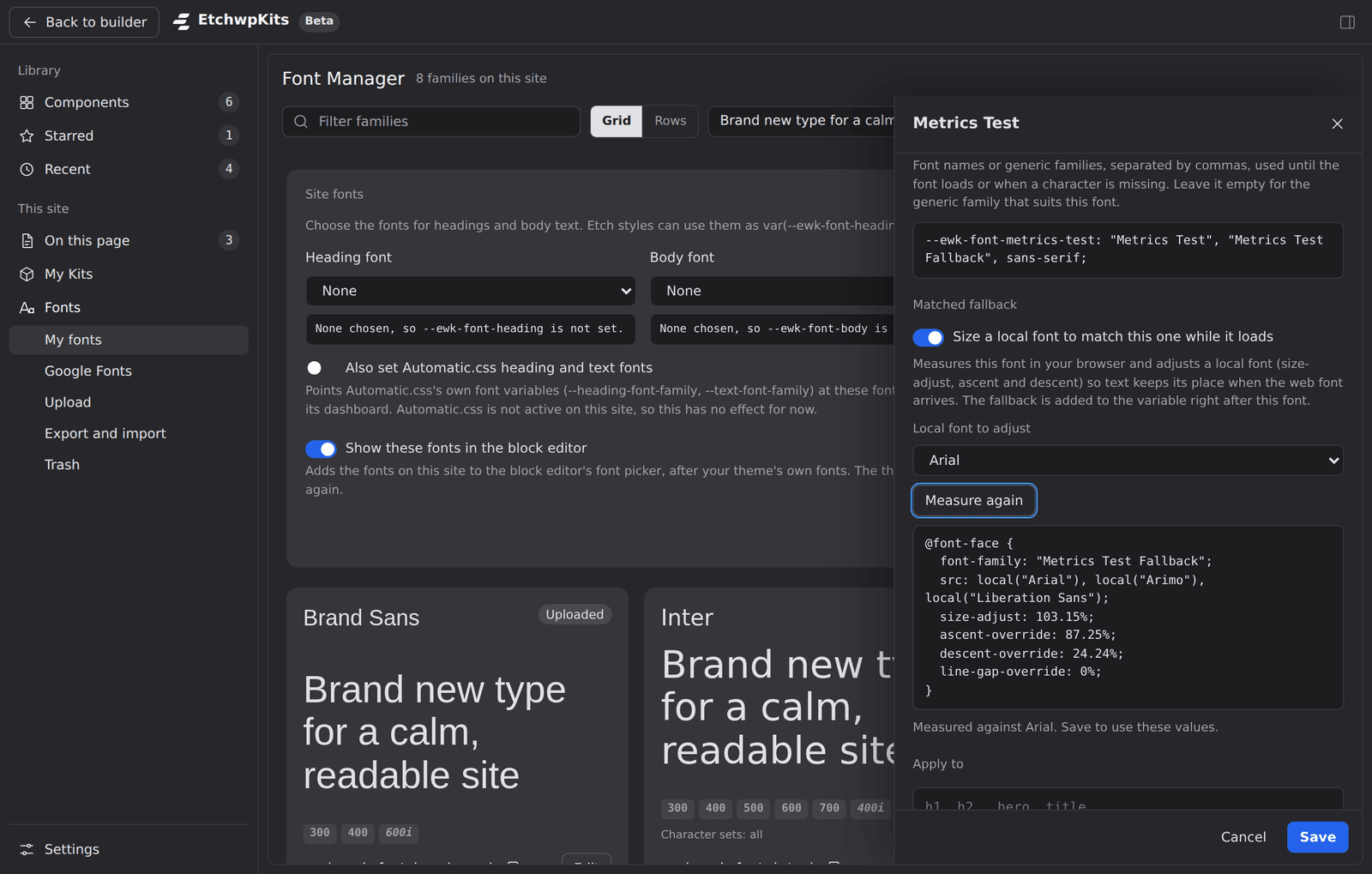
If you later add or replace the family's files, the status says the values were measured from a file the family no longer uses, and the fallback is left out until you click Measure again.
There are two ways to set your site's fonts: let the Font Manager do it, or manage typography yourself in Etch or Automatic.css. Site font roles came with plugin version 0.20.0.
Use a family for headings, body text or code
The simplest way, with no CSS or variables to paste anywhere:
Get the font onto your site
Install it from Google Fonts or upload your own files. It then has a card in My fonts.
Click Edit on its card
The family's settings open on the right. Site fonts is the first group, right under the preview.
1: get a font from Google Fonts or Upload. 2: click Edit on its card. Tick what it should be used for
Tick Use for headings, Use for body text or Use for code. You can tick more than one, for example headings and body text for a site that uses a single font.
Click Save
Nothing changes until you save. If you close the settings with the X or press Esc before saving, you are asked You have unsaved changes. Discard them?, so a ticked box is not lost by mistake. Cancel closes without saving and without asking.
3: tick what the family is for. 4: click Save.
That family is then used for every heading, for the body text or for code, across the site and in the Etch canvas. It also fills in --heading-font-family and --text-font-family, the variables Etch's custom fonts guide and Automatic.css use, so styles built on them follow too.
| Role | Elements | Variables |
|---|---|---|
| Headings | h1, h2, h3, h4, h5, h6 | --heading-font-family, --ewk-font-heading |
| Body text | body, and the form controls button, input, select and textarea, which do not take the page's font on their own | --text-font-family, --ewk-font-body |
| Code | code, kbd, pre, samp | --ewk-font-mono |
Each role belongs to one family, so ticking it on another family moves it there. The drawer says so before you save, for example Saving moves this role here from Playfair Display. Unticking a role and saving leaves it without a font. The fonts reach your pages and the canvas, not the Etch builder's own interface, which keeps its fonts.
The Site fonts summary
Site fonts, at the top of My fonts, shows which family holds each role: Headings, Body text and Code. The family name is a link that opens its settings, and the line below it lists the elements and variables the role sets. A role no family holds says None. To change a role, open a family and tick or untick it there.
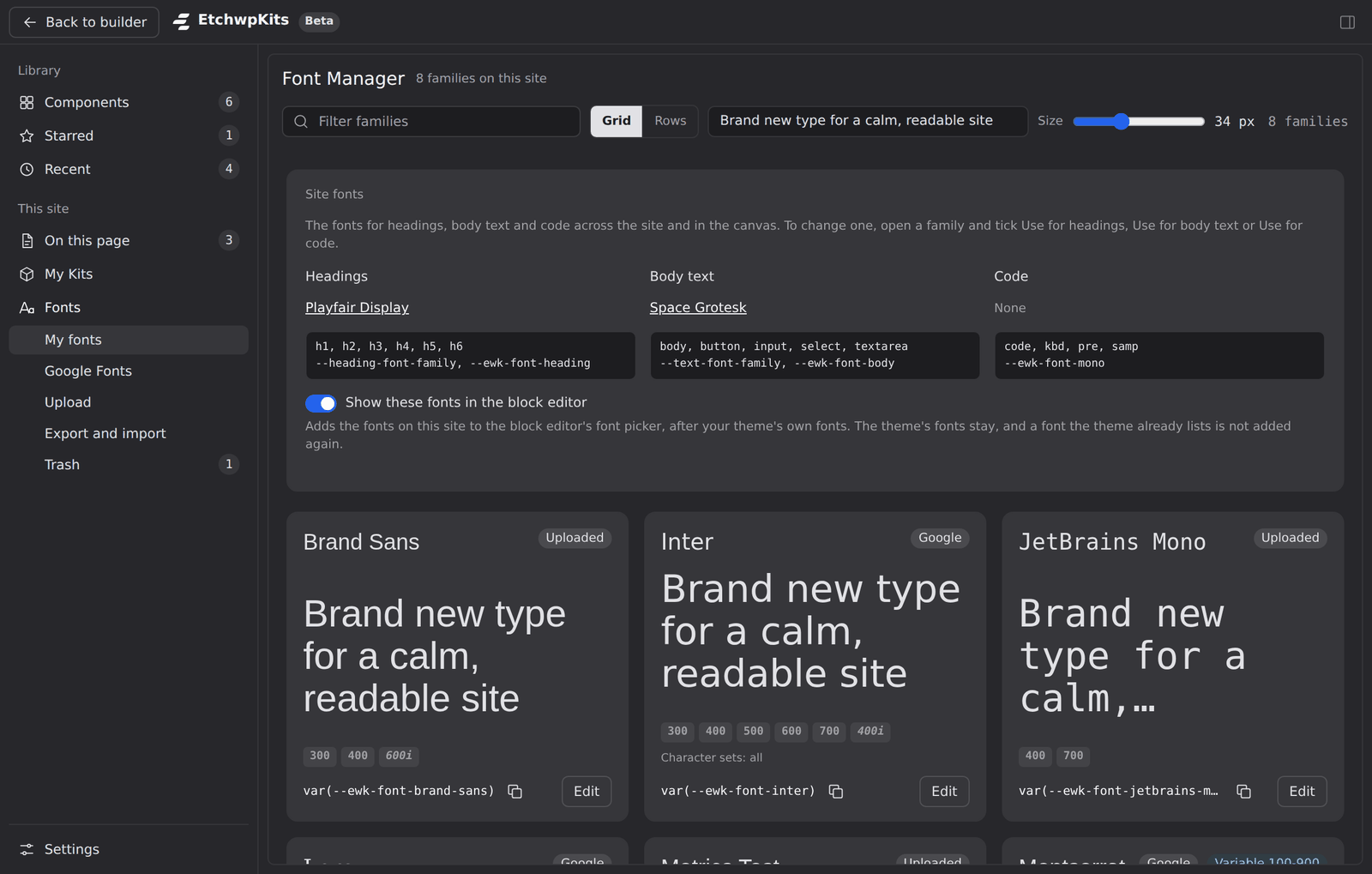
Set the fonts yourself
If you prefer to manage typography yourself, every family has its own variable, for example var(--ewk-font-inter), shown on its card with a copy button. Paste it into Etch's Typography settings (for example the Default Font Family under Headings) or into the heading and text font fields in Automatic.css's dashboard.
Use one way or the other, not both. A ticked role replaces the heading or text font set in Etch's or Automatic.css's typography settings, so to manage fonts there, leave the roles unticked. A font you set on a class, for example on one hero title, always wins over a role.
The block editor
Show these fonts in the block editor, in the Site fonts summary and on by default, adds the fonts on your site to the WordPress block editor's font picker, after your theme's own fonts. The theme's fonts stay, and a font the theme already lists is not added twice. The switch saves as soon as you flip it.
Roles when a family is removed or moved
Removing a family that holds a role leaves that role without a font and says so, for example The body font was cleared because Inter was removed from this site. Restoring the family from the trash gives its roles back, unless another family took them in the meantime. Export and import carry the roles too: an imported family gets each of its roles that no family on the site holds yet.
Open a family's settings and click Remove from this site (for an uploaded family) or Remove local copy (for a Google family), then confirm.
- The family and its files move to the trash, where they can be restored for 30 days.
- A Google family keeps loading from Google wherever it is still used, including stylesheets that import the local copy (see Loading from Google again).
- Text set in an uploaded family uses the next font in its font-family list.
The Trash tab lists each removed family with its files, its size and how many days are left. Restore puts a family back with its files and settings. Delete now removes one for good, and Empty trash removes them all. Both ask first, and neither can be undone.
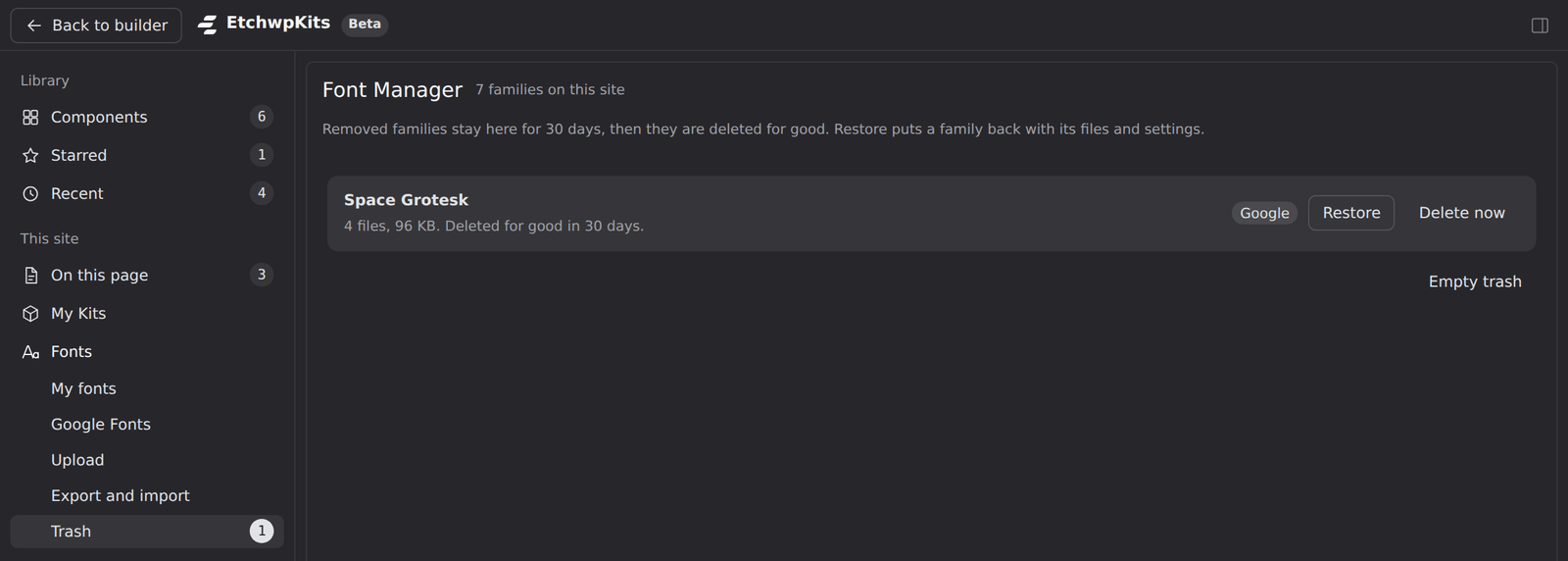
Moving to a new site, or setting up the same fonts for a client's staging and live sites? The Export and import tab moves families between sites as one zip file.
Export
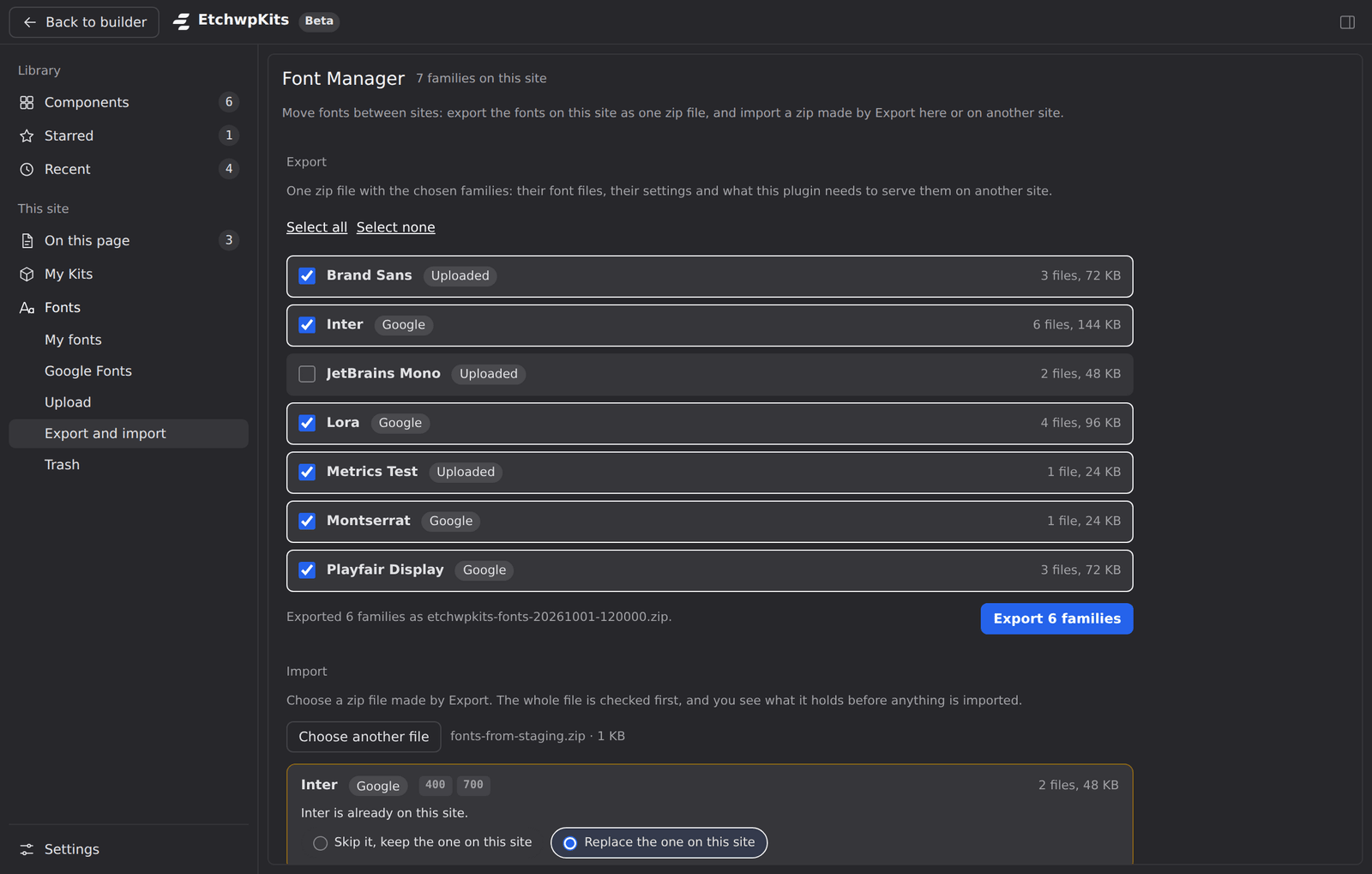
Tick the families to take along (Select all and Select none help) and click Export. The zip holds their font files, their settings and what the plugin needs to serve them on another site.
Import
Click Choose an export file
Pick a zip made by Export, on this site or another one, up to 64 MB. The whole file is checked first.
See what it holds
Each family in the file is listed with its weights, files and size, before anything is imported.
Skip or replace families you already have
For a family already on the site, choose Skip it, keep the one on this site (the default) or Replace the one on this site. Replace moves the copy on this site to the trash first, so it can be restored.
Click Import
A message says how many families were imported and how many were skipped.
Export and import need the PHP Zip extension on the server. Without it, the tab says so: ask your host to enable it.
During the beta the Font Manager is free for everyone. After the beta it needs an active EtchwpKits plan, like the rest of the plugin's tools (see the plan FAQ). Without one:
- fonts already hosted keep being served on your site, and the site font roles you set (their elements and variables) and the block editor fonts keep working,
- the Font Manager shows the plan screen, and below it the fonts on this site, which you can still remove, and the trash, where Delete now and Empty trash keep working. Restoring a family and changing a role need an active plan.
- One change at a time. Font changes on a site run one after the other, and each one finishes or is undone cleanly, even when a request is cut off half way. If two people change fonts at the same moment, the second one is asked to wait a moment and try again.
- Your own files are safe. Removing a family never deletes a file that you put into its folder yourself. If the folder holds files the plugin did not put there, nothing is changed and the message says so.
- A change that did not finish. If the Font Manager says A previous font change did not finish., make sure nobody else is changing fonts on the site, then click Release and try again.
- The wp-admin Fonts screen still scans the site for Google Fonts, replaces Google @imports in Etch stylesheets and adds font variables. It also holds the settings for how fonts are delivered: printing the font CSS inline, blocking Google Fonts from the theme and other plugins, and deleting originals after converting. See Fonts.
Something not working? See Troubleshooting.