SEO: titles, descriptions and what to fix first
Decide how every page shows in Google and when its link is shared, without another SEO plugin. Set a title, a description and a share image right where you build the page, in the EtchwpKits panel in the Etch builder, and see what to fix as you work. Pages you never touch still get good ones from your defaults and from the page itself.
The screenshots on these pages follow one site: Acme Studio builds the new site for Northwind Solar, a small solar installer.
- Each page can have its own title, description and share image, and can be hidden from search engines. You set them in the builder panel, under This site → SEO, on the Edit tab. The Check tab beside it checks the page as you build it.
- Every page without its own gets them automatically: the title from your title format, the description from the page's excerpt or first paragraph, the share image from the page's images or your default one.
- The whole site gets schema for search engines, a sitemap at
/sitemap.xml, breadcrumbs wherever you place them, link checks, redirects, and a note to search engines whenever a page changes.
Everything is written the WordPress way, into the page's head through WordPress's own title and robots features, so caching plugins and themes keep working as they do.
SEO is off until you switch it on, on each site where you want it.
Switch on SEO
Go to EtchwpKits → Tools and turn on SEO. An SEO item appears in the EtchwpKits menu.
Reload the builder
If the Etch builder is open, reload it. SEO is now in the EtchwpKits panel under This site.
Turning SEO off again stops everything it prints, and keeps what you set: switch it back on and every page has its titles and descriptions again. To switch off only a part of SEO, such as the sitemap or the link checks, see Parts of SEO.
EtchwpKits → SEO has a row of tabs. The title above them names the tab you are on. Each has a page of these docs:
| Tab | What it holds |
|---|---|
| Needs doing | The site's health score and everything that needs doing, most important first. Below. |
| Pages | Every page as Google shows it, with what its checks found. Below. |
| Search appearance | The home page, and how each kind of content reads in Google. Search appearance and sharing. |
| Sharing | The default share image, X, and your accounts. Sharing. |
| Business and schema | Your business, the schema search engines read, and the entities your pages are about. Schema and entities. |
| Links | The map of your site, the report, broken links, pages nothing links to and the words that link themselves. Links and Automatic links. |
| Redirects | Old addresses sent on, and the missed pages that lead nowhere. Redirects and 404s. |
| AI | Your own AI service for writing help, and AI clients that may work on the site. Suggest with AI. |
| Settings | The sitemap, search engines, robots.txt, code on every page, moving SEO in or out, and who gets the SEO box. SEO settings. |
A part you switch off under Parts of SEO takes its tab with it. The WordPress menu shows how many things need doing beside SEO, and so does the Needs doing tab.
Needs doing is the first tab. It gives the site a health score from 0 to 100 and lists everything that needs doing on the whole site, most important first, each with the button that fixes it.
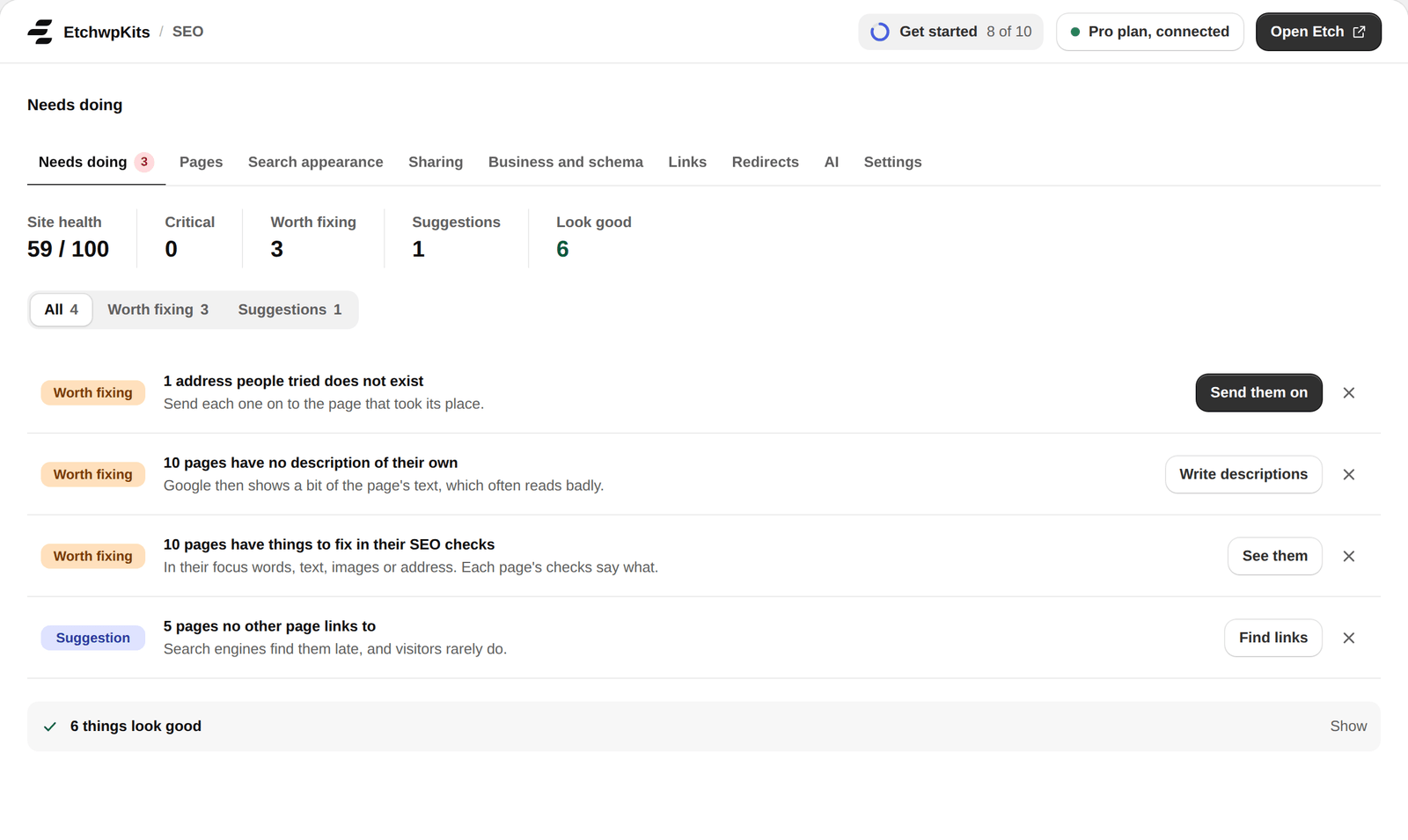
- The row of numbers sums up the site: its health score, then how many things are Critical, Worth fixing or a Suggestion, and how many Look good. The filters under it show one level at a time.
- Each row says what is wrong, why it matters and has the button that fixes it: broken links, addresses that lead nowhere, pages without a description, titles that are cut off, pages with things to fix in their SEO checks, pages nothing links to, and a site without a picture for shared pages.
- A site that tells search engines to stay away is named first, as Critical, with Let Google in to put it right in one click. Its health score is 0 until then, as nothing on it can be found.
- What looks good waits folded away at the foot. Show opens it.
Decided to leave something as it is? The cross on its row hides it. It stays hidden for everyone until more pages or links have the same problem, is no longer counted beside SEO in the menu, and comes back with Show again. Critical things cannot be hidden.
A check that cannot be read right now says so with the reason, and the score waits until every check it needs is read, so Needs doing never shows a perfect score it has not earned. A part you switch off, like the link checks, is left out of the score. Old links to the Overview open Needs doing.
Open a page in the Etch builder, open the EtchwpKits panel and choose SEO under This site. The place has two tabs: Edit, for what Google and a shared link show, and Check, for what is worth fixing on the page itself (see SEO checks). It opens on the tab you used last.
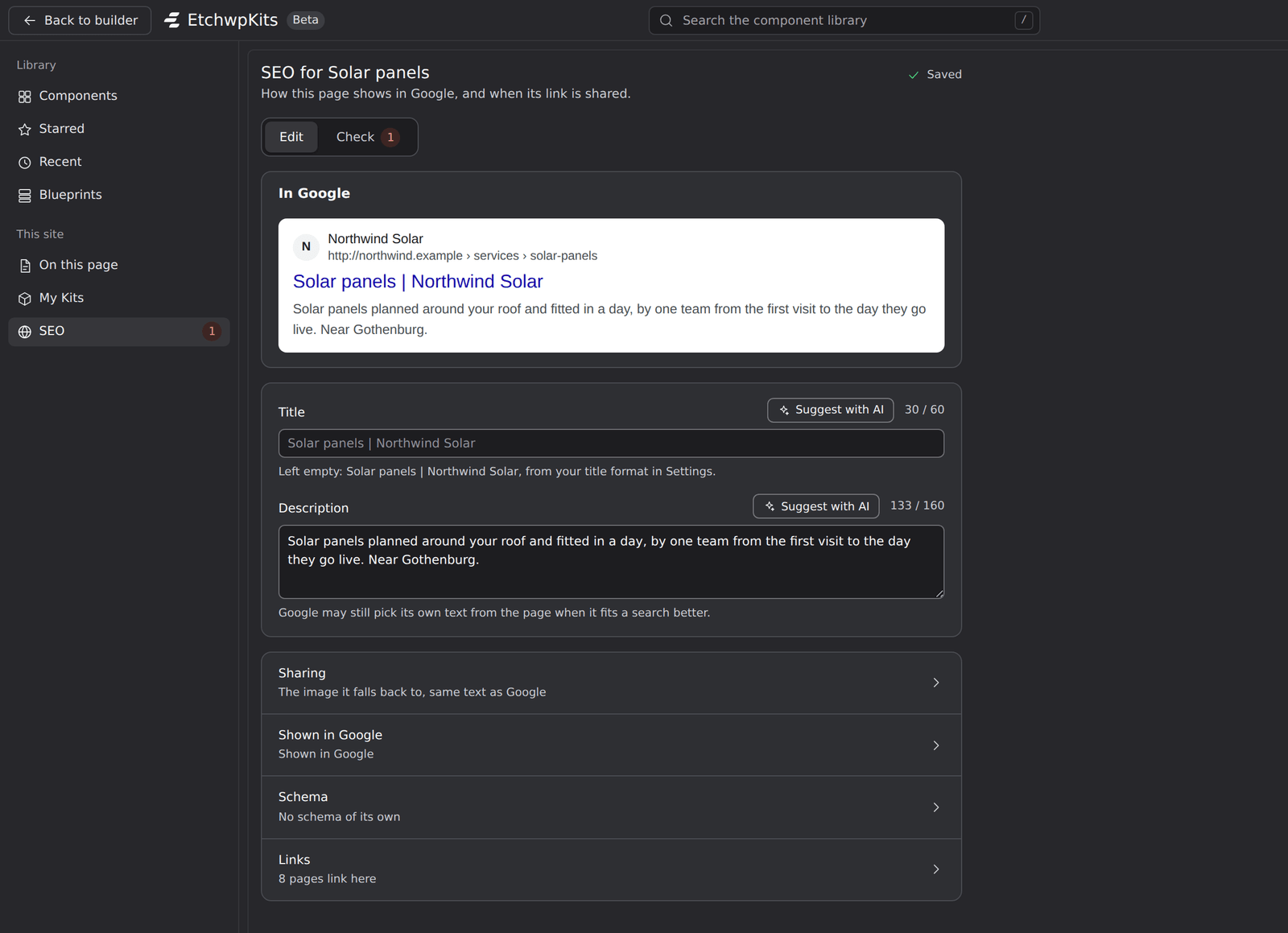
On top, In Google shows the page as a search result. It changes as you type. Under it:
- Title: the title in Google and the browser tab. Left empty, the grey text shows what the page gets from your title format. A title you write is used exactly as written, so add the site name yourself if you want it.
- Description: the text under the title in Google. Left empty, the page's excerpt is used, else its first paragraph. Google may still pick its own text from the page when it fits a search better.
The rest is in rows. Each row says in a few words what it holds, and opens to change it:
- Sharing: the Share image, the picture on LinkedIn, Facebook, X, Slack and in messages, with a preview of the shared link. Choose one from the Media Library, or upload one, right in the panel. It is cropped to 1200 × 630, the size that works everywhere. Under it, a picture of its own for X, which crops to 2 by 1, or Remove to go back to the share image.
- Shown in Google: Hide from search engines adds noindex. Google leaves the page out of its results, and the sitemap leaves it out too. Links to it still work, with their share image. Use it for thank you pages and the like. A post's Primary category and the canonical address are here too.
- Schema: what the page is, such as a service or an FAQ, and under Also on this page what else it holds. See A page's own schema.
- Links: how many of your pages link here, Link ideas and Words that link here. See Words that link here.
- Entities: what the page is about, on the kinds of page that offer them. See Entities on a page.
The count of checks to fix
A small red number beside SEO in the panel's menu says how many checks of the open page are worth fixing, so problems show without opening SEO. The same number sits on the Check tab. It is read once for each page when the panel opens, then follows the checks as you type, save and change the page. Screen readers hear it with the place's name, for example "SEO, 2 to fix".
No count shows while there is nothing to fix, while the plan is locked, or while another SEO plugin handles SEO.
The counters beside Title and Description count what Google gets: your own text, else the automatic one. They change color past 60 characters for a title and 160 for a description, where Google tends to cut. Longer text is still saved.
Everything saves on its own a moment after you stop typing, or as soon as you leave the field. The status at the top right says Saved. A page that is not published yet keeps what you set until it is.
A page you never open in the SEO place is not left empty. It gets:
| Tag | Where it comes from |
|---|---|
| Title | The pattern for its kind of page if you set one, else the page's name in your title format, such as Solar panels | Northwind Solar. |
| Description | The description pattern for its kind of page if you set one, else the excerpt, else the first paragraph of the page (Etch elements and components included), cut at a word to 160 characters. |
| Share image | Its kind's image field if you set one, else the featured image, else the first image on the page, else the site's default share image. |
The automatic description skips footnotes, captions, small print and source lines, so a line like "Figures from ..." under a section is not used. Text visitors never see, such as templates, scripts and comments in the HTML, stays out too. This holds in blocks, in HTML blocks and in classic content alike. Text that is still waiting for dynamic data is skipped, and a page behind a password shares no text or images of its own. Patterns for each kind of page are set under Search appearance.
Pages lists every published page as Google shows it: whether Google may show it, its title and description, its share image, and what its SEO checks found. It is the quickest way to check a whole site before it goes live.
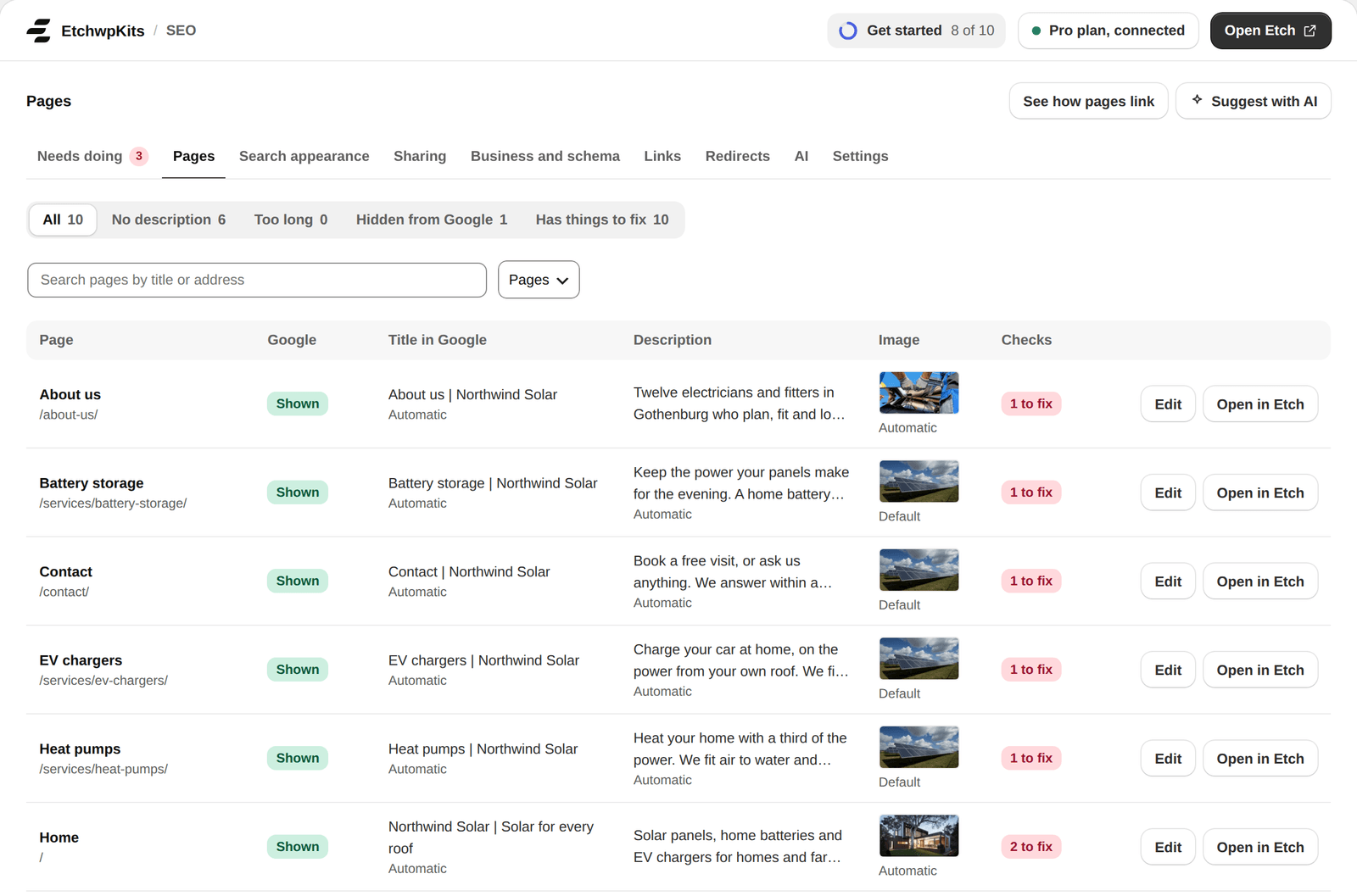
- Automatic marks a value the page gets on its own. Default marks the site's default share image.
- Checks shows each page's checks: how many are to fix, how many to improve, or All good. A page that changed since it was last checked is checked as it was last saved.
- The filters show No description (pages without one of their own), Too long, Hidden from Google and Has things to fix. The menu switches between pages, posts and other public post types, and the search finds a page by its title or address.
- Open in Etch opens the page in the builder, for every kind of page, custom post types included. See how pages link opens the link map.
Edit opens the page right in the list, with the Google preview beside it: the title, the description, an image for X and the page's entities. Save keeps your changes, Cancel or Escape leaves them. The share image and Hide from search engines stay in the builder panel and the SEO box.
At the top, Suggest with AI writes titles or descriptions for every page still without one. See Many pages at once.
In WordPress's own lists
The Pages and Posts lists in WordPress get an SEO column too: whether a page is good, what to look at and why, or hidden from Google, then its title and description as Google shows them. Screen Options hides it like any other column.
- A filter beside the list's own shows Has things to fix, Hidden from Google and No description, each with how many.
- Quick Edit changes a page's title in Google, its description and whether it is shown in Google, without opening it.
On a page of the site, SEO in the admin bar shows how many things that page's checks found. Its menu shows the page as Google shows it and what to look at, with:
- Show it on the page: marks the headings or images a check is about and scrolls to them. Take the marks away clears them.
- Fix in Etch and Open the SEO box, to change the page, and Whole site with how many things the site has to look at.
Anywhere else, SEO in the admin bar shows how many things the whole site has to look at, and opens Needs doing. Only people who may change a page's SEO see it. Visitors get nothing extra on the page.
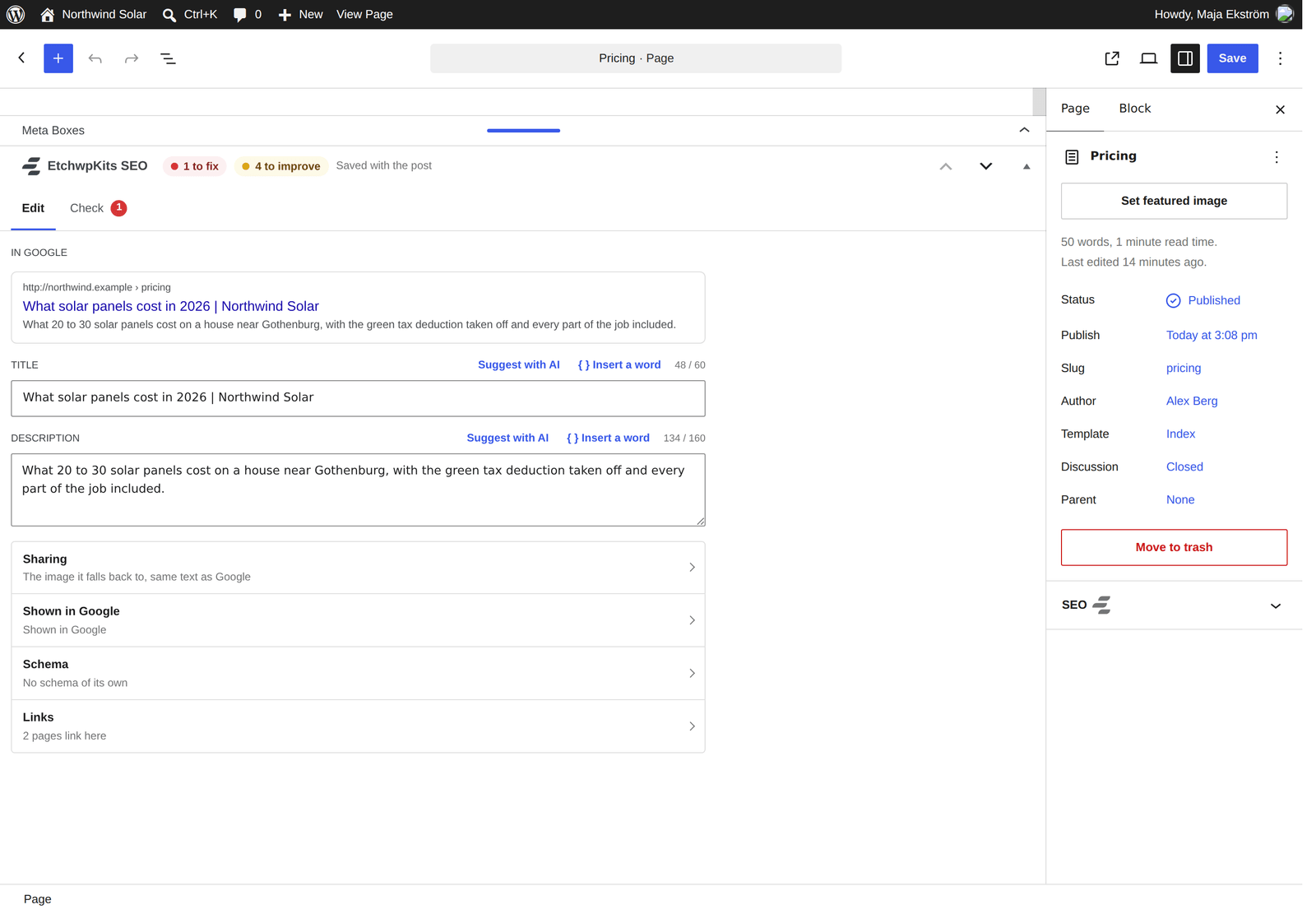
Pages and posts written in the WordPress block editor get a wide box under the content, EtchwpKits SEO, with the same two tabs as the builder panel: Edit and Check.
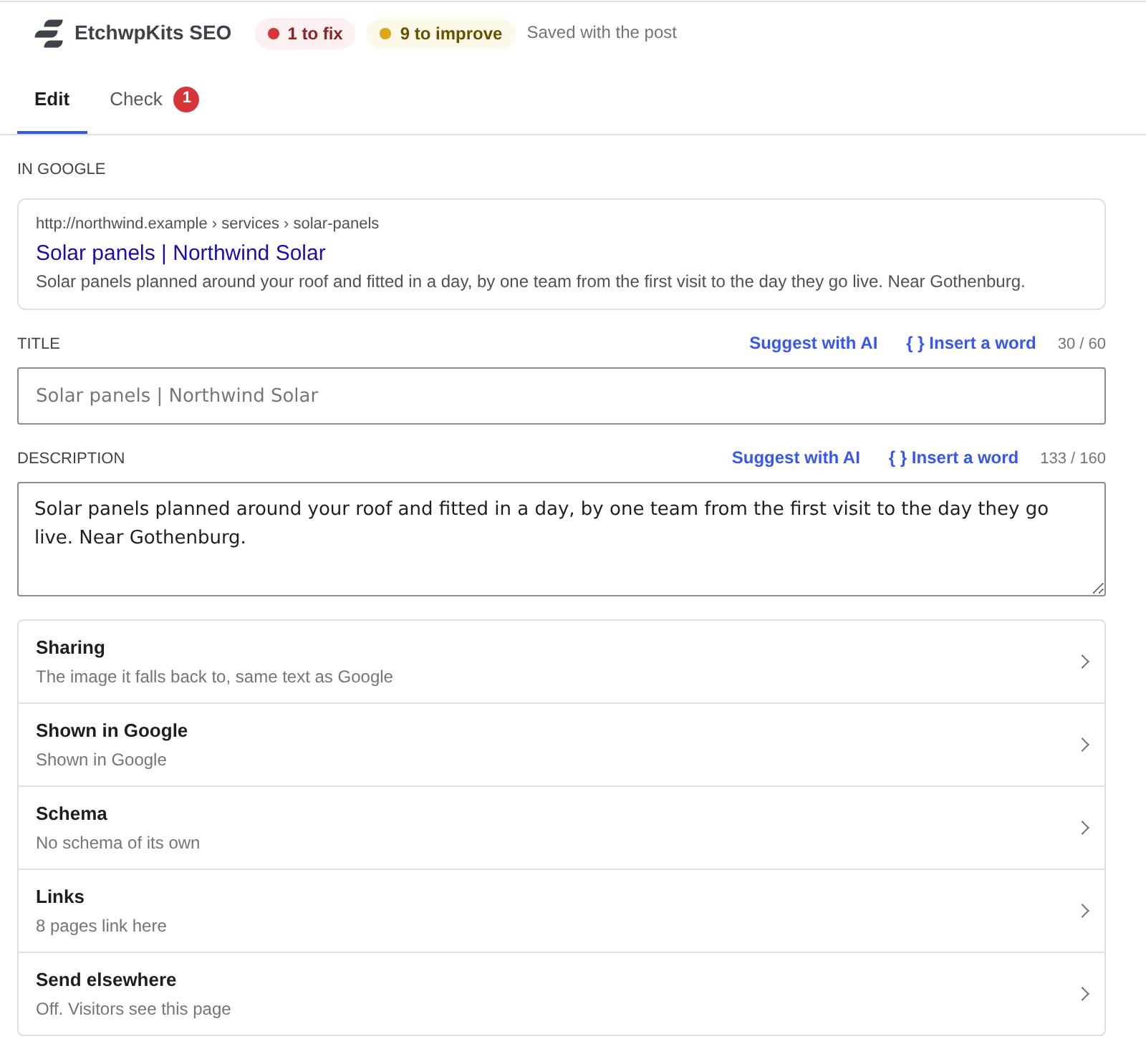
- Edit shows how the page looks in Google, the Title and the Description, with Suggest with AI (see Suggest with AI), Insert a word and a counter of what Google gets. Left empty, the grey text shows what the page gets from the pattern for its kind of page.
- Then a row each for Sharing, Shown in Google, Schema, Links and Entities, as in the builder panel, and Send elsewhere, for a redirect. Each row says in a few words what it holds and opens to change it.
- The header shows how many checks are to fix and to improve, and says Saved with the post: there is no separate save. The post's own Save button keeps everything in the box. A redirect is the one thing saved on its own button.
- Fold the box with its arrow, and the header shows the page's title as search engines get it. Folding is WordPress's own and kept for each user. The tabs work from the keyboard: the arrow keys, Home and End.
A page's own title and description can hold words that fill in for it, the same words as the patterns under Search appearance. Write {title} without scratches {sep} {site} once, and the title follows the page's name and your site name when they change.
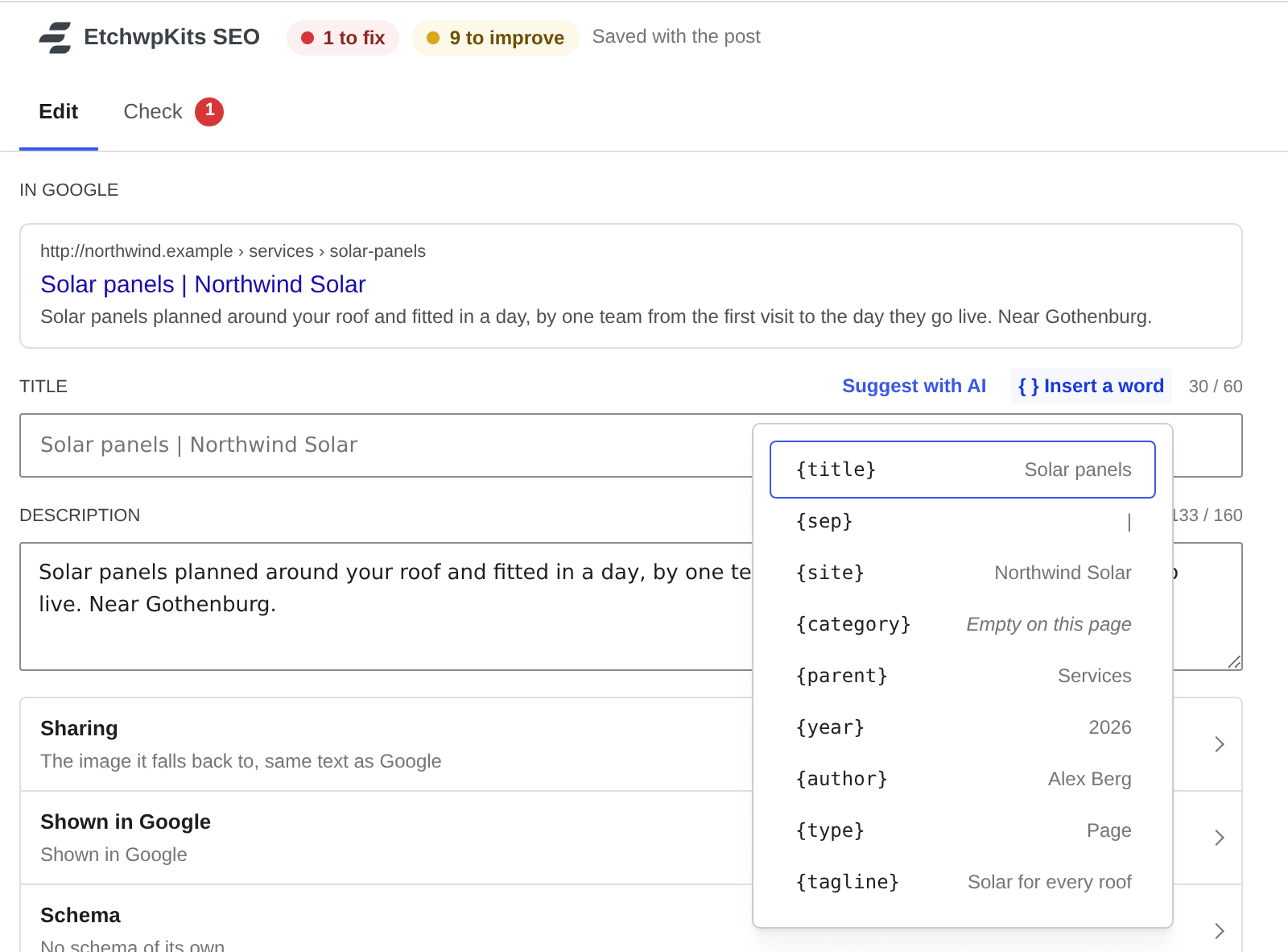
- Insert a word lists each word with what it is on this page, and puts it in where the cursor is:
{title},{sep},{site},{category},{parent},{year},{author},{type},{tagline},{excerpt}in a description, and the page's own custom fields as{field:name}. - Filled in under the field shows what the page gets. The counters, the preview, the SEO checks and the Pages list all count and check the filled in text.
- A private field (one whose name starts with an underscore) never fills in, and a page behind a password shows nothing of its fields.
When the same text lives at two addresses, say a guide you also publish on a partner's site, the canonical address tells search engines which one to count. Most pages never need one: each page already names its own address.
- Type the whole address, starting with
https://. The field says so while what is typed is not one, and only a whole address is saved. - It goes into the page's canonical link, its
og:urland its schema, and the page leaves the sitemap, since search engines are told to count the other address. - It is under the Shown in Google row, in the builder panel and in the SEO box, while Canonical addresses is on under Parts of SEO. The row then says Shown, under the address it points to.
The Links row shows what the link checks know about this one page.
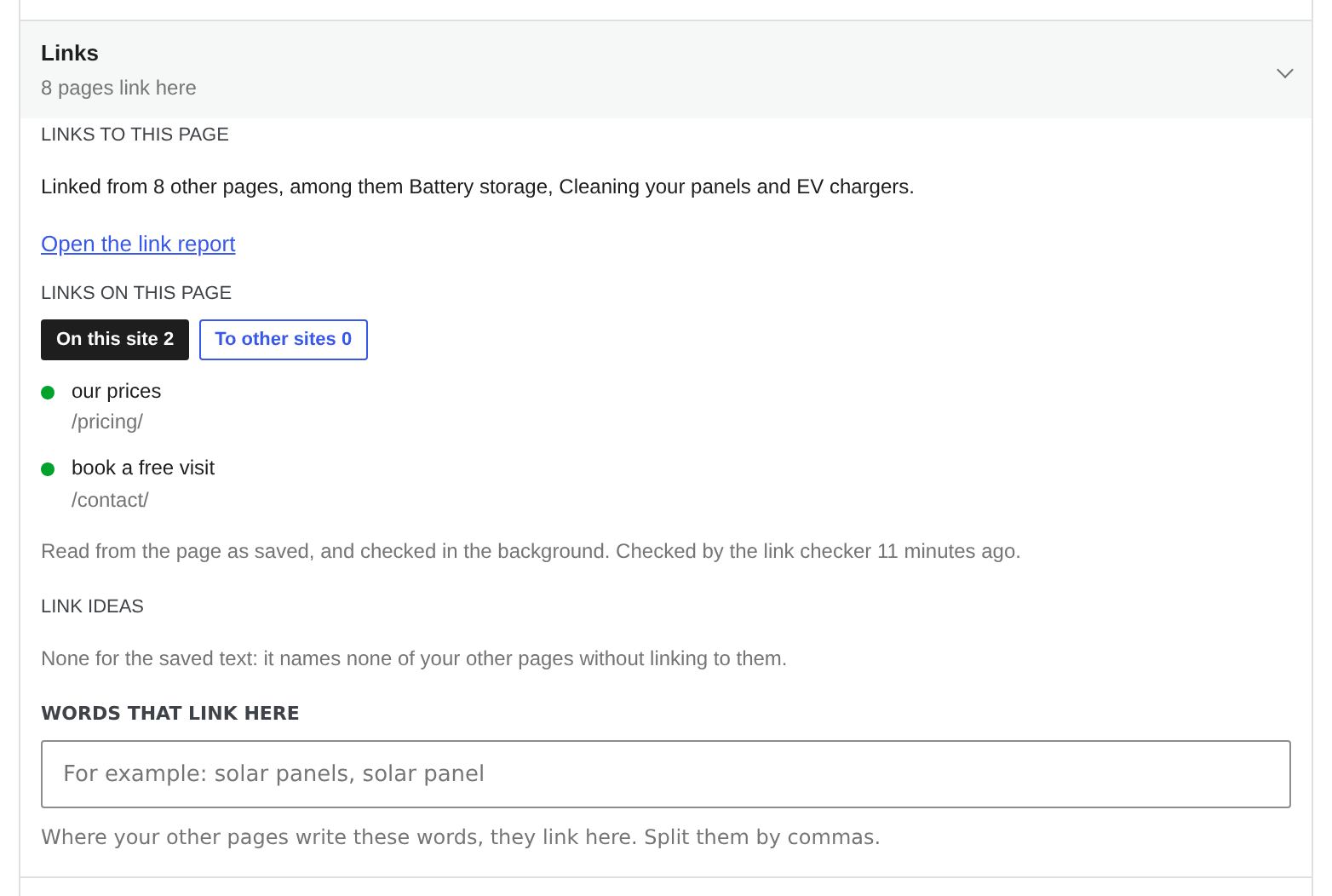
- Links to this page says how many of your pages link here, with Open the link report, which opens this page's own report under SEO → Links.
- Links on this page lists the page's own links, to your pages and to other sites, each with its text and address, as the link checks read them from the page as saved. A green dot is fine, a yellow one goes through a redirect and says where it ends up, and a red one leads nowhere.
- A link to one of your addresses that is not found says Change the link in the text, or send … on with a redirect. The second part opens Add a redirect with that address filled in.
- Under the list, when the link checker last asked the page's links. A page with more than 50 links on one side shows the first 50 and Show all.
- Link ideas and Words that link here work as in the builder panel. See Words that link here.
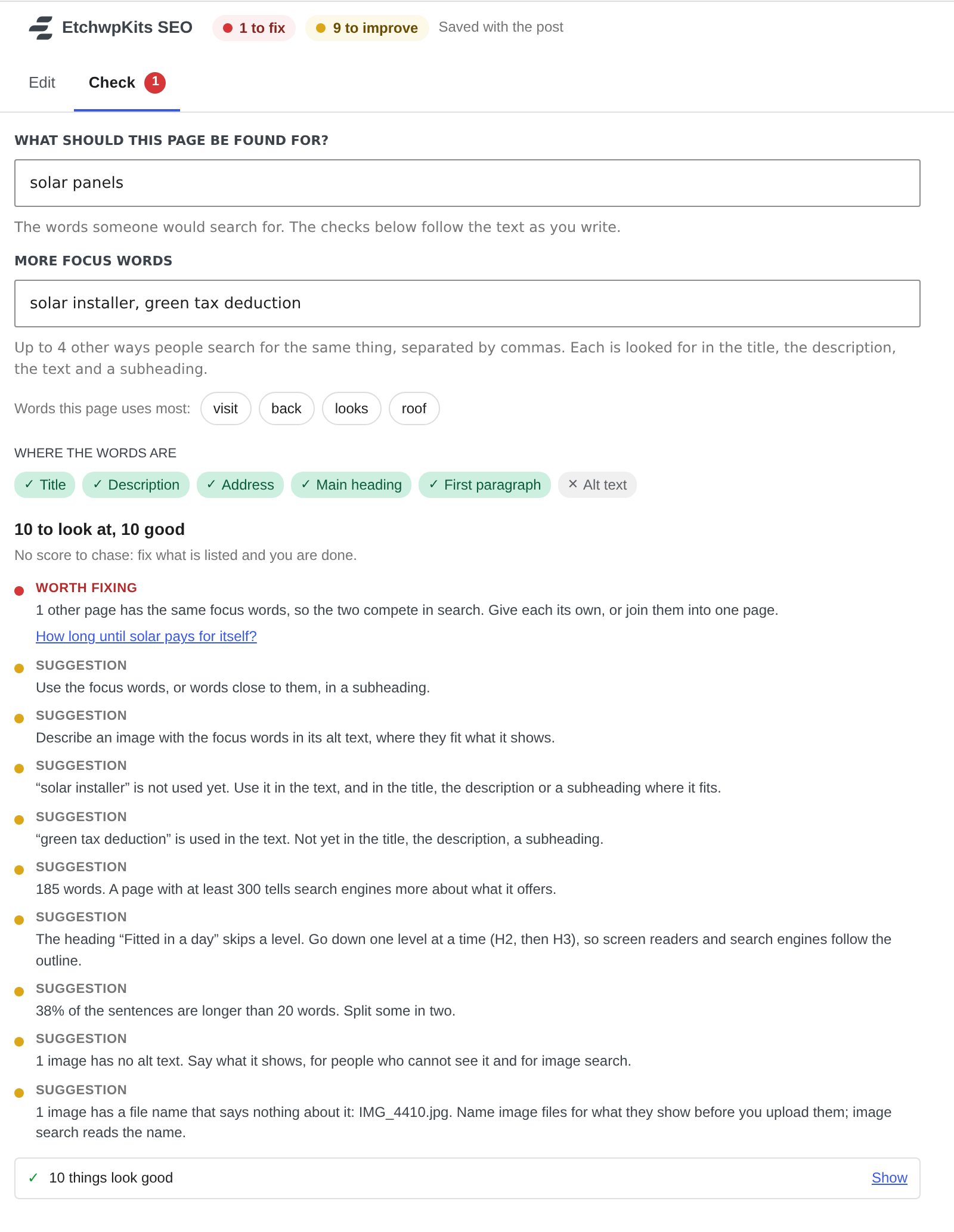
Check asks what the page should be found for, offers the words the page uses most, marks where the focus words are, and lists what is worth fixing first. The number to fix shows on the tab. See SEO checks.
Schema sets what the page is and what else it holds, and says in plain words what search engines read: see A page's own schema. Entities holds what the page is about: see Entities on a page.
Send elsewhere sends this page's visitors to another page, and lists the old addresses that lead here with their visits of the last 30 days. It shows while Redirects is on. See From the page itself.
The SEO box is for everyone who may edit a page, as WordPress says: an editor on every page, an author and a contributor on their own. The admin bar shows them that page's SEO too. The SEO screens and settings stay with administrators.
- Someone who is not an administrator gets the same Edit and Check, without the parts that belong to the SEO screens: no Send elsewhere, no link report, and no list of the page's own links.
- An administrator can keep the box to administrators only: under SEO → Settings → Who and what, choose Administrators only under Who gets the SEO box.
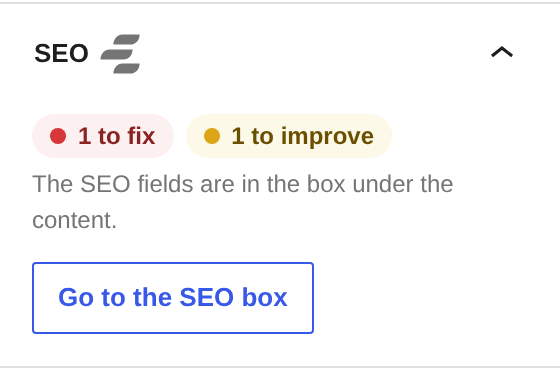
While the fields are in the box, the sidebar keeps a short SEO summary with the same counts, The SEO fields are in the box under the content, and Go to the SEO box. It opens the pane of boxes if it is folded, scrolls to the box and puts the focus on its open tab.
Prefer everything in the sidebar? Choose The sidebar under Settings → Parts of SEO → In the block editor. The fields then sit in one SEO panel in the page settings, with the same Edit and Check.
The kind of a link
To mark a link nofollow, sponsored or ugc, select it in the text and choose Kind of link from the toolbar's More menu. The link's other rel values, like noopener, are kept. Editing the link later in WordPress's own link box keeps only its nofollow, so mark it sponsored or ugc again after that.
A category, a tag or a term of any other public taxonomy gets an SEO section on its edit screen (Posts → Categories, then the category's name): Title, Description, a share image and Hide from search engines, with the Google preview. It saves with the screen's Update button.
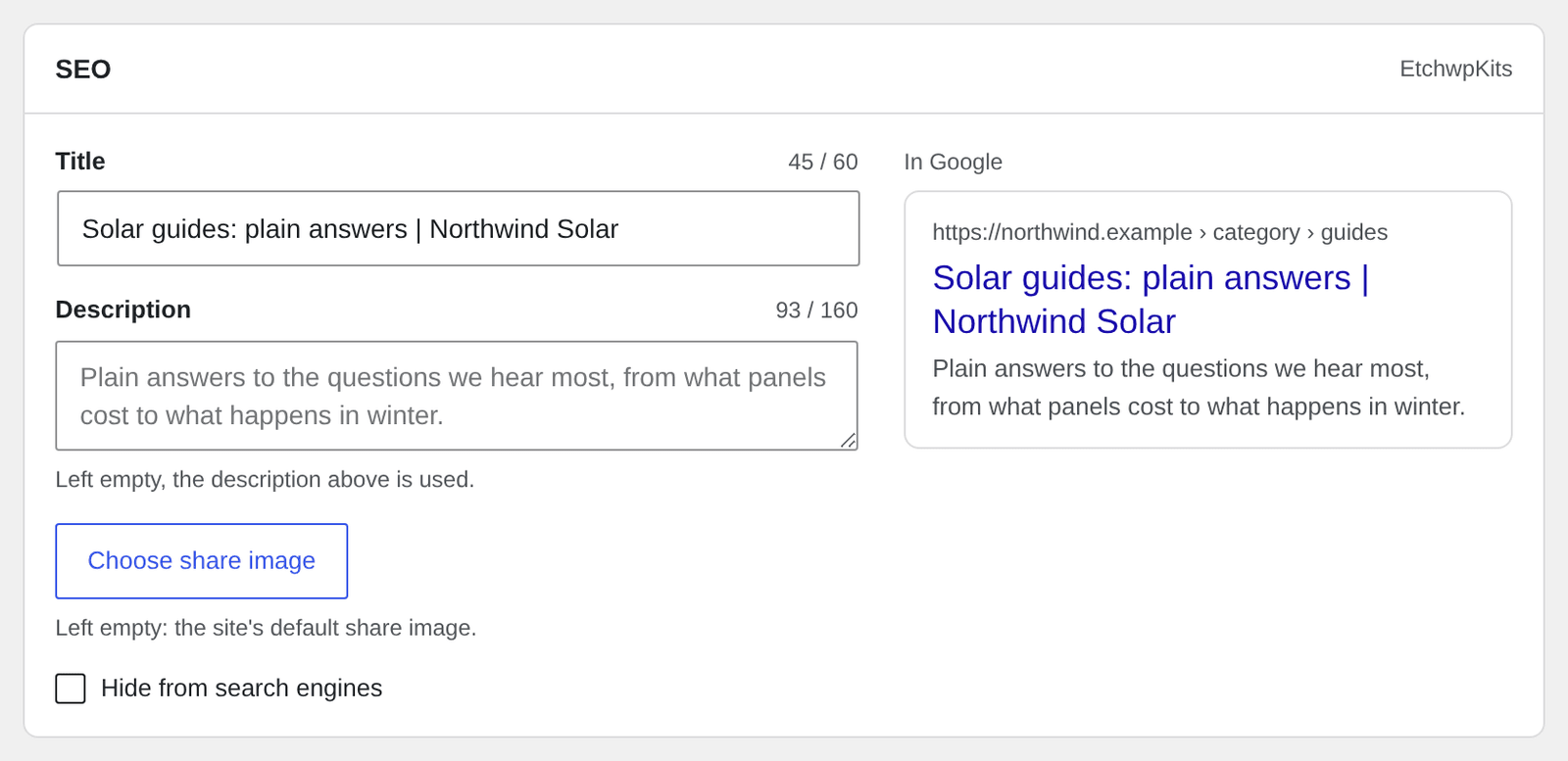
Left empty, a category uses its own description and the site's default share image. Author pages need nothing: their title and description come from the user's name and biographical info.
With Yoast SEO, Rank Math, SEOPress, All in One SEO, Slim SEO, The SEO Framework or SureRank active, EtchwpKits adds no SEO tags, schema or sitemap of its own, so two plugins never write the same ones. The builder panel says which plugin handles SEO and links to it, and the SEO screens say so at the top.
What you set in EtchwpKits is kept. Deactivate the other plugin, ideally after an import, and it all applies at once.
- The SEO screens and settings are for administrators. A page's SEO, in the SEO box and the admin bar, is for everyone who may edit that page, unless Who gets the SEO box keeps it to administrators.
- Like the rest of the plugin's tools, changing SEO needs an active plan once plans start (see plans). Without one, everything you set keeps working on the site: titles, descriptions, share images, schema, the sitemap, breadcrumbs and redirects.
- Deactivating the plugin keeps everything. Deleting it removes the SEO settings and every page's SEO values, focus words, entities and link data, along with the rest of its data.
- Developers can change the head tags with the
ewkc_seo_head_tagsfilter, and the sitemap's post types and taxonomies withewkc_seo_sitemap_post_typesandewkc_seo_sitemap_taxonomies.