Share with client: comments and approval on your own site
Show your client the page you are building, right from Etch. Share with client makes a private link on your own site. Your client opens it without an account, pins comments to the spots that should change, checks each fix you make, and approves the page when it is ready to go live. You see whose turn it is, and answer everything, without leaving the builder.
A review goes back and forth on one link until the page is right. The screenshots on this page follow one: Acme Studio builds a new homepage for Northwind Solar and shares it with Anna Berg, who runs their marketing.
- You share the page from the builder. A copy of the page as it is saved goes to the link, with a password if you like.
- Your client comments. They click where something should change, and a numbered pin marks the spot. They can also comment on the whole page.
- You fix and answer in Etch, mark each comment fixed, and share the next version on the same link.
- Your client checks each fix: it looks good, or they send it back with what is still wrong.
- Your client approves the page, and you know that version is ready to go live.
Nothing on your site changes while you share: your client only ever sees the copy.
Share with client is off until you switch it on, on each site where you want it. Go to EtchwpKits → Tools and turn on Share with client. Its own switch under it, Email me about comments, sends you an email when your client writes (see Emails about comments).
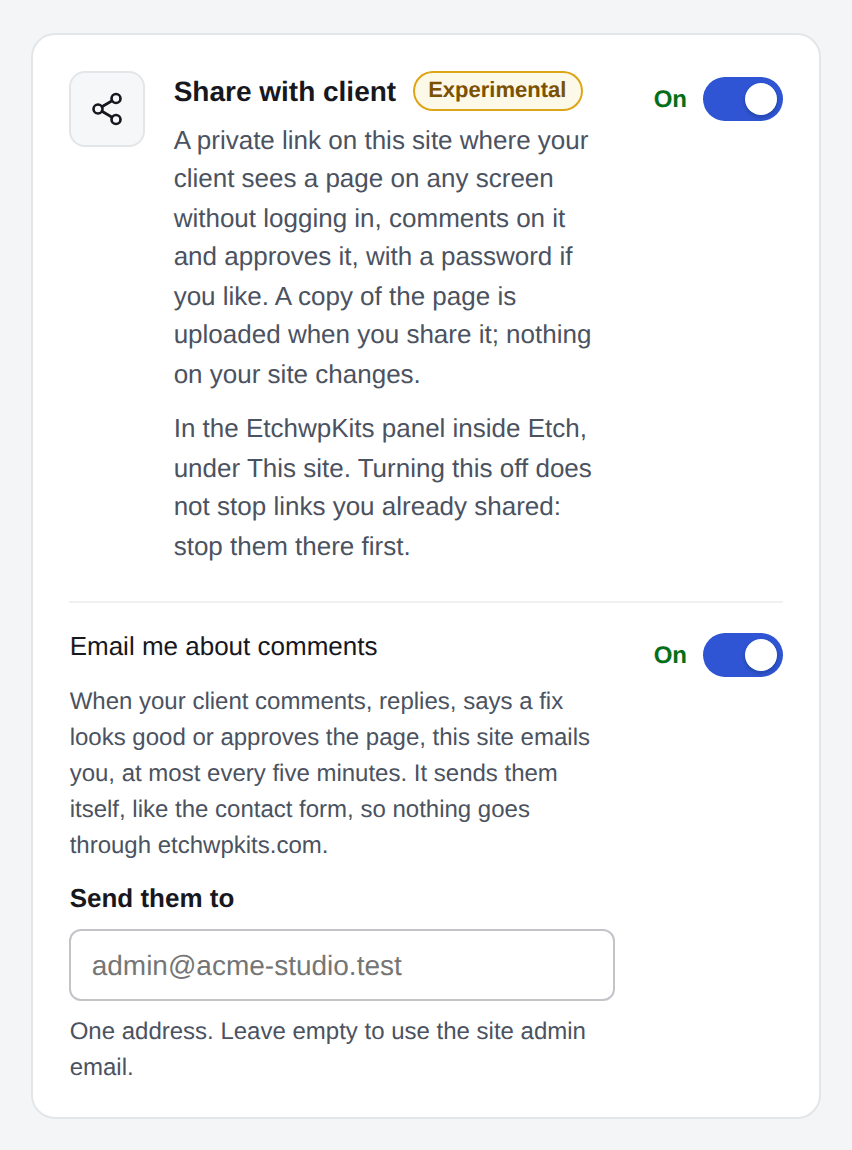
Then reload the Etch builder if it is open. Share with client is in the EtchwpKits panel, under This site.
Open the page in Etch, save it, then open Share with client in the panel. The first time, it asks three things.
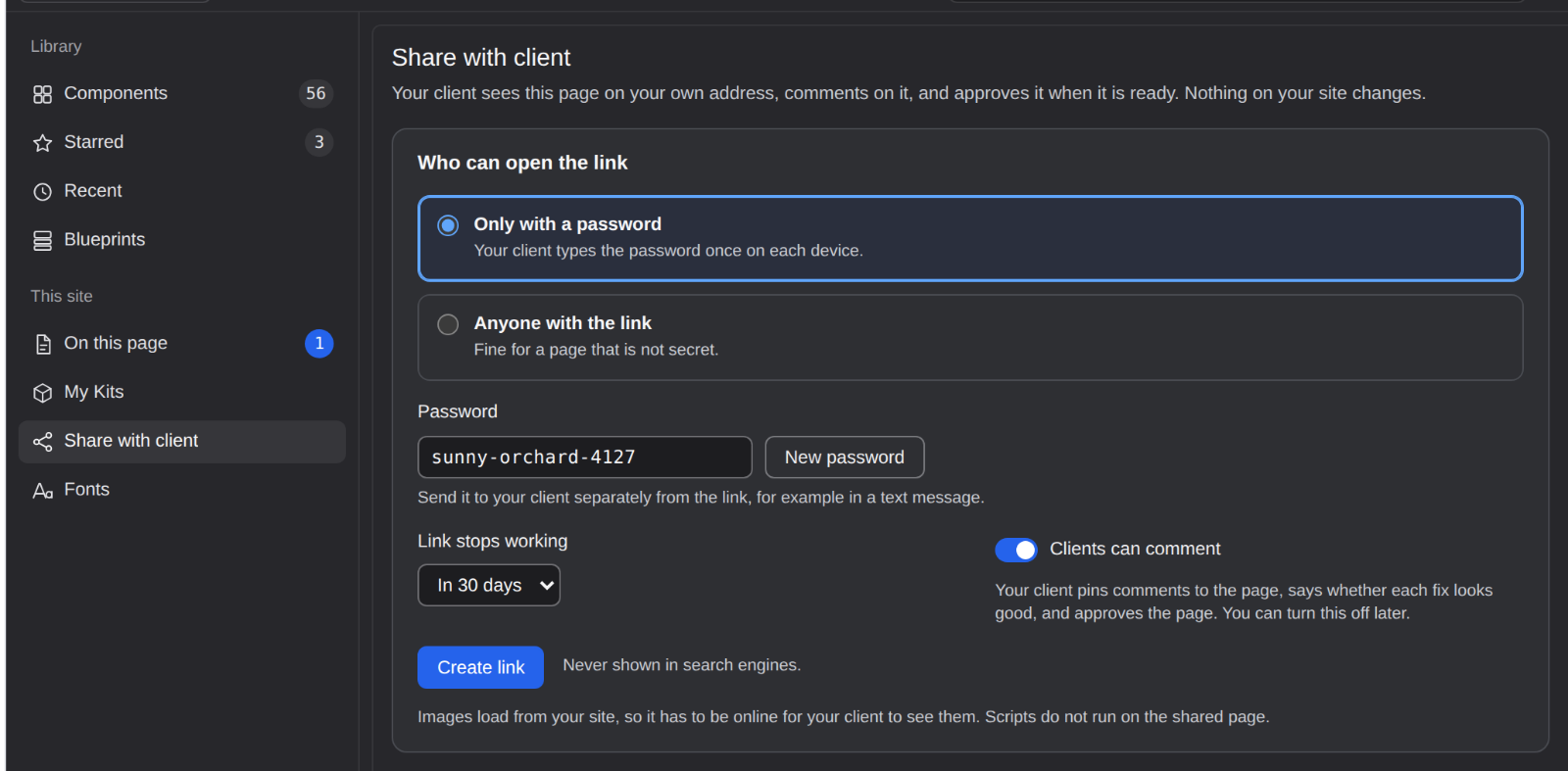
Choose who can open the link
Only with a password is chosen for you, with a password made up to be easy to read out: two words and four digits, such as
sunny-orchard-4127. New password makes up another, or type your own (4 to 64 characters). Send it to your client apart from the link, for example in a text message. Pick Anyone with the link for a page that is not secret.Choose when the link stops working
In 30 days, In 7 days or Never. You can change it later.
Let your client comment
Clients can comment is on for a new link. Turn it off to only show the page.
Click Create link
The plugin takes a copy of the page as it is saved and sends it to the link. Images still load from your site, so it has to be online while your client looks. Scripts do not run on the shared page.
Once the link exists, Share with client shows it with everything you can change. A status at the top always says whose turn it is.
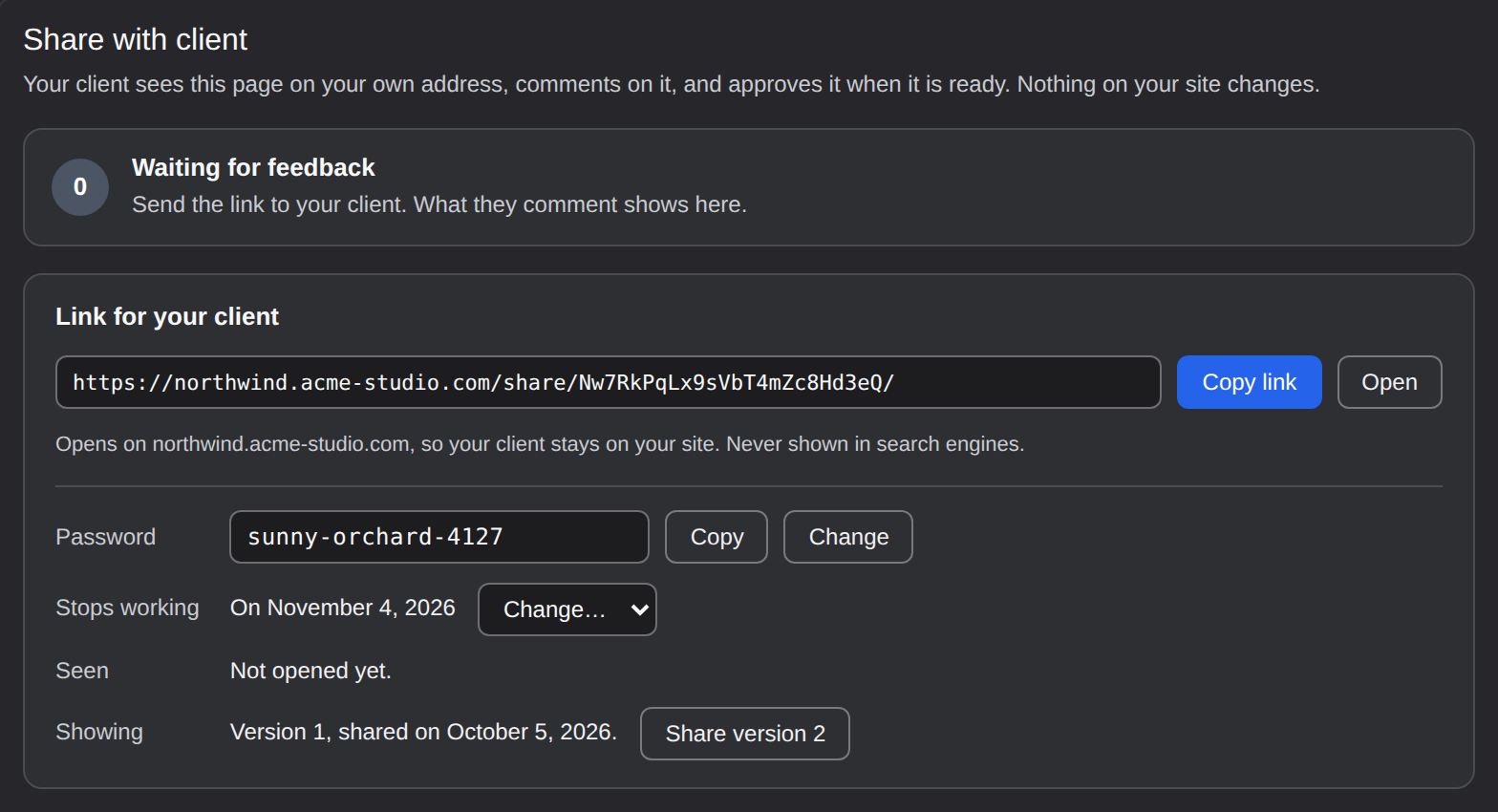
- Link for your client: the link is on your own site, as
yoursite.com/share/…, so your client stays on your address the whole time. Copy link copies it. Open opens it for you, and your own visit is not counted as your client's. - Password: Copy it again whenever you need it, or Change it: make up a new one or type your own, and press Enter to save. You can also remove the password, or add one to a link that has none. After a change, everyone who opened the link types the new password.
- Stops working: when the link stops working, with Change… to pick another time.
- Seen: whether your client opened the link, how often, and when last.
- Showing: the version your client sees. Share version 2 sends the page as it is saved now, on the same link.
At the bottom, Clients can comment turns comments on or off for this link, and Stop sharing makes the link stop working for everyone who has it, after asking. With the Brand kit on, Show the brand kit adds a Brand kit tab beside the page on the same link.
Your client opens the link in any browser, on a computer, tablet or phone. There is nothing to install and no account to make.
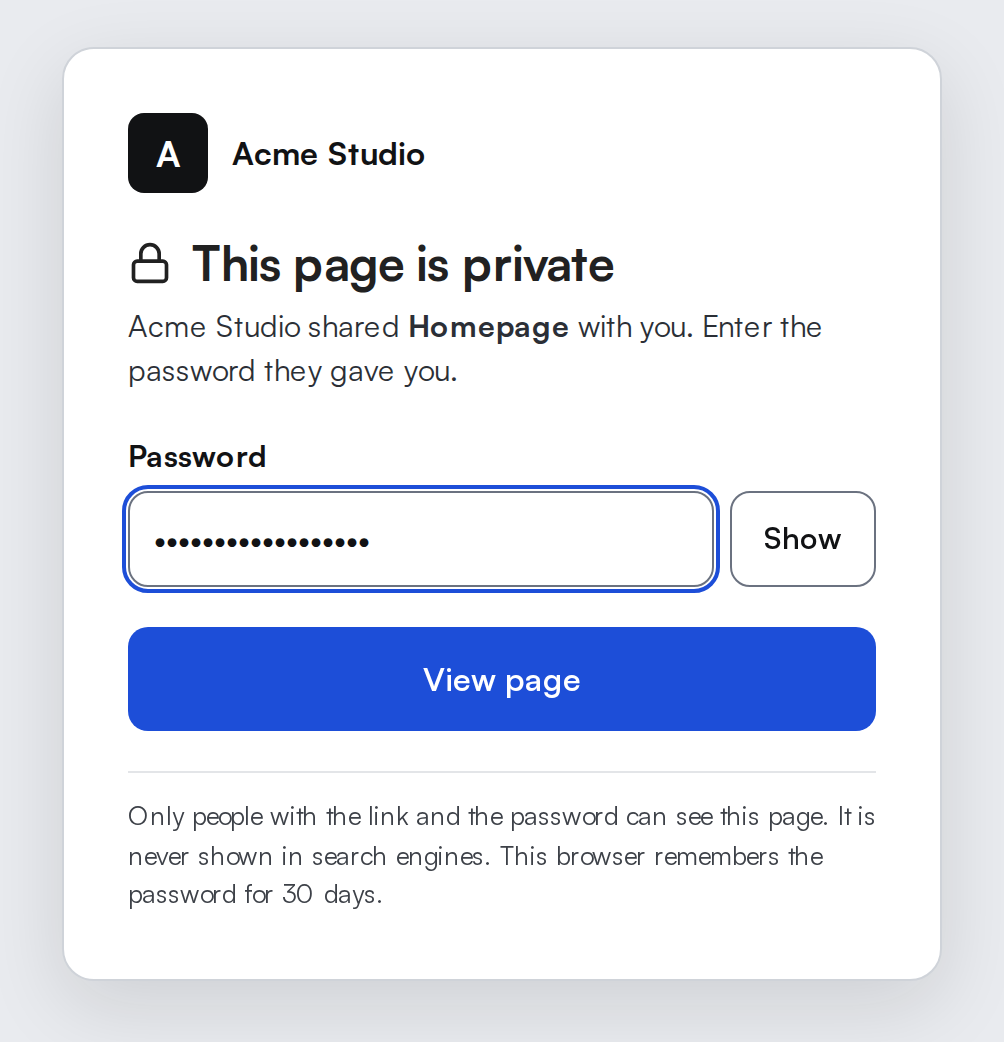
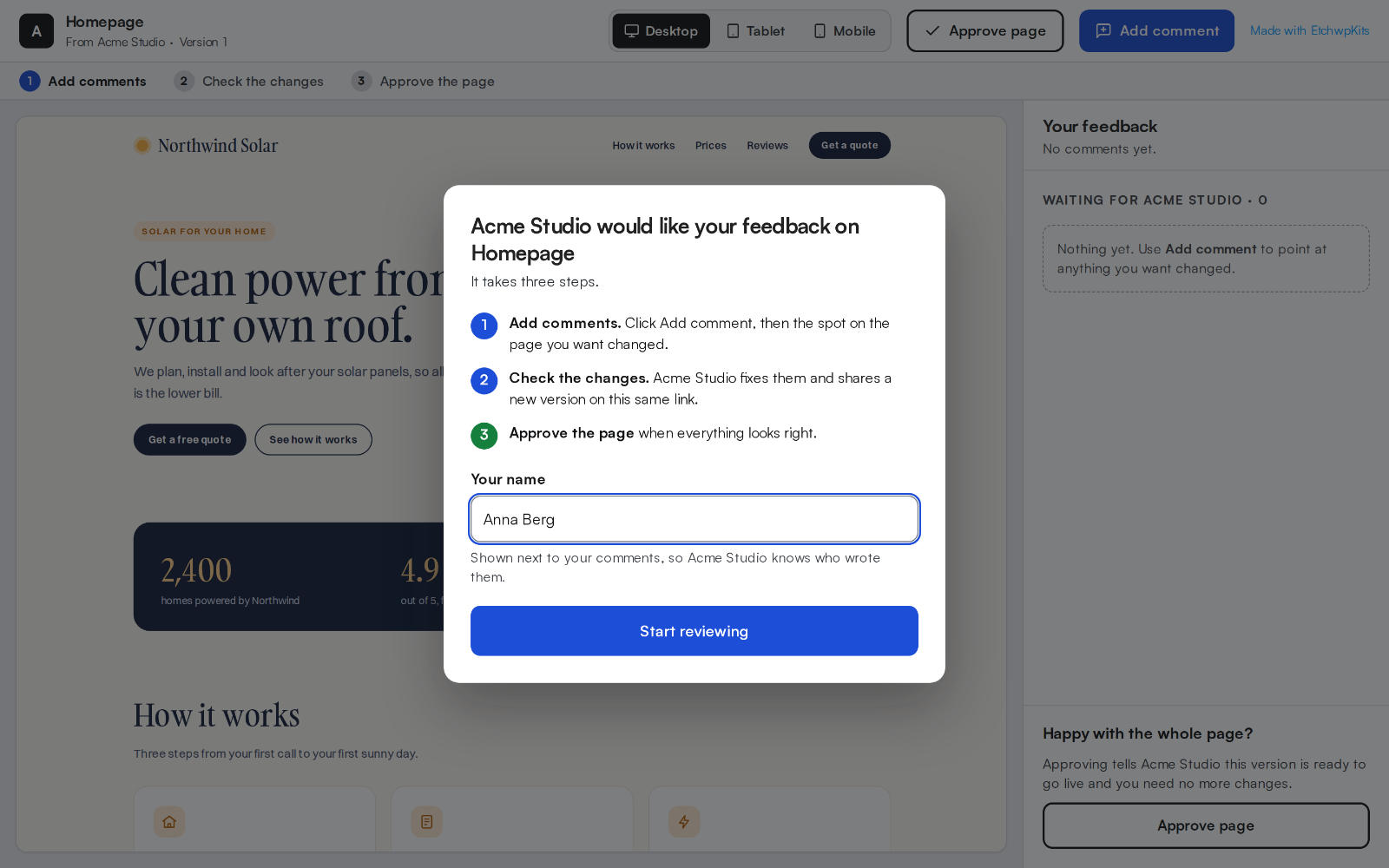
The first time, your client sees the three steps of the review and writes their name, so you know who wrote each comment.
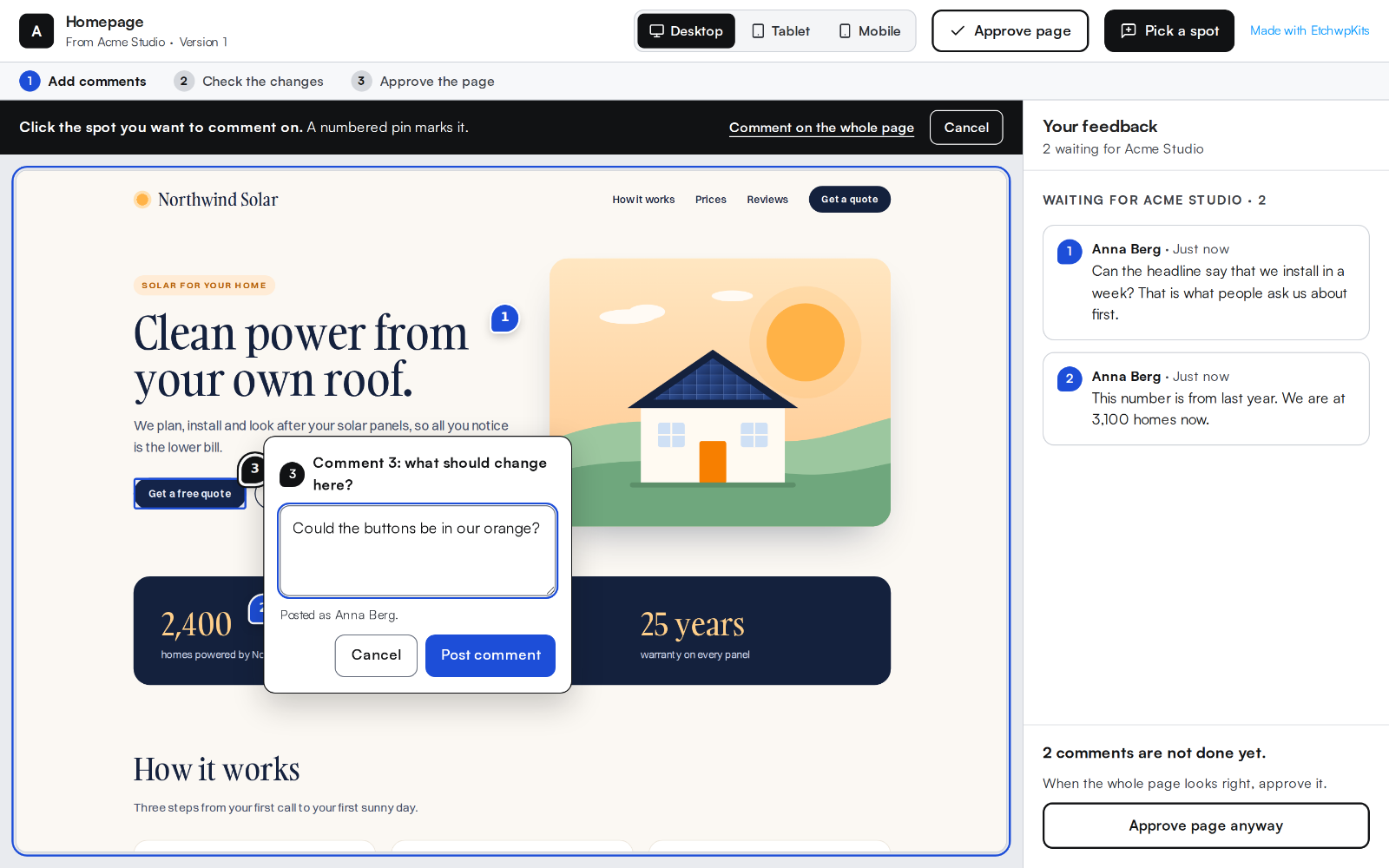
To comment, your client clicks Add comment, then the spot on the page. A numbered pin marks it, and the comment box opens beside it. Comment on the whole page is there for things that have no one spot, like a phone number missing from the menu. Their comments are listed on the right, and the buttons at the top show the page as on a desktop, tablet or phone.
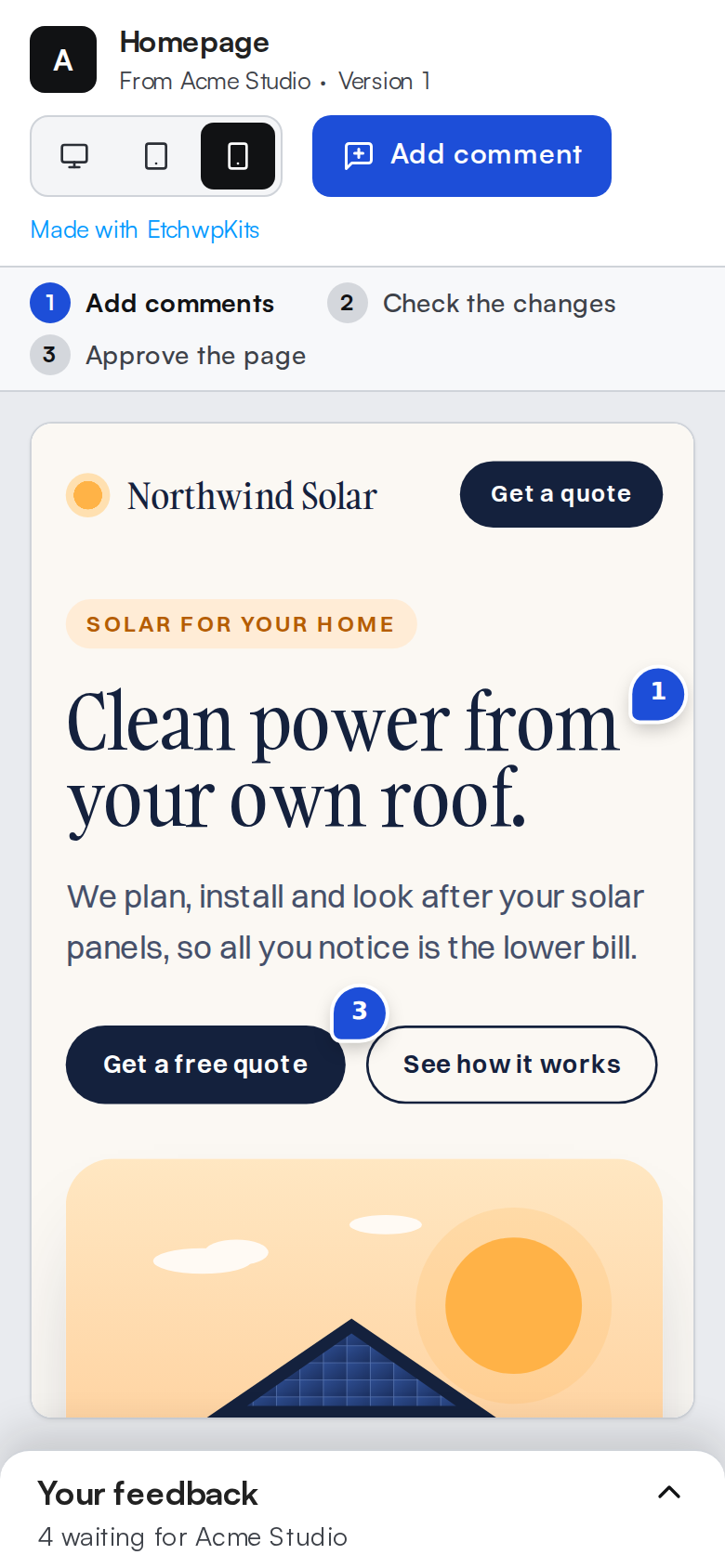
It works the same on a phone, where the comments open from the bar at the bottom.
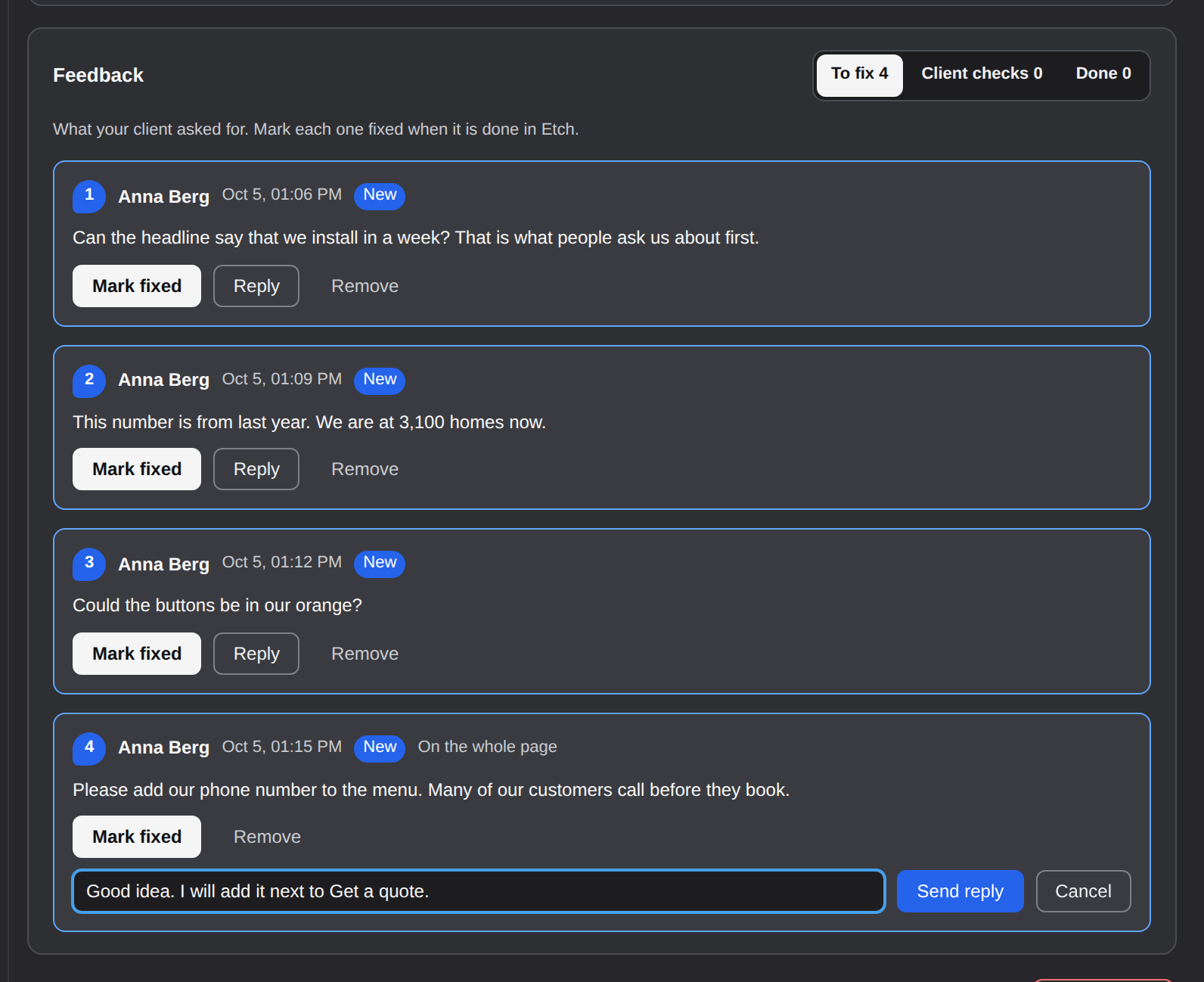
When your client writes, Share with client in the panel shows a count of what is new. The status says it is your turn, and Feedback sorts the comments into three tabs:
- To fix: what your client asked for and you have not fixed yet.
- Client checks: what you fixed, waiting for the next version or for your client to check it.
- Done: the fixes your client said look good.
Fix it in Etch, and answer if you like
Reply opens a field under the comment. Press Enter to send, or Escape to close it. Your client sees your answer on the same link.
Click Mark fixed
The comment moves to Client checks. Not fixed yet takes it back. Remove deletes a comment, after asking.
Share the next version
Save the page in Etch, then click Share version 2. Your client sees the new version on the same link, with what you fixed ready to check.

Find the spot a comment is on
A comment pinned to the page says which part of the page it is on, by the heading of that part, for example At “Your plan and price”. When that part has no heading, it names the class of what your client pointed at, like At .nw-stats__number. A comment on the whole page says On the whole page. Pins placed before version 0.75.0 of the plugin name no part, and Open the pin still works for them.
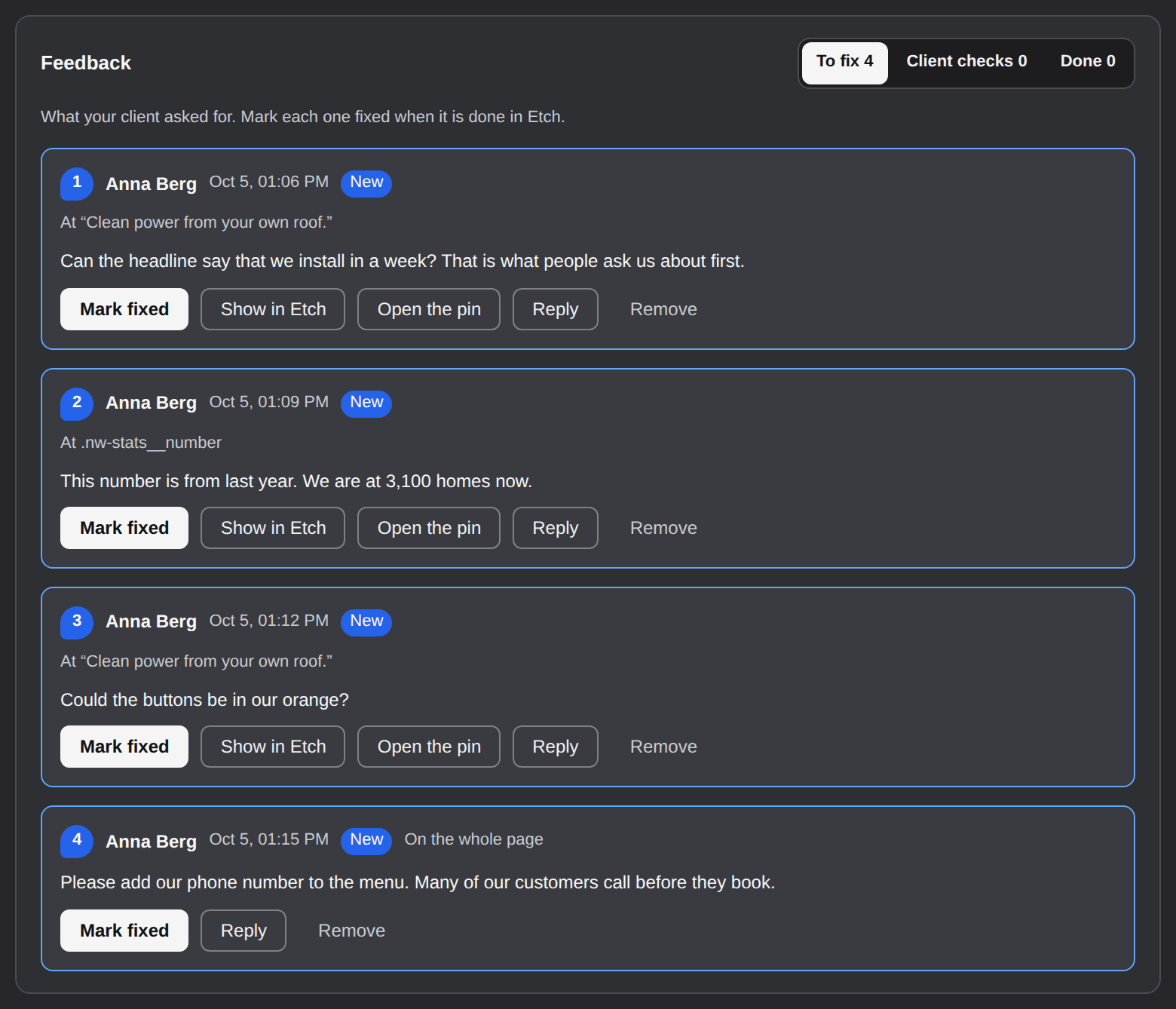
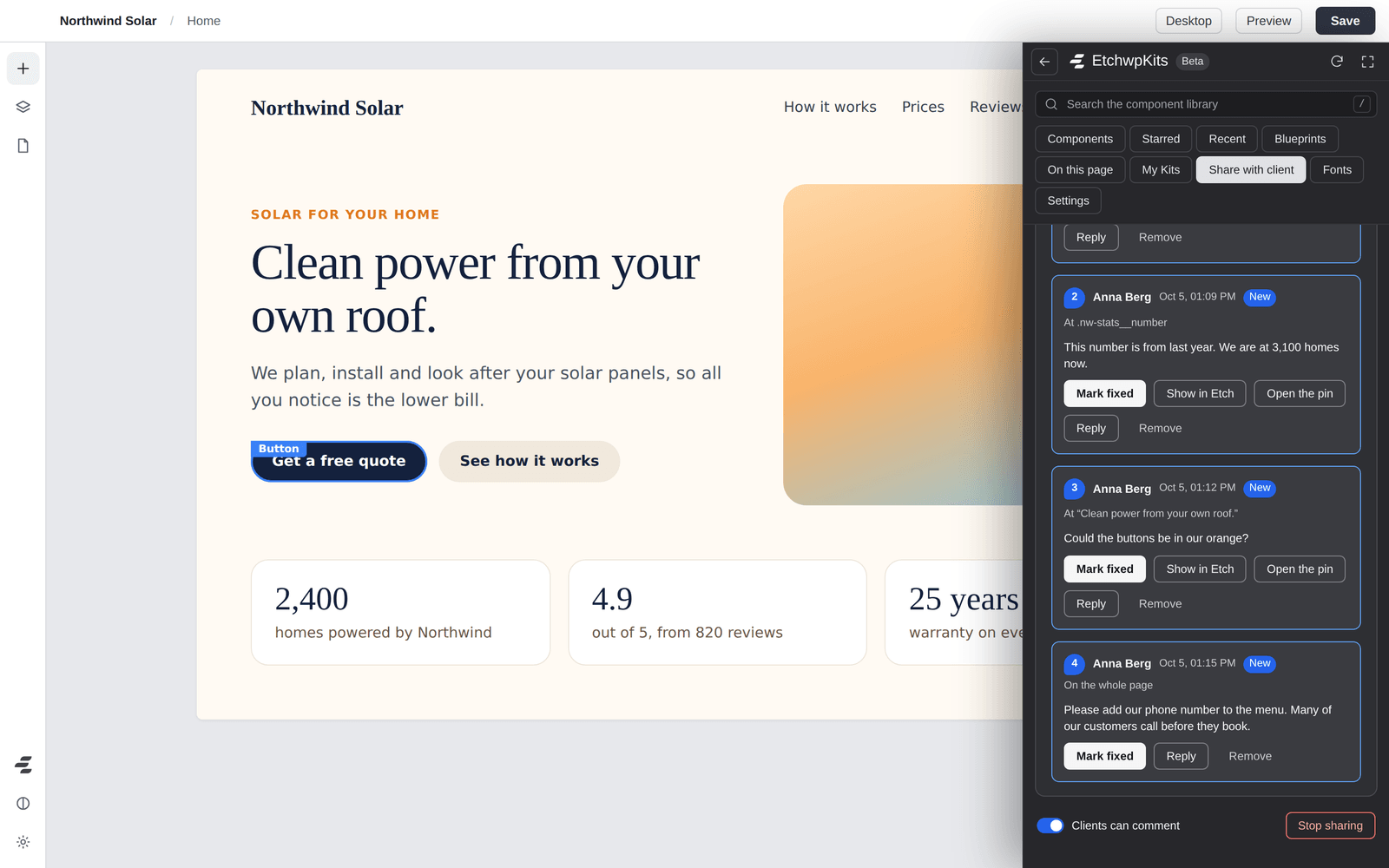
- Show in Etch selects the block your client pointed at, so you land on the right spot in the builder. The panel finds it by its class names. When the block was removed, or sits inside a component, the panel says it could not be found, and Open the pin shows you the spot.
- Open the pin opens the shared page in a new tab at that comment, with its pin in view, on the device it was placed on: a pin placed on a phone opens with the page shown as on a phone.
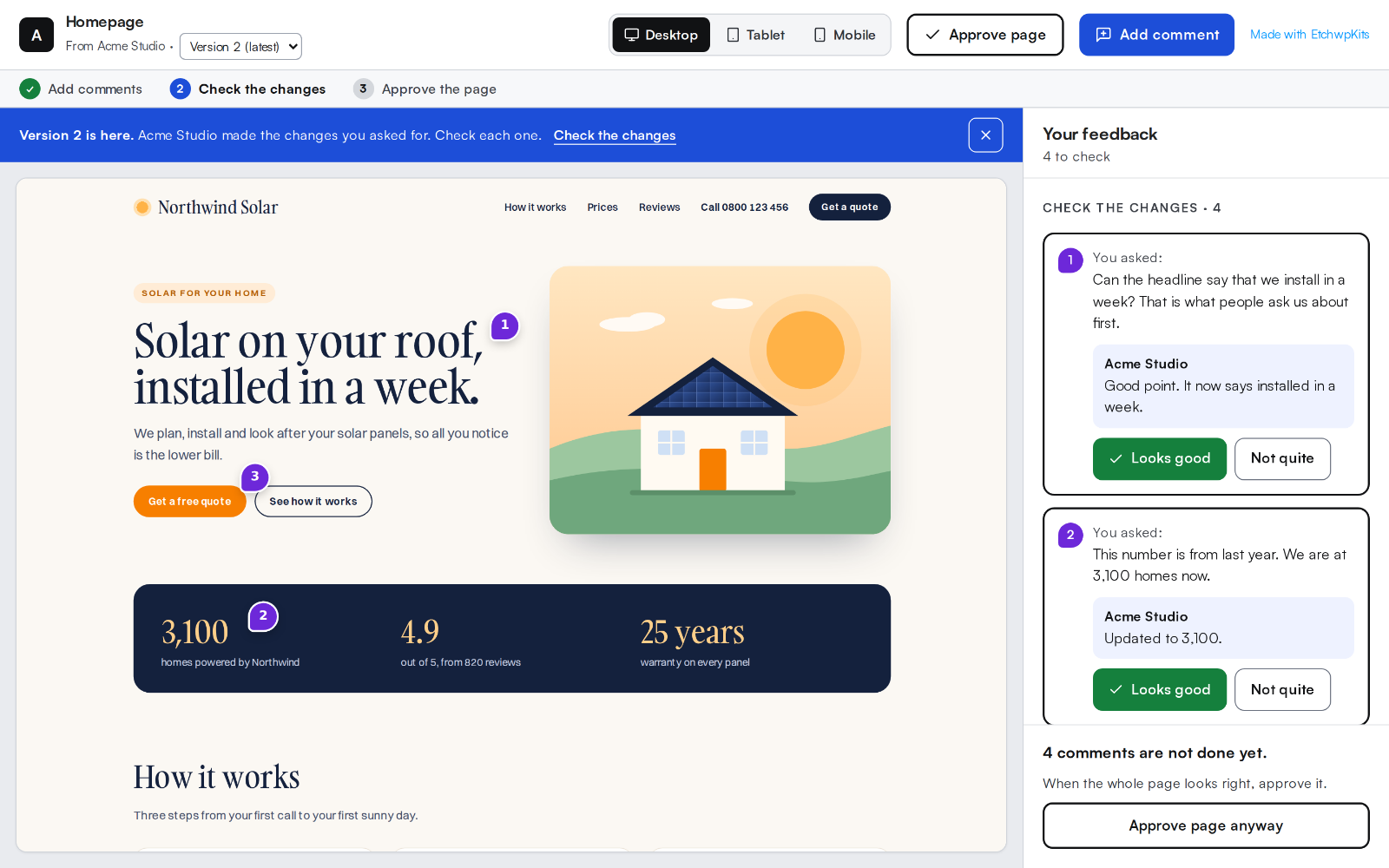
In the new version, your client sees what you changed for each comment, with your answer, and says Looks good or Not quite. Not quite asks what is still wrong.
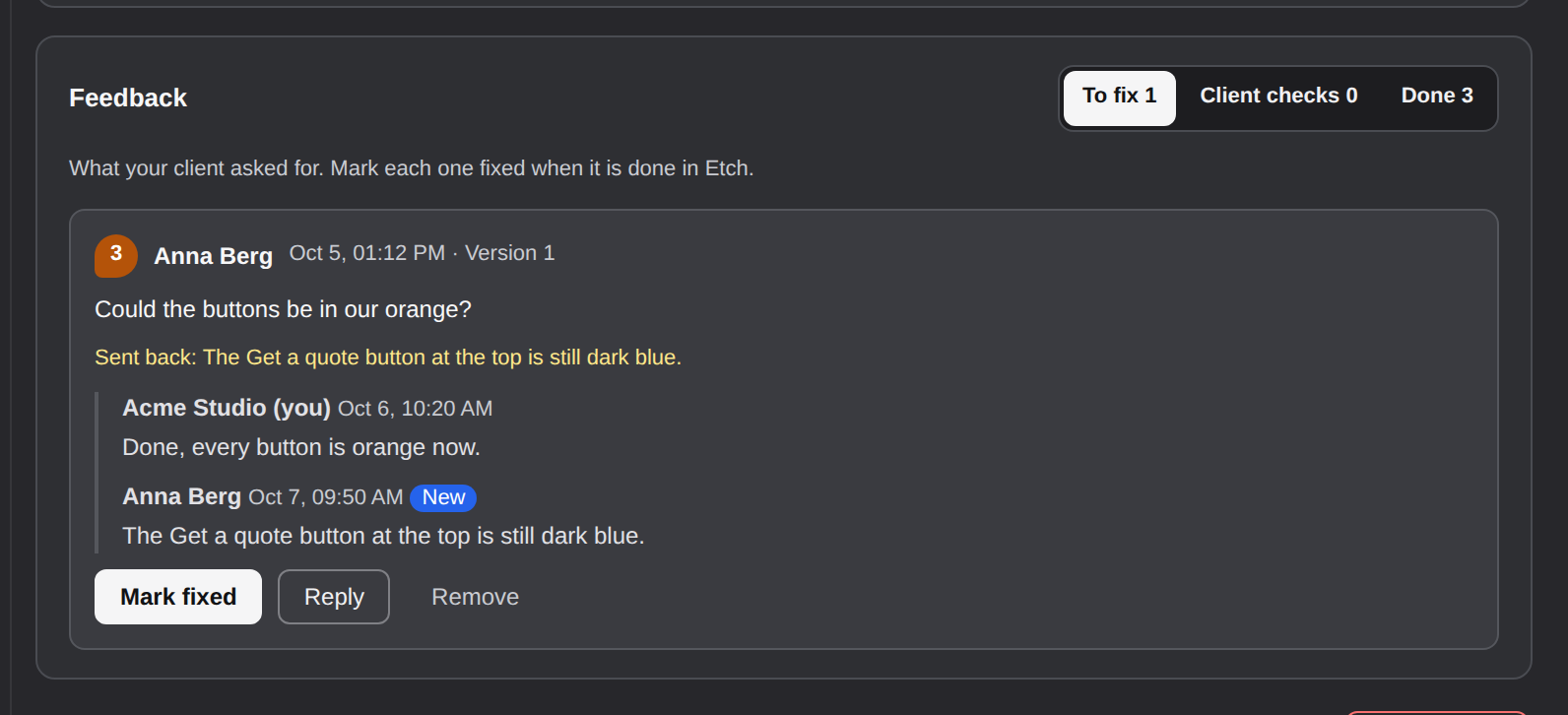
A fix that looks good moves to Done in your panel. One that is sent back is in To fix again, in amber, with what your client wrote.
When the whole page looks right, your client clicks Approve page. That tells you this version is ready to go live and they need no more changes. If comments are still open, they are told so first and can approve anyway.
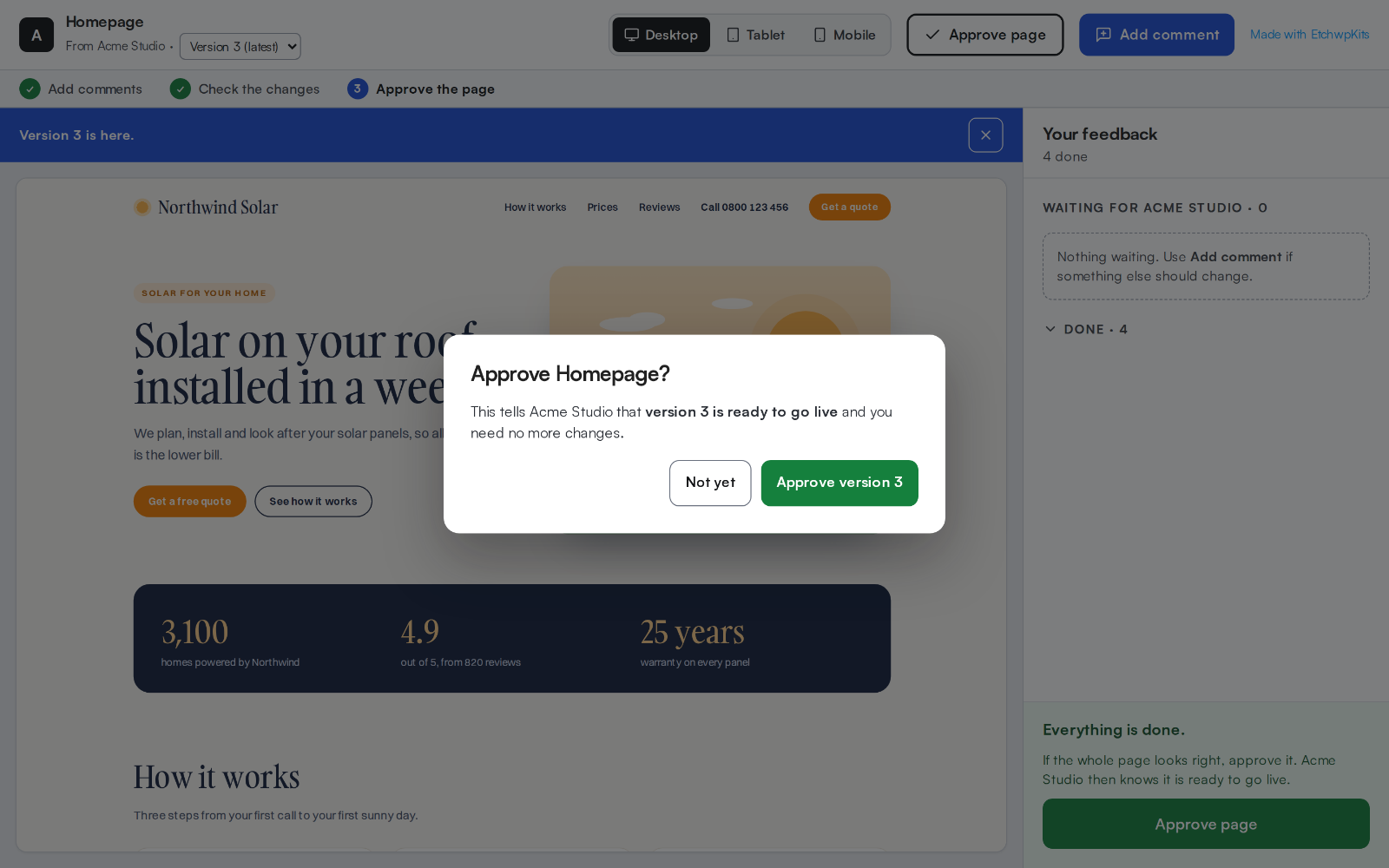
The status in your panel says so, in green.

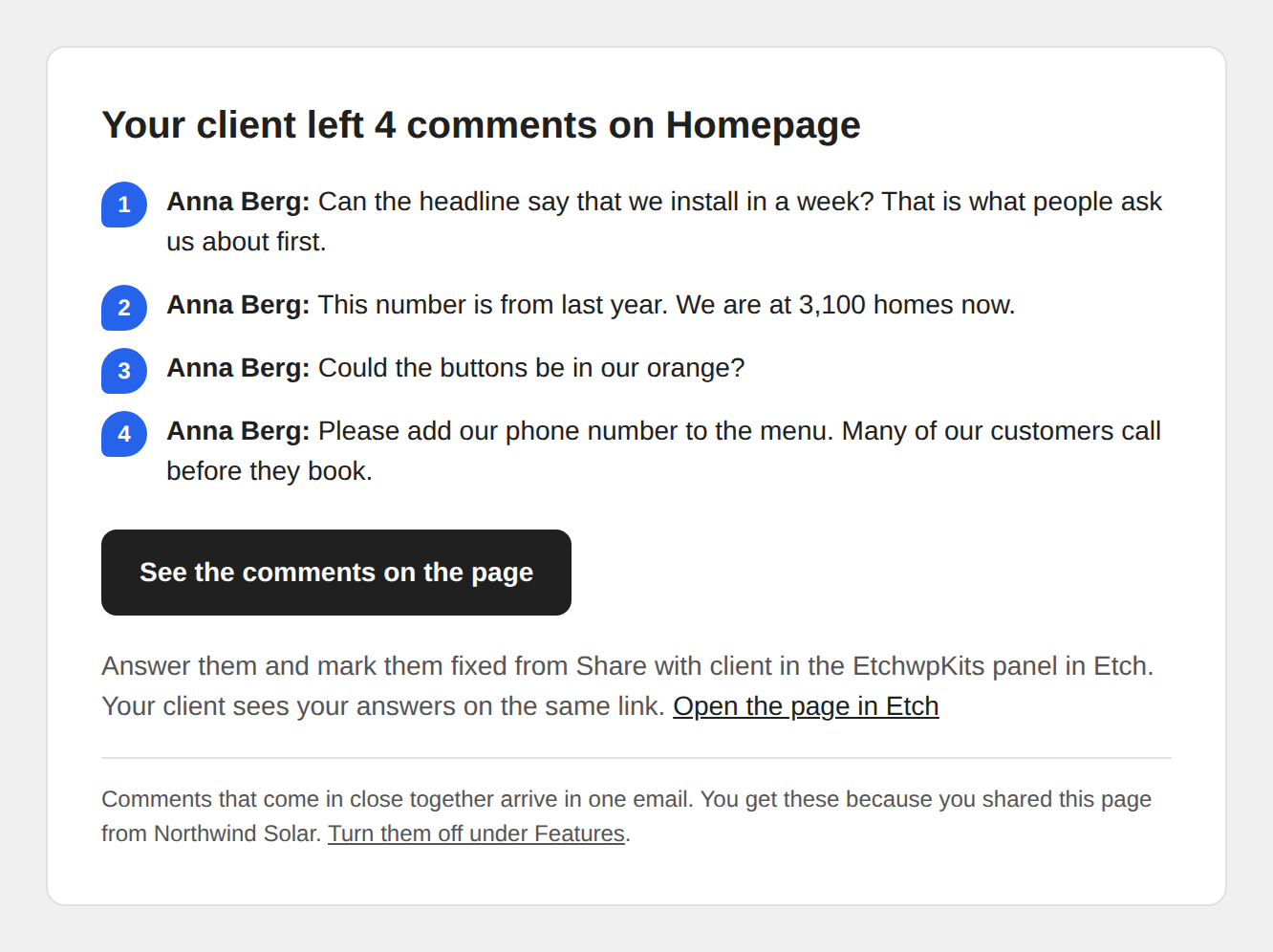
With Email me about comments on, your site emails you when your client comments, replies, says a fix looks good or approves the page. Comments that come in close together arrive in one email, at most every five minutes. Your site sends them itself, like the contact form, so nothing goes through etchwpkits.com. They go to the address under Send them to, or to the site admin email when it is empty.
Each comment's number in the email is a link: it opens the shared page at that comment, with its pin in view, the same way as Open the pin in the panel. The link to open the page in Etch opens it in the builder, whatever kind of page it is.
- Shared pages are never shown in search engines, and only people with the link (and the password, when it has one) can see them.
- Every version is a copy of the page as it was saved when you shared it. Changes you make in Etch reach your client only when you share the next version.
- Your client can look at an earlier version from the version menu at the top. They comment on the newest one.
- Turning Share with client off under Tools does not stop links you already shared. Stop them with Stop sharing first.
- Pages shared from an account without a paid plan show a small Made with EtchwpKits link to your client.
- Like the rest of the panel, Share with client needs an active plan once plans start (see plans). Without one, the links you shared are paused: your client sees that the page is paused and who shared it, and nothing else. Comments and approvals are kept, and each link works again as soon as your plan is active, unless it expired meanwhile.