On this page: track components and updates
Library components keep improving. On this page remembers which EtchwpKits components you used on each page, and at which version, so the panel can tell you when one of them gets an update and help you bring the new version in on your terms: change by change, keeping the edits you made on your site, or as a new copy next to the old one.
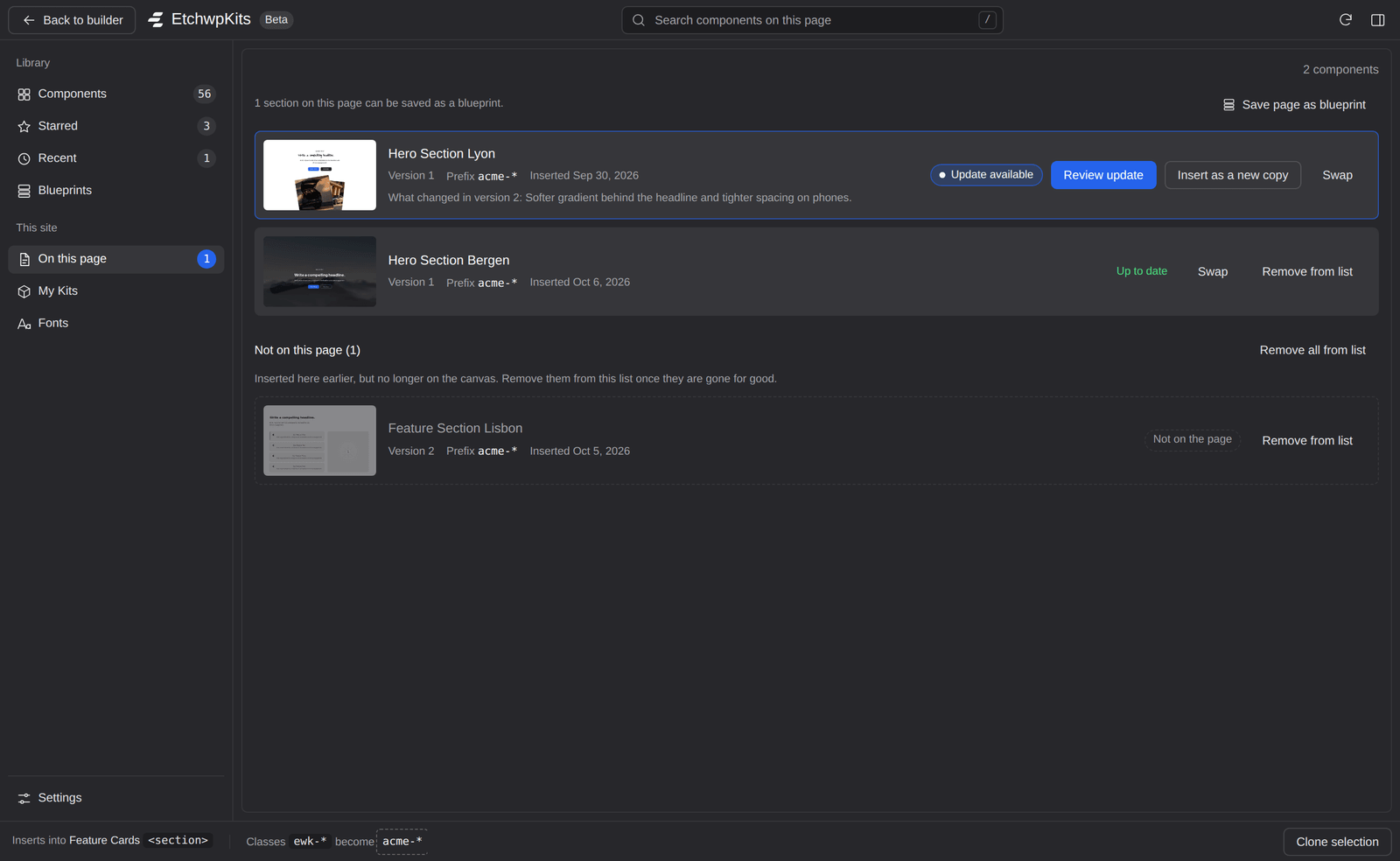
On this page is one of the places in the panel. Open it while editing a page and you get a list of the EtchwpKits components on that page, in the order they stand on the page, top to bottom. The list follows the canvas while it is open: move a section in Etch and the list follows within a second. Each row shows:
- the component's thumbnail and name,
- the version you inserted,
- the class prefix it was inserted with (or that it kept the library names),
- when it was inserted,
- which copy it is, when the page has the same component more than once, for example Copy 1 of 2,
- and its status: Up to date, Update available, Not on the page or Copied, not pasted yet.
When the list gets long, type in the search field to filter it by name. The list narrows as you type, right in place, without reloading the library. If nothing matches, the panel says so and offers Clear search. The place itself carries a badge with the number of updates waiting, so you notice them even while you are in another place.
Every time you Insert or Copy a library component, from a card or from the Customize dialog, the plugin notes it on the page you are editing. Each copy gets its own row, so inserting the same component twice gives two rows, each with its own update. The plugin also notes which block on the canvas the component became, which is what lets it update it in place later.
The list is stored with the page on your WordPress site, not in your EtchwpKits account, so everyone who edits that page sees the same list. Your own components from My Kits and clones you make are not listed: they are yours and never change underneath you. Library components put on the page another way show in a group of their own, see Added outside the panel.
A library section or component can get on the page another way: with an Etch JSON import, as a copy from etchwpkits.com, or from Etch's own component list. The panel finds these by their class names and lists them under Added outside the panel, below the components it tracks. It finds them inside Etch components too, and under your site's class prefix as well as with the library's own class names. They count with the rest in the number at the top.
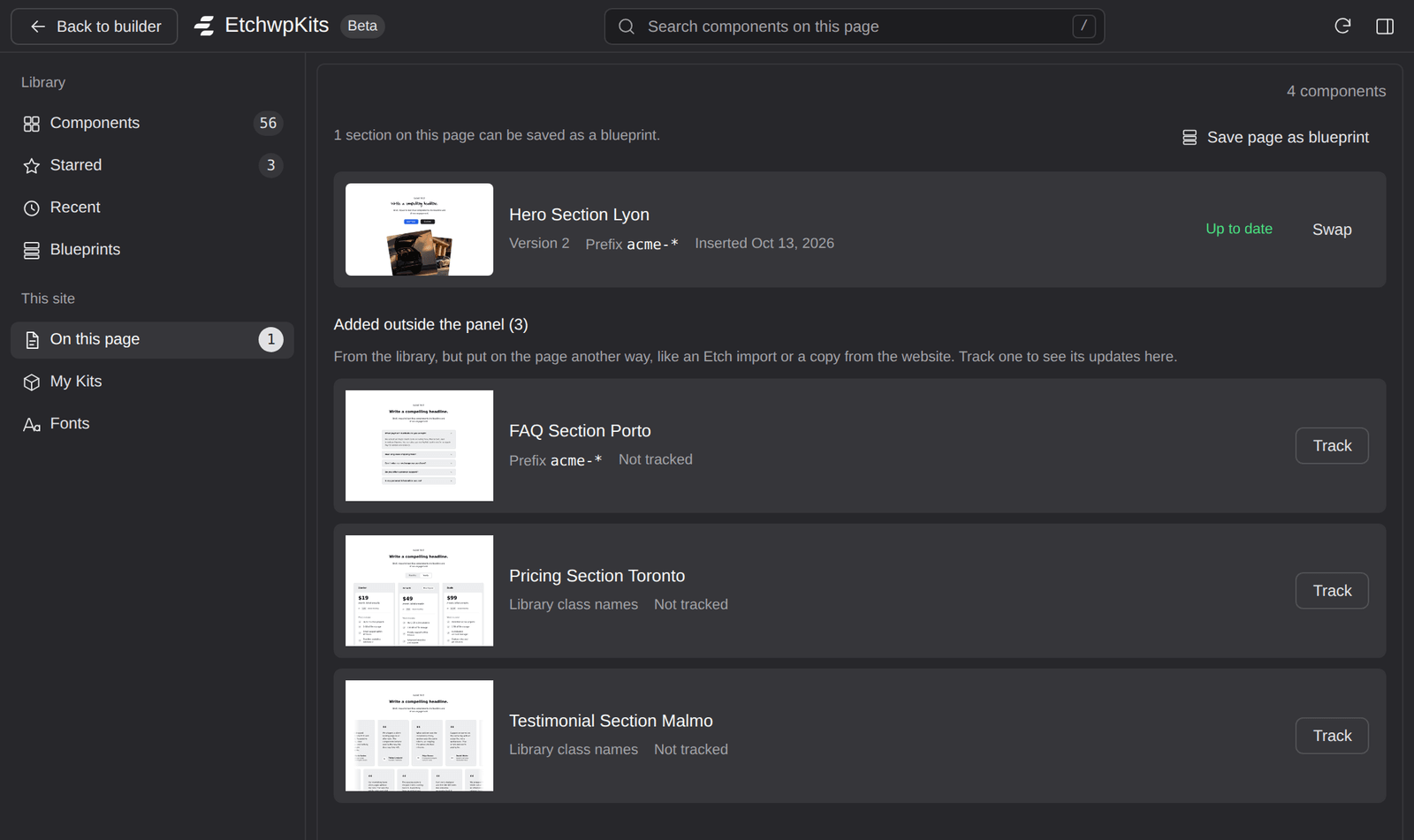
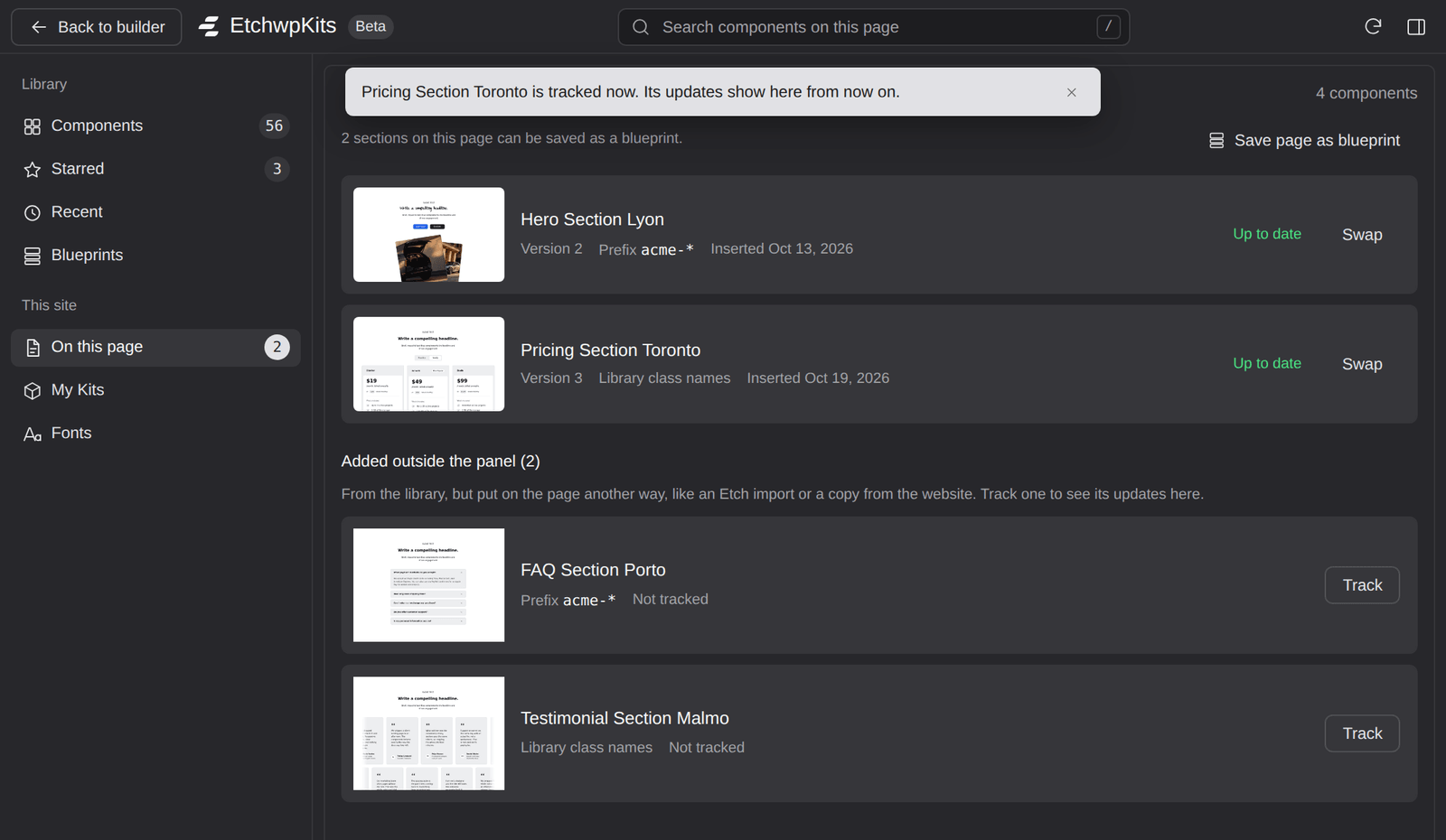
Each row shows the component's name and picture, the class prefix it carries (or Library class names) and Not tracked. Press Track to add it to the list. The panel cannot tell which version was put on the page, so it is tracked at the library's current version: it reads Up to date, and from now on its updates show here, like a section you inserted from the panel.
Each time you open the place, the panel asks EtchwpKits whether any of the listed components has a newer version. When one does:
- the On this page place shows a badge with the number of updates,
- the row shows an Update available pill, for example "Version 4 is available. This page has version 3.",
- a What changed note sums up the newest change,
- and two buttons appear: Review update and Insert as a new copy.
A row whose copy on the canvas differs from the version you inserted also says Edited on this site, so you know your own changes are in play.
With a version of Etch that cannot remove blocks for plugins, the row offers a single Review update button instead, which works like Insert as a new copy.
If the check cannot reach EtchwpKits for a moment, the list still shows, with a short note that updates could not be checked. Try again later.
Review update compares the new version with the copy on your page, layer by layer. You pick which changes to take, the edits you made on your site are kept unless you choose otherwise, and you see the result before anything changes.
Click Review update
The plugin fetches the version your page has and the new one, finds your copy on the canvas and reads it. The review opens, titled for example Review update: version 1 to 2.
Read the summary
It starts with how many changes the new version brings, for example The new version brings 4 changes to this copy. A change that touches something you changed on this site starts unticked and is marked You changed this on this site, with what the page has now. Edits the update does not touch stay as they are.
Pick the changes
Changes are grouped per layer, each with a short title (such as Changes the text., New layer. or a change to the styles) and its before and after. Tick the ones you want. Tick all takes everything from the library, and Reset to the suggested choice resets your picks.
Compare the preview
Switch between On the page now and After the update to see the component before and after, drawn with its own styles and the changes you ticked. Scripts stay off in this preview.
Click Update with your changes
The button says how many changes it applies, for example Update with 2 changes. The result replaces your copy at the same position, with the same class prefix. With nothing ticked, the button reads Mark as up to date: the row is marked up to date and nothing on the canvas changes.
Changed your mind? Press CmdZ (CtrlZ on Windows) to bring the older copy back, then again to remove the updated one. Nothing is saved until you save the page in Etch. To leave the copy on your page as it is, the review offers Insert as a new copy under To leave this copy untouched:. Cancel closes the review.
When the review cannot be built, for example because the version on your page could not be loaded or the copy could not be read from the canvas, Review update falls back to Update in place and says why. Update in place swaps the whole copy on your page for the new version, at the same spot, with the same class prefix. It always asks first.
Click Review update
The plugin fetches the new version, renames its classes with the prefix the old copy was inserted with, finds the old copy on the canvas and selects it, so you can see exactly which block it means. The row says why the review could not be built.
Read the confirmation
The row asks, for example, Replace Hero <section> on the canvas with version 2? and tells you:
- which prefix the new version gets: the one the old copy was inserted with. Names you typed in Customize are not known here, so to choose names, insert it as a new copy,
- that edits made to this copy on the canvas, such as its text, its images or blocks added inside it, are replaced by the new version,
- and, when it applies, that the copy was found by its class alone, or that its outer class changes in the new version, so styles written for the old class stop applying.
Confirm, or cancel
Click Update in place to go ahead. The new version lands where the old copy was, and only then is the old copy removed. Cancel, or Esc, leaves the page as it is.
Check, then save
The panel confirms the update, and the row shows Up to date. Changed your mind? Press CmdZ (CtrlZ on Windows) to bring the older copy back, then again to remove the new version. Nothing is live until you save the page in Etch.
This way puts the new version next to the old one, so you can compare them and move over your changes before you remove the old copy.
Click Insert as a new copy
The Customize dialog opens on the new version, titled with the version it updates to. Its preview shows the new version with your class names applied. On older Etch versions the button is called Review update.
Pick where it goes and insert
A handy approach: select the old copy on the canvas and hold Cmd (Ctrl on Windows) when you insert, so the new version lands right next to it. Full sections always go to the top level. Adjust the names if you like, then insert.
Compare, then remove the old copy
The panel reminds you that the new version is on the page. Move over any text, images or style tweaks you made to the old copy, delete the old copy from the canvas, and save the page. The row now shows Up to date.
Once a component is on your page, it is yours. You may have changed its text, swapped images, adjusted spacing or renamed classes, and the plugin never throws that away without asking.
- Review update is the way for most updates. It keeps the spot and the prefix, takes only the changes you tick, and keeps the edits you made on your site.
- Insert as a new copy is the way when you want new class names, or want to compare both versions on the canvas. Both versions sit side by side until you decide what to keep.
Either way, nothing on the canvas changes until you click, and nothing changes on your live site until you save.
Every row with a copy on the canvas also has a Swap button. It replaces the component with another one at the same spot and keeps your headings, texts, buttons, links and images. See Swap for how it works.
- 50 components per page. Each page keeps its 50 most recent components; older rows drop off the end.
- The page must be identifiable. The list belongs to the page the builder is editing. If the panel says EtchwpKits could not tell which page this builder is editing, open the page in Etch from its row on the WordPress Pages screen and reload the builder. See Troubleshooting.
- Only pages you can edit. The list only shows for pages your WordPress user is allowed to edit.
- Components inserted before version 0.13.0 of the plugin were not tracked. When the panel finds them by their class names, they show under Added outside the panel: press Track to get update notices for them.
- Components inserted before version 0.14.0 get update notices, but can only take an update as a new copy. Once you have done that, the new copy can be reviewed and updated in place next time.