EtchwpKits in wp-admin
Everything the plugin keeps in WordPress has its own screen under EtchwpKits in the admin menu: what to do next, which tools are on, your SEO, fonts, brand kit and contact form messages, and how the site is connected. This page shows where each one is.
WordPress's own menu is the only main menu. Click EtchwpKits and its screens are listed under it:
| Screen | What it is for |
|---|---|
| Home | What to do next, each tool at a glance, the design system and quick links. The setup guide for a new site opens here. |
| Tools | Switch each tool on or off, and set the class prefix. |
| SEO | Shown while SEO is on. Needs doing, every page in Google, your business and schema, links, redirects, AI and the SEO settings. See SEO. |
| Fonts | The fonts this site hosts. See Fonts. |
| Brand kit | The brand guide you show your client. See Brand kit. |
| Messages | What visitors sent through the contact form, and the form's settings. See Contact form. |
| Plan and connection | Your plan, the connection to your EtchwpKits account and the site token. |
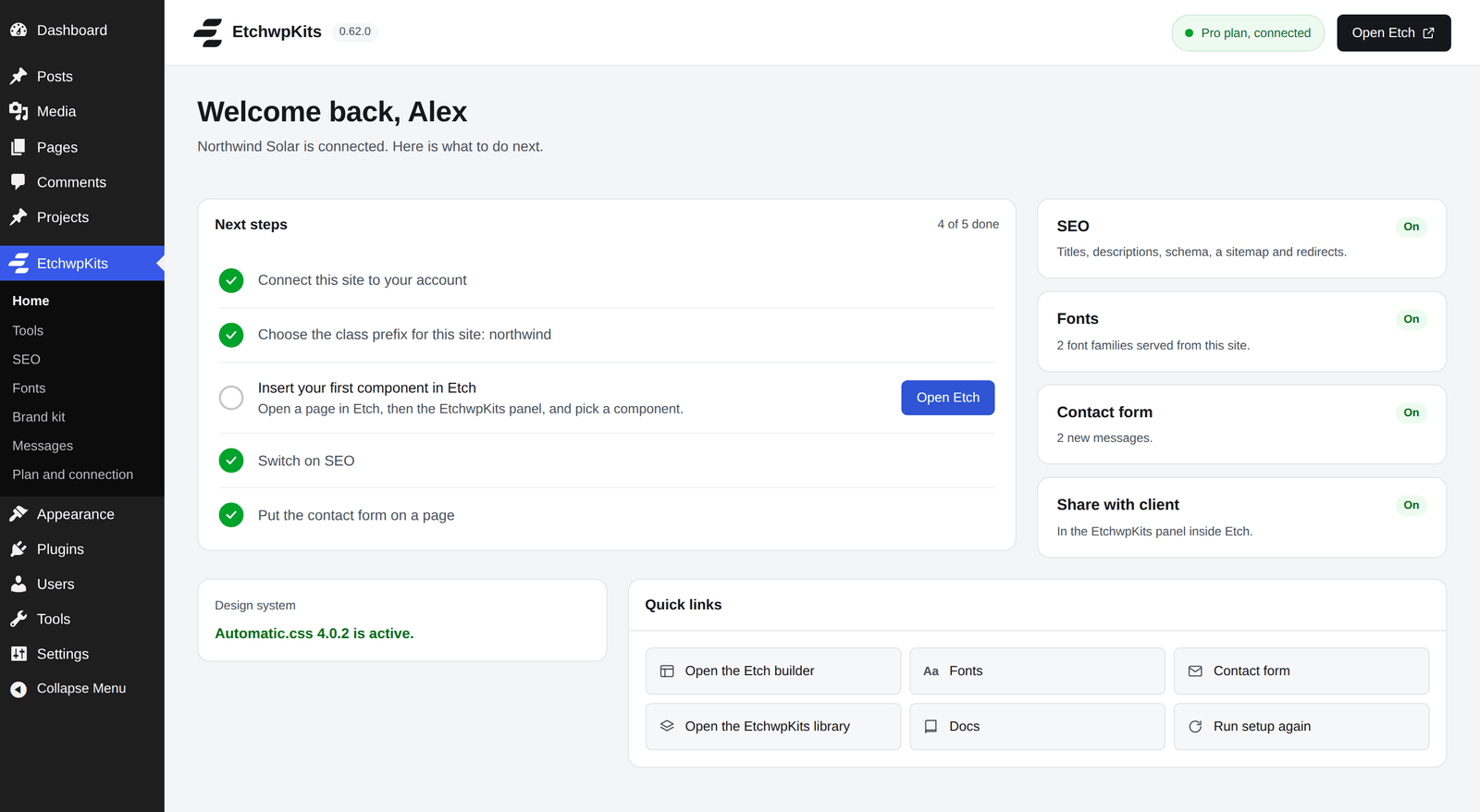
Every EtchwpKits screen uses the full width of the page, under one bar:
- The version of the plugin, beside its name.
- Whether changes are saved. Most settings save as you go; the bar says All changes saved once they are.
- The connection, such as Pro plan, connected or Not connected. Click it for Plan and connection.
- Open Etch, which opens the Etch builder.
Home greets you with what to do next on this site. Each step is ticked once it is done, and the ones left have a button that takes you there:
- Connect this site to your account.
- Choose the class prefix for this site.
- Insert your first component in Etch.
- Switch on SEO.
- Put the contact form on a page.
Beside the steps, each tool shows whether it is on and a line about it, like how many font families the site hosts or how many new messages wait. Below them, Design system says whether Automatic.css is active, and Quick links open the builder, the library, these docs or Run setup again.
On a new site, Home opens on the short setup guide instead: connect your account, choose a class prefix and check the design system. Skip setup takes you straight to Home. See Getting started.
Tools is where each tool is switched on and off, as cards. A tool that is off adds nothing to your pages or the panel in Etch. The count at the top says how many are on.
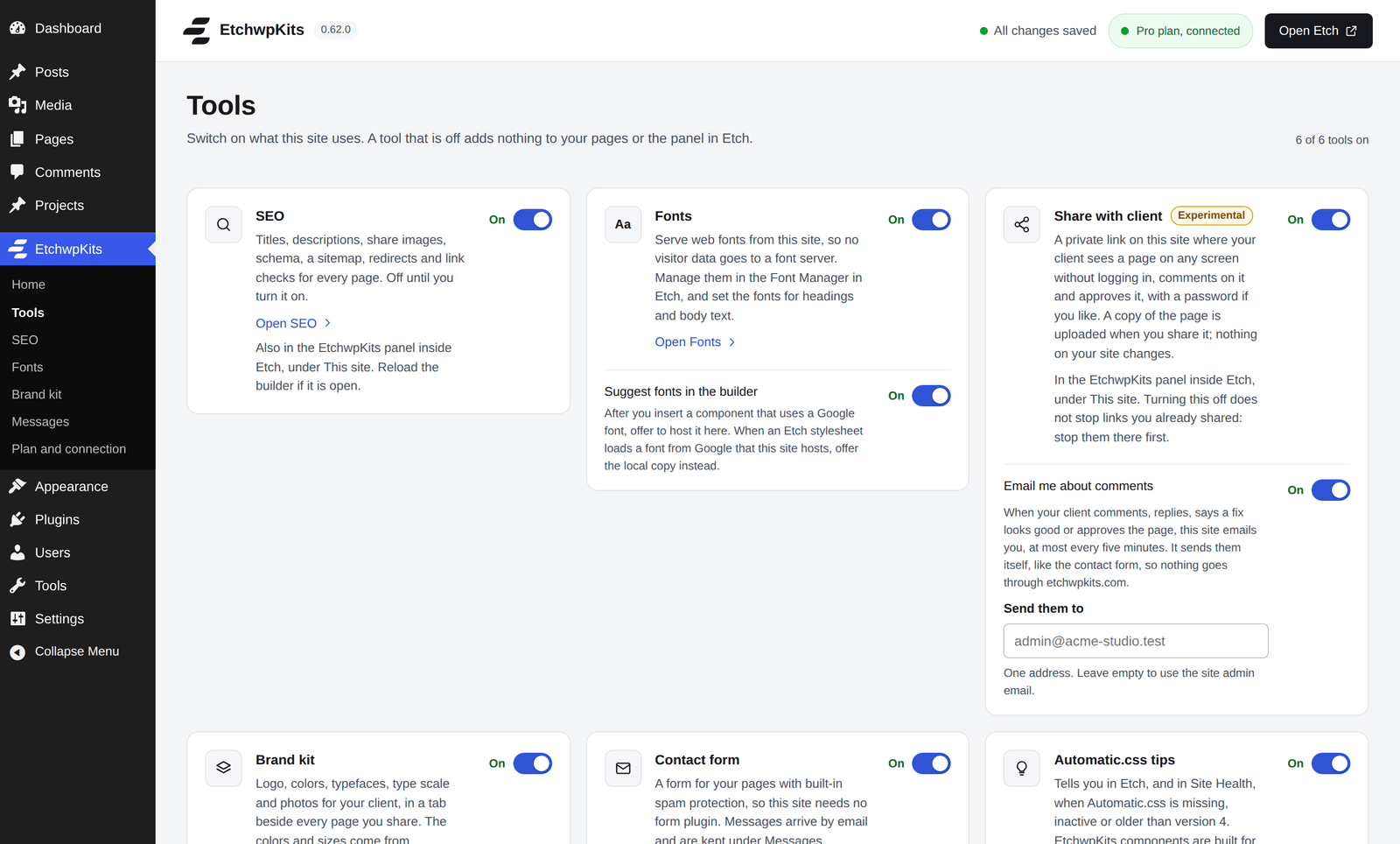
- SEO, Fonts, Share with client, Brand kit, Contact form and Automatic.css tips each have a switch. Some have a second one inside, like Suggest fonts in the builder or Email me about comments.
- A card with a screen of its own links to it, such as Open SEO.
- Changes save as you go.
Under the cards, Class prefix sets the prefix every component you insert is renamed to, with an example of how a class changes.

Plan and connection holds the live connection check, your plan and the site token.
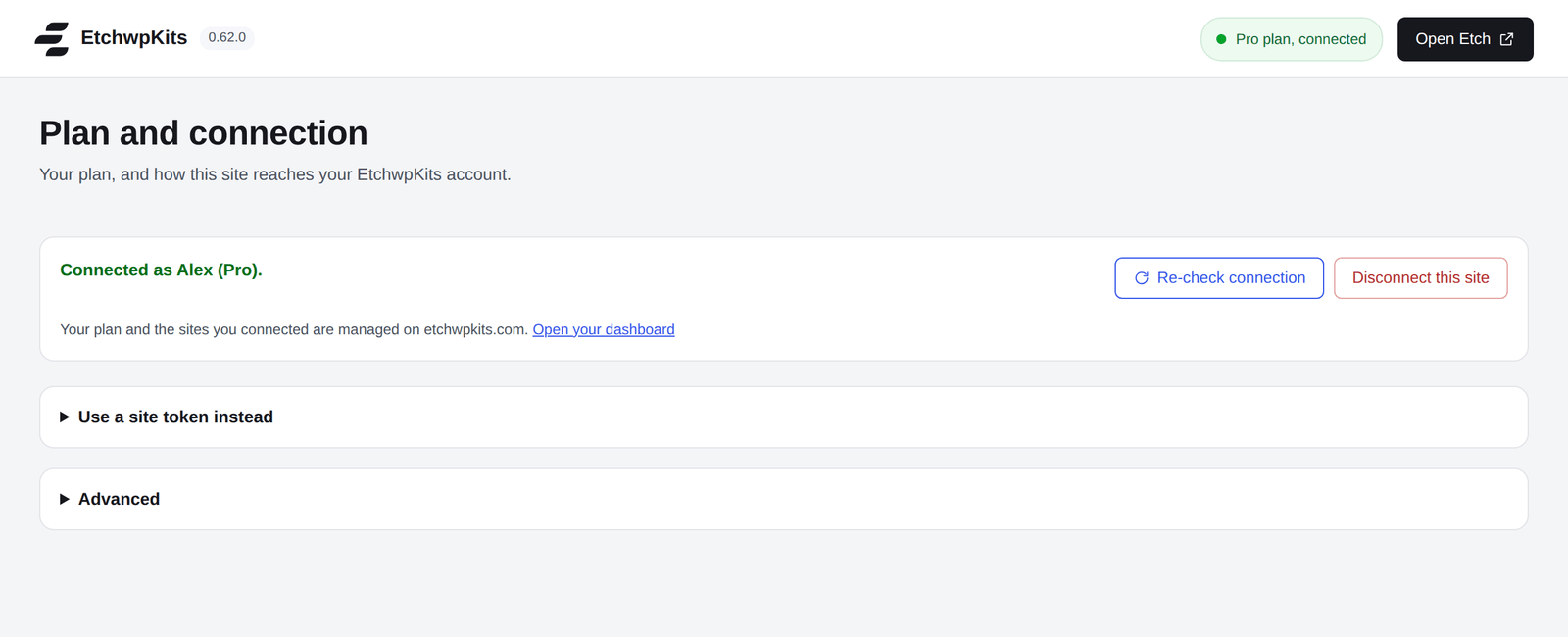
- Connected as names your account and plan. Re-check connection asks again now.
- Disconnect this site removes the token. Only an administrator can connect or disconnect a site.
- Use a site token instead is for sites that cannot use one click connect. See Prefer to paste a token?
- Advanced is only for staging or self hosted API setups.
The settings page, plugin updates, the contact form and everything already on your pages keep working without a plan. See plans.
Bookmarks and links to the old settings page (with tab= or view=settings in the address) still work: they open the new screen. A link to the SEO settings while SEO is off stays on Home, and so does the old contact form link when Messages is not available.