The EtchwpKits panel
The panel is where you spend your time: it holds the whole EtchwpKits library, your stars, your recent picks and your own kits, right inside the Etch builder. This page shows how to find a component in seconds and drop it exactly where you want it.
Open the panel from the EtchwpKits logo in Etch's left tool rail, or with CtrlShiftE (CmdShiftE on a Mac). If Etch's tool rail cannot be found, a small floating EtchwpKits button appears instead, so the panel is always one click away.
The panel opens full screen over the builder, like Etch's own managers, and uses Etch's dark colors, type and icons. It has five areas:
- The header, with Back to builder (closes the panel), the search field, Refresh library (pull the newest components) and the layout toggle (Dock to the right or Open full screen).
- The menu on the left, with the places in two groups. Under Library: Components, Starred, Recent and Blueprints. Under This site: On this page, My Kits, and the tools you switched on, such as Share with client, SEO and Fonts. Settings sits at the foot of the menu.
- The filters across the top of the grid.
- The grid of component cards.
- The bottom bar, which tells you where the next insert lands and what its classes become.
Places are the panel's main views. Click one, or use the arrow keys once one has focus.
| Place | What it shows |
|---|---|
| Components | The full EtchwpKits library, with search and filters. |
| Starred | Components you starred. Stars belong to your account, so a star you add on etchwpkits.com shows up here too, and the other way around. |
| Recent | The last 8 components you inserted or copied on this site, newest first, for quick reuse. |
| Blueprints | Your own blueprints: pages of sections you saved, to insert again at once. Learn more. |
| On this page | The library components already on the page you are editing, with their version. A badge on the place shows how many have an update, and Swap replaces one with another while keeping its words. Learn more. |
| My Kits | Your own saved components and CSS snippets, shared across all your connected sites. Learn more. |
| Share with client | Share the page you are editing with your client, read their comments and see whose turn it is. Shown once you turn it on under Tools. Learn more. With Brand kit also on under Tools, each link has a Show the brand kit switch that adds a Brand kit tab beside the page. |
| SEO | The open page's SEO in two tabs: Edit (title, description, share image, schema, links and entities) and Check (its SEO checks). Shown once you turn SEO on under Tools. A small red number beside it says how many of the page's checks are to fix. Learn more. |
| Fonts | The Font Manager, with its tabs listed under it in the menu. Learn more. |
| Settings | How the panel behaves for you in this browser. See Settings. |
Type in the search field in the header (Search the component library on Components; each place says what it searches) to search by name. Results update as you type; press Enter to search right away. Press / from anywhere in the panel to jump to the search field, and Esc to clear it.
The filters next to it narrow things down further:
- Categories (the button reads Category: All until you pick some, then shows your choice): tick one or more categories, such as Hero Sections and Pricing Sections, to see only those. Clear all resets them.
- Sections: only full width page sections, the big building blocks of a page.
- Free: only components labeled Free in the library.
- Sort: Sort: Default or Newest, to see what was just added to the library.
The number of matching components shows next to the filters. Scroll to the end of the grid and click Load more for the next batch.
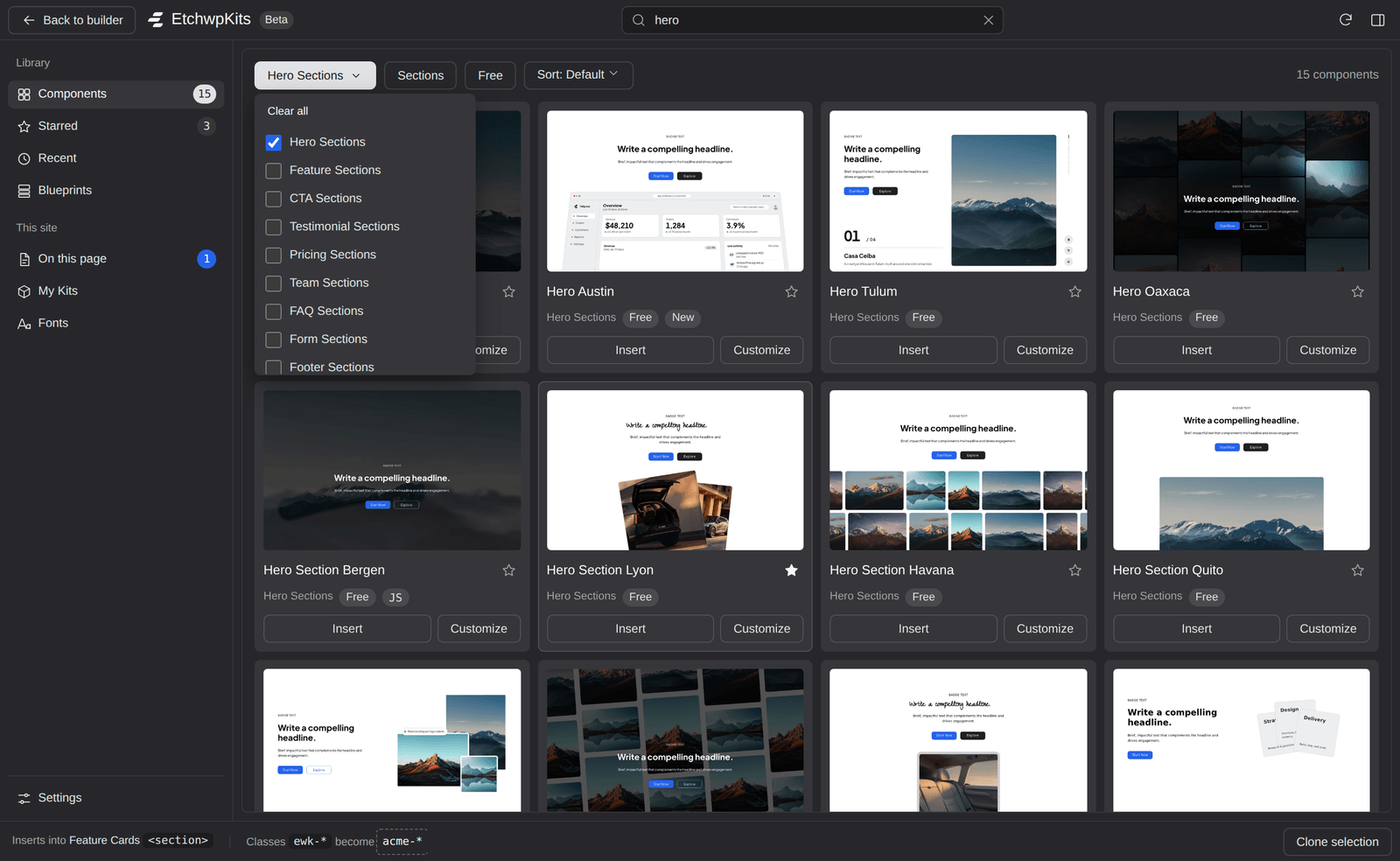
Click the star beside a component's name to star it (Star), and click it again to unstar it (Unstar). Starred components collect in the Starred place. Because stars are saved to your EtchwpKits account, the same stars follow you to every site you connect and to the library on etchwpkits.com.
A good habit for agencies: star the handful of components you reach for on every project, and your starter kit is always one click away.
Each card follows Etch's own card: a picture, the component's name with its star, the category by name, and a few labels:
- Free or Pro: how the component is labeled in the EtchwpKits library. In the plugin, the EtchwpKits plan includes both, and during the beta every account can insert both.
- New: recently added to the library.
- JS: the component comes with a small script, for example an accordion or a slider.
Insert and Customize are always visible at the bottom of the card. When a component has a live preview, click its picture to open the full preview on etchwpkits.com in a new tab. Want more or fewer cards on screen? Change the Card size in Settings.
If your account cannot insert a Pro component, its card shows Unlock with Pro instead, with a link to the plan. This does not happen during the beta. After you subscribe, close and reopen the panel (or reload the builder) to unlock it. There is no need to reconnect the site.
Click Insert and the component lands on the canvas, with its classes already renamed to your class prefix. Where it lands depends on what you have selected in Etch:
| You have selected | The component lands |
|---|---|
| A block on the canvas | Inside that block, as its last child. |
| Nothing | At the end of the page. |
| A block, and you hold Cmd (Ctrl on Windows) while clicking Insert | Right after the selected block, as its sibling. |
| Anything, and the component is a full section | At the top level, at the end of the page. Sections never nest inside other blocks. |
The new block is selected as soon as it lands, so you can keep working on it right away. One short note at the bottom left confirms the insert. The panel stays open so you can add more, or closes after each insert if you choose so in Settings.
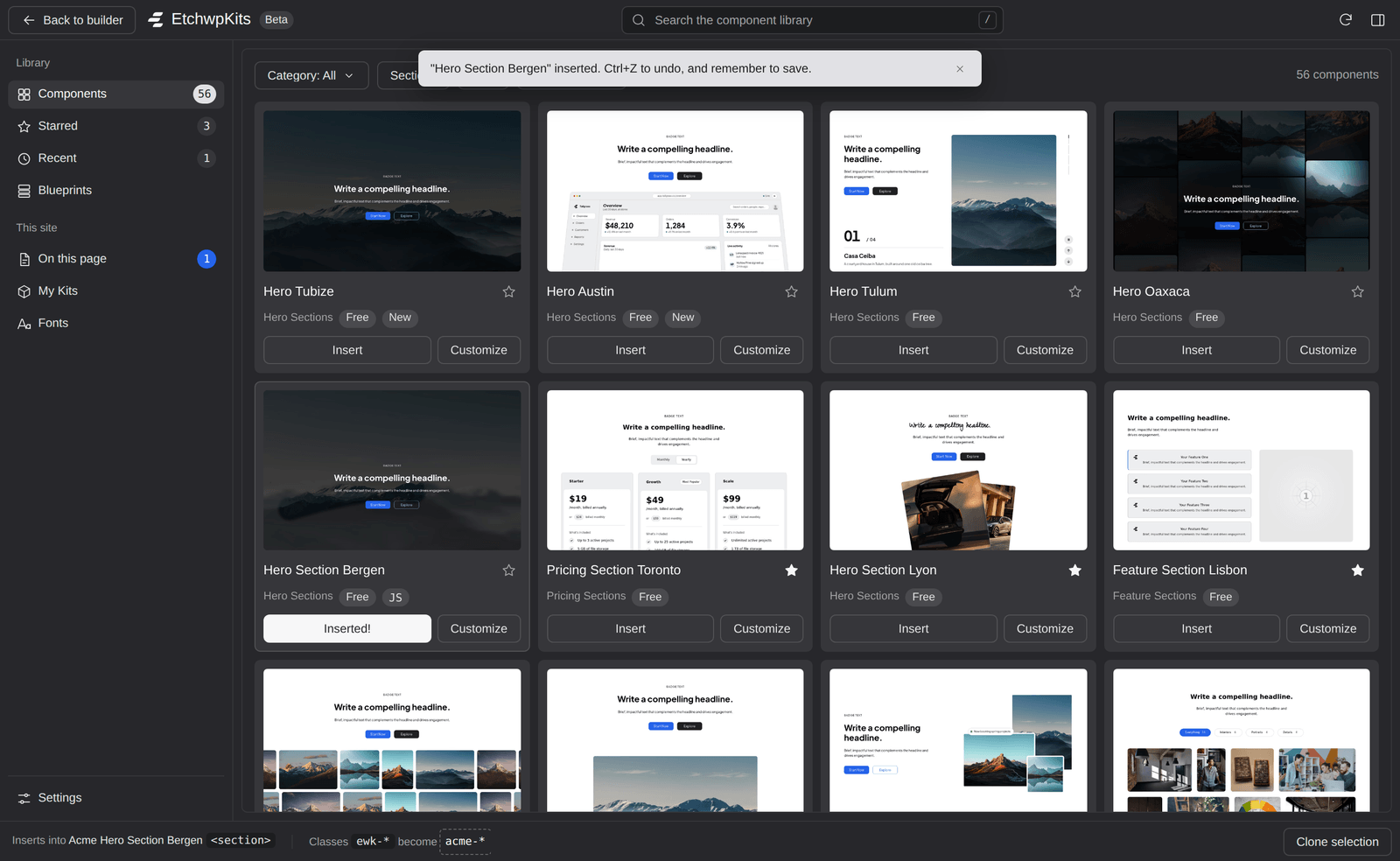
Want different class names than the prefix gives you? Click Customize instead of Insert. See Customize and Clone.
On older Etch versions that cannot receive inserts directly, the button reads Copy instead: the component, already renamed, goes to your clipboard, and you paste it into Etch with CmdV.
The bar along the bottom of the panel answers two questions before you click Insert:
- Where will it land? For example Inserts into Hero <section> when a block is selected, or Inserts at the end of the page when nothing is.
- What do the classes become? For example Classes
ewk-*becomeacme-*.
Click the prefix to change it for this builder session only, handy when one page needs a different convention. Press Enter to keep the new prefix or Esc to cancel. The site wide default stays on the EtchwpKits settings page. If no prefix is set at all, the bar offers Set a prefix, and inserts keep the library's class names until you do.
The bar also holds Clone selection (just Clone when docked), which copies the selected block with new class names. See Clone a section.
The panel has two layouts. Switch with the layout button in the header, or pick the one it opens in under Open the panel in Settings:
- Full screen (Open full screen): the panel covers the builder like Etch's own managers, with the menu on the left and a roomy grid. Best for browsing and comparing. Back to builder closes it.
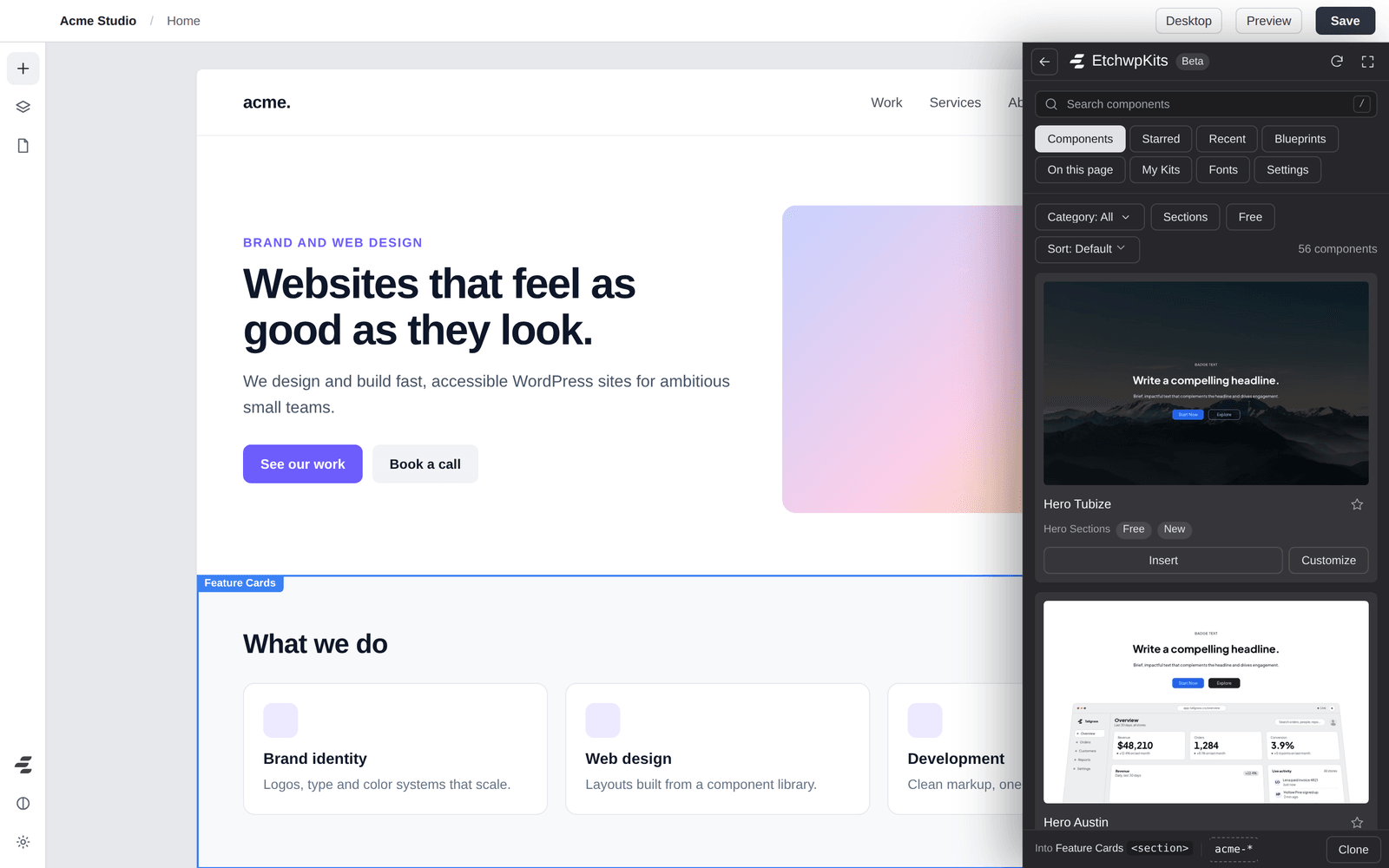
- Docked (Dock to the right): a slim column along the right edge. The canvas stays usable next to it, so you can select a block on the page and then insert into it without closing the panel. Places turn into small chips under the search field, and the bottom bar gets shorter (Into Feature Cards, the prefix and Clone).
Your choice is remembered in this browser. The Customize and Clone dialogs always open full screen, and the panel returns to your layout when you close them.
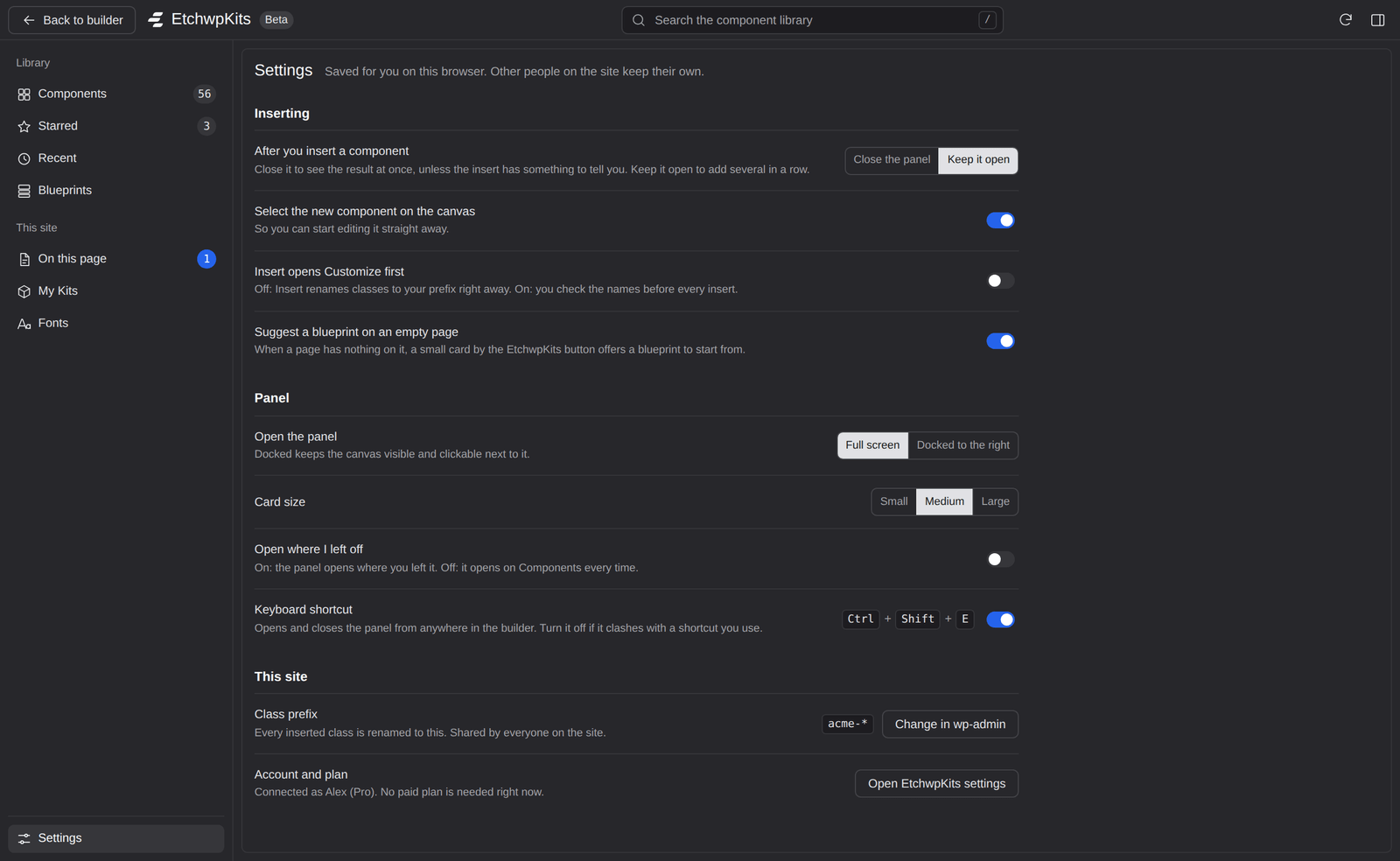
Settings, at the foot of the menu, holds how the panel behaves for you. The choices are saved in this browser, so other people on the site keep their own.
| Setting | What it does |
|---|---|
| After you insert a component | Close the panel to see the result at once, or keep it open to add several in a row. Keep it open is the default. |
| Select the new component on the canvas | On by default, so you can start editing the new block straight away. |
| Insert opens Customize first | Off by default: Insert renames classes to your prefix right away. On: Insert opens Customize so you check the names before every insert. |
| Suggest a blueprint on an empty page | On by default: an empty page offers a blueprint to start from, in a small card beside the EtchwpKits button. See Start an empty page from a blueprint. |
| Open the panel | Full screen, or docked to the right. |
| Card size | Small, Medium or Large cards in the grid. |
| Open where I left off | Off by default: the panel opens on Components each time the builder loads. On: it opens on the place you used last. |
| Keyboard shortcut | On by default: CtrlShiftE (CmdShiftE on a Mac) opens and closes the panel. Turn it off if it clashes with a shortcut you use. |
Below these, under This site, the panel shows what is set for the whole site, read only: the Class prefix (with Change in wp-admin) and the Account and plan this site is connected with.
Everything in the panel works from the keyboard. On Windows and Linux use Ctrl where a Mac uses Cmd.
| Keys | What it does |
|---|---|
| CtrlShiftE or CmdShiftE | Open or close the panel from anywhere in the builder. |
| / | Jump to the search field. |
| Enter | In the search field: search right away. |
| Esc | In the search field: clear the search. Press it again to close the panel. |
| ← → ↑ ↓ | Move between cards in the grid, or between places. |
| Home End | Jump to the first or last card. |
| Enter or Space | On a card: Insert it. |
| Tab | On a card: reach its other buttons, such as the star and Customize. |
| CmdEnter | In the Customize or Clone dialog: Insert or Clone. Plain Enter works too while you are in a name field. |
| Cmd + click on Insert | Insert right after the selected block. |
| Esc | Close the innermost thing first, such as a confirmation, the Category menu or a dialog, then the panel. |