Keeping the plugin up to date
You install the Companion plugin once. After that, new versions show up on the WordPress Plugins screen like any other plugin, and each one is checked for authenticity before it is installed.
The plugin is not in the WordPress.org directory, so it asks etchwpkits.com for new versions itself, about twice a day. When one is out, WordPress shows it in the usual places: the update count in the admin menu, Dashboard → Updates, and a notice on the EtchwpKits Companion row of the Plugins screen.
The latest version right now:
Open the Plugins screen
Go to Plugins in the WordPress admin. The EtchwpKits Companion row says a new version is available.
Read what changed (optional)
Click View version 0.13.0 details (with the new version number) in the notice to see the changelog in the familiar WordPress details window.
Click update now
WordPress downloads the new version, the plugin verifies it, and it is installed. Your settings, connection and class prefix stay as they are.
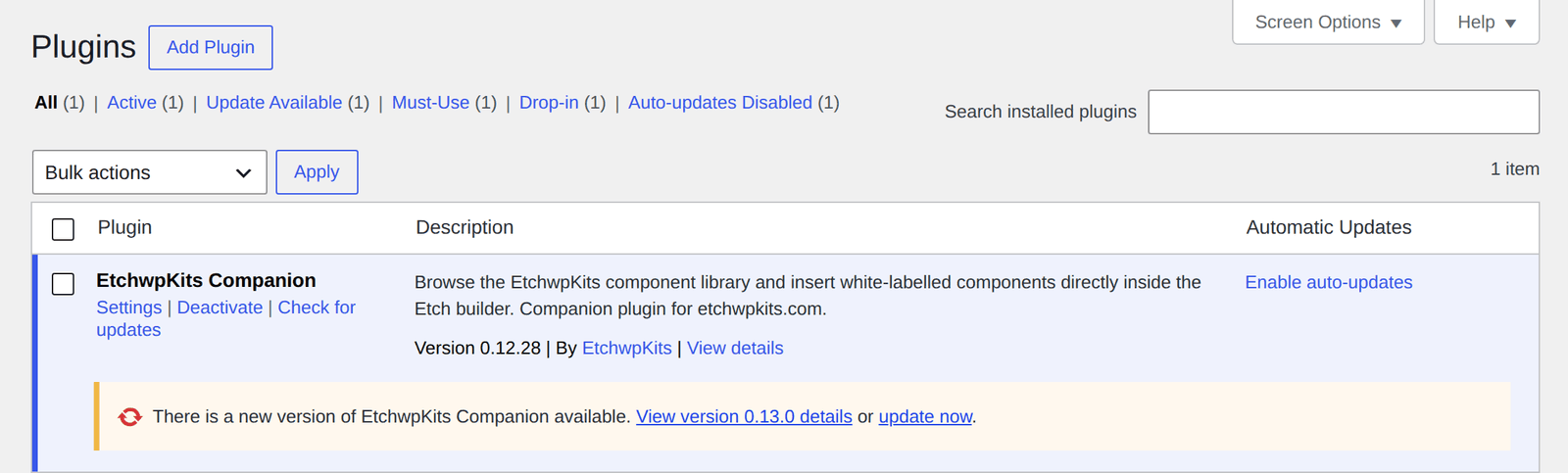
Prefer not to click at all? The plugin row also has WordPress's own Enable auto-updates link, which lets WordPress install new versions on its own. They are verified exactly the same way.
Just heard about a release and do not want to wait? Either:
- click Check for updates under the plugin name on the EtchwpKits Companion row of the Plugins screen. WordPress tells you whether a new version is ready, and if so, its update row appears right away; or
- go to Dashboard → Updates and click Check again.
Every release is signed by EtchwpKits. Before installing an update, the plugin checks the download against that signature and its checksum. If anything does not match, the update is refused and nothing is installed, so a tampered or corrupted download can never reach your site. Updates are also only ever downloaded over https from etchwpkits.com.
You do not need to do anything for this: it happens on every update. If a server lacks the standard PHP cryptography extension (Sodium) needed to check signatures, WordPress shows a clear message and Tools → Site Health reports it, so you can ask your host to enable it.
The plugin changelog lists every release and what it brought, newest first. It updates itself with each release. The same notes appear in WordPress, in the View details window on the Plugins screen.
Updating the plugin never changes the components already on your pages. Library components have their own versions: when one of them improves, the panel lets you know in On this page, and you decide if and when to bring the new version in.