Schema and entities
Schema is the structured data search engines and AI assistants read about a page: what it is, who is behind it and what it is about. Most of it is filled in for you from your business and your pages. Add your own for kinds of pages, like every service you offer, and tie your pages to the people, places and ideas they are about.
EtchwpKits → SEO → Business and schema has two views, Schema and Entities. Schema reads from the top down:
- What Google reads: a few plain sentences on who the site belongs to and what its pages say, such as "this site belongs to a local business in Göteborg, Northwind Solar, with a search box".
- Your business: who is behind the site. See below.
- Schema: one table of everything search engines read about the site, with what each part does and where it applies.
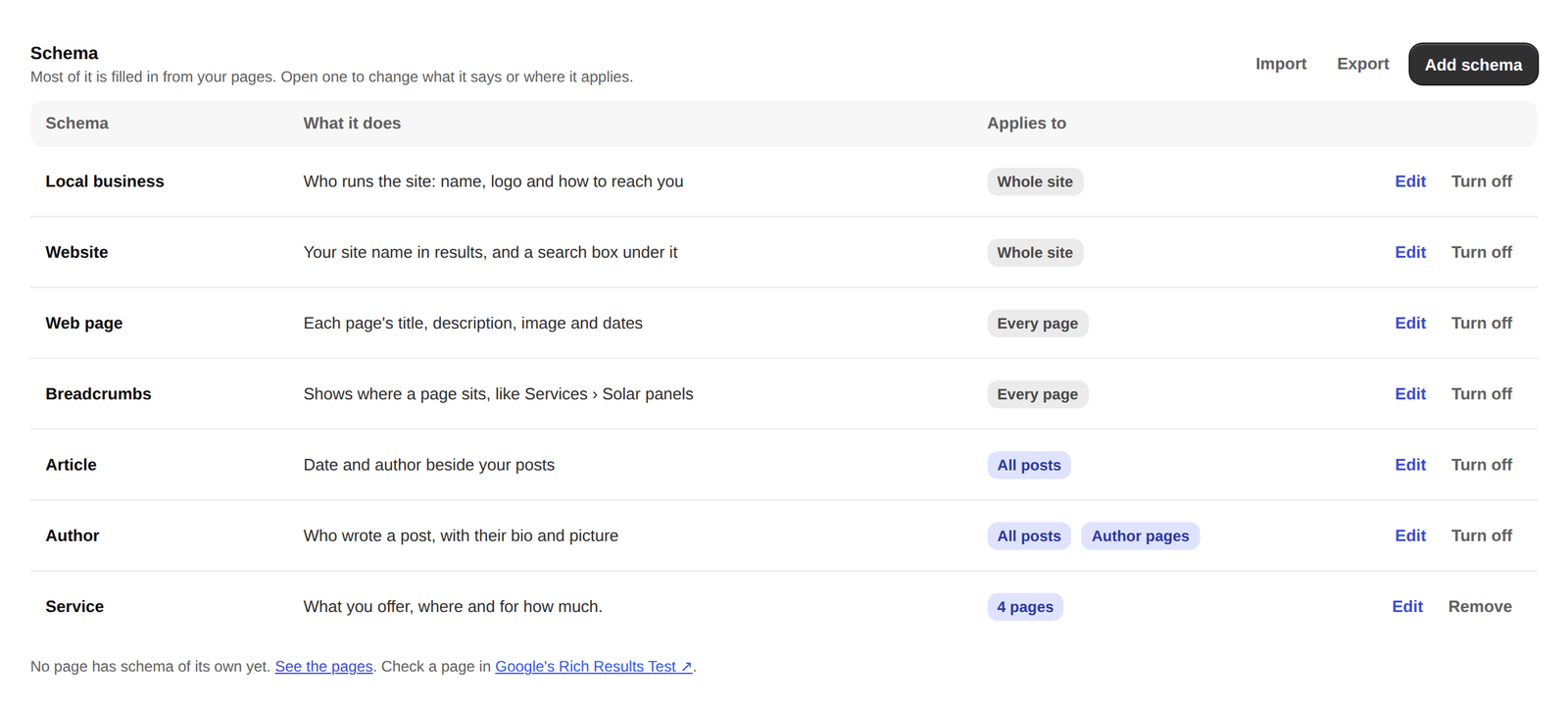
Everything is written into each page as one block of JSON-LD, each item once, linked to the others by their @id. Check a page with Google's Rich Results Test, linked at the foot of the table.
Your business tells Google who is behind the site, for search and Maps. Use the same details as your Google Business Profile.
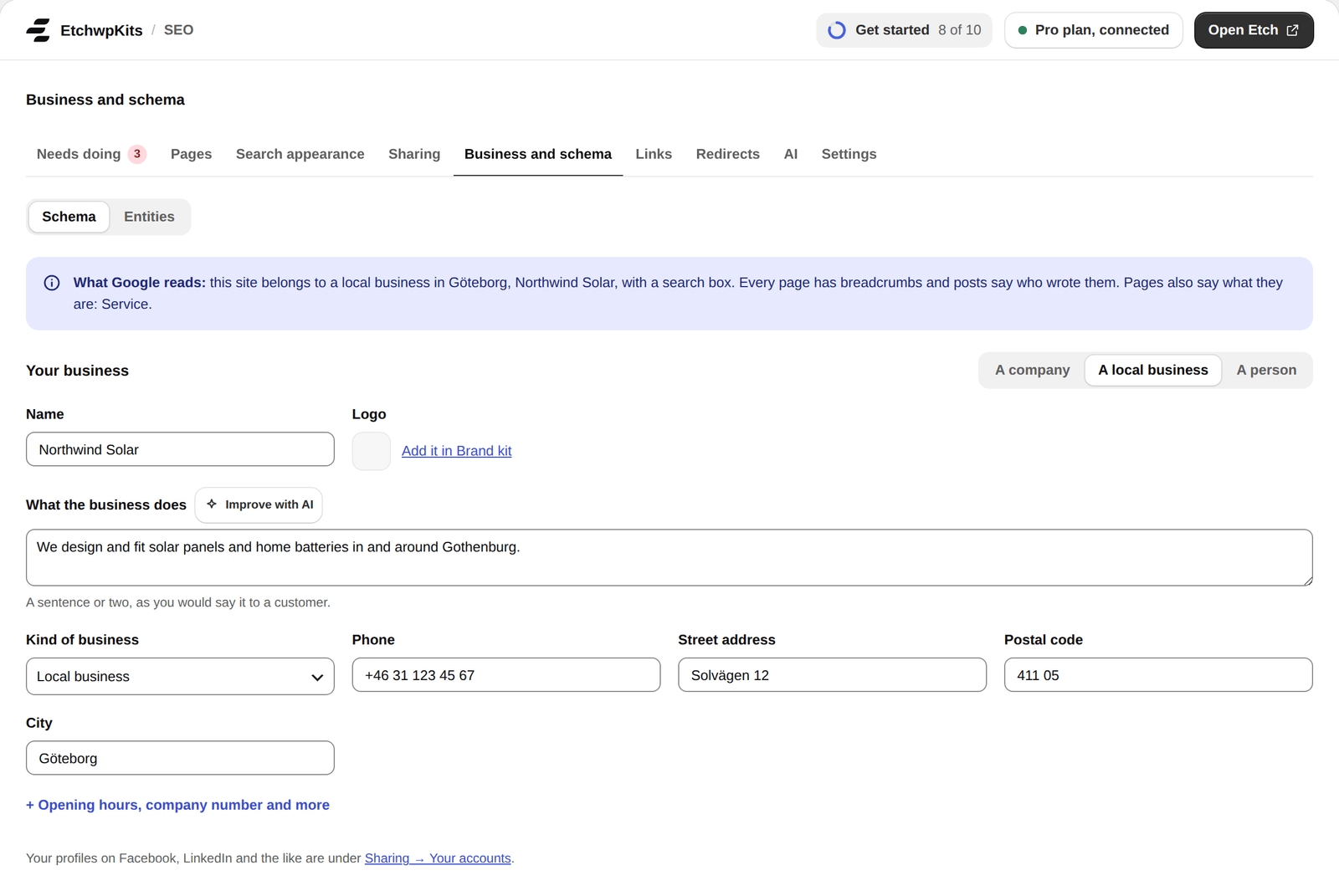
- First say whether the site is A company, A local business or A person. A person's site tells Google about a person instead of a company.
- Name and Logo: the logo is the Brand kit's while you give none.
- What the business does (What you do for a person): a sentence or two, as you would say it to a customer. It goes to Google too.
- A local business has a Kind of business, one of 45 such as an electrician, a restaurant or a dentist, and its Phone and address.
- + Opening hours, company number and more opens the rest: the opening hours, the price range, the place on the map and the company number, which goes to Google as well.
Your profiles on Facebook, LinkedIn and the like are under Sharing → Your accounts. It all goes into the schema on every page.
Write with AI and Improve with AI
With an AI service set up, What the business does has a button beside its name:
- Write with AI, while the field is empty: three short texts written from the home page's words, when the site shows a page as its home page.
- Improve with AI, once it has text: your own text improved three ways, with its facts kept.
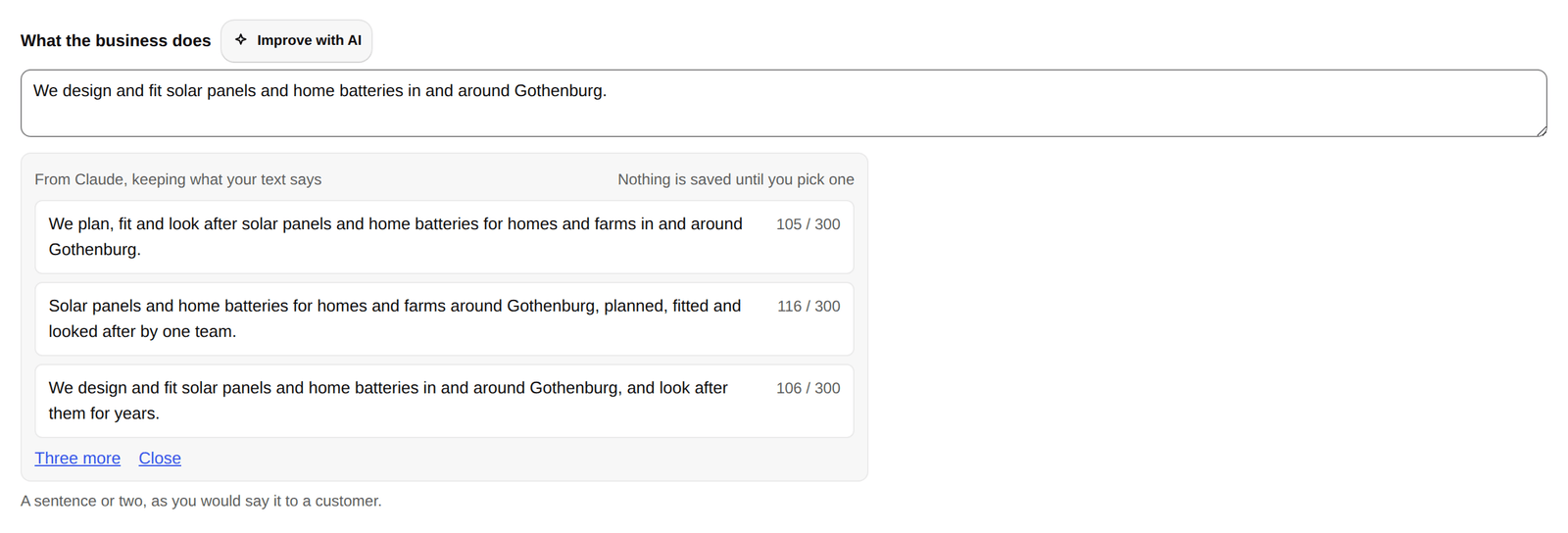
Pick one and it fills the field. Nothing is saved until you pick one. Three more asks for others, and Close or Escape leaves the field as it was.
The parts at the top of the table are made from your settings and each page:
- Your business, named after its kind, such as Local business, with the details from Your business (else the Brand kit, else the site name and logo).
- Website, with your site search, on every page.
- Web page, on every page, with its title, description, share image and dates.
- Breadcrumbs, on every page but the home page.
- Article on a post, and Author on posts and author pages.
Turn off a part when another tool writes it, and turn it on again the same way, or press Edit to add fields of your own to it. A schema you added has Remove instead.
Pick what your pages are
Press Add schema. Search for what is on the page, or pick from the kinds, grouped by what you make (Business, Articles and media, Products and offers, Events and learning, Questions, Food and places, Other, and building blocks). Each says in a few words what it does, and Can show in Google marks the kinds Google can show in its results.
Choose its pages
Pick one, and choose its pages next under Where it applies.
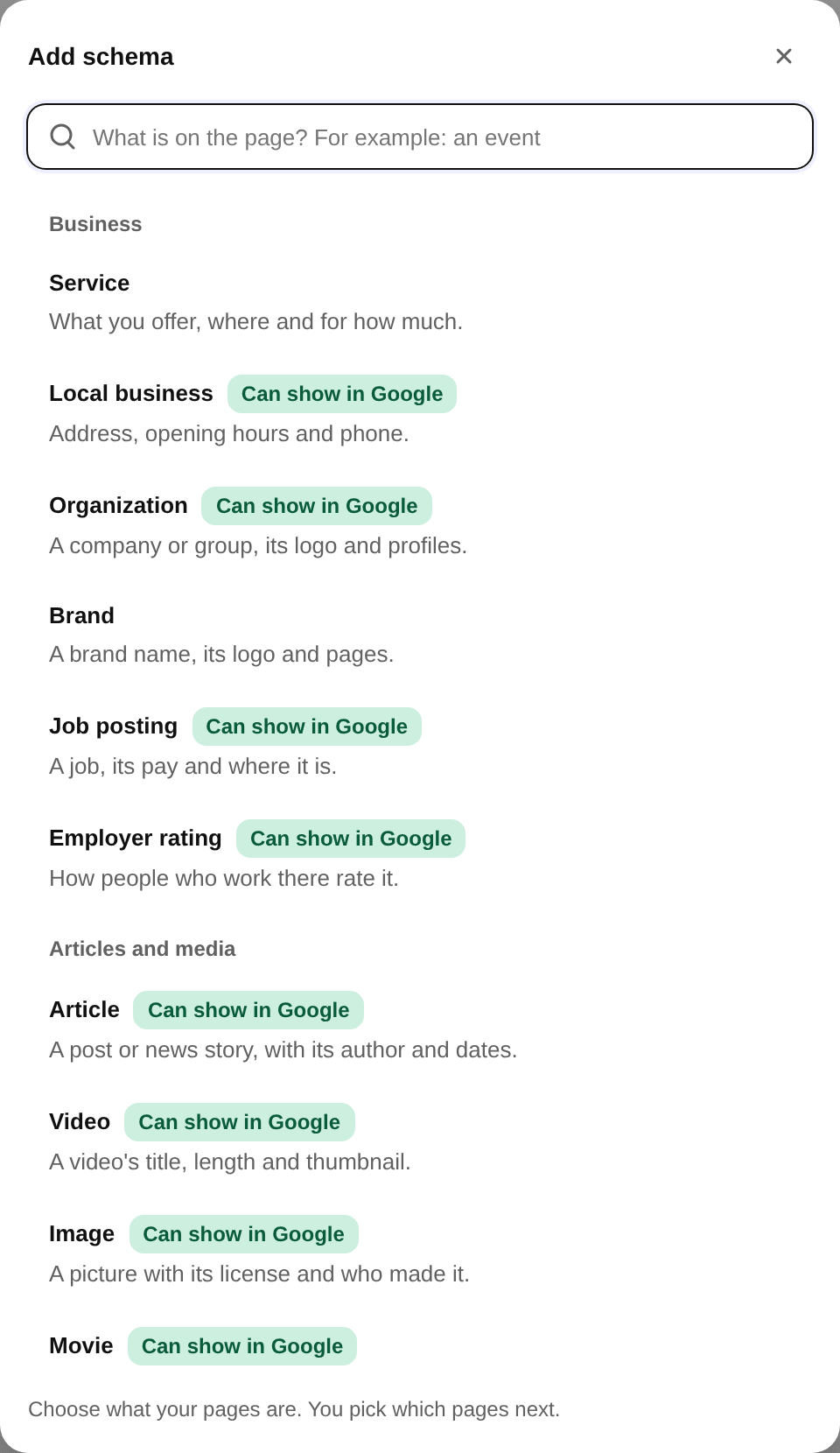
Beside the kinds a page could already be, the picker has a course, a recipe, a software app, a job posting, a podcast episode, a season and a series, a dataset, questions and answers, a movie, a book, a creative work, an image, a brand, a product with variants, an employer rating, a math solver, building blocks (thing, image, person, organization) to link from other schemas, and your own JSON-LD.
A schema opens on What it says, with Where it applies beside it and Google reads on the right.
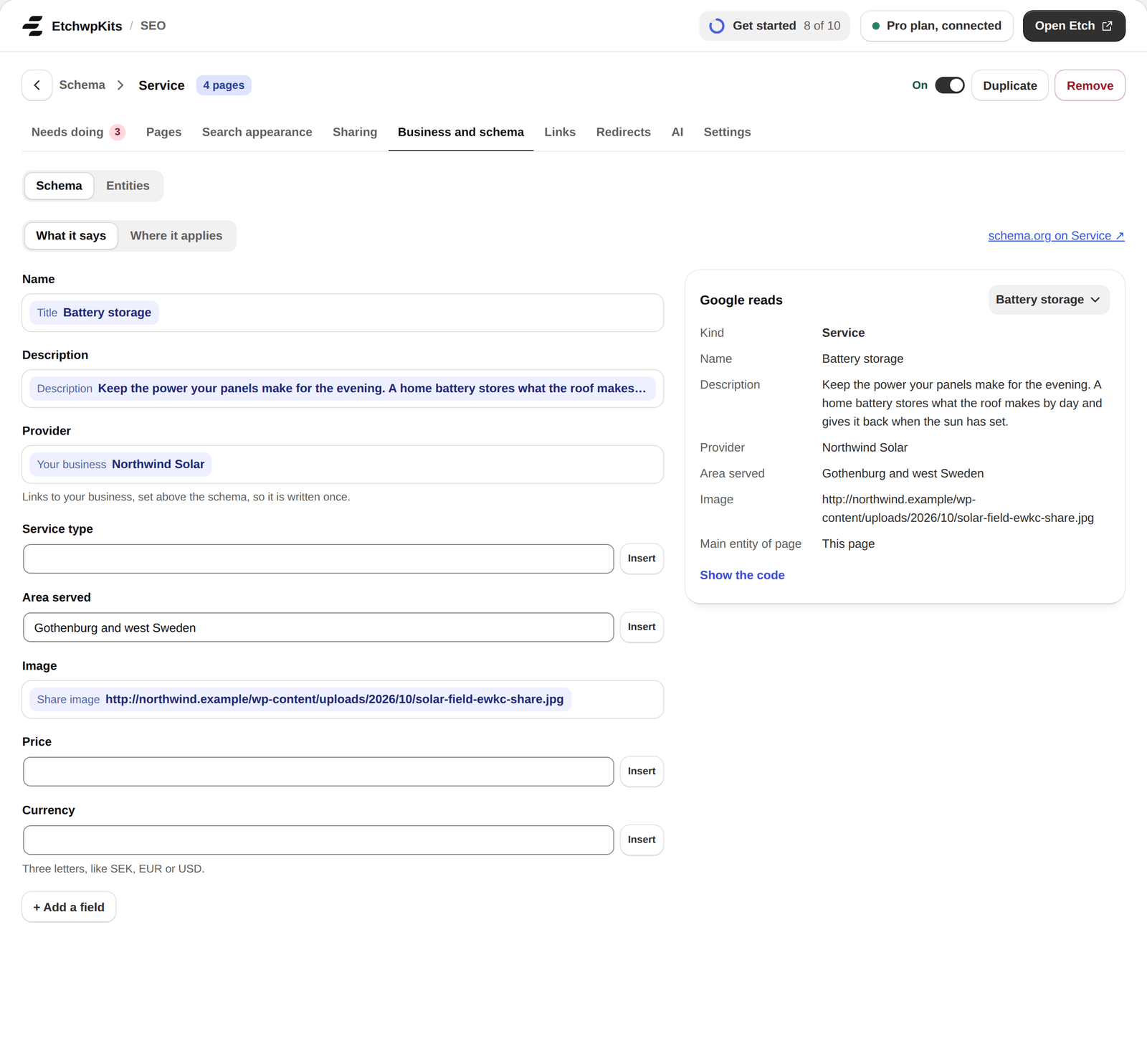
- A field filled in from the page shows what it says there, like Title Battery storage. The fields Google needs are marked, and + Add a field holds the rest.
- Insert puts a value from the page in a field: its title, excerpt, description, content, address, slug, ID, dates, featured or share image, comment and word counts, tags, categories and other terms, custom fields, the author's fields, an archive's term, the site's address, language and icon, and fields from ACF, Meta Box and WooCommerce when they are active.
- The author's picture is offered only while the site shows avatars, and their website only when they may publish.
- A field of your own takes any name: a dot for a property inside another (
author.name) and a number for a list (images.0).
Google reads shows what the schema says on a page you pick, says what is missing there, and has the code behind Show the code. Changes save as you go, and a change that could not be saved asks before you leave.
Where it applies chooses the pages. Under Show on, one rule is enough (+ Add a rule). + And it must also be on adds a second group a page must match too. Under Except, + Add an exception leaves it out where a rule matches. The pages that makes are counted as you go.
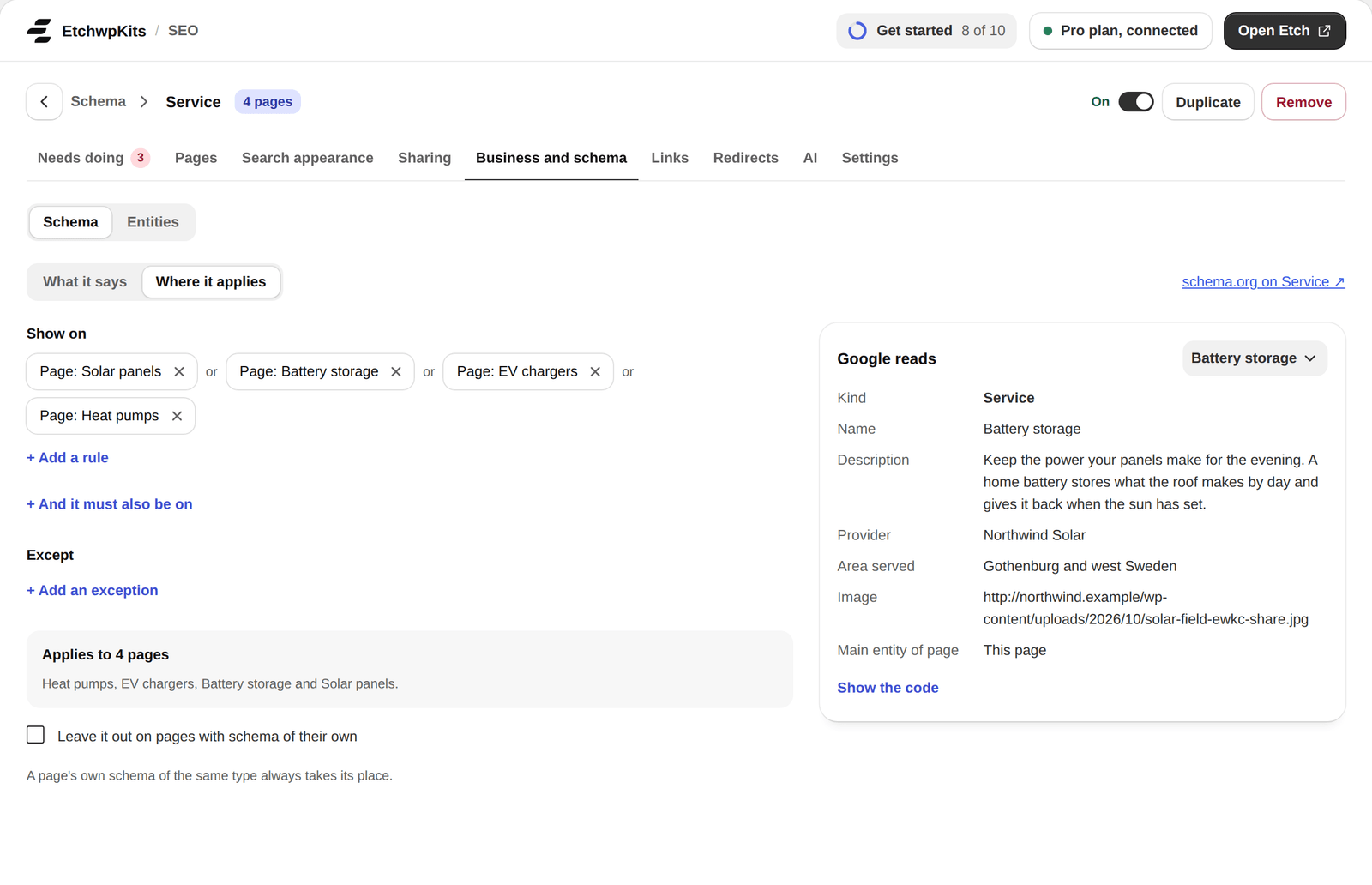
A rule can be the whole site, the home page, all of a kind of page, chosen pages or posts, the pages in a category, tag or term, a term's archive, or kinds of archives (categories, tags, a post type's list, the latest posts, author pages, date archives, search results). Until it has a rule, a schema is printed only where another schema links to it. The table shows where each one applies, such as "8 of 9 services", and what it still needs.
A property can point to another schema instead of a text, like a review of a book, or an author who is a person. Use Insert and pick the schema. Each one is then written once and linked by its @id, the way the Service above links to your business as its provider.
A single page can say what it is, in the Schema row under Edit, in the builder panel's SEO place and in the block editor's SEO box: an article (or a blog post or news article), questions and answers, a how-to, a product, a service, an event, a video, a review, your own JSON-LD, or just a web page.
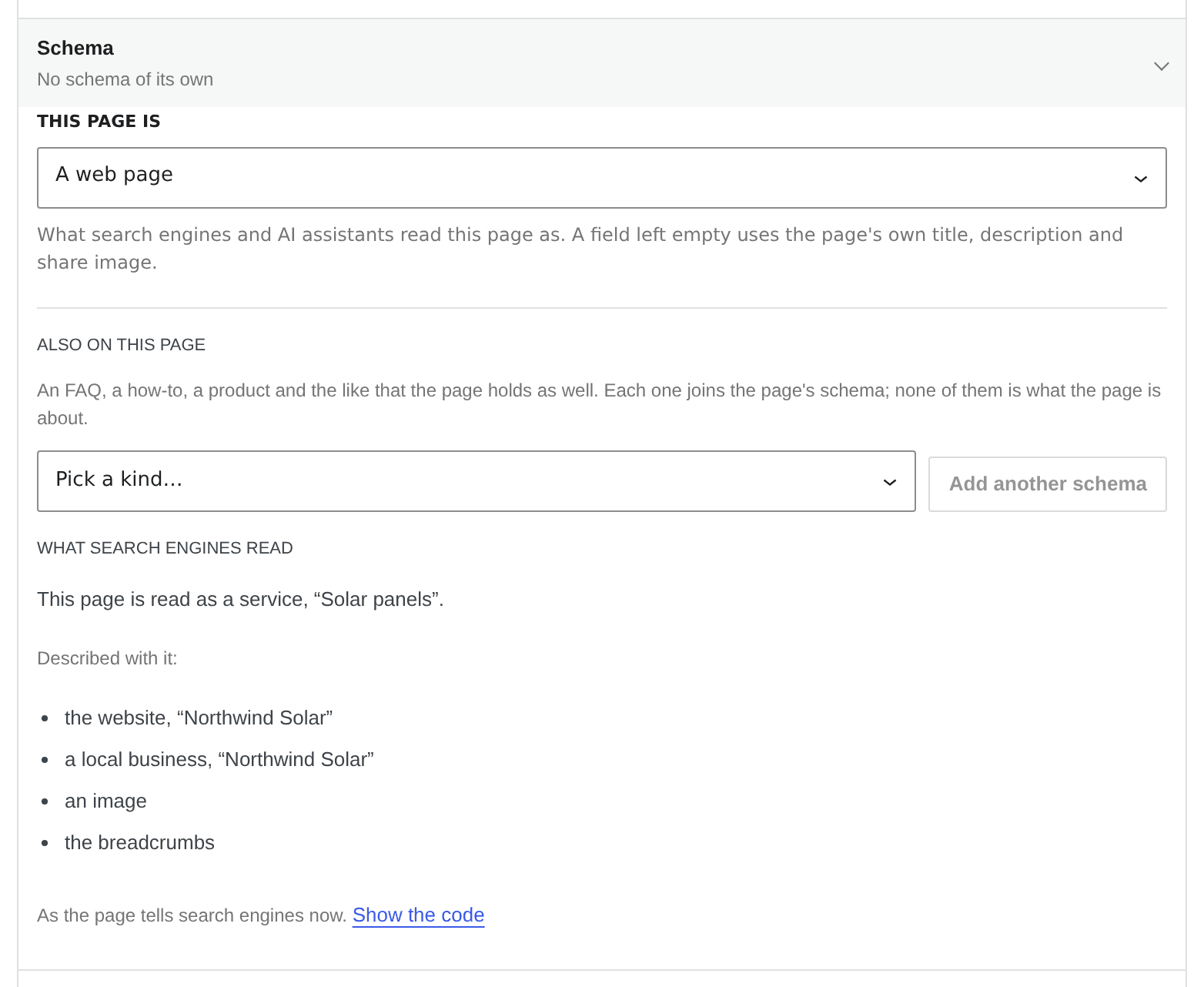
- A field left empty uses the page's own title, description and share image, and a video's address the first video on the page.
- A value that cannot be used, like a price written
1,299.00, is pointed out as you type, and so is what a type still needs before Google can show it. - A page's own schema takes the place of the site's schemas of the same type. Tick Leave it out on pages with schema of their own to keep a schema off those pages altogether.
A page is one thing, but it can hold more: a blog post with a few questions and answers at the end, a service page with a video. Under Also on this page, pick a kind and press Add another schema: an FAQ, a how-to, a product, a service, an event, a video or a review, up to four. Each one gets a card with the same fields as when it is the page's own kind.
- Each one joins the page's schema. An FAQ becomes a FAQPage of its own that is part of the page, and the web page names its FAQs, how-tos, videos and reviews as its parts.
- A kind the page already is, its own or the one its kind of page gives it, shows as left out and cannot be added again.
- A review added this way names the page's author as the one who wrote it.
What search engines read
In the block editor, What search engines read under the Schema row says in plain words what the page tells search engines, as last saved:
- This page is read as names what the page itself is, with its name: for example a product, an article, a page of questions and answers, or a web page.
- Described with it lists what else the page describes: the website, your business, the breadcrumbs, an image, or a how-to or an FAQ added to the page.
Only what the page names as its subject, or what names the page as its own, is what the page is read as (in the code: mainEntity, about or mainEntityOfPage). A product or an event added beside the page is listed under Described with it.
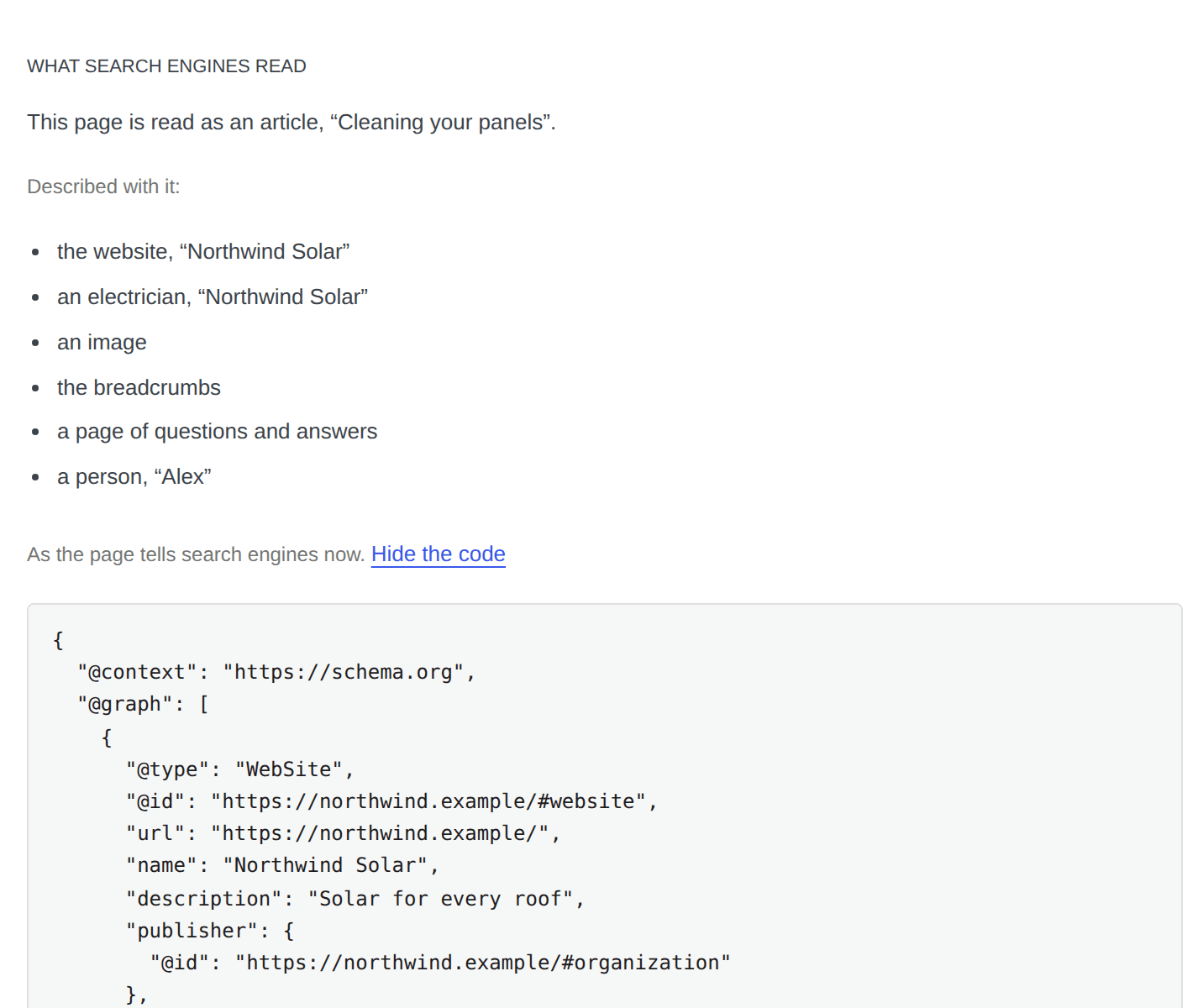
The JSON-LD itself is one click away: Show the code opens it as the page prints it in its head, with Copy. Paste it into Google's Rich Results Test to see what Google makes of it. It is read again after each save, and says so while there are changes not saved yet.
Export saves all schema as one JSON file. Import reads such a file on another site, checked as it comes in, and says so when it fails.
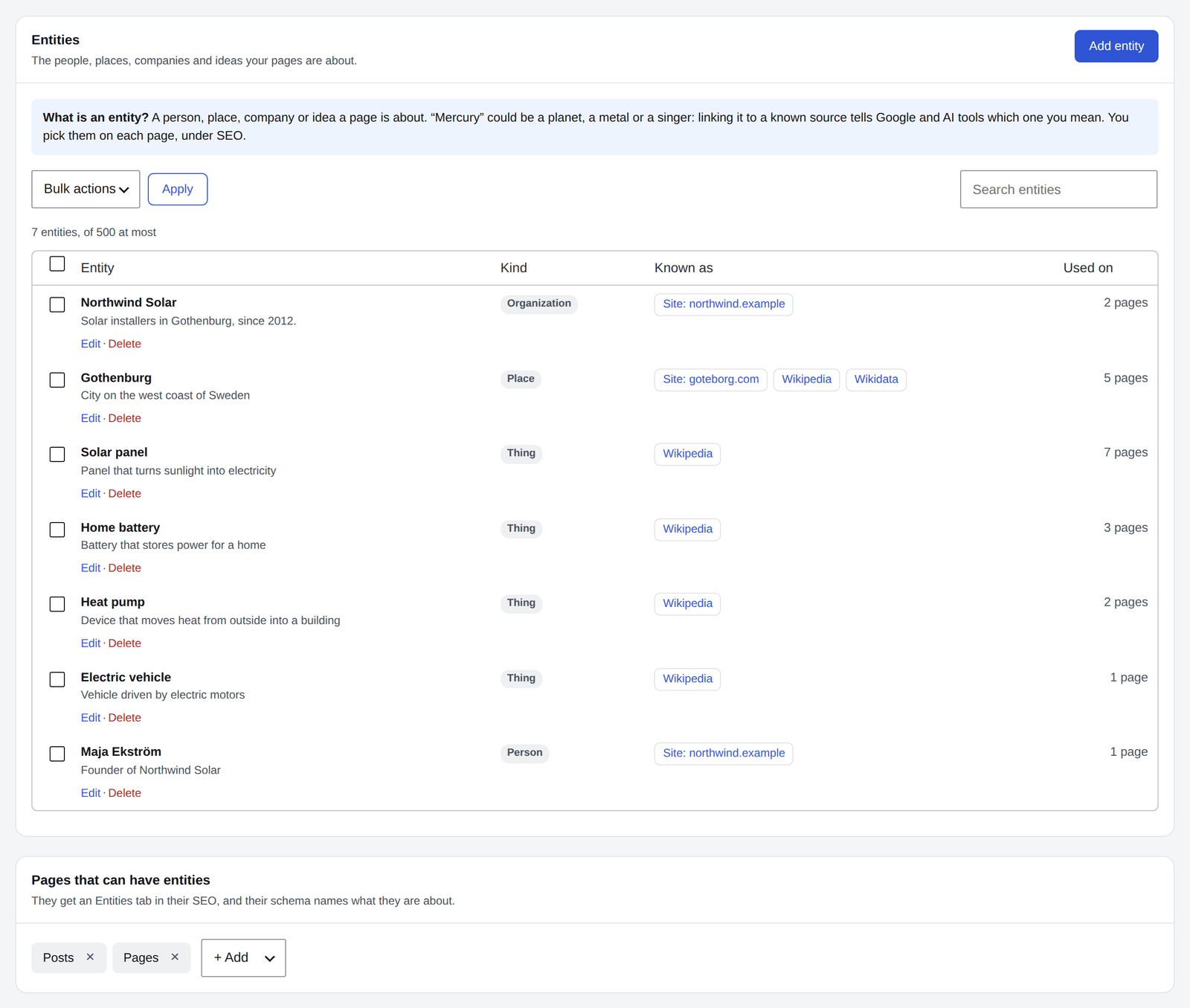
An entity is a person, place, company or idea a page is about. "Mercury" could be a planet, a metal or a singer: linking it to a known source, like its Wikipedia and Wikidata pages, tells Google and AI tools exactly which one you mean.
EtchwpKits → SEO → Business and schema → Entities keeps your list, up to 500, with how many pages use each. Search it, edit one, or tick several and delete them at once (asked first).
Add entity opens a panel at the side with Name, Kind (thing, person, organization, place, product, event or creative work), Description, Known as (its pages elsewhere, one a line, up to 10), Web address and @id.
Find it
Type a name under Find it and pick the right one from Wikidata's answers: its name, kind, description, Wikipedia page and Wikidata page are filled in for you. Check them, then press Save entity.
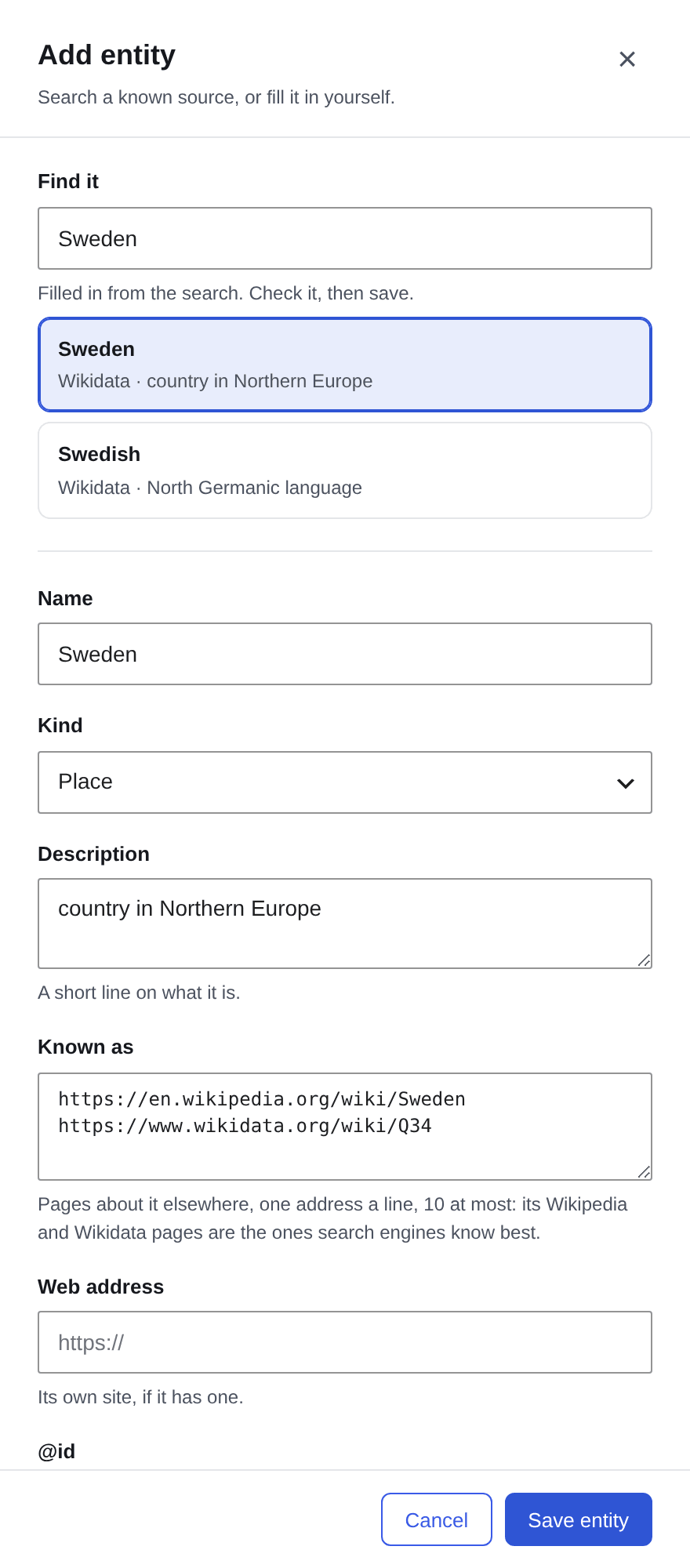
Find it sends the name you type to Wikidata's public search, and only when you use it. Answers are kept a day.
Under Pages that can have entities, choose the kinds of page that offer them: posts, until you add others.
Give a page its entities in the Entities row under Edit, in the builder panel's SEO place and in the block editor's SEO box, or under SEO → Pages (Edit):
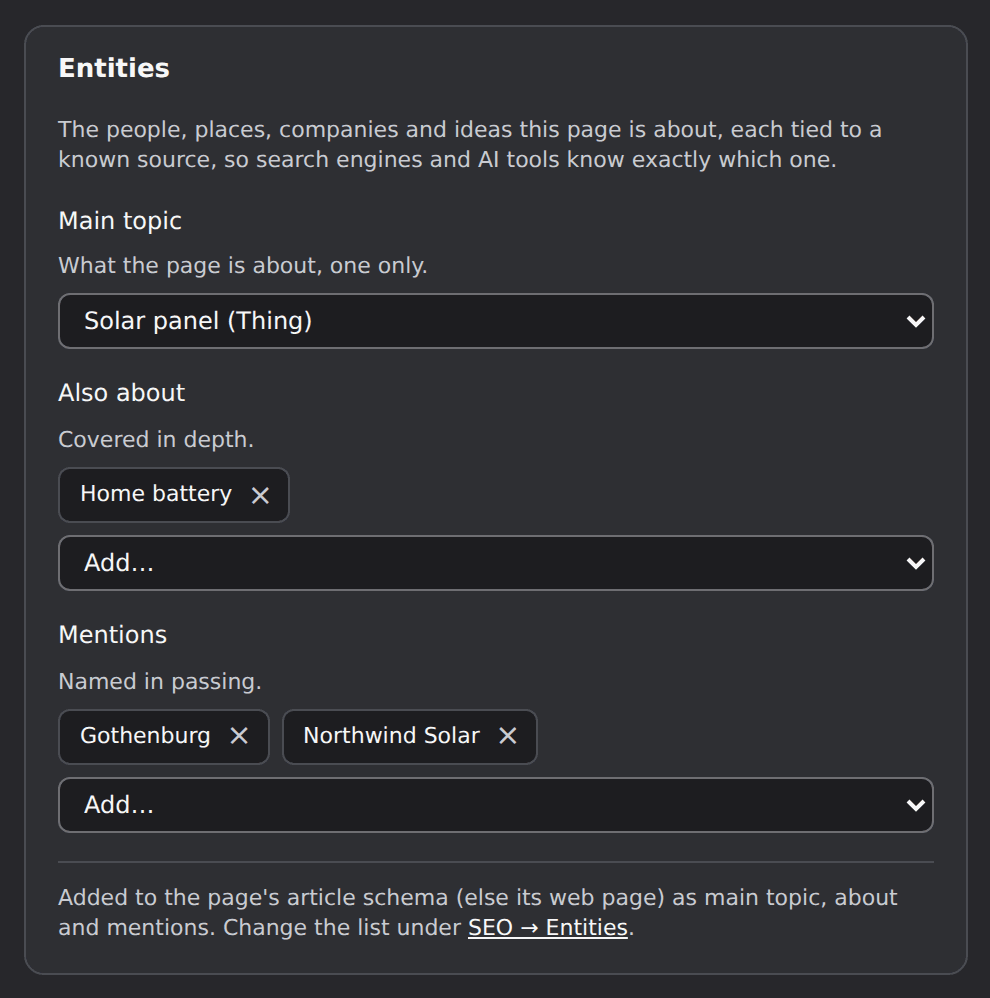
- Main topic: what the page is about, one only.
- Also about: covered in depth.
- Mentions: named in passing.
Names from your list that the page's text holds are offered with one click. The page's article (else its web page) gets them as mainEntity, about and mentions, and each entity is in the schema once with its links, so search engines and AI tools know exactly which one you mean. Pages without entities keep their schema as it was.