Customize class names and clone sections
Your class prefix already renames every insert. When you want more control, Customize lets you pick the exact class names before a component lands, and Clone turns any section on your page into an independent copy you can restyle freely.
Etch styles elements through their classes. Two blocks that share a class share their styles, so changing one changes the other. Renaming gives each component its own classes:
- A clean result in your own names. Your client's site reads
acme-pricing__card, not a library's naming. - No surprises. Restyling one component never leaks into another that happens to use the same classes.
- Names that describe the job. A hero used as a landing page intro can be called
acme-intro, which makes the site easier to maintain.
The class names follow BEM: a block (acme-intro), its elements (acme-intro__title) and modifiers (acme-intro--dark). You name the block once and every element and modifier follows.
Select where it should go
Select a block on the canvas to insert into it, or nothing to add the component at the end of the page. Full sections always go to the top level.
Click Customize on a card
Click Customize on a card in the panel. The Customize dialog opens with names already suggested from your class prefix.
Adjust the names
Type a new name for each block. Every class that changes is listed so you can check the result before anything happens. Nothing is applied until you confirm.
Insert
Click the main button. It says exactly where the component goes, for example Insert into Hero or Insert at the end of the page. You can also press CmdEnter (CtrlEnter on Windows). Cancel or Esc closes the dialog without inserting.
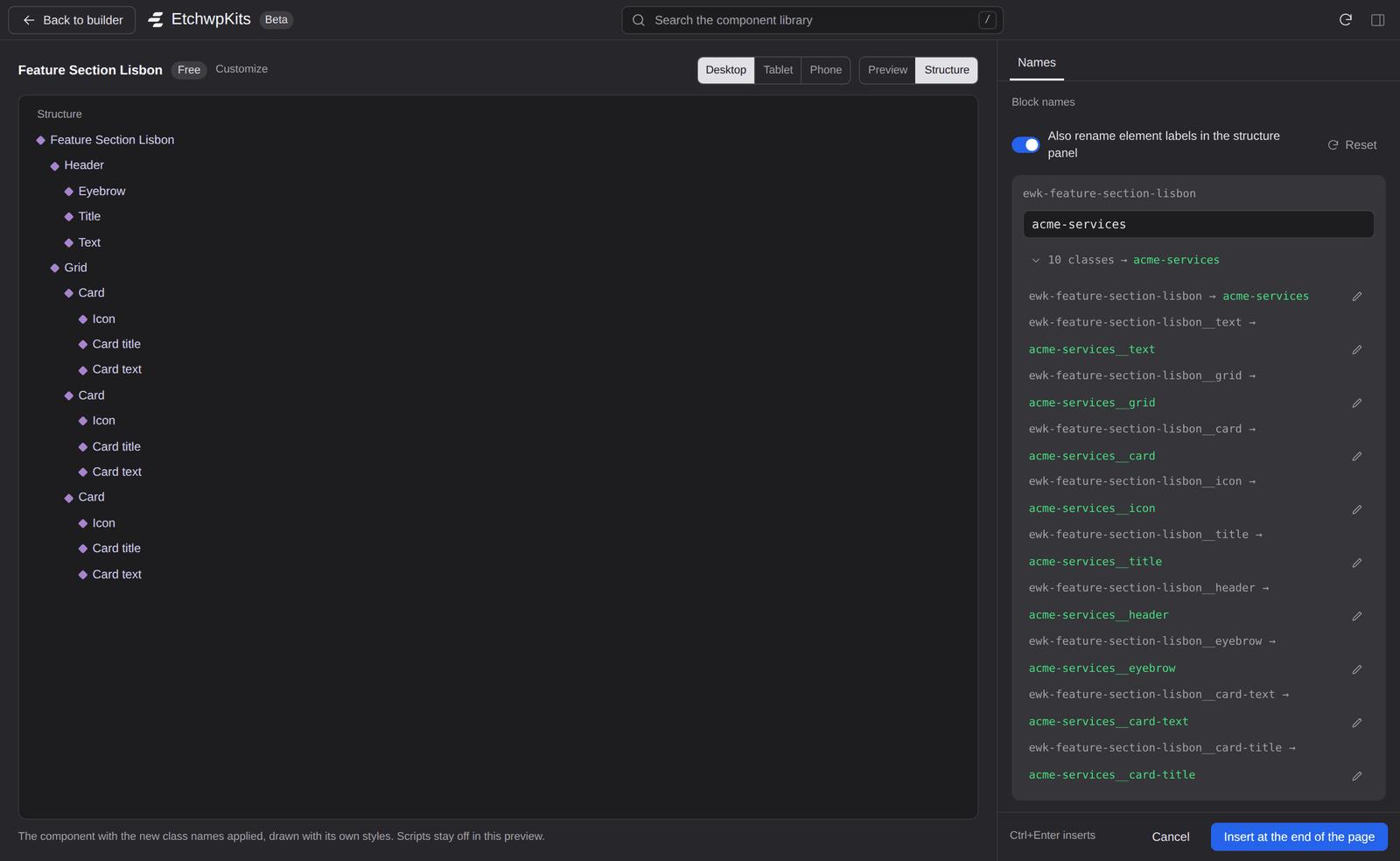
Preview and Structure
The left side has two views. Preview draws the component with your new class names applied, at Desktop, Tablet or Phone width. Scripts stay off in the preview, so sliders and accordions show their starting state. Structure shows the component as a tree of blocks, like Etch's own structure panel, so you can see which name belongs where. When a component cannot be drawn faithfully outside Etch (for example when its content comes from properties), the dialog shows the structure instead.
Names
Under Block names, each block in the component gets its own card: its current name, a field for the new one, and a toggle (for example 10 classes → acme-services) that lists every class that changes, old name to new name. Changing the block name renames its elements and modifiers too.
- Custom names for single classes. Need one element to break the pattern? Click the pencil next to that class and give it its own name.
- Reset puts every name back to its suggestion.
- Also rename element labels in the structure panel updates the names you see in Etch's structure panel to match the new block name, not just the CSS classes.
- Accessibility attributes will be synced: labels and references that point at renamed classes are updated too, so screen readers keep identifying renamed sections correctly.
Shared utility classes
Classes that come from a framework, for example Automatic.css helpers, style many parts of a site. They are recognized and kept unchanged by default, which is almost always what you want. If you really need to, switch on Rename utility classes too.
Classes found in scripts
Components with a script (the JS badge) often look up their own classes, for example to open an accordion. When you rename, the dialog updates those references inside the script as well and lists them on the Script tab. If a script builds a class name on the fly, the dialog cannot safely rename it and lists it under References to review by hand, with the line it is on.
Names must be valid, unique CSS class names. The dialog checks as you type:
- Start with a letter.
- Use lowercase letters, numbers and dashes, like
client-hero__title. - 50 characters or less.
- Two different classes can never end up with the same name. If they would, the dialog lists the collision and waits for you to pick another name.
Clone makes an independent copy of any block already on your page, with brand new class names, and places it right after the original. Restyle the copy, for example a dark version of a light section, and the original stays exactly as it was.
Select the block on the canvas
Click the section (or any block) you want to duplicate in Etch.
Click Clone in the bottom bar
With the panel open, click Clone selection at the right of the bottom bar (Clone in the docked layout). The clone dialog opens with new names already suggested.
Name the copy and confirm
Adjust the names, then click Clone after followed by the block's name, or press CmdEnter. The copy appears right below the original, selected and ready to restyle.
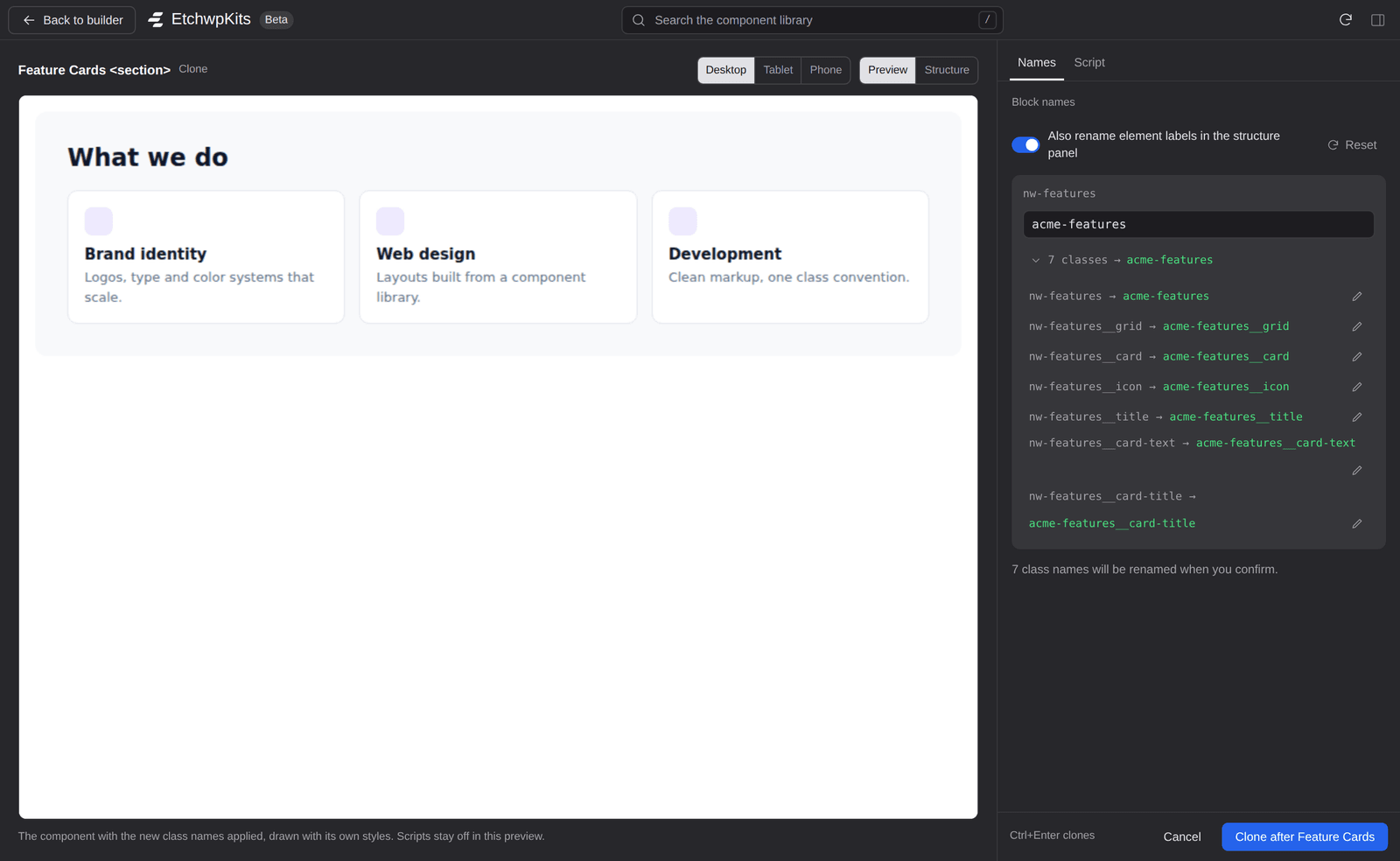
If a name you pick is already used on the page, the dialog warns you: the copy would pick up the styles those classes already have. Pick a different name to keep it independent.
During the beta, Customize and Clone work for every account. After the beta they are part of the one EtchwpKits plan, like every other tool in the panel (see what changes after the beta). If you subscribe while the builder is open, close and reopen the panel (or reload the builder) to pick up the change.
Want to reuse your own designs rather than library components? That is what My Kits is for.