Blueprints: save a page, insert it again in one go
Built a page you will need again, such as a landing page, an about page or a contact page? Save it as a blueprint. A blueprint is stored in your EtchwpKits account, so on any site you connect you can insert the whole page of sections again in one click, in order, with that site's class prefix. Change a section for another one first if you like, and save the result as a new blueprint.
A blueprint is a list of library sections in page order, for example a hero, features, pricing, an FAQ and a call to action. It remembers which components the page is made of, not your edits: each section comes in as the library component at its newest version, renamed with the class prefix of the site you insert it on. Your texts and images on the original page stay where they are.
The whole flow takes three steps:
- Build a page with sections from the library, on any site.
- Save it with Save page as blueprint in On this page.
- Insert it from Blueprints on any site connected to your account, then fill in the content.
Blueprints live in the EtchwpKits panel inside the Etch builder. Open a page in Etch, click the EtchwpKits logo in Etch's left tool rail, and choose Blueprints in the menu on the left, under Library. Saving a page as a blueprint happens in On this page, under This site.
Your blueprints are saved to the EtchwpKits account you log in with on etchwpkits.com, the same account you approve when you connect a site. Every site connected to that account shows the same list, so a blueprint you save on one site is ready on the next one straight away. There is nothing to export or upload.
Build the page
Insert the sections you want from the library, in the order the page needs them, and save the page in Etch as usual. A page you built earlier works too.
Open On this page
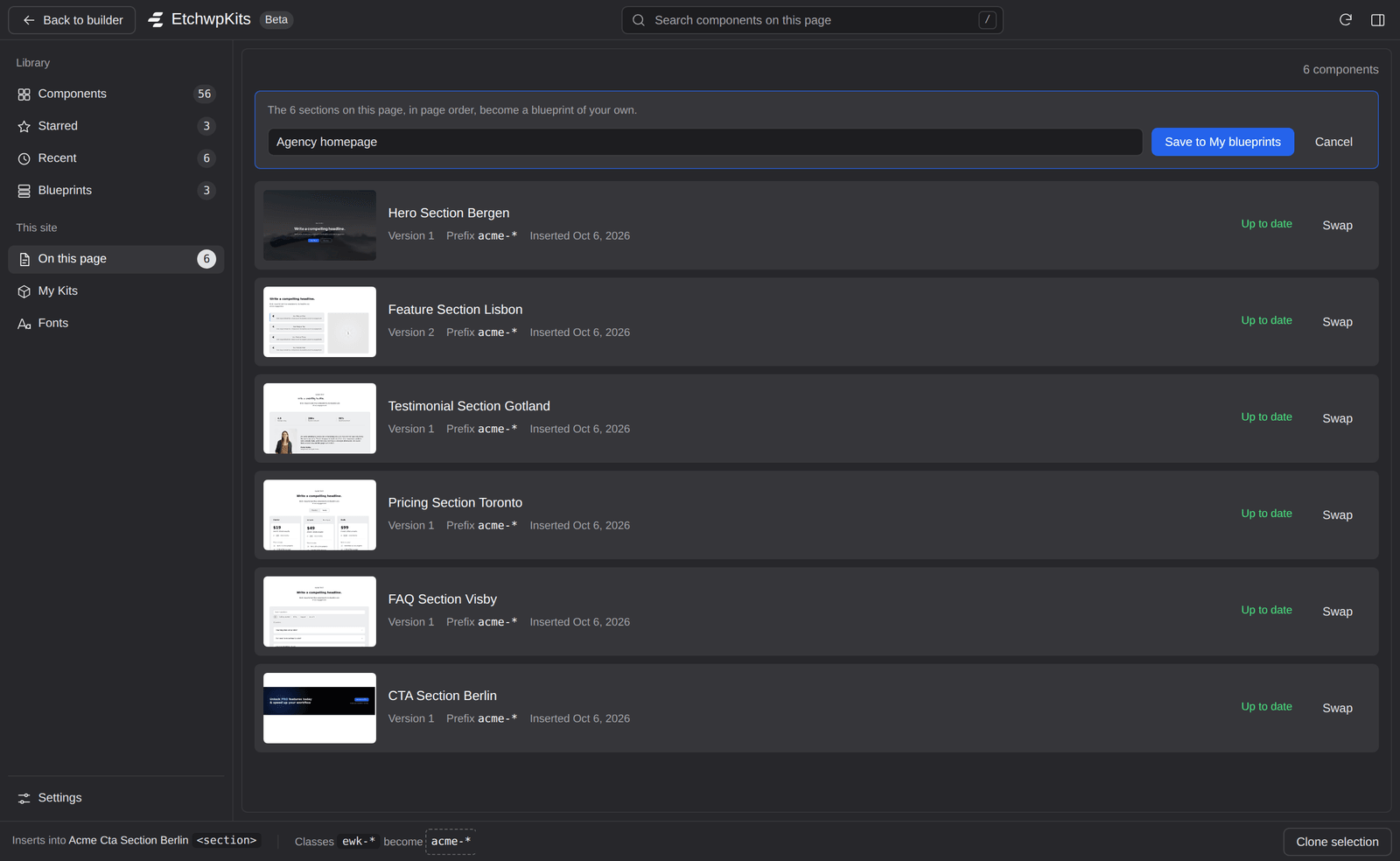
In the panel, open On this page. Above the list it says how many sections can be saved, next to Save page as blueprint.
Name it and save
Click Save page as blueprint, type a name such as Agency homepage, and click Save to My blueprints (or press Enter). The panel confirms it, and Open in the message takes you to the new blueprint.
The blueprint takes the library sections that are on the canvas, in the order they stand on the page. Smaller components you inserted inside a section are left out, as a blueprint inserts sections at the top level of the page. Sections you built yourself, or inserted from My Kits, are not library components, so they are not part of a blueprint. A blueprint holds up to 30 sections, and your account up to 100 blueprints.
You can also make a blueprint from one you already have: open it, change or leave out sections, and click Save as new blueprint. See Change a section.
This is how you bring a saved page to another site, or use it again on the same one. Start with an empty page, or the page you want the sections added to.
Connect the site to your account
Install the plugin and connect the site with the same EtchwpKits account you saved the blueprint with. See Connect, and set the site's class prefix so the sections come in with this site's class names.
Open Blueprints and pick a blueprint
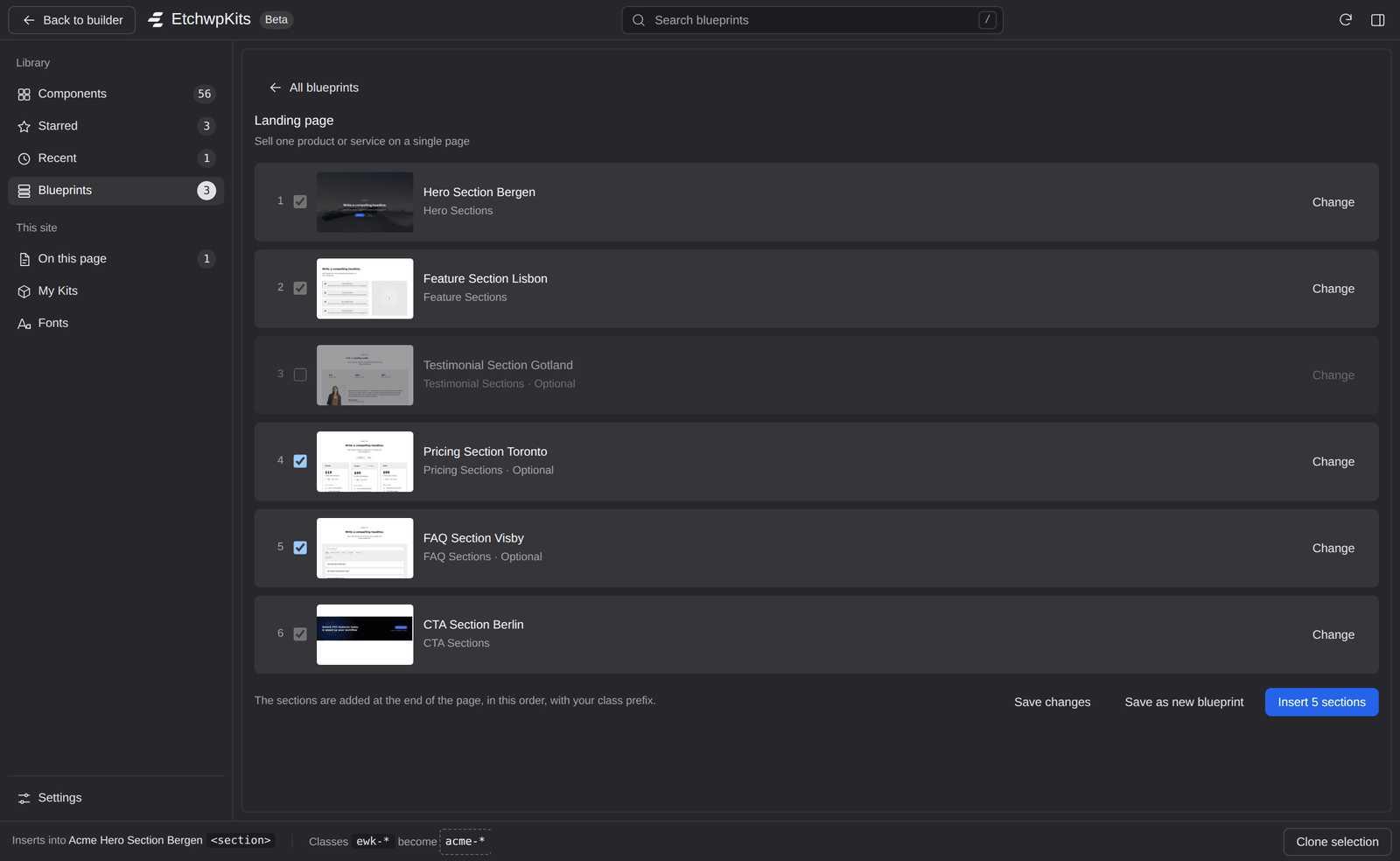
Open the page in Etch, open the panel and click Blueprints. Click the blueprint you want. It opens with its sections listed in page order, each with its picture, its name and its category. All blueprints takes you back to the list.
Adjust it if you like
Change swaps a section for another component of its category, see Change a section. Sections marked Optional have a box you can untick to leave them out.
Insert the sections
Click Insert 5 sections (the number follows the sections that are ticked). The sections are added at the end of the page, at the top level, in the order shown, and their classes get the site's class prefix, the same as any other insert.
Fill in your content, then save
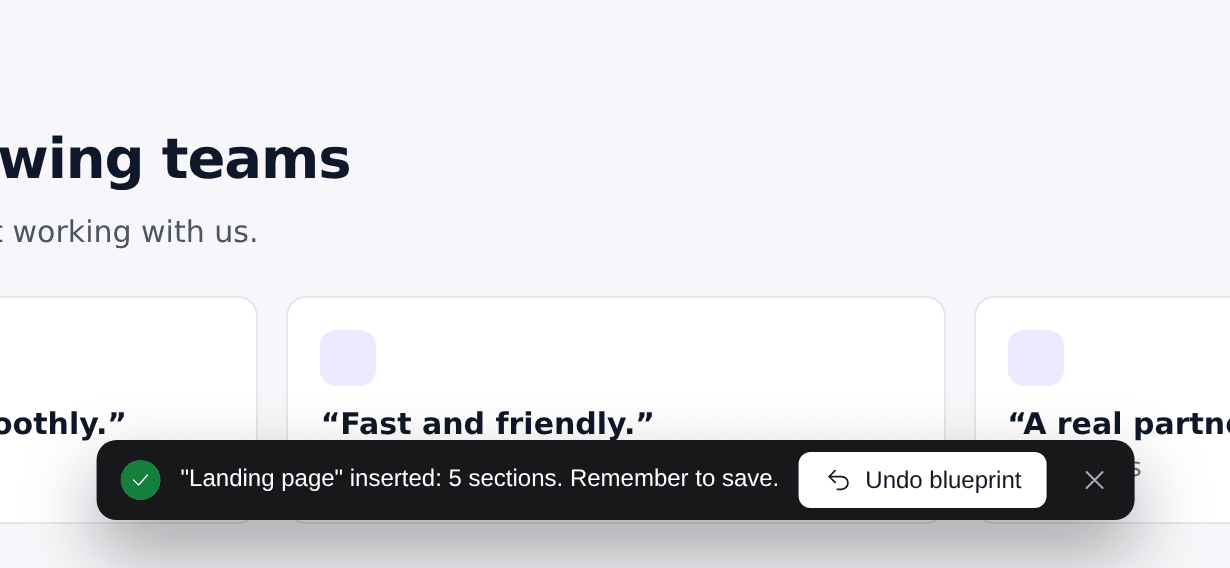
A bar under the canvas confirms it, for example "Landing page" inserted: 5 sections. Remember to save. Write your own headings and texts, swap in your images, and save the page in Etch. Nothing is live until you save. Changed your mind? Undo blueprint in the same bar takes all the sections off again, see Undo a blueprint.
The sections of a page you save are always part of the blueprint. A blueprint you saved from one that EtchwpKits publishes keeps its optional sections, which you can untick, as in the picture.
Right after a blueprint lands, a bar under the canvas says how many sections came in, with Undo blueprint beside it. One click takes all of the blueprint's sections off the page again, the last one first, instead of pressing CmdZ once per section.
- The bar stays while you work on the page, also when the panel closes after the insert. It goes when you close it, when you open another page in Etch, or when the sections are no longer on the page.
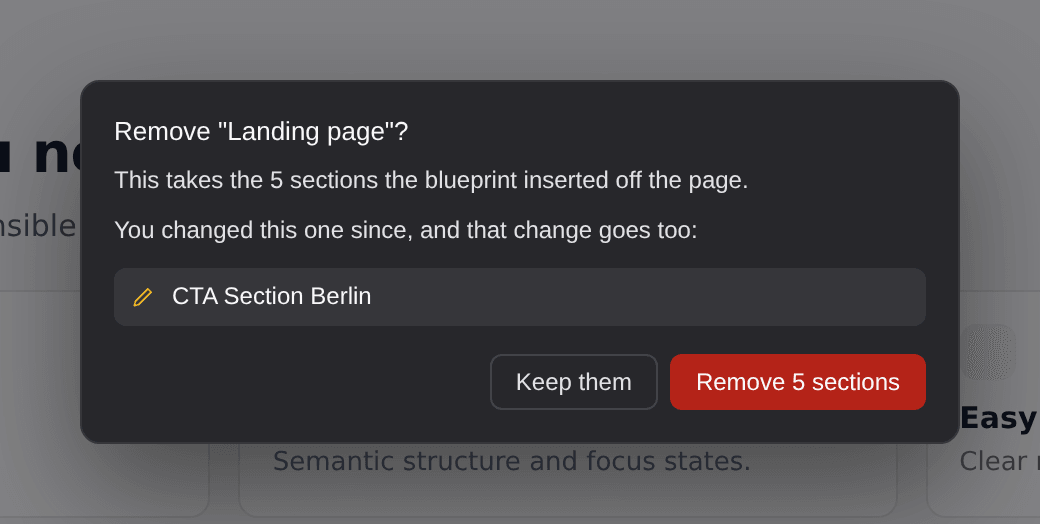
- When you have not touched the sections, Undo blueprint takes them off at once. When you changed one of them since, it asks first and names the sections you changed, because those changes go too. Keep them (or Esc) leaves the page as it is.
- After an undo the bar offers Bring them back, which puts the same sections back at the end of the page, in the same order.
- The sections you take off also leave On this page, so the list keeps showing only what is on the page. Sections you deleted yourself before the undo stay deleted.
- Nothing is saved until you save the page in Etch, and Etch's own undo history still works as usual.
Open a page in Etch that has nothing on it yet, and after a moment a small card appears beside the EtchwpKits button in Etch's tool rail. It names a few blueprints, the ones EtchwpKits publishes first and then your own, each with its number of sections. When the ones from EtchwpKits have types, the card has the same type buttons as Blueprints, see Blueprints by type.
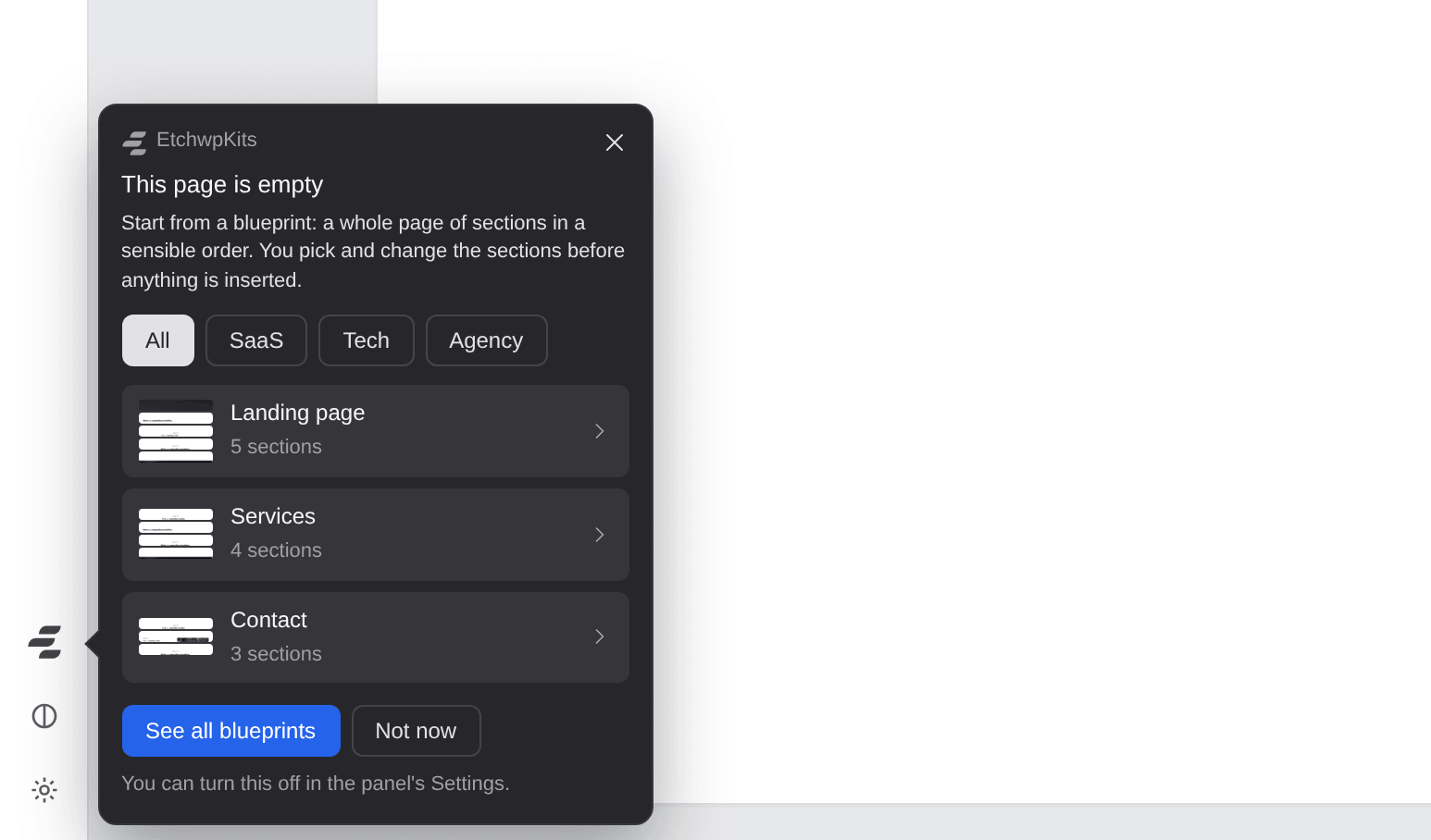
- Click a blueprint to open it in the panel, ready to change and insert as in Insert a blueprint. Nothing is added to the page until you click Insert. See all blueprints opens the Blueprints place, which also says that the page is empty.
- The card shows once per page each time you open the builder, only while the panel is closed, and it never moves your cursor or keyboard focus. It goes away as soon as something is on the page.
- It needs a blueprint to offer: one from EtchwpKits or one of your own, saved with Save page as blueprint. With none at all, no card shows. The page also has to be empty in Etch, with nothing in its structure.
- Not now keeps it away from that page for good, in this browser. The close button hides it until the next time you open the page.
- Do not want it at all? Switch off Suggest a blueprint on an empty page in the panel's Settings.
The blueprints from EtchwpKits come in types, like SaaS, Tech and Agency. As soon as one of them has a type, Blueprints shows a button for each type after All, so you see the blueprints for the kind of site you are building first.
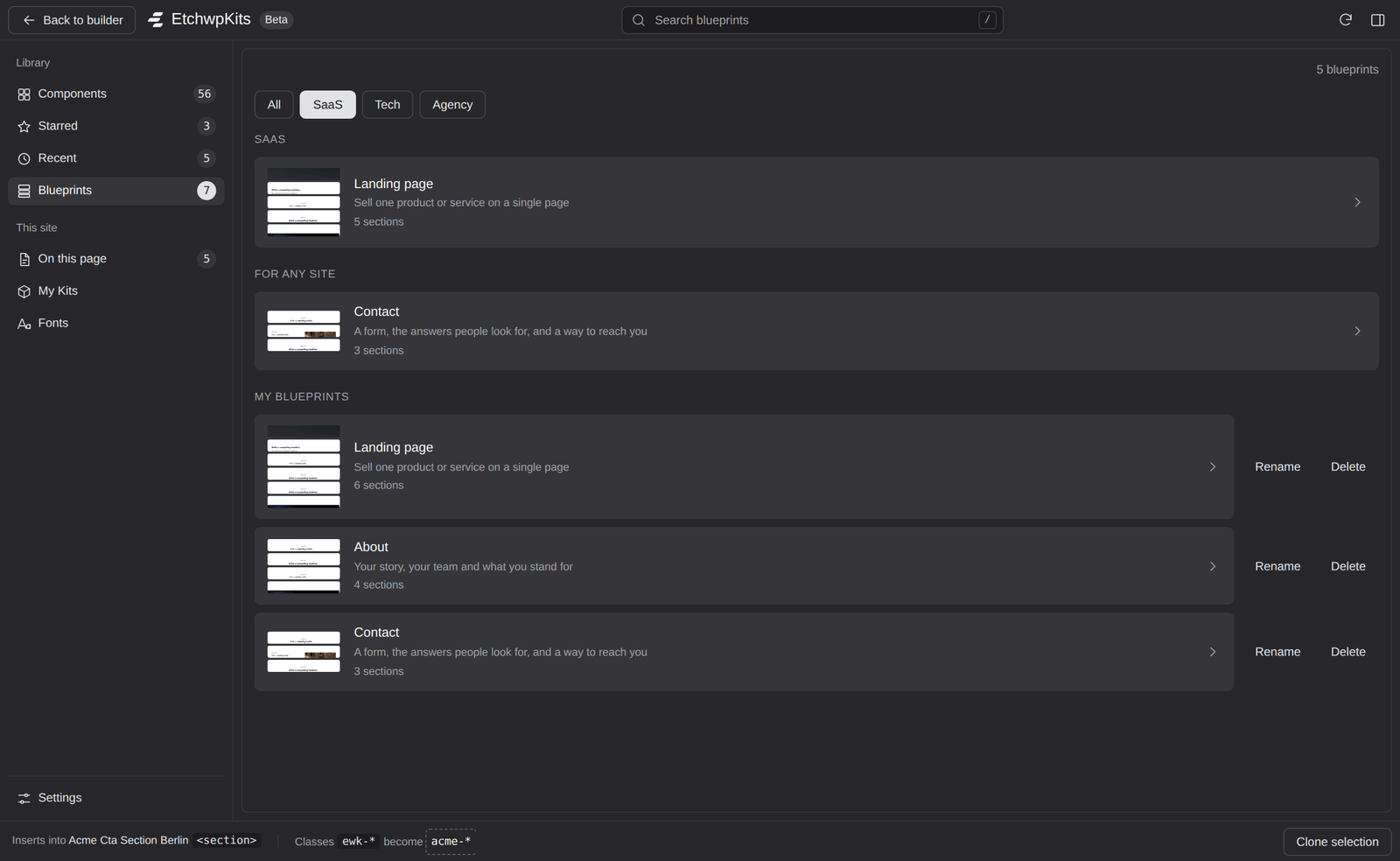
- Choose a type to see its blueprints first, under the type's name. The ones that fit any site, like About or Contact, follow under For any site, and your own under My blueprints. A blueprint can have more than one type.
- All shows every blueprint as before: My blueprints first, then From EtchwpKits.
- The search field still narrows the list, under whichever type you chose.
- The card on an empty page has the same buttons. Choose a type there and the blueprints it offers change at once, see Start an empty page from a blueprint.
- The panel remembers the type you chose last, in this browser, both in Blueprints and in the card.
- Your own blueprints have no type, so they show under every type, after the others.
- When no blueprint has a type yet, there are no buttons and the list looks as it always did.
Click Change on a section to see the other components of its category right below it. The one the blueprint uses now says In use. Click Use this on the one you want, and it takes the section's place in the blueprint. Show more loads more of the category when there are many, and Cancel (or Esc) closes the list without a change.
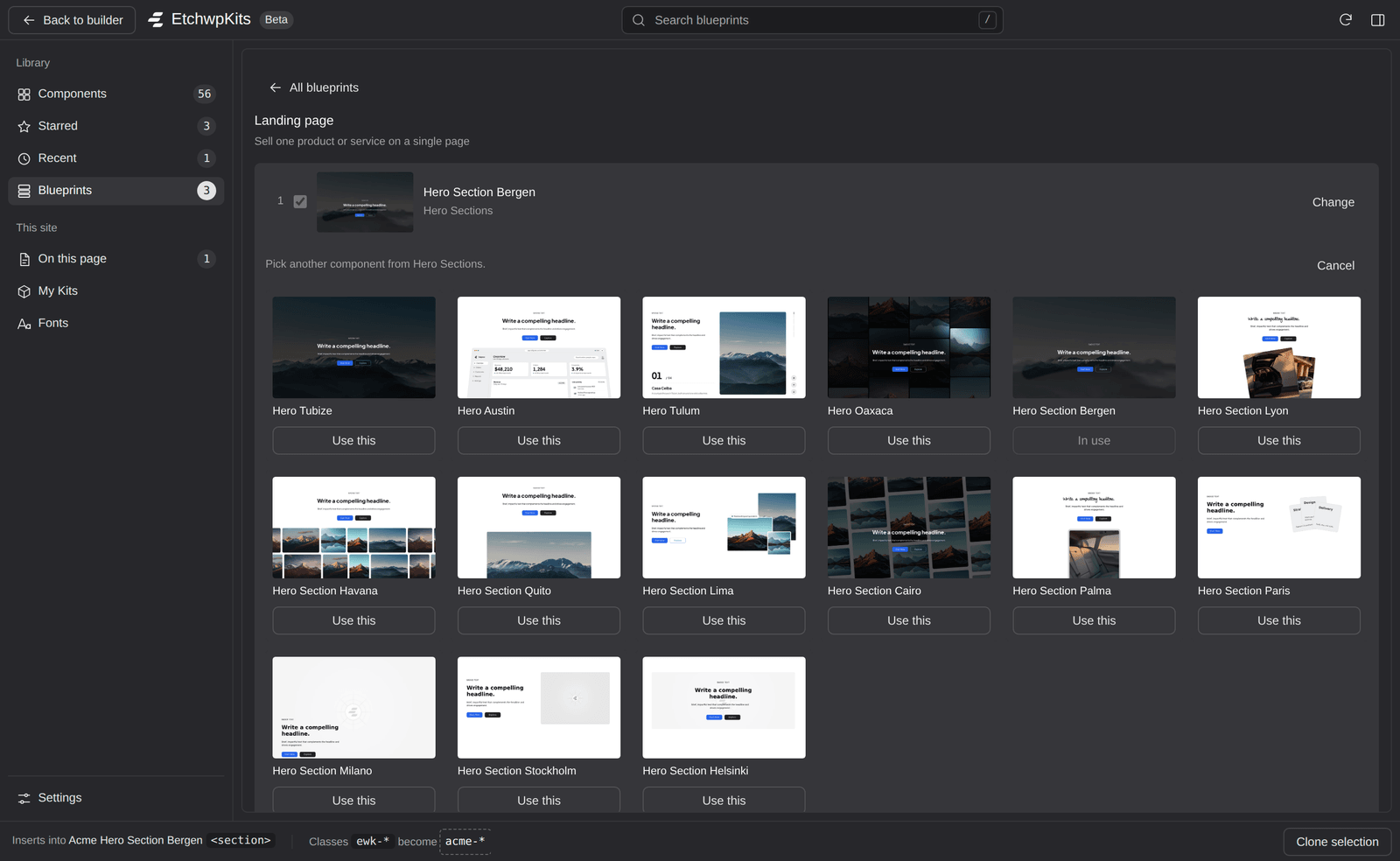
Your changes are only for this insert, unless you keep them:
- Save changes (on one of your blueprints) stores the blueprint with the sections you just picked or left out.
- Save as new blueprint keeps the original and saves your version under a new name.
Otherwise the next time you open the blueprint, it starts from its own sections again.
Blueprints lists yours under My blueprints, newest first, each with its name, its number of sections and a small picture of the page it makes. The search field searches them by name while this place is open.
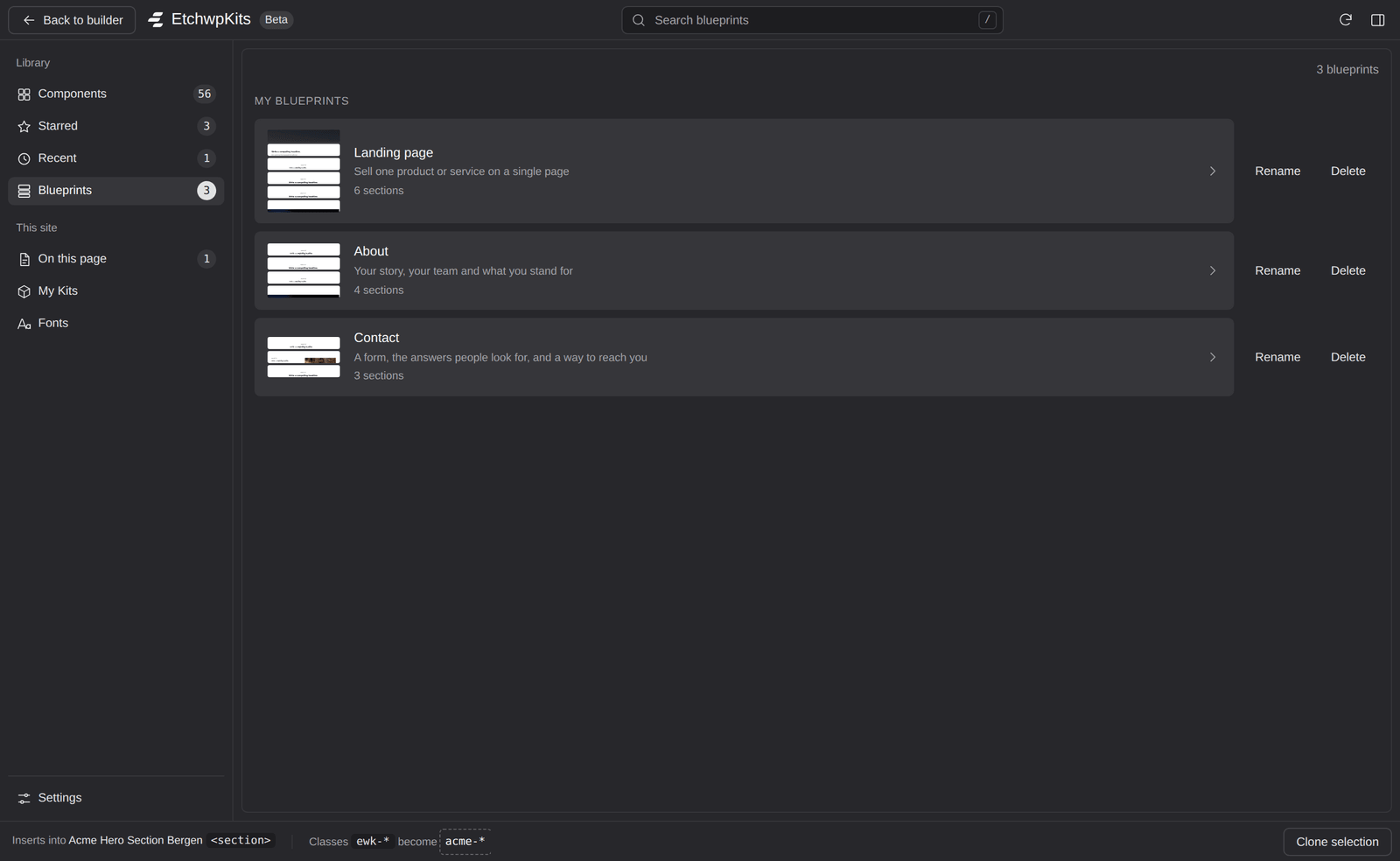
- Rename changes the name in place. Press Enter to save it, or Esc to keep the old one.
- Delete asks first, with Cancel ready, because the blueprint is removed from your account, and so from every connected site. Pages you already built from it keep their sections.
- EtchwpKits adds ready made blueprints over time, in types like SaaS, Tech and Agency. They show in the Blueprints place under From EtchwpKits, below yours, or under their type when you choose one, and first in the card on an empty page. Open one, change it the way you like, and Save to My blueprints keeps your version.
- Each section is tracked in On this page like any component you insert, so you hear when one gets an update, and Swap works on it later. The sections show up in Recent too.
- A Pro section on a plan without Pro keeps the insert button dimmed, with a note under the list. Upgrade, use Change to pick a free component of the same category, or leave the section out when it is optional.
- Now and then a section has no component, for example when its component was taken out of the library. Use Change to pick another one of the same category before you insert or save the blueprint.
- If one section cannot be inserted, the sections after it are left out and the panel says which one failed. The sections already inserted stay on the page, so you can add the rest from the library, or take them off with Undo blueprint and try again.
- When the sections use fonts your site does not have yet, the panel offers them once for the whole page, the same way it does for a single insert.
- Blueprints need a version of Etch that can insert blocks for plugins. When it cannot, the panel says so under the list.