The built-in contact form
The Companion plugin includes a complete contact form, so a client site does not need a separate form plugin. Messages are emailed to you and saved in WordPress, spam protection is always on, and there is nothing to configure unless you want to.
Visitors fill in their name, email, a subject, a topic and their message. Then:
- the message is saved under EtchwpKits → Messages in WordPress,
- a notification email goes to the addresses you choose,
- optionally, the visitor gets an automatic confirmation email,
- and optionally, the details are sent to a webhook, for example a chat channel or a CRM.
The form is off until you turn it on, and it works on any page, whether built with Etch, another builder or the block editor.
Switch it on
In WordPress, go to EtchwpKits → Tools and turn on Contact form. Messages appears in the EtchwpKits menu.
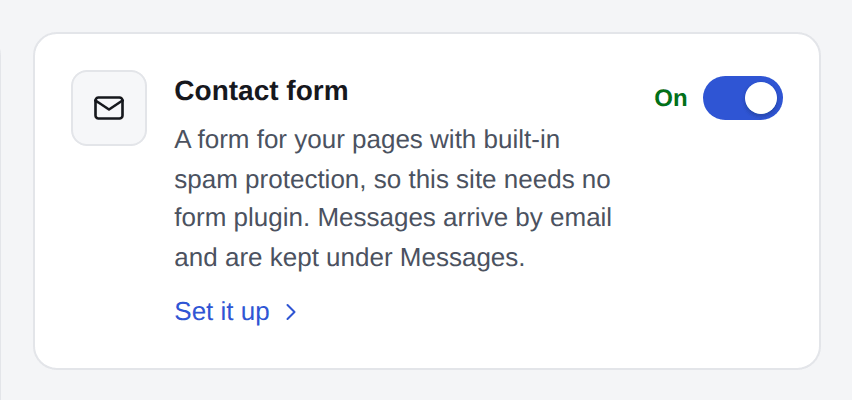
Tools: the contact form, switched on. Check its settings
Press Set it up, or open EtchwpKits → Messages and its Settings tab. Check the settings described below. They save as you go, and the top bar says All changes saved.
![EtchwpKits, Messages, the Settings tab, with the contact form On. Add the form to a page: the shortcode [etchwpkits_contact_form] with Copy, and Running more than one form? Notifications: Send notifications to hello@northwind.example, sales@northwind.example, with Send test email; Email subject prefix, [Northwind Solar]. Auto-reply, On, with its default Subject and Message.](/docs/plugin/128-messages-settings.png)
You have two options:
- The shortcode. Add
[etchwpkits_contact_form]anywhere shortcodes work: a Shortcode block in the block editor, or a shortcode or text element in your builder. - The Etch component. Insert the EtchwpKits contact form component from the library in the panel, and style it like any other component.
While the form is turned off, visitors see nothing where the shortcode is, and administrators see a short note that the contact form is turned off, so you know where to look.
The shortcode works as is. Add attributes to adjust it, for example [etchwpkits_contact_form title="Get a quote" button="Send request"].
| Attribute | What it does | Default |
|---|---|---|
title | The heading above the form. | Contact us |
button | The text on the send button. | Send message |
attachment | auto shows the file field when attachments are on in the settings; no hides it on this form. | auto |
categories | A comma separated list that limits or reorders the Topic menu. Choose from general, technical, billing, feature, bug and partnership. | All topics |
class | Extra CSS classes on the form, for your own styling. | None |
form | A short name for this form, such as sales. It shows in the email subject and under Messages. Lowercase letters, numbers, dashes and underscores, up to 40 characters. | None |
to | A comma separated list of addresses that receive this form's messages instead of the ones in the settings. | The settings |
Send notifications to takes one or more email addresses, separated by commas. Leave it empty to use the site's admin email. Save, then click Send test email to check that notifications actually reach those inboxes.
Email subject prefix is added to the start of every notification subject, [Contact] by default, which makes filtering your inbox easy.
Running a sales form and a support form? Give each a name with form, and optionally its own recipients with to:
[etchwpkits_contact_form form="sales" to="sales@example.com"]
[etchwpkits_contact_form form="support" to="help@example.com, tech@example.com"]
The form name appears in the email subject and in a Form column under Messages, where you can also filter by form. A form without to uses the addresses from the settings.
Switch on Auto-reply ("Email the visitor a confirmation after they send a message.") to thank visitors right away. You can write your own Subject and Message in plain text, with two placeholders:
{name}becomes the visitor's name,{site}becomes your site name.
Leave a field empty to use the default:
Subject: Thanks for contacting {site}

Hi {name},

Thanks for your message. We have received it and will get back to you soon.

{site}
When the visitor replies to the auto-reply, the reply goes to your first notification address.
Switch on Attachments ("Let visitors attach a file (JPG, PNG, or PDF).") to add an optional file field. Set the Maximum size in MB (5 by default, up to 20).
Attachments are sent with the notification email. By default they are deleted from the server once sent; switch on Keep attachments on the server to keep a copy you can download from the message under Messages. If the email fails to send, the file is kept either way, so nothing is lost.
Spam protection is built in and always on, with no CAPTCHA to annoy real visitors and nothing to set up:
- A honeypot: a hidden field that people never see but bots fill in.
- A timing check: forms sent faster than a person could type are rejected.
- A rate limit: each network address can send a limited number of messages per hour. Set the number under Rate limit (5 by default, up to 100).
Under the same Spam and storage card, Keep submissions sets how long messages stay: until you delete them, or 30, 90, 180 or 365 days. Older ones, and their attachments, are deleted once a day.
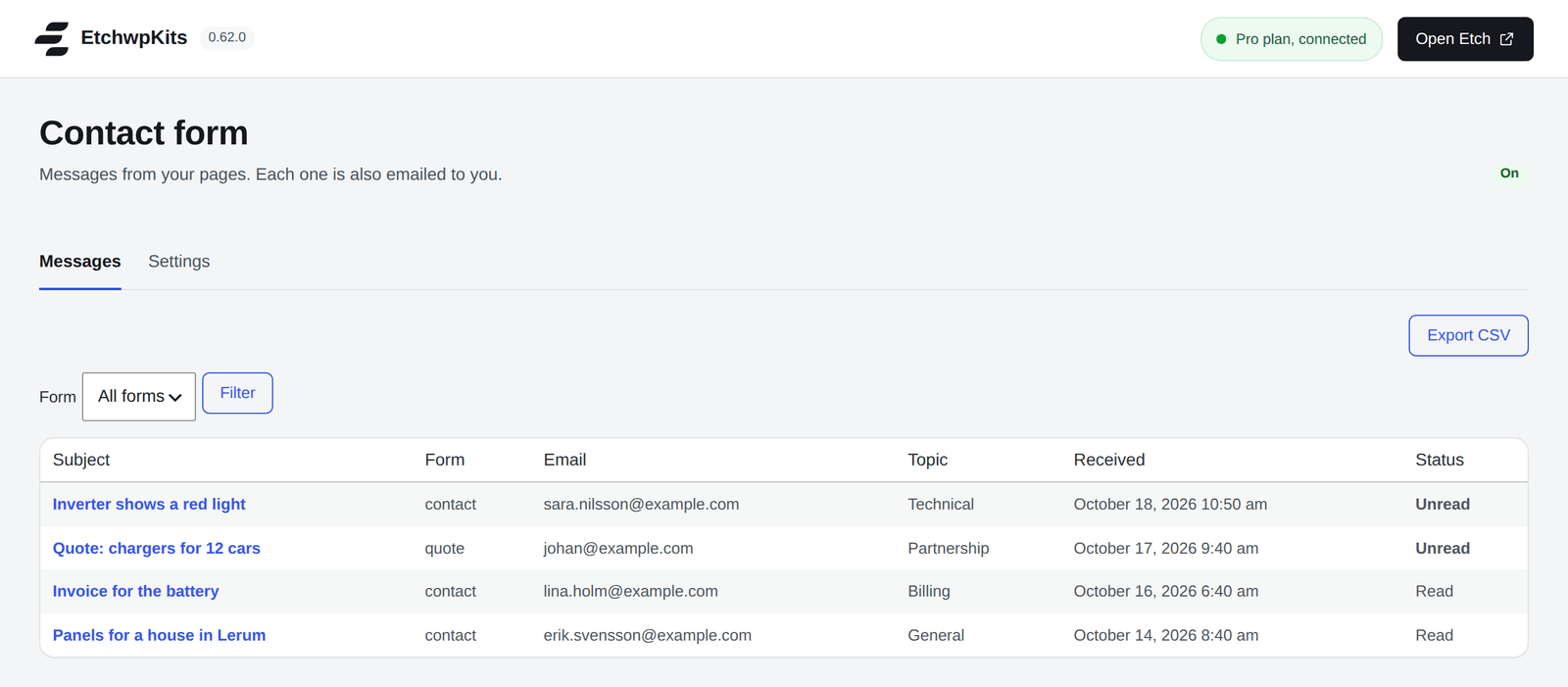
Every message is saved under EtchwpKits → Messages, even when the email could not be sent. The list shows the subject, form, email, topic, when it was received and whether it is read or unread. Open a message to read it, download its attachment, mark it read or unread, or delete it. Use the Form menu and Filter to see one form's messages.
Export CSV at the top downloads every message as a spreadsheet, with the date, form, name, email, category, message and read status.
Want new messages in Slack, a CRM or an automation tool? Paste an https address under Webhook. After each submission, the plugin sends its details there as JSON:
{
  "form": "sales",
  "name": "Sam Lee",
  "email": "sam@example.com",
  "subject": "New website",
  "category": "general",
  "message": "Hi, we would love a quote for...",
  "submitted_at": "2026-09-30T10:13:06+00:00",
  "site": "https://acme-studio.com"
}
The webhook is sent in the background, so a slow service never delays the visitor. Leave the field empty to turn it off.
WordPress sends email through your web server by default, and many hosts block that or land it in spam. The plugin keeps an eye on it: if the last contact form email failed, Messages shows The last contact form email failed to send., with a link to Find an SMTP plugin.
The reliable fix takes ten minutes:
- Install an SMTP plugin from the WordPress plugin directory.
- Connect it to a real mail service: your email provider (for example Google Workspace or Microsoft 365) or a transactional email service.
- Back under Messages → Settings, click Send test email and check that it arrives.