Brand kit: the brand beside the page you share
Give your client the brand in one place, right beside the page you are building. The Brand kit is a brand guide made from the site itself: the logo, the colors and type sizes from Automatic.css, the fonts from Fonts, and your own photos, posts and covers. Your client sees it in a Brand kit tab on the link you shared with Share with client, and it changes with the site.
The screenshots on this page follow one brand: Acme Studio builds the new site for Northwind Solar and makes its brand kit on that site.
- You build the kit under EtchwpKits → Brand kit in wp-admin: pick the sections, add the logos and photos, and name the colors.
- The site fills in the rest. The colors and type sizes come from Automatic.css, the typefaces from the fonts you chose in Fonts, and the business card from the logo, the colors and the fonts.
- You show it on a shared link with one switch in Share with client, in the Etch builder.
- Your client opens the Brand kit tab beside the page. When you change a color in Automatic.css, the kit your client sees changes too.
Each site has one brand kit. Nothing on your site changes for visitors: the kit only shows on the links you shared.
The Brand kit is off until you switch it on, on each site where you want it. It works only while Share with client is on too.
Turn on Share with client and Brand kit
Go to EtchwpKits → Tools. Turn on Share with client, then Brand kit.
Open the brand kit
Click Open Brand kit on its card, or go to EtchwpKits → Brand kit in the wp-admin menu. The site needs to be connected to EtchwpKits to share the kit (see Getting started).
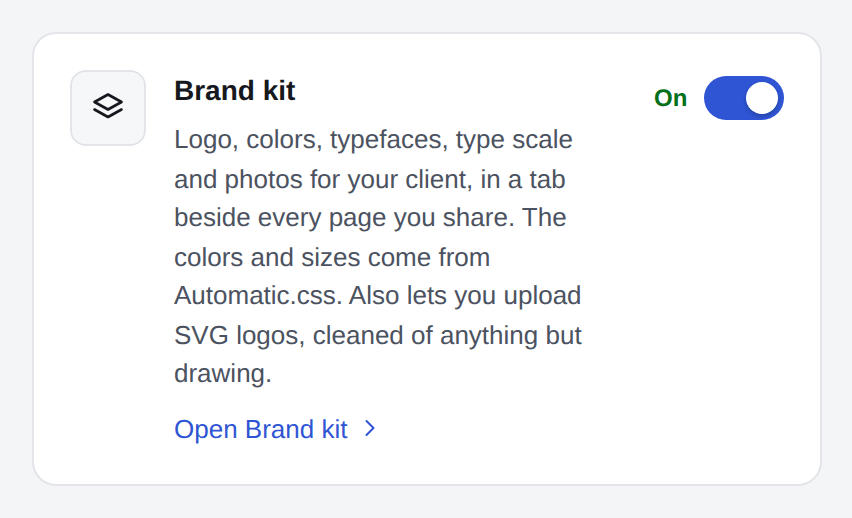
With Brand kit on, administrators can also upload SVG logos to the Media Library. Each SVG is cleaned as it is uploaded, so scripts, event handlers and links to other sites never reach the site.
The kit is your client's: the brand of the client the site is for. The page says so under its title, with your client's name, and opens with the Client brand card: what every section uses. Under it, the sections are listed on the left, and the one you pick opens on the right. Changes save on their own as you make them. The status at the top right says when the kit was last shared.
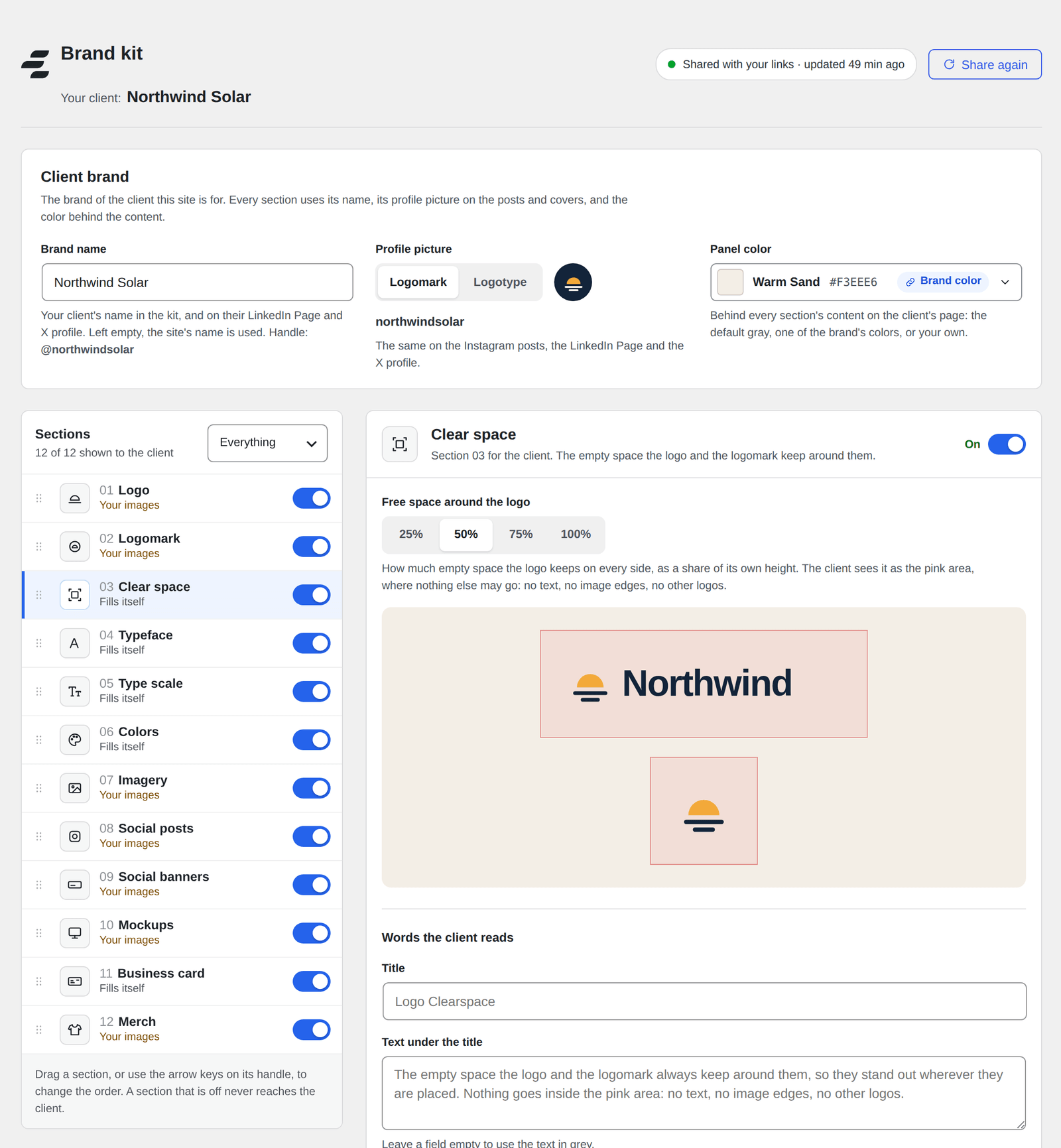
- Brand name: your client's name in the kit, and on their LinkedIn Page and X profile. Left empty, the site's name is used. The handle on the posts and covers, such as
@northwindsolar, is made from it. - Profile picture: Logomark or Logotype. It is the same on the Instagram posts, the LinkedIn Page and the X profile.
- Panel color: the color behind every section's content on your client's page. Keep the default light gray, pick one of the brand's colors, or a color of your own (see Brand colors that stay linked).
A kit has up to twelve sections. Sections marked Fills itself are made from what the site already has. The ones marked Your images show the images you choose from the Media Library, and stay hidden until they have one.
| Section | Made from | What your client sees |
|---|---|---|
| Logo | Your images | Your logo on up to four backgrounds you choose. |
| Logomark | Your images | The symbol without the name, on up to four backgrounds. |
| Clear space | Fills itself | The empty space the logo and the logomark keep around them. |
| Typeface | Fills itself | The heading and body fonts, from Fonts on this site. |
| Type scale | Fills itself | Every text size, read from Automatic.css. |
| Colors | Fills itself | The brand colors, read from Automatic.css, with the names you give them. |
| Imagery | Your images | Photos that show how the brand looks and feels. |
| Social posts | Your images | Three posts, shown as in the Instagram feed. |
| Social banners | Your images | Covers, shown on the LinkedIn Page and the X profile. |
| Mockups | Your images | The brand where people meet it: signs, screens, vans. |
| Business card | Fills itself | A business card made from the logo, the colors and the fonts. |
| Merch | Your images | The brand on things people keep. |
- Show or hide a section with its switch. A section that is off never reaches your client, and the others are numbered again for them.
- Start from a preset in the menu above the list: Everything, Logo and colors or Type only. Change any switch after that and it reads Custom.
- Change the order by dragging a section, or with the arrow keys on its handle.
- Change the words under Words the client reads at the bottom of each section: its title and the text under it. Leave a field empty to keep the text shown in grey.
Under Versions, upload a Dark logo for light backgrounds and a Light logo for dark ones, as SVG or PNG. Logomark works the same way, with a Dark mark and a Light mark: the symbol without the name.
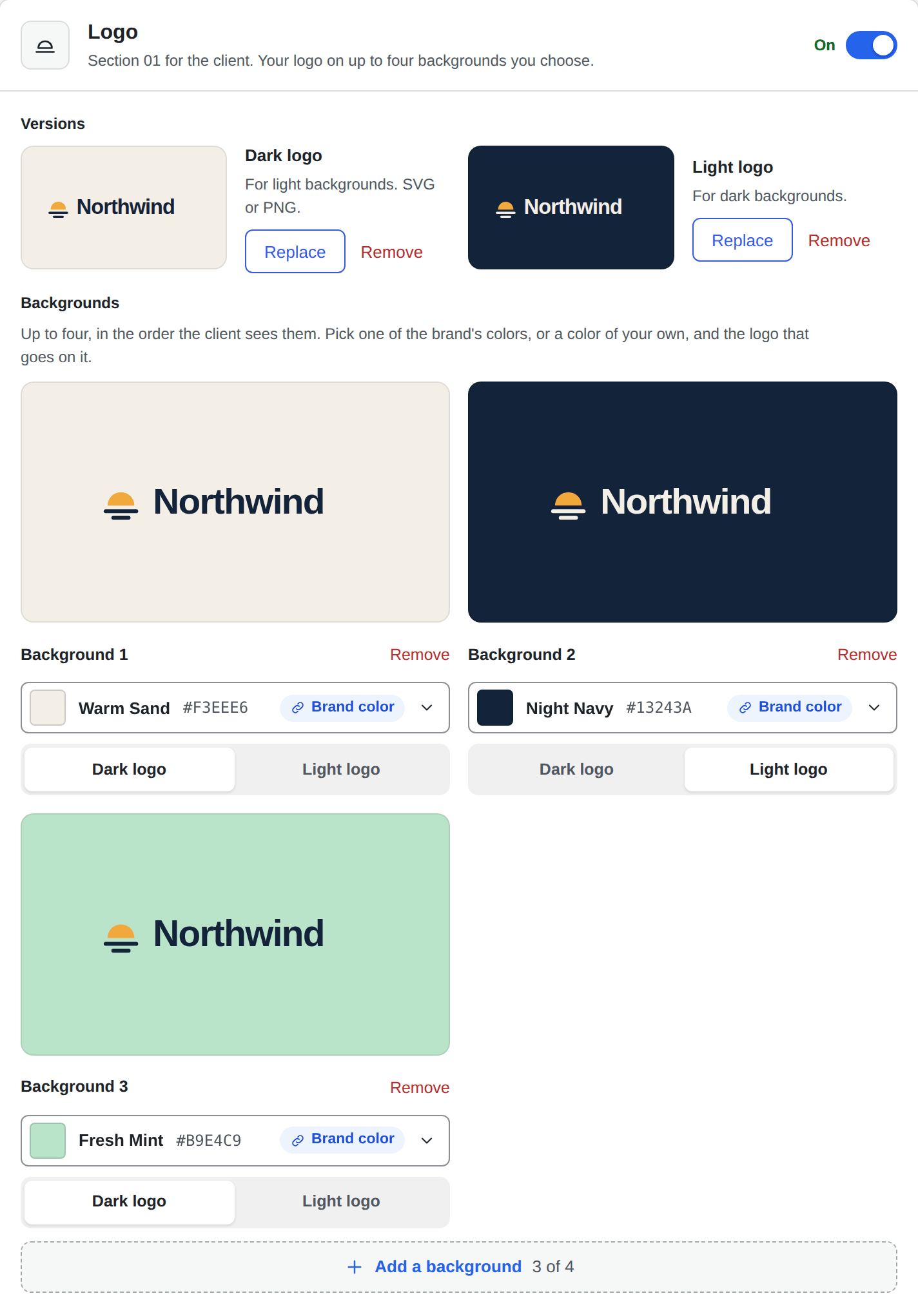
Under Backgrounds, add up to four, in the order your client sees them. For each, pick a color and the version of the logo that goes on it. Your client sees only the backgrounds you added. Remove takes one away, and Add a background brings one back.
The panel color and every logo background open the same list: The brand's colors, then A color of your own.
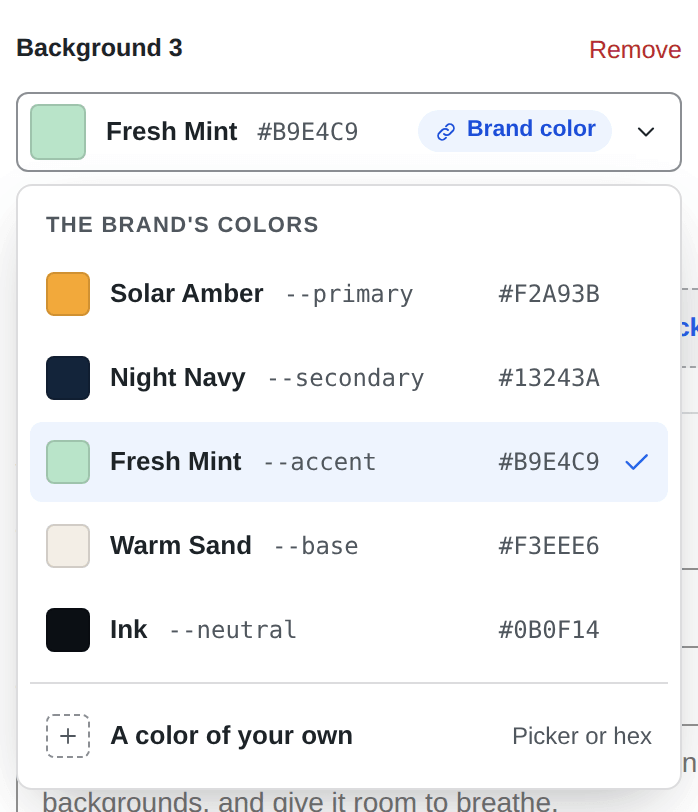
- A brand color stays linked. It is marked Brand color, and the kit keeps its token (such as
--accent), not the color itself. When the color changes in Automatic.css or under Colors, the background changes with it. - A color of your own is a fixed color: pick it, or type its hex code. It is marked Custom.
The brand's colors are the Automatic.css colors with a value, and every color you added under Colors with a token. Use the arrow keys to move through the list, Enter to pick, and Escape to close it.
Five sections need no images. They read the site each time the kit is shared, so they are never out of date.
Colors
With Automatic.css active, Colors lists its colors (primary, secondary, accent, base and neutral) with their values, marked From Automatic.css. Give each one the name your client should remember it by, and hide the ones they do not need.
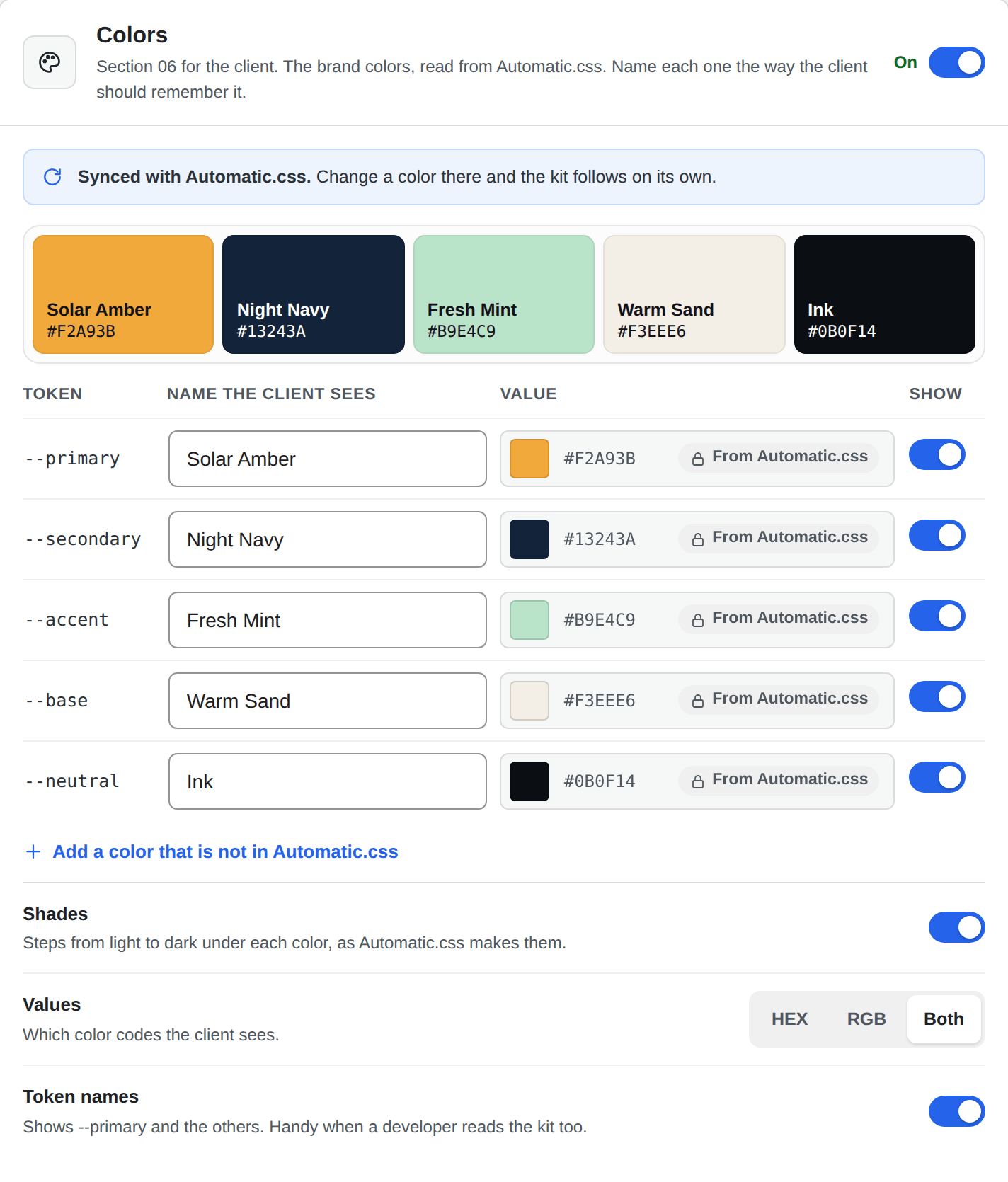
- Add a color that is not in Automatic.css for any other brand color. Give it a token if you want to pick it as a brand color elsewhere in the kit.
- Shades shows the steps from light to dark under each color, as Automatic.css makes them. Values picks HEX, RGB or both, and Token names shows
--primaryand the others, handy when a developer reads the kit too. - Without Automatic.css, type each color in. Install it later and the colors follow the site.
Typeface and Type scale
The typefaces are the fonts the site uses for headings and body text: the heading and body roles you chose in the Font Manager, else the font families in Automatic.css. A font hosted on the site is shown to your client in its own face. One that is only named shows its name.
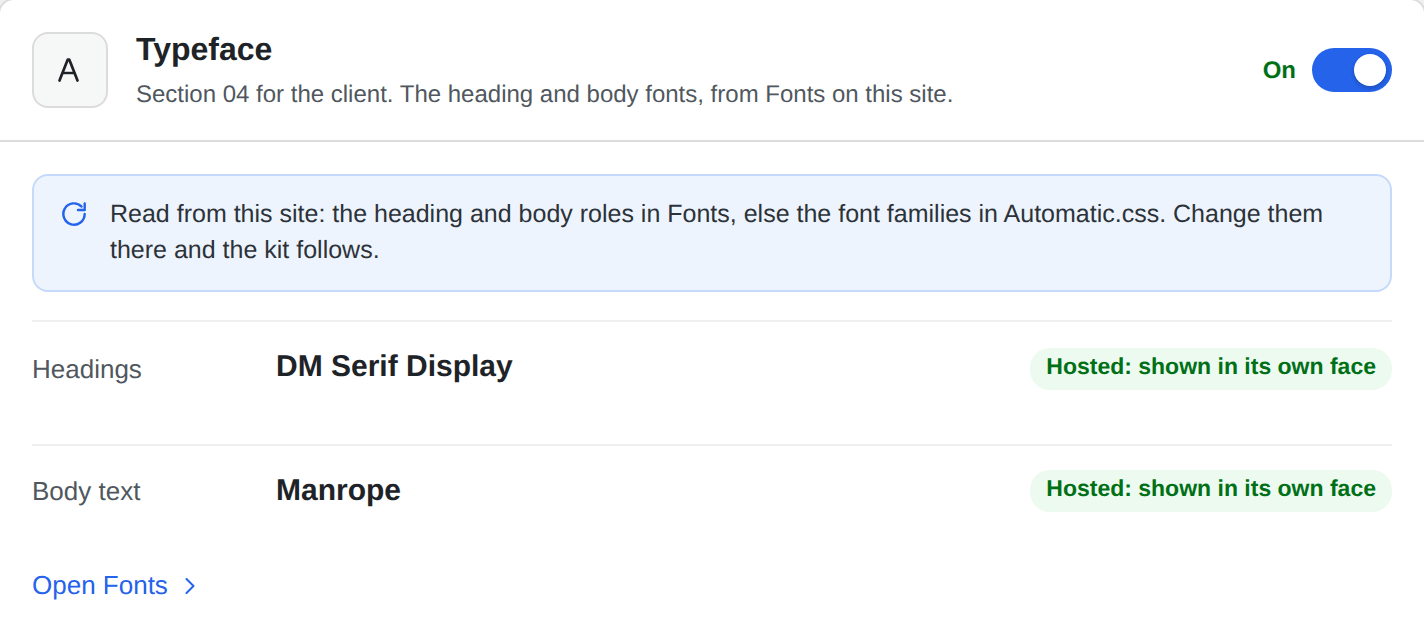
Type scale lists every text size from Automatic.css, with its size on a desktop and on a phone. It needs Automatic.css.
Clear space and Business card
Clear space shows how much empty space the logo and the logomark keep on every side: 25%, 50%, 75% or 100% of the logo's height. Your client sees it as a pink area where nothing else may go. Business card is made from the logo, the colors and the fonts: add a name to show it, then the role, phone, email, website and address you want on it.
Imagery, Mockups and Merch show photos from the Media Library. Choose the images and their order, pick a layout (Mosaic, Grid or One large), and decide whether captions show and whether your client can click a photo to see it full size. An empty caption uses the one in the Media Library.
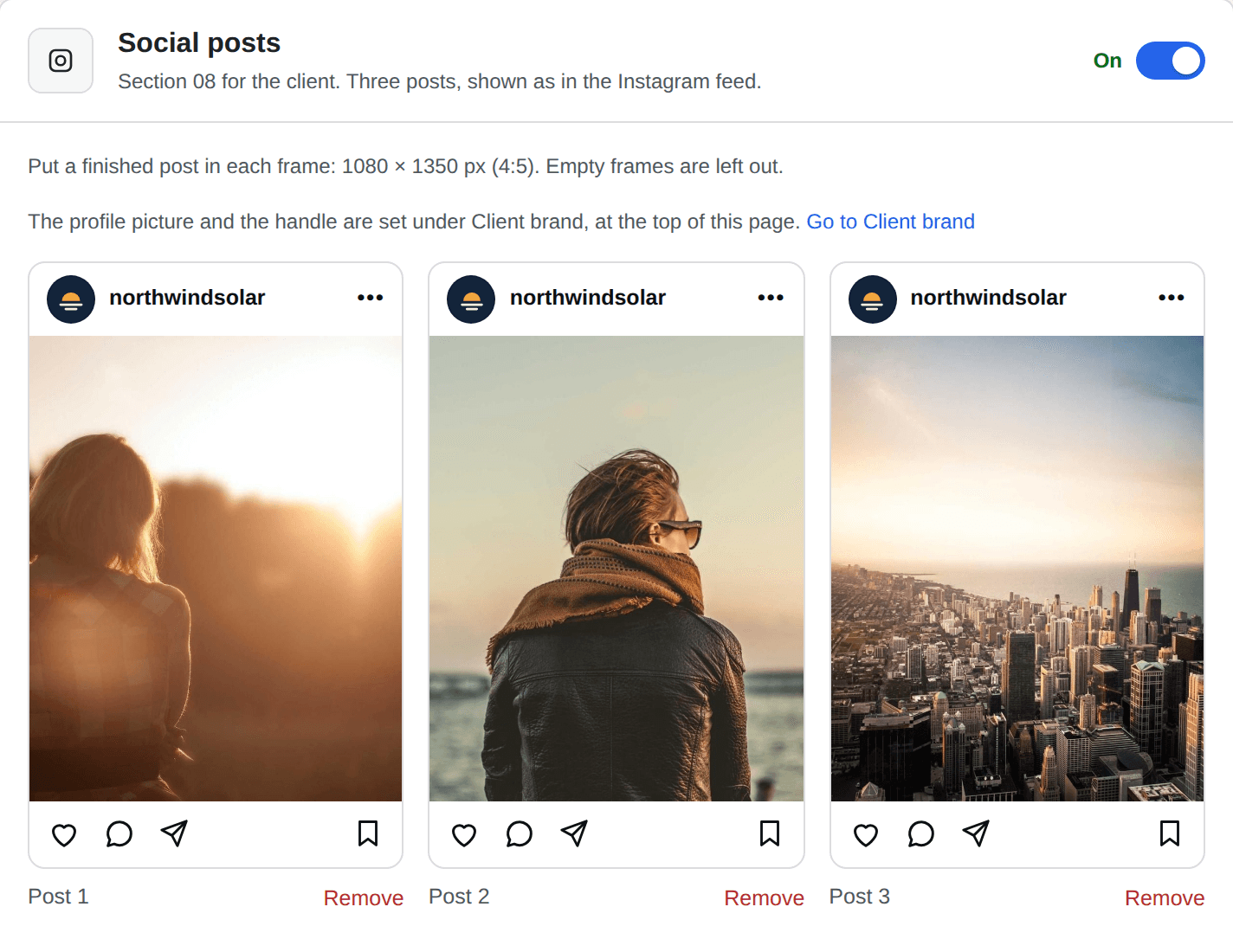
Social posts are three ready-made Instagram posts. Put a finished image in each frame, 1080 × 1350 pixels (4:5). An empty frame is left out. The profile picture and the handle come from the Client brand card.
Social banners show a LinkedIn Page with the X profile on top of it. Put a finished cover in each frame, or leave one empty to show only the other.
In the Etch builder, open Share with client in the EtchwpKits panel. Under the link, turn on Show the brand kit. Your client sees a Brand kit tab beside the page on the same link. The switch is for this link only, so you choose for each page you share.

Until the kit has been shared once, the switch says to build the brand kit in wp-admin and save it. When the newest changes are not shared yet, it says so, and Share again on the Brand kit page sends them. Either way, come back to the builder when you are done: the switch is ready as soon as you return, without reloading the page, and Check again beside the note asks your site once more. That needs plugin 0.29.1 or later; on 0.29.0, reload the builder page.
To see the kit as your client will, press Preview as client at the top of the Brand kit page, beside the status and Share again.
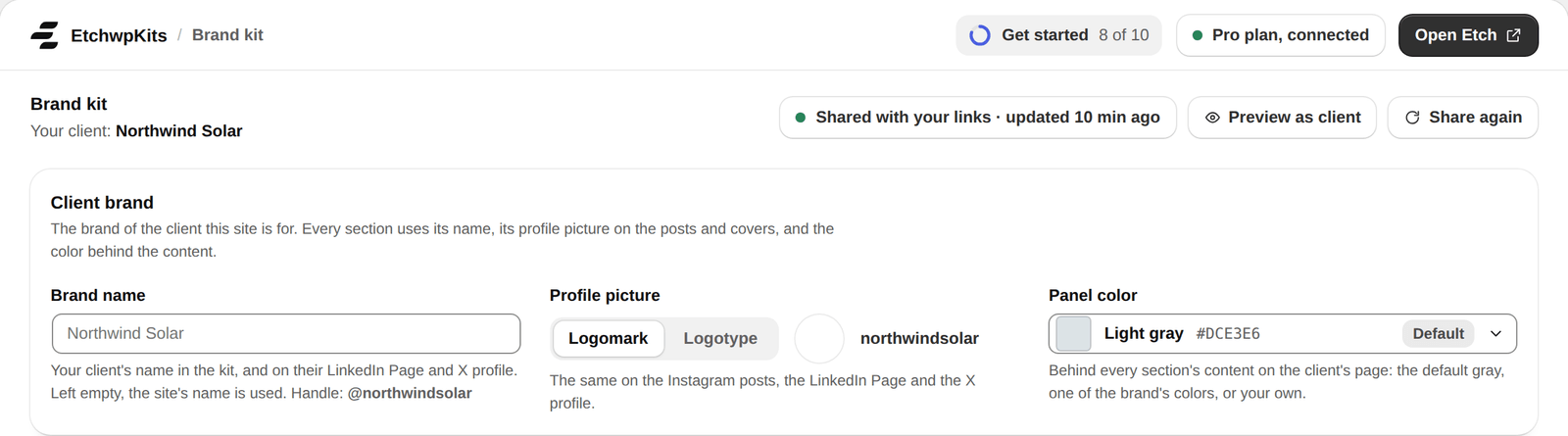
- It opens the brand kit in a new tab exactly as your client sees it on a shared link, with your latest changes. Changes not saved yet are saved first, and the kit is shared on the way when it changed.
- The tab opens on a private link that works for 30 minutes. Press the button again for a new one.
- While it opens, the status says Opening the preview…, then Preview opened in a new tab. When it cannot open, the status says why, and the empty tab closes again.
- The button shows while the site is connected to EtchwpKits, and needs an active plan.
On the shared link, your client switches between Page and Brand kit at the top right. The kit's sections are numbered in your order, with tabs under the header and buttons to the previous and next section. Each section has its title and words on the left and its content on the panel, in the panel color you chose.
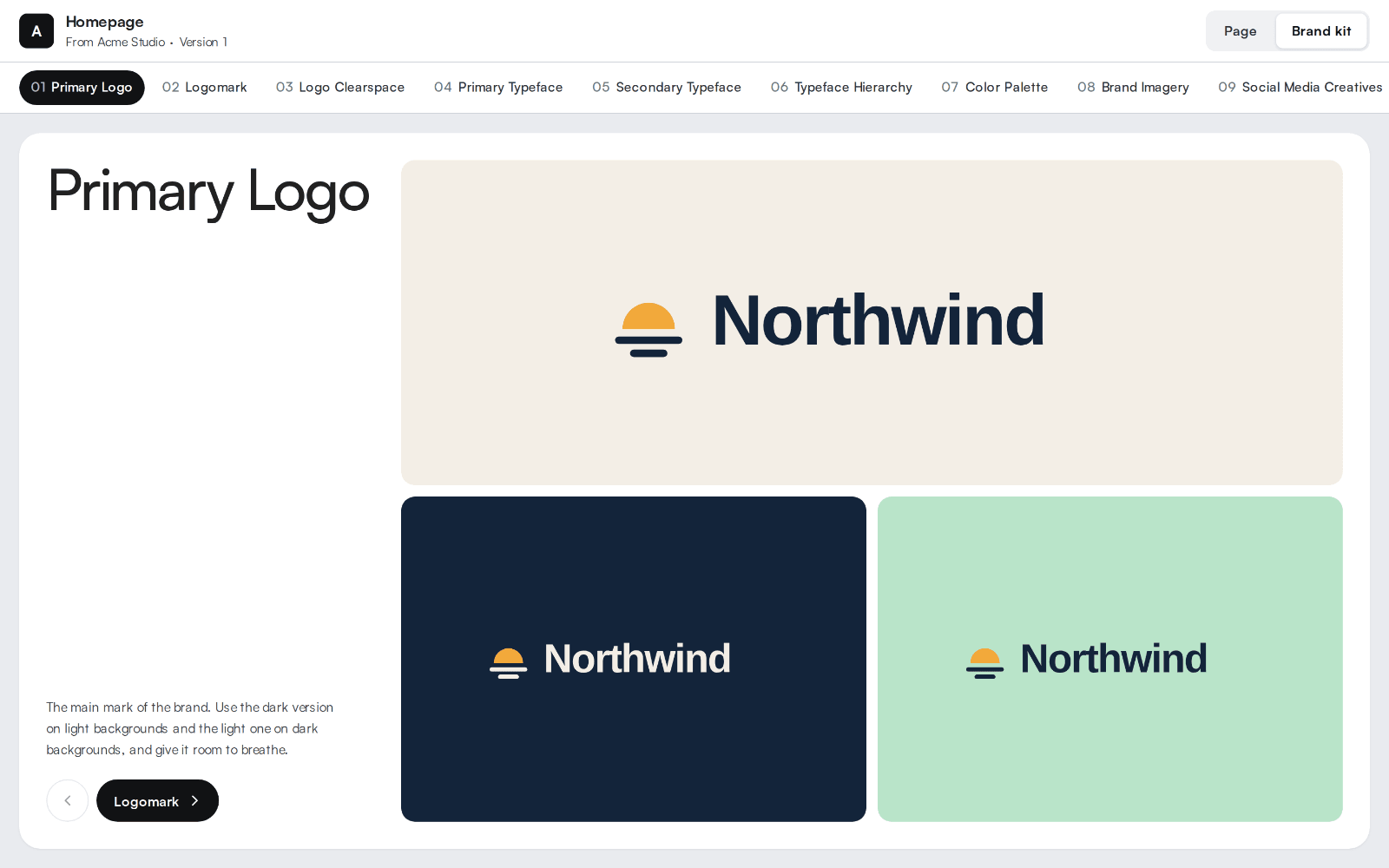
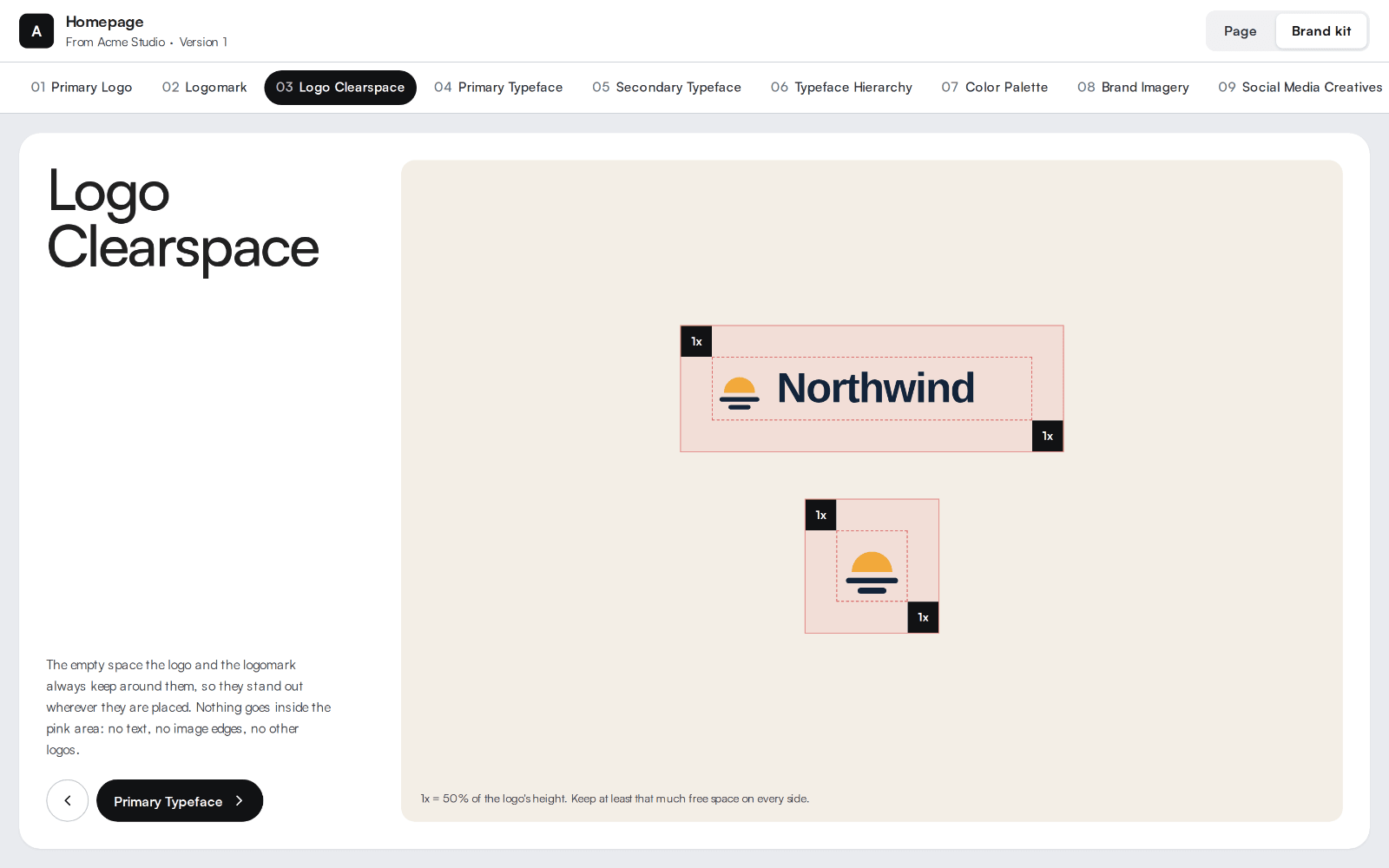
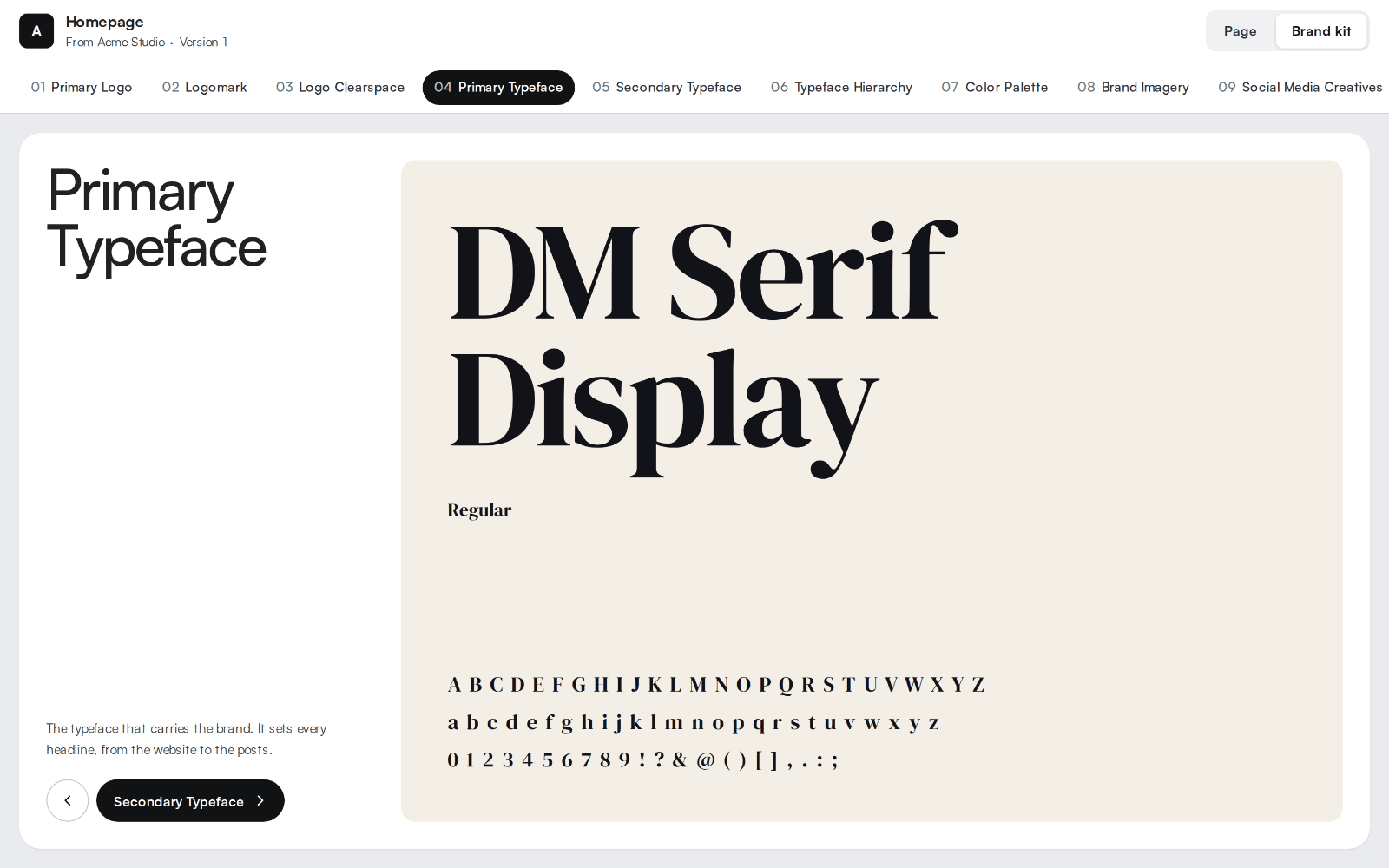
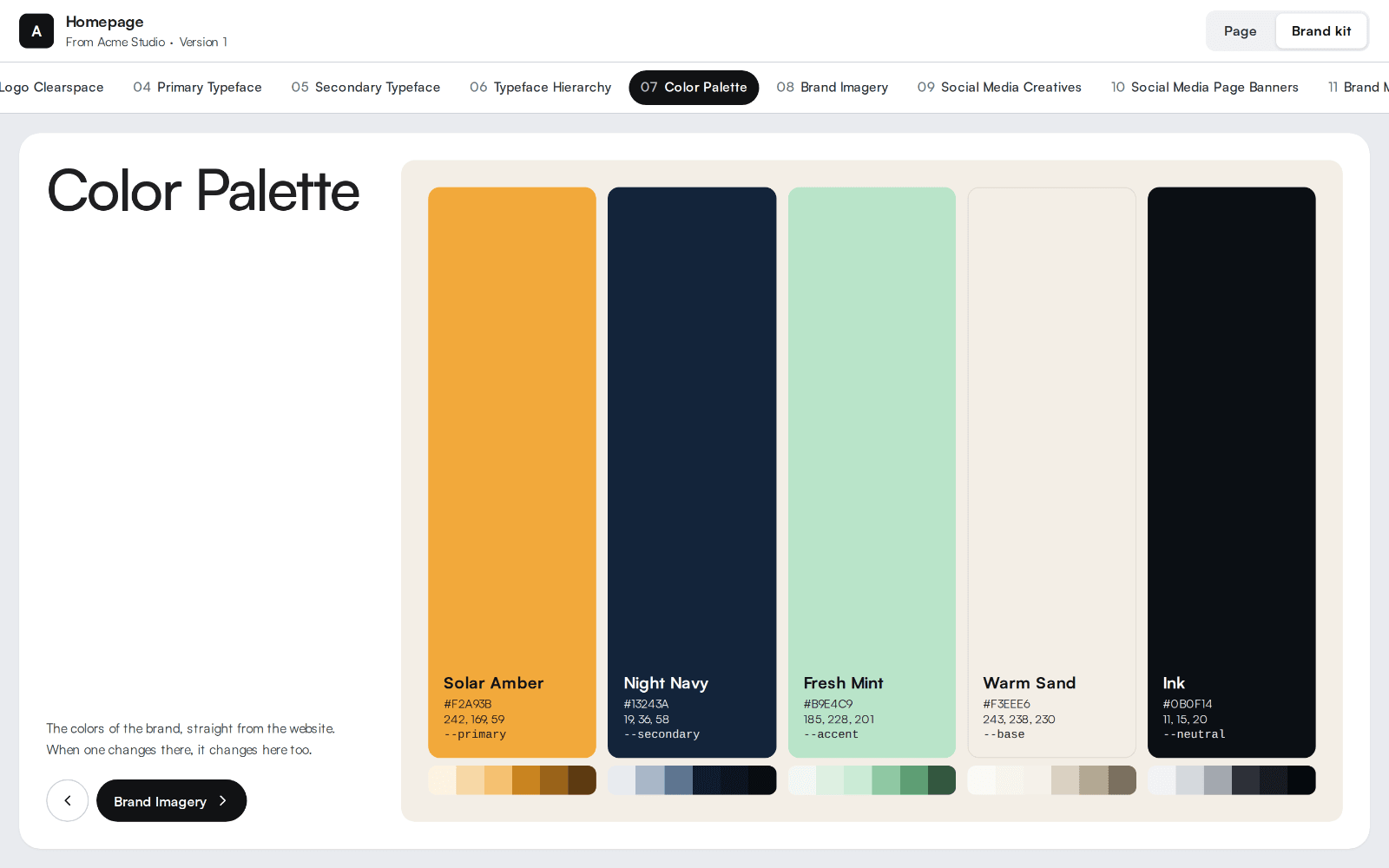
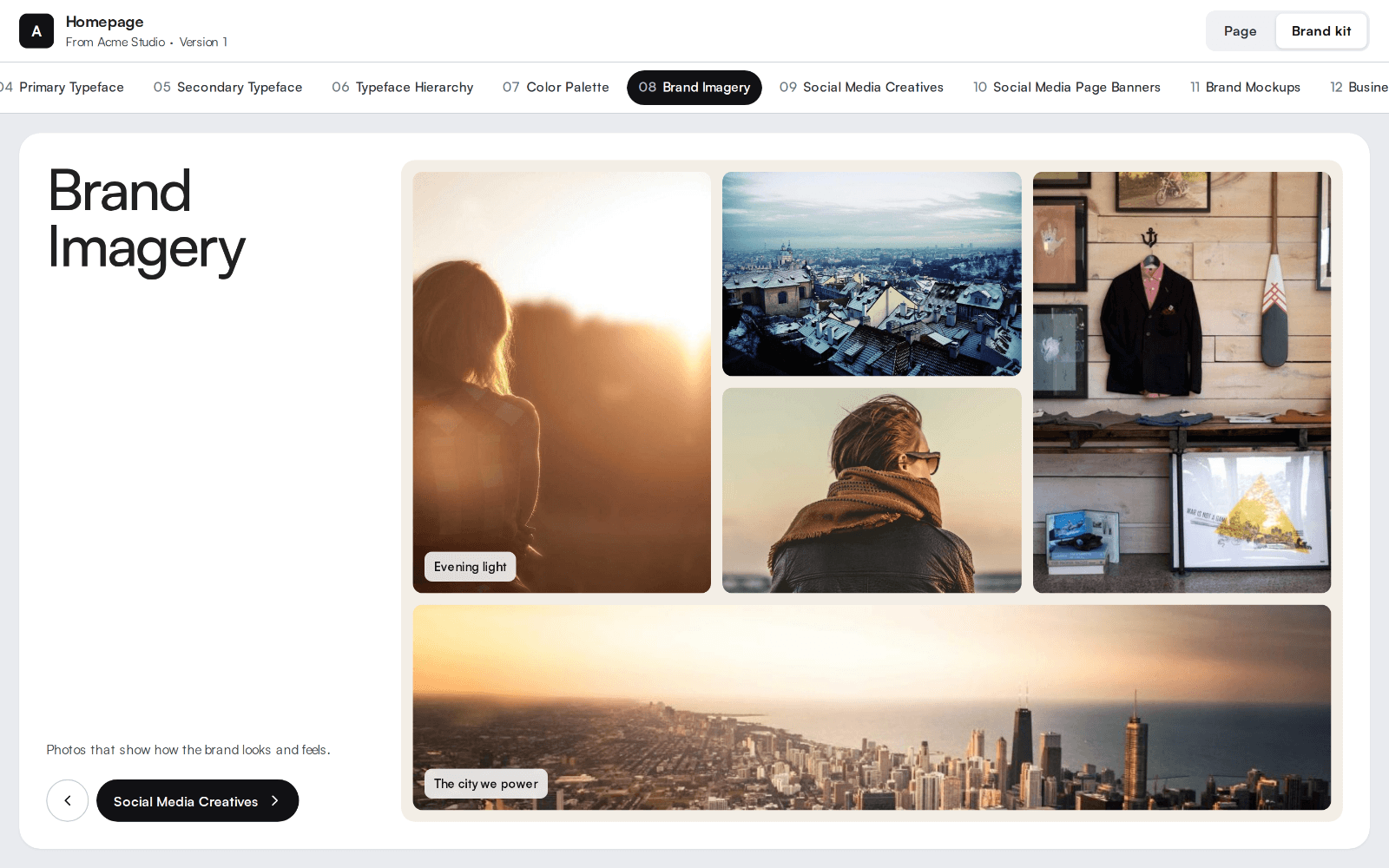
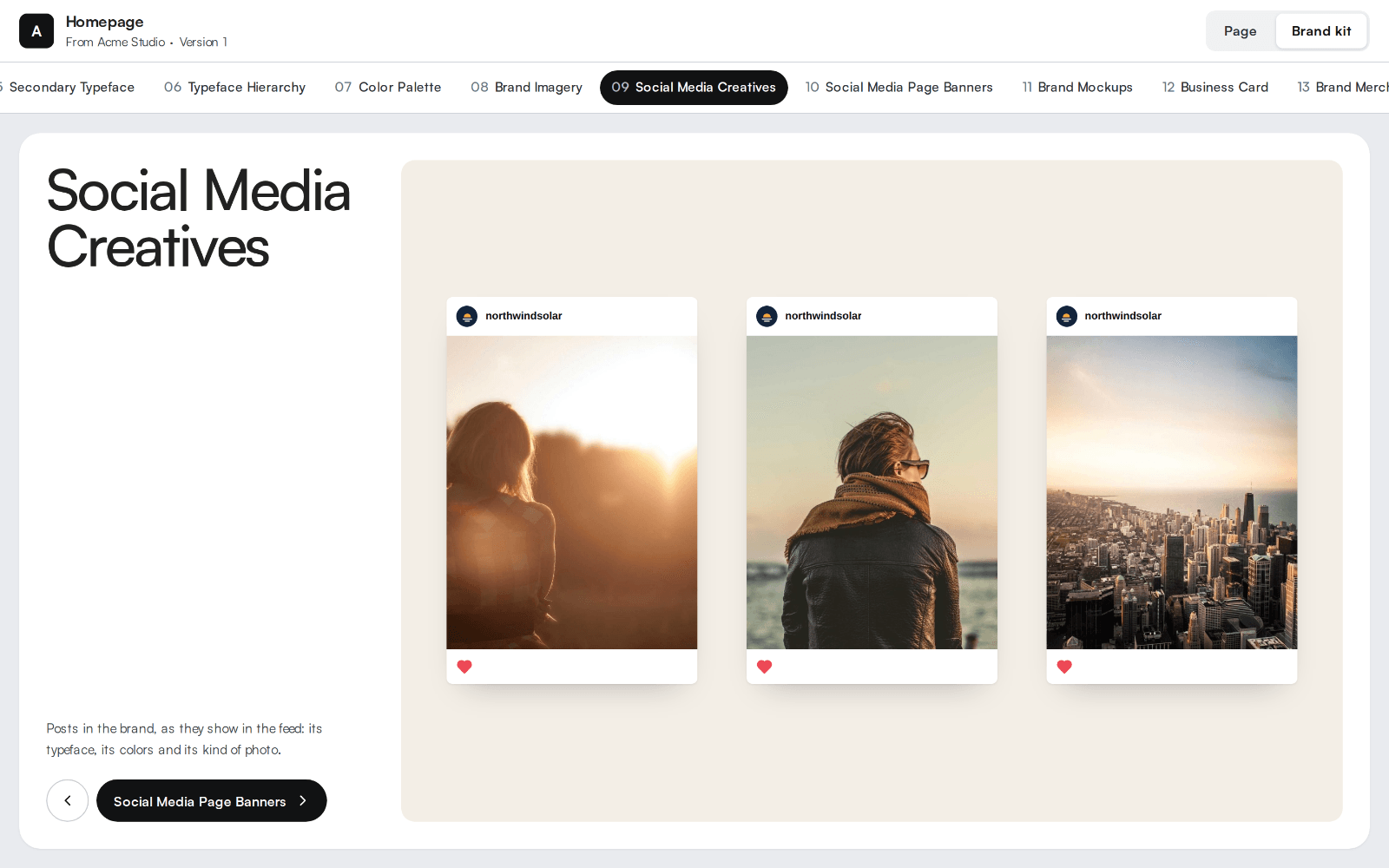
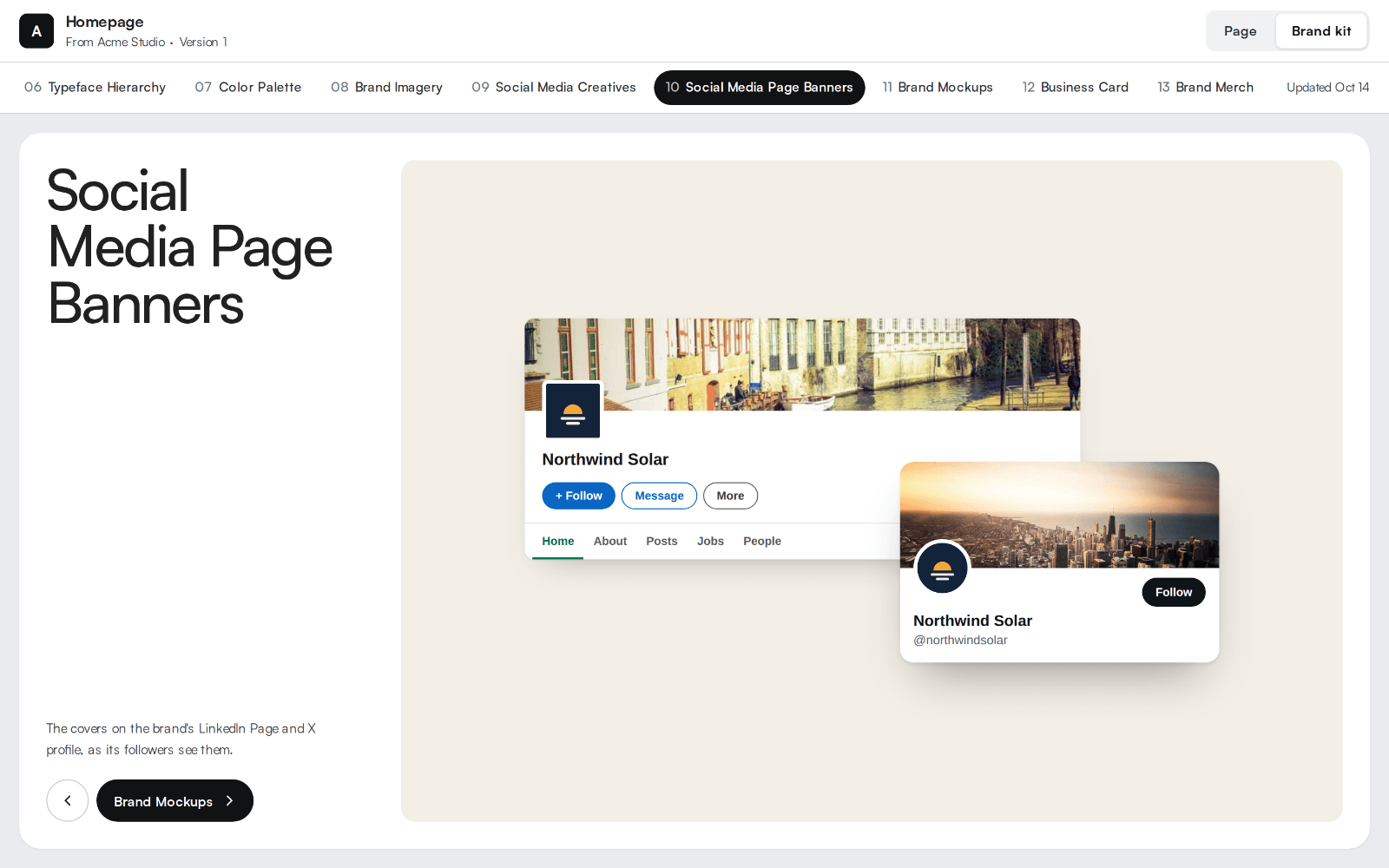
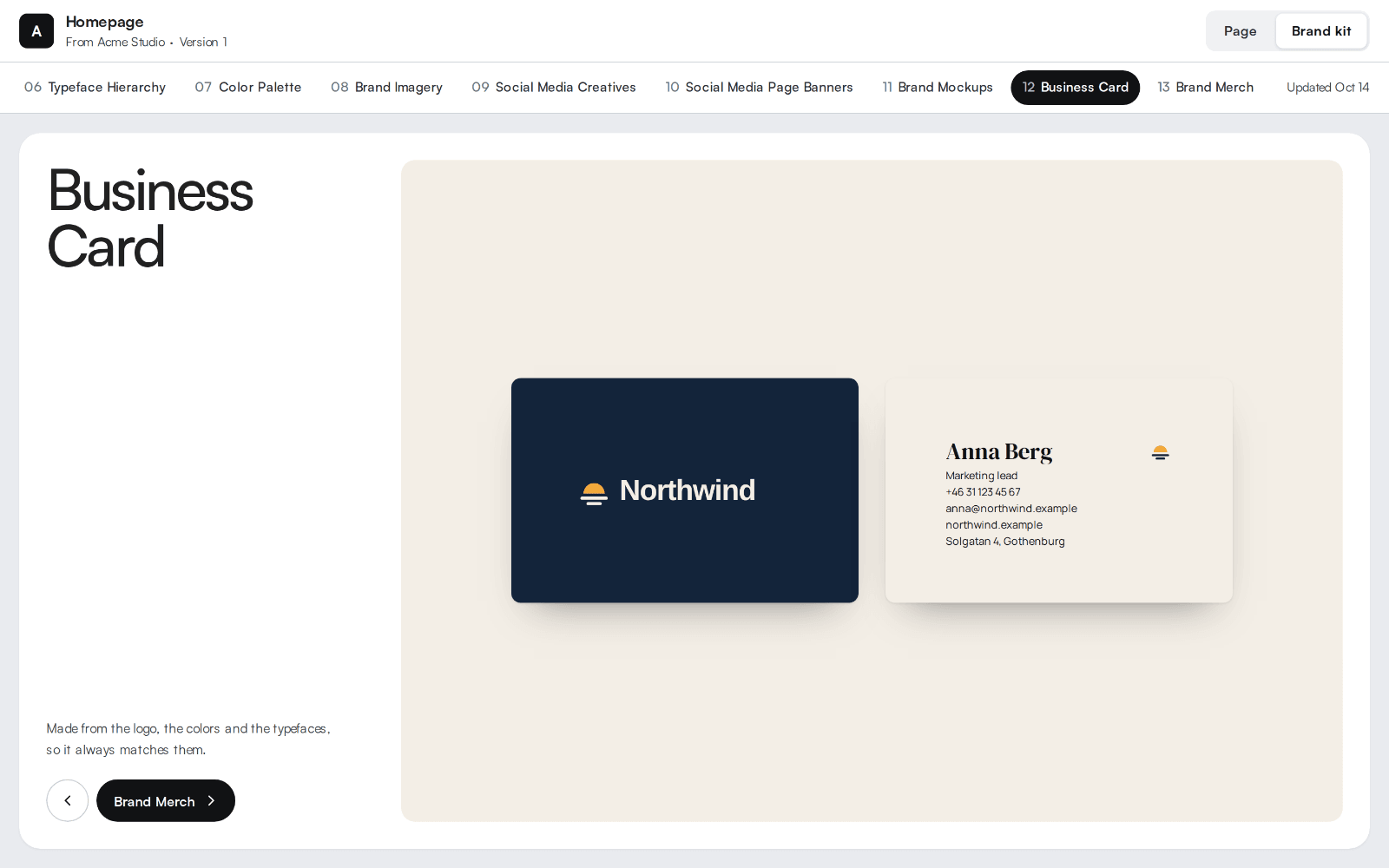
It works the same on a phone, where the sections stack and the tabs scroll sideways.
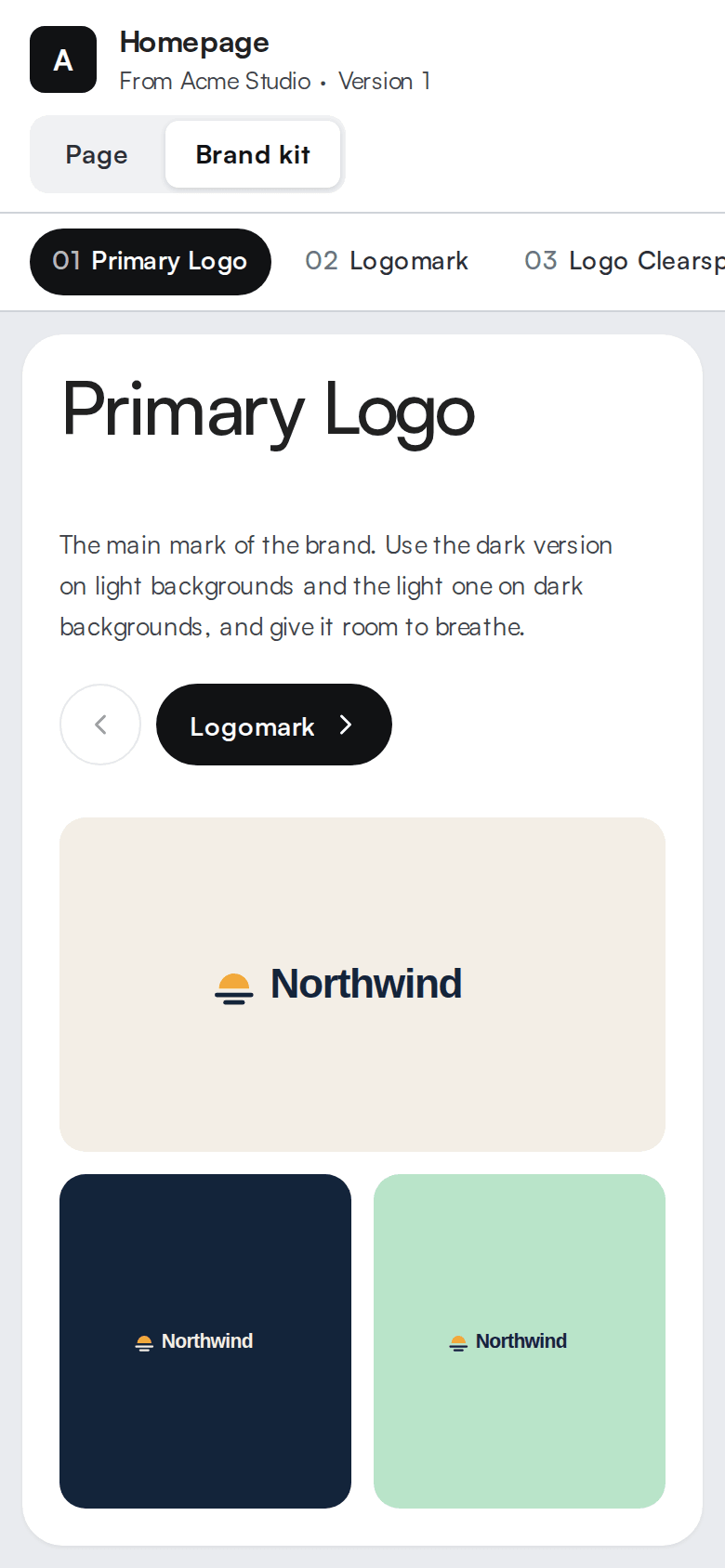
The kit is kept on EtchwpKits, where your shared links read it. There is nothing to press:
- Saving on the Brand kit page shares the kit at once. The status says Saved and shared.
- When a color or a text size changes in Automatic.css, a font role changes in Fonts, or an image the kit uses changes in the Media Library, the kit is shared again on its own shortly after, without opening the Brand kit page. This works when a page cache serves the site too.
- If sharing fails, for example while the site cannot reach EtchwpKits, the status says why and the site tries again later on its own. Share again tries right away.
- The fonts go with the kit, so your client sees them without loading anything from your site. A kit can be up to 3 MB. If it grows past that, the Brand kit page says so and asks for fewer font weights or images.
- Turning Brand kit off under Tools takes the kit off EtchwpKits, and your links stop showing the tab. If EtchwpKits cannot be reached right then, the tab stays until the removal goes through: the site tries again on its own, and the Brand kit card under Tools says so meanwhile. What you set up stays on the site: turn it on again and click Share again on the Brand kit page to bring it back.
- Disconnecting the site, or replacing its site token, takes its kit off the EtchwpKits account it was on. When that cannot go through right away, the Brand kit card under Tools says what is left to do.
- Like the rest of the plugin's tools, the Brand kit needs an active plan once plans start (see plans). Without one, the Brand kit page is locked and the links you shared are paused. Nothing is lost, and everything works again as soon as the plan is active.